Note
Access to this page requires authorization. You can try signing in or changing directories.
Access to this page requires authorization. You can try changing directories.
This page describes how to run notebooks in clean rooms. Notebooks are the interface that collaborators use to run data analysis in collaboration.
To learn how to add a notebook to a clean room, see Create clean rooms.
Requirements
To manage and run a notebook in a clean room, you must:
| Task | Requirement | Required privileges | Description |
|---|---|---|---|
| Managing a notebook | No unique requirements | For the notebook's uploader:
|
General management tasks for a notebook in the clean room. |
| Running a notebook | Every collaborator, except the uploader, must approve the notebook. A designated runner runs the notebook. | EXECUTE CLEAN ROOM TASK |
If the runner of the notebook did not upload it, they must approve the notebook before it can be run. This explicit approval can be automated through the default auto-approval rule. See Auto-approval rules. |
| Approving or rejecting a notebook | None | MODIFY CLEAN ROOM |
Allows you to approve or reject notebooks before they can be run. |
| Managing auto-approval rules | Auto-approvals can only be applied to notebooks authored by collaborators other than the runner. | Clean room owner or MANAGE privilege. |
Controls the automatic approval of notebooks. |
| Collaborator capacity | A clean room can include up to 10 collaborators. | None | This includes the creator and up to 9 other collaborators. |
The creator is automatically assigned as the owner of the clean room in their Databricks account. The collaborator organization's metastore admin is automatically assigned ownership of the clean room in their Databricks account. You can transfer ownership. See Manage object ownership.
Uploading a notebook and designating runners
When a collaborator adds a notebook to the clean room:
They are considered the uploader of that notebook in the clean room.
When adding a notebook, the uploader must designate which collaborator is the designated runner of the notebook. The designated runner is permitted to run the notebook.
There can only be one designated runner.
You can assign yourself as the designated runner of the notebook.
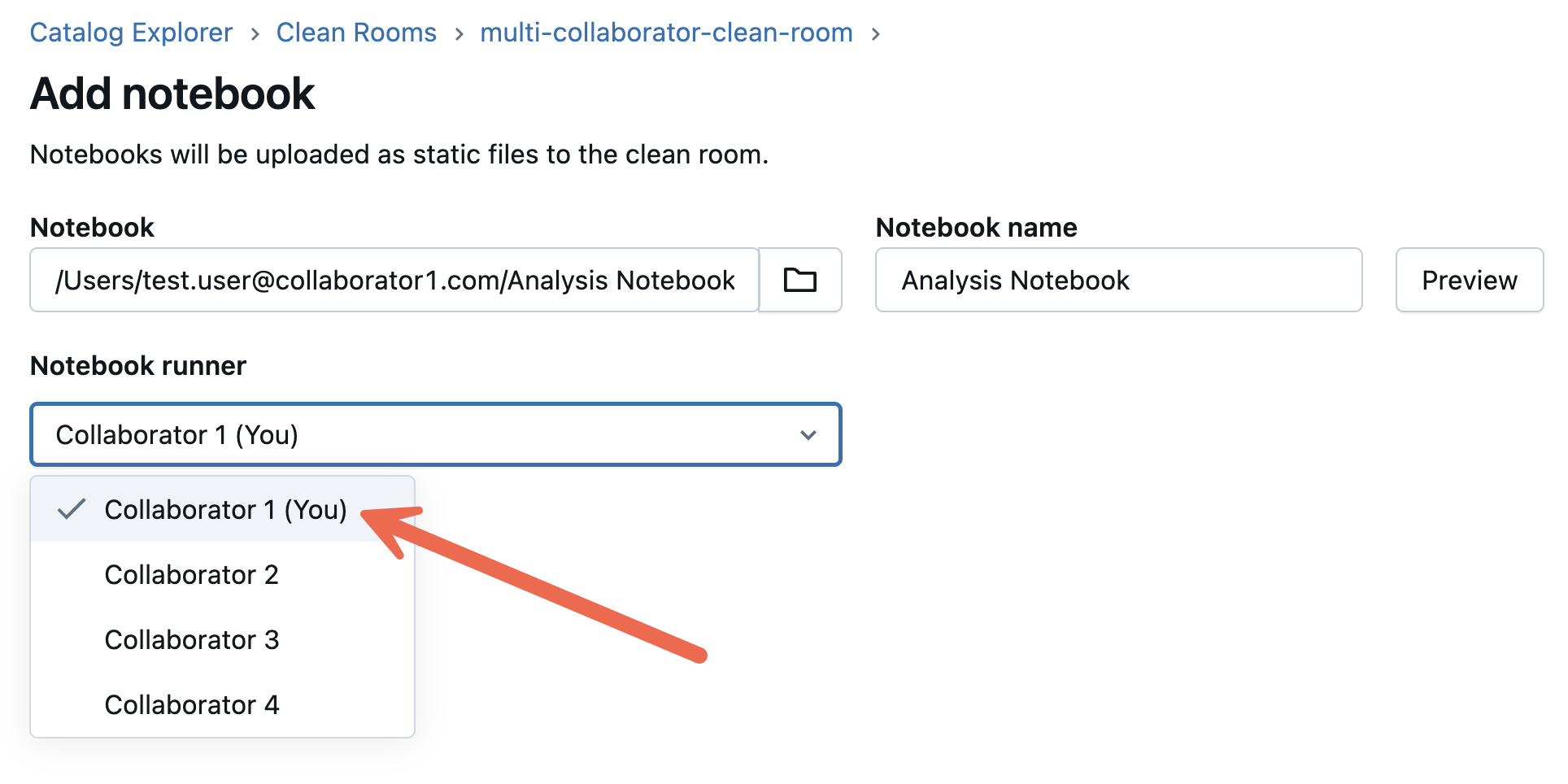
See Step 3. Add data assets and notebooks to the clean room
Approve a notebook in a clean room
Every notebook requires approval from all collaborators, except the uploader, before executing it.
To check the review status of a notebook:
In your Azure Databricks workspace, click
 Catalog.
Click the Clean Rooms > button.
Select the clean room from the list.
Select the notebook you want to run.
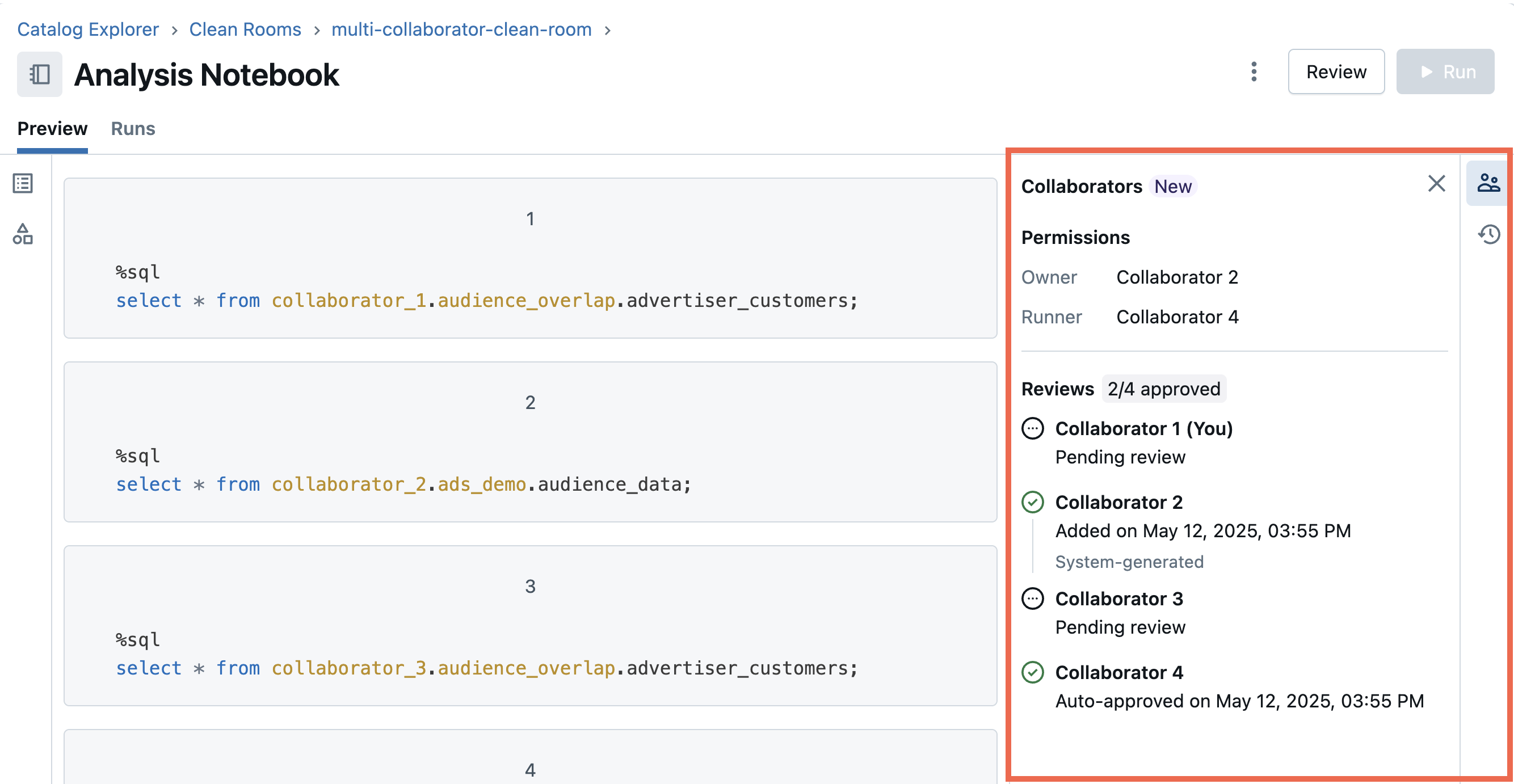
Click the People icon on the right to expand the collaborator section of the notebook details page.
The Reviews section provides a clear overview of which collaborators have approved, rejected, or have yet to review the notebook.
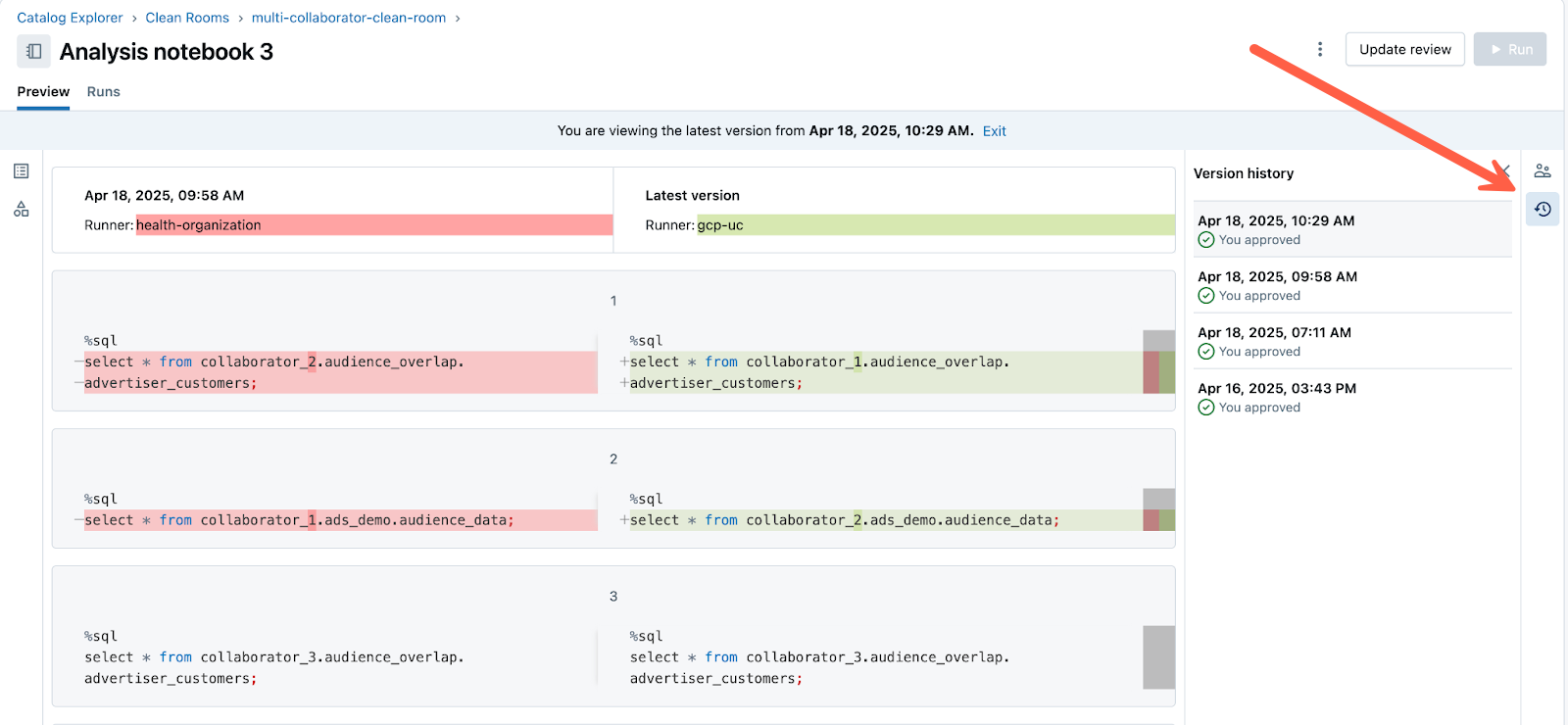
A difference view is available when a notebook has been changed from a previous version.
When running a notebook version, the following is true:
- You can only run the latest version of a notebook.
- You can only approve or reject the latest version of a notebook.
- Modifying a notebook by adding new content or changing the runner designation creates a new version, which resets the review state for all collaborators.
- A notebook can have a maximum of 10 versions. See Resource limits.
To access the difference view for a notebook:
Click the Clock icon on the right to expand the version history of the notebook details page.
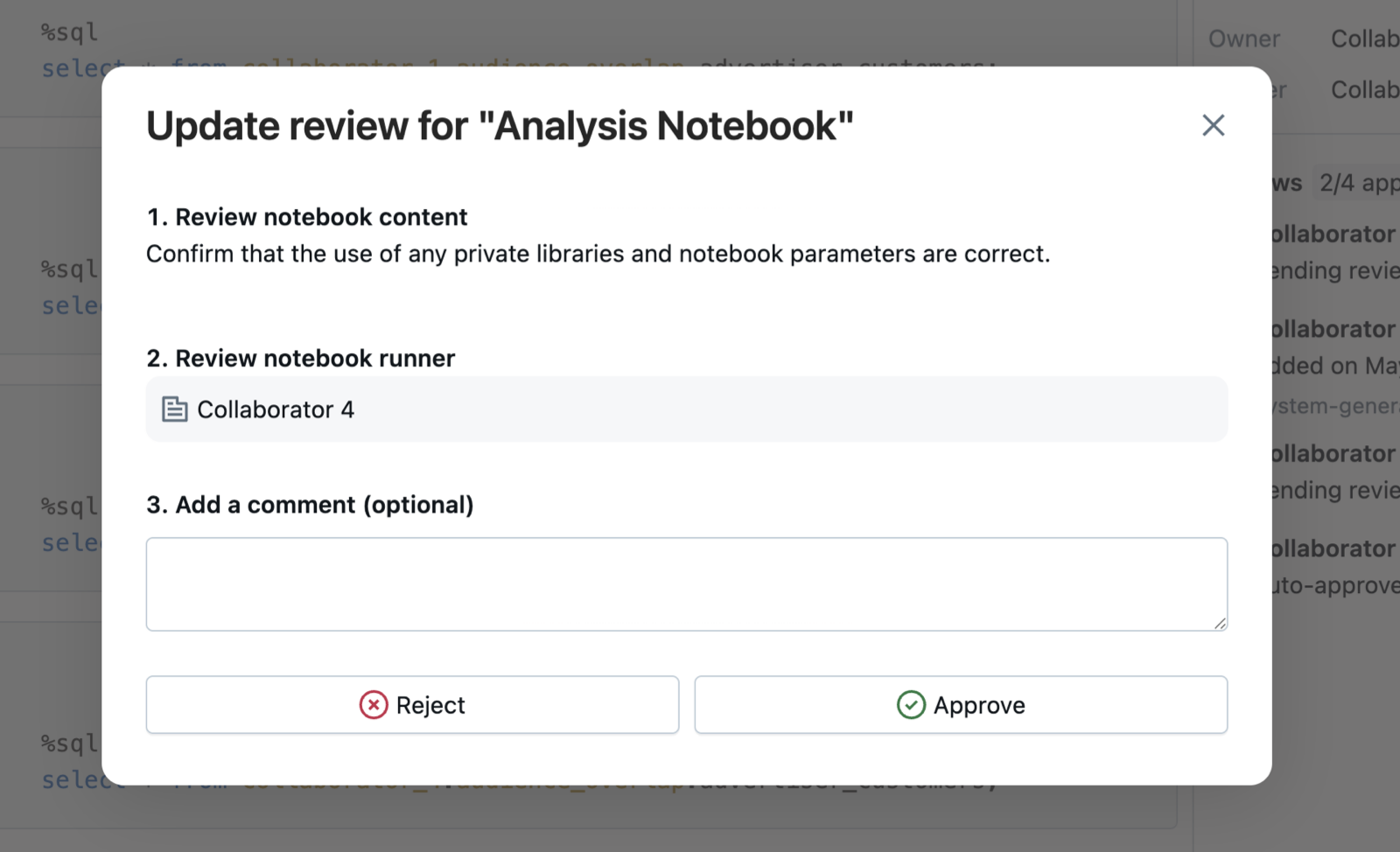
To approve or reject a notebook:
Click the Review button at the upper right.
Choose to Approve or Reject the notebook.
You can update your review up to nine times, for a maximum of ten reviews per collaborator on each notebook version. However, you can always reject a notebook, even if the review limit has been reached.
Auto-approval rules
Collaborators can set up auto-approval rules for their clean room. With auto-approvals, the following is true:
- You can create auto-approval rules only for notebooks uploaded by other users, not your own. Self-authored notebooks do not require your own approval if you are the designated runner.
- In 2-person clean rooms, you can auto-approve notebooks authored by the other collaborator.
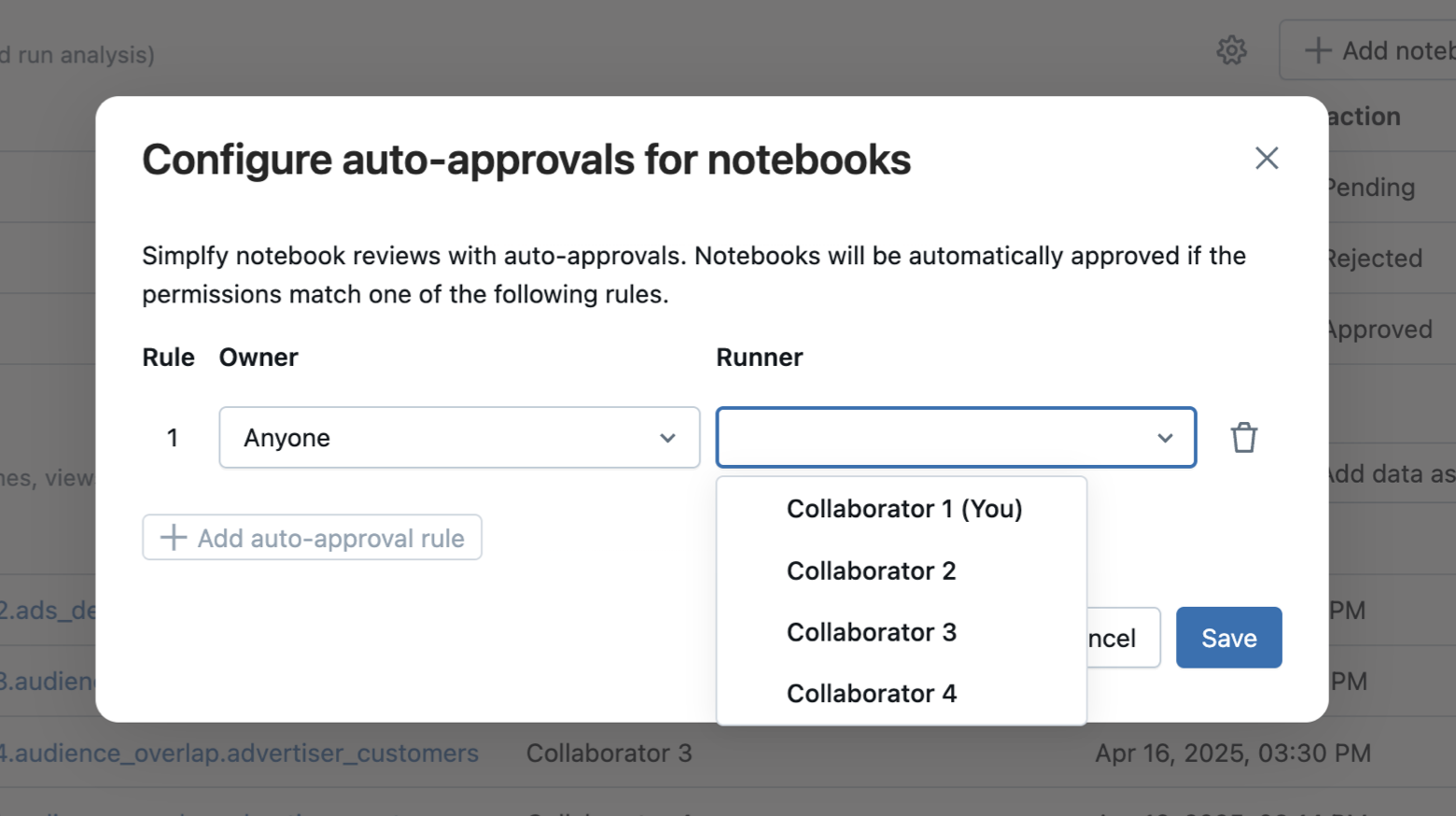
- In clean rooms with more than two collaborators, you can auto-approve notebooks authored by Anyone or a specific collaborator.
- Each auto-approval rule designates a single runner for the approved notebook.
- Auto-approval is the default for notebooks uploaded by another collaborator when you are the designated runner.
- Auto-approvals are optional for clean rooms where the designated runner is another collaborator.
- You can add, update, or remove auto-approvals at any time.
Note
Auto-approval rules are not available in packaged clean rooms. See Packaged clean rooms.
To manage auto-approvals:
In your Azure Databricks workspace, click
Catalog.Click the Clean Rooms > button.
On the Clean Rooms page click the Gear icon
Select Configure auto-approvals.
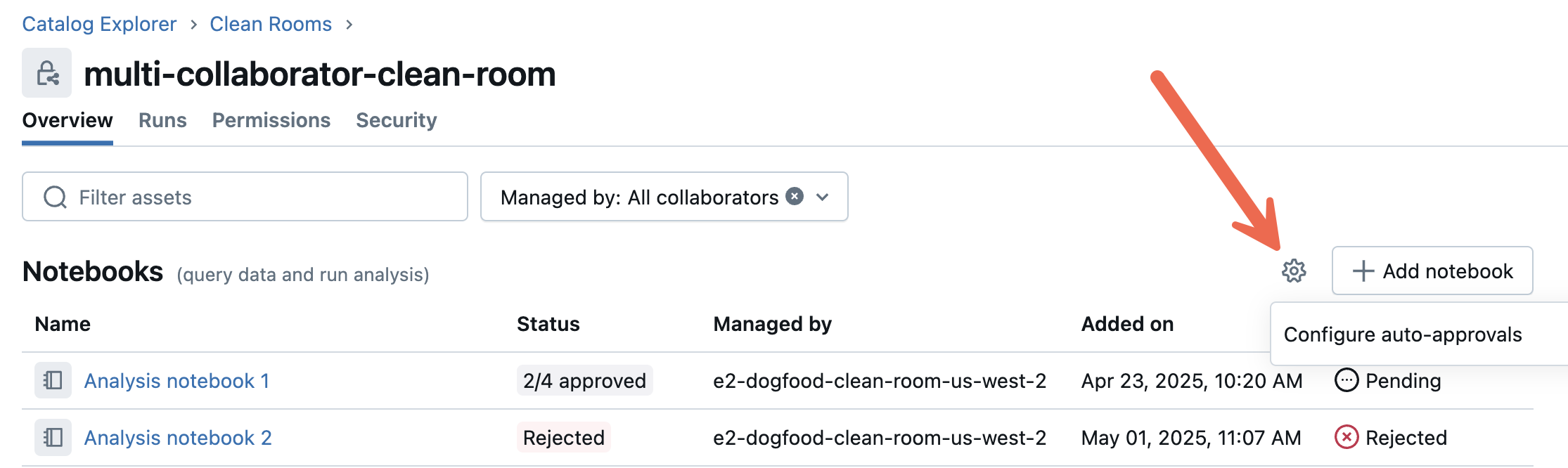
Configure automatic notebook approval based on matching permission rules.
Run a notebook in a clean room
To run a notebook, check all necessary approvals are in place and that you are the designated runner. Then:
- Under Notebooks, click the notebook to open it in preview mode.
- Click the Run button.
- You can only run notebooks for which you are the designated runner and which have been approved.
- It is not necessary to manually approve notebooks that you authored yourself to run them.
- You can reject a notebook you authored. You must re-approve it before it can be run.
- You can manage auto-approvals for each notebook. See Auto-approval rules.
- (Optional) On the Run notebook with parameters dialog, click + Add to pass parameter values to the notebook job task.
- Review the notebook.
- Click Run.
- Click See details to view the progress of the run. Alternatively, you can view run progress by going to Runs on this page or by clicking Jobs & Pipelines in the workspace sidebar and going to the Job runs tab.
- View the results of the notebook run. The notebook results appear after the run is complete. To view past runs, go to Runs and click the link in the Start time column.
Even when all collaborators approve a notebook, only the collaborator designated by the uploader as the runner can run it.
Notebook parameters
The following parameters are automatically passed into the clean room notebook at runtime:
cr_central_id: The central clean room ID.cr_runner_global_metastore_id: The global metastore ID of the designated runner.cr_runner_alias: The collaborator alias of the designated runner.cr_<alias>_input_catalog: The catalog that stores data shared by a specific collaborator, wherealiasrepresents their clean room alias. For two-party clean rooms created in the UI, this defaults to creator or collaborator, but it is customizable via the API. You can usecr_<alias>_input_catalogparameter for local tests with sample tables.cr_output_catalog: Defines the catalog where you create new output tables. Used in combination withcr_output_schema. See Create an output table.cr_output_schema: Defines the schema where you create output tables. Used in combination withcr_output_catalog. See Create an output table.cr_shared_output_schema: Defines the schema where you create output tables that all collaborators can read, not just the runner. Used in combination withcr_output_catalog. Available only when shared output is enabled for the clean room. See Share output with all collaborators.
The above notebook parameters are automatically available as widget values during execution.
Python cells: Reference them using
dbutils.widgets.get. For example:dbutils.widgets.get("cr_central_id").SQL cells: Access them with
select :name. For example:select :cr_central_id.
Call a JAR UDF from a notebook
You can register a custom Java or Scala function from a shared JAR and call it from a clean room notebook using CREATE TEMPORARY FUNCTION. See Run JAR workloads in Azure Databricks clean rooms.
Choose a base environment
Important
ML and AI base environments are in Beta. Standard environments are generally available.
When you add a notebook to a clean room, you select a Base environment for it. The base environment sets the serverless environment version and the Python libraries that are preinstalled when the notebook runs. All collaborators can see the base environment that each notebook uses.
- Standard: The serverless environment with Azure Databricks-provided libraries.
- ML: Adds the libraries from Databricks Runtime for Machine Learning. Available for notebooks that run on CPU.
- AI: Adds deep learning libraries such as PyTorch and Hugging Face Transformers. Available for notebooks that run on GPU.
Custom base environments are not supported in clean rooms. To learn more about base environments, see Configure the serverless environment.
You can change the base environment when you update the notebook. The update creates a new notebook version, which all collaborators must approve again. See Approve a notebook in a clean room.
Run a notebook on serverless GPU
By default, clean room notebooks run on serverless CPU compute. To run model inference or training on shared data, you can run a clean room notebook on serverless GPU compute instead. GPU notebooks run on AI Runtime.
A GPU notebook runs in the same central clean room as other notebooks, with the same approval flow, data access, and output tables. All collaborators can see the accelerator that each notebook uses.
Requirements
- For accounts on the Enterprise or Premium pricing tier, serverless GPU in clean rooms is turned off by default until Azure Databricks turns it on automatically. For the planned date, see Serverless GPU in clean rooms will soon be on by default for accounts where it's turned off.
To turn on serverless GPU in clean rooms, an account admin must enable Clean Rooms AI Runtime on the account console Previews page. See Manage account-level previews. The setting applies to the account of the collaborator who adds the notebook.
The central clean room must be hosted in one of the following regions:
- AWS:
ca-central-1,eu-west-1,sa-east-1,us-east-1,us-east-2, orus-west-2. - Azure:
eastusorwestus.
- AWS:
The notebook must use a Standard base environment version 4 or above, or an AI base environment. When you select an accelerator, the Base environment list shows only these environments. See Choose a base environment.
GPU compute for AI Runtime can run in a different Geo than the central clean room region, because some GPU types require cross-Geo processing. Cross-Geo processing can incur egress costs and affect data residency. See Enable cross-Geo processing.
Add a notebook that runs on GPU
Start adding a notebook
Start adding a notebook to the clean room. See Step 3. Add data assets and notebooks to the clean room.
Select an accelerator
For Accelerator, select a GPU type: 1xA10, 1xH100, or 8xH100. To run the notebook on serverless CPU instead, select None.
Select a base environment
For Base environment, select a Standard or AI environment.
Add the notebook
Click Add notebook.
You can change the accelerator when you update the notebook. As with any notebook update, the change creates a new notebook version, which all collaborators must approve again. See Approve a notebook in a clean room.
Share notebook output using output tables
Output tables are temporary read-only tables generated by a notebook run and shared to the notebook runner's metastore. If the notebook creates an output table, the notebook runner can access it in an output catalog and share it with other users in their workspace. See Create and work with output tables in Databricks Clean Rooms.
If shared output is enabled for the clean room, a notebook can also write to a shared output schema that all collaborators can read. See Share output with all collaborators.
Use Lakeflow Jobs to run clean room notebooks
You can build complex, recurring workflows around your clean room assets using Azure Databricks workflows. For example, you can create a recurring workflow that runs a clean room notebook task, then runs a task that immediately updates a report based on the clean room's output.
The following features facilitate complex clean room workflows:
- Clean Room notebook task type: Directly select and run a clean room notebook as a dedicated workflows task. See Run notebooks in clean rooms.
- Azure Databricks Supplied output values: All clean room notebooks tasks make the
{{tasks.<your_task_name>.output.catalog_name}}and{{tasks.<your_task_name>.output.schema_name}}dynamic value references available to all downstream tasks. These values can be used for setting up workflows where a task is automatically passed the path to an upstream clean room notebook tasks's output schema. See Supported value referencesoutput.catalog_nameis automatically populated with the clean room's output catalog name.output.schema_nameis automatically populated with the clean room notebook task's dynamically-generated output schema name.
- Lakeflow Jobs: Use Task values that pass job parameter values to clean room notebooks or capture clean room notebook output and pass that output to other workflow tasks. See Task values to pass information between tasks.
- Task values: Like regular notebook tasks, clean room notebook tasks can set Task values that are passed to downstream workflow tasks. Use the syntax:
dbutils.jobs.taskValues.set(key="key", value="value"). See more about Task values.