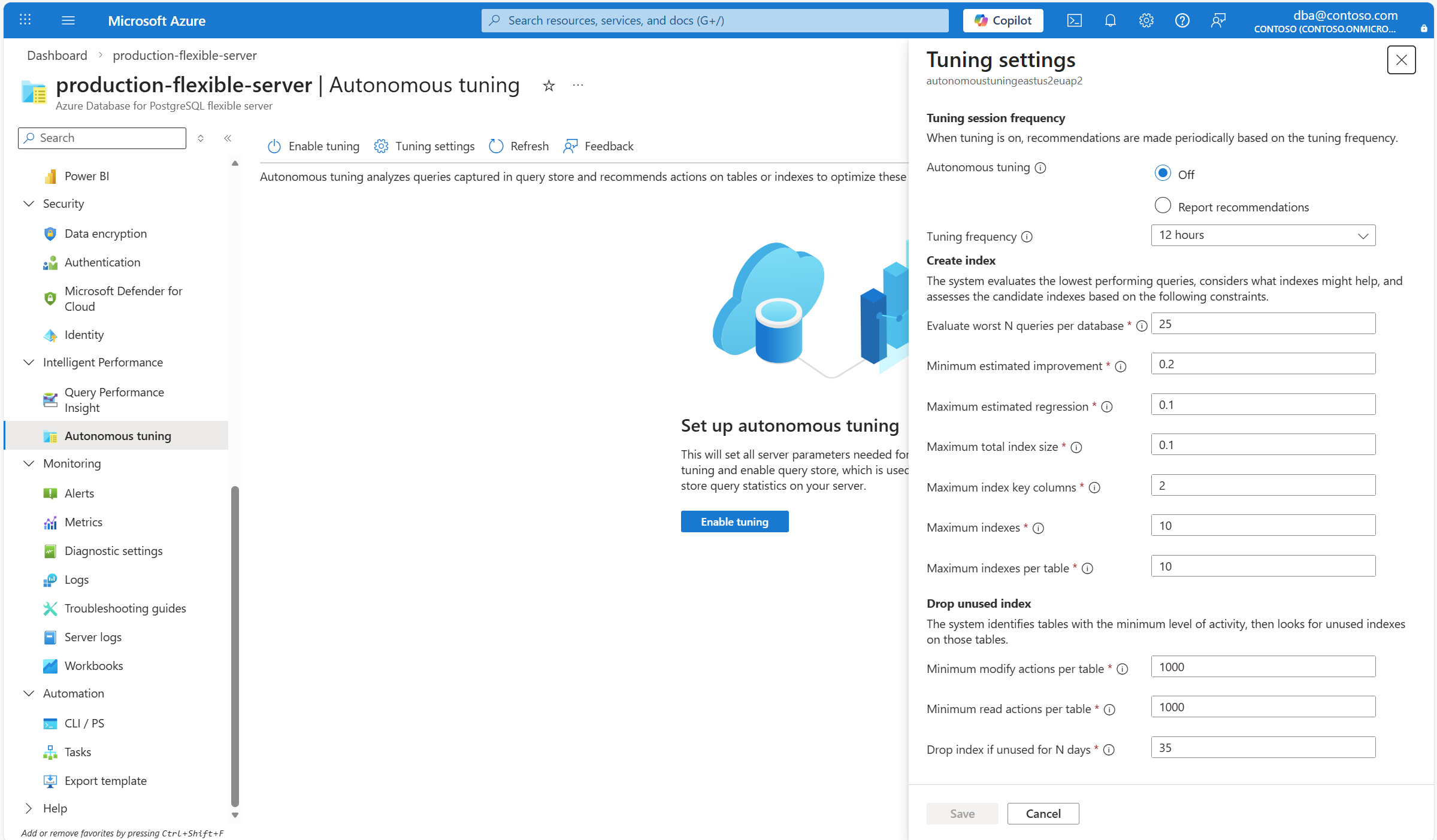
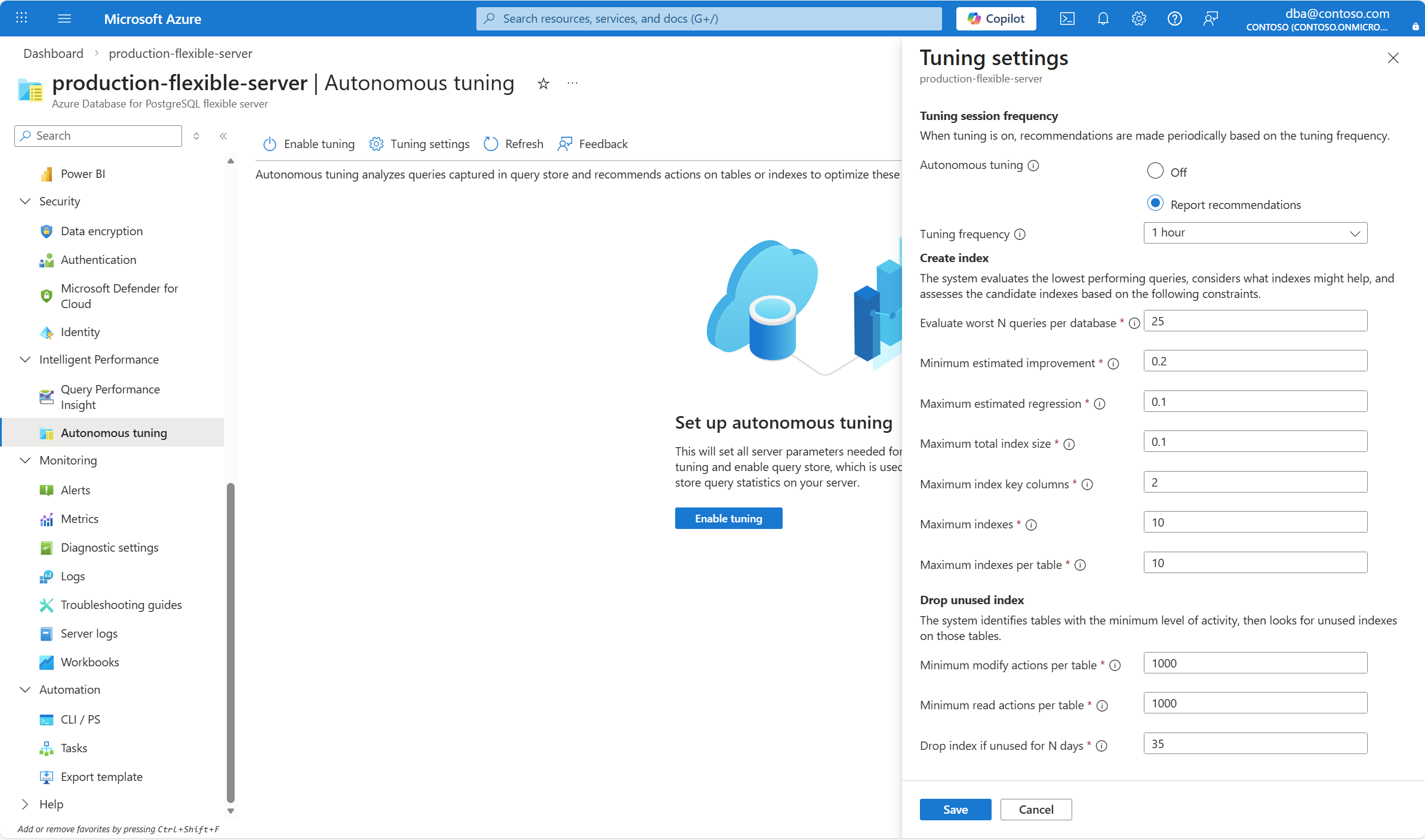
Use the az postgres flexible-server autonomous-tuning show-settings command to show the value of a single autonomous tuning setting in an existing server.
For example, to show the value of the autonomous tuning setting called analyze_interval, use the following command:
az postgres flexible-server autonomous-tuning show-settings \
  --resource-group <resource_group> \
  --server-name <server> \
  --name analyze_interval
The command returns all information about the parameter corresponding to that setting of autonomous tuning. The output is similar to the following:
{
  "allowedValues": "60-10080",
  "dataType": "Integer",
  "defaultValue": "720",
  "description": "Sets the frequency at which each index optimization session is triggered when index_tuning.mode is set to 'REPORT'.",
  "documentationLink": "https://go.microsoft.com/fwlink/?linkid=2274149",
    "id": "/subscriptions/<subscription_id>/resourceGroups/<resource_group>/providers/Microsoft.DBforPostgreSQL/flexibleServers/<server>/configurations/index_tuning.analysis_interval",
  "isConfigPendingRestart": false,
  "isDynamicConfig": true,
  "isReadOnly": false,
  "name": "index_tuning.analysis_interval",
  "resourceGroup": "<resource_group>",
  "source": "user-override",
  "systemData": null,
  "type": "Microsoft.DBforPostgreSQL/flexibleServers/configurations",
  "unit": "minutes",
  "value": "720"
}
Use the az postgres flexible-server autonomous-tuning list-settings command to show the list of all autonomous tuning settings in an existing server.
To list all autonomous tuning settings, use the following command:
az postgres flexible-server autonomous-tuning list-settings \
  --resource-group <resource_group> \
  --server-name <server>
The command returns all parameters that control the different settings of autonomous tuning. The output is similar to the following:
[
  {
    "allowedValues": "60-10080",
    "dataType": "Integer",
    "defaultValue": "720",
    "description": "Sets the frequency at which each index optimization session is triggered when index_tuning.mode is set to 'REPORT'.",
    "documentationLink": "https://go.microsoft.com/fwlink/?linkid=2274149",
    "id": "/subscriptions/<subscription_id>/resourceGroups/<resource_group>/providers/Microsoft.DBforPostgreSQL/flexibleServers/<server>/configurations/index_tuning.analysis_interval",
    "isConfigPendingRestart": false,
    "isDynamicConfig": true,
    "isReadOnly": false,
    "name": "index_tuning.analysis_interval",
    "resourceGroup": "<resource_group>",
    "source": "user-override",
    "systemData": null,
    "type": "Microsoft.DBforPostgreSQL/flexibleServers/configurations",
    "unit": "minutes",
    "value": "720"
  },
  {
    "allowedValues": "1-10",
    "dataType": "Integer",
    "defaultValue": "2",
    "description": "Maximum number of columns that can be part of the index key for any recommended index.",
    "documentationLink": "https://go.microsoft.com/fwlink/?linkid=2274149",
    "id": "/subscriptions/<subscription_id>/resourceGroups/<resource_group>/providers/Microsoft.DBforPostgreSQL/flexibleServers/<server>/configurations/index_tuning.max_columns_per_index",
    "isConfigPendingRestart": false,
    "isDynamicConfig": true,
    "isReadOnly": false,
    "name": "index_tuning.max_columns_per_index",
    "resourceGroup": "<resource_group>",
    "source": "system-default",
    "systemData": null,
    "type": "Microsoft.DBforPostgreSQL/flexibleServers/configurations",
    "unit": null,
    "value": "2"
  },
  {
    "allowedValues": "1-25",
    "dataType": "Integer",
    "defaultValue": "10",
    "description": "Maximum number of indexes that can be recommended for each database during one optimization session.",
    "documentationLink": "https://go.microsoft.com/fwlink/?linkid=2274149",
    "id": "/subscriptions/<subscription_id>/resourceGroups/<resource_group>/providers/Microsoft.DBforPostgreSQL/flexibleServers/<server>/configurations/index_tuning.max_index_count",
    "isConfigPendingRestart": false,
    "isDynamicConfig": true,
    "isReadOnly": false,
    "name": "index_tuning.max_index_count",
    "resourceGroup": "<resource_group>",
    "source": "system-default",
    "systemData": null,
    "type": "Microsoft.DBforPostgreSQL/flexibleServers/configurations",
    "unit": null,
    "value": "10"
  },
  {
    "allowedValues": "1-25",
    "dataType": "Integer",
    "defaultValue": "10",
    "description": "Maximum number of indexes that can be recommended for each table.",
    "documentationLink": "https://go.microsoft.com/fwlink/?linkid=2274149",
    "id": "/subscriptions/<subscription_id>/resourceGroups/<resource_group>/providers/Microsoft.DBforPostgreSQL/flexibleServers/<server>/configurations/index_tuning.max_indexes_per_table",
    "isConfigPendingRestart": false,
    "isDynamicConfig": true,
    "isReadOnly": false,
    "name": "index_tuning.max_indexes_per_table",
    "resourceGroup": "<resource_group>",
    "source": "system-default",
    "systemData": null,
    "type": "Microsoft.DBforPostgreSQL/flexibleServers/configurations",
    "unit": null,
    "value": "10"
  },
  {
    "allowedValues": "5-100",
    "dataType": "Integer",
    "defaultValue": "25",
    "description": "Number of slowest queries per database for which indexes can be recommended.",
    "documentationLink": "https://go.microsoft.com/fwlink/?linkid=2274149",
    "id": "/subscriptions/<subscription_id>/resourceGroups/<resource_group>/providers/Microsoft.DBforPostgreSQL/flexibleServers/<server>/configurations/index_tuning.max_queries_per_database",
    "isConfigPendingRestart": false,
    "isDynamicConfig": true,
    "isReadOnly": false,
    "name": "index_tuning.max_queries_per_database",
    "resourceGroup": "<resource_group>",
    "source": "system-default",
    "systemData": null,
    "type": "Microsoft.DBforPostgreSQL/flexibleServers/configurations",
    "unit": null,
    "value": "25"
  },
  {
    "allowedValues": "0.05-0.2",
    "dataType": "Numeric",
    "defaultValue": "0.1",
    "description": "Acceptable regression introduced by a recommended index on any of the queries analyzed during one optimization session.",
    "documentationLink": "https://go.microsoft.com/fwlink/?linkid=2274149",
    "id": "/subscriptions/<subscription_id>/resourceGroups/<resource_group>/providers/Microsoft.DBforPostgreSQL/flexibleServers/<server>/configurations/index_tuning.max_regression_factor",
    "isConfigPendingRestart": false,
    "isDynamicConfig": true,
    "isReadOnly": false,
    "name": "index_tuning.max_regression_factor",
    "resourceGroup": "<resource_group>",
    "source": "system-default",
    "systemData": null,
    "type": "Microsoft.DBforPostgreSQL/flexibleServers/configurations",
    "unit": "percentage",
    "value": "0.1"
  },
  {
    "allowedValues": "0-1.0",
    "dataType": "Numeric",
    "defaultValue": "0.1",
    "description": "Maximum total size, in percentage of total disk space, that all recommended indexes for any given database can use.",
    "documentationLink": "https://go.microsoft.com/fwlink/?linkid=2274149",
    "id": "/subscriptions/<subscription_id>/resourceGroups/<resource_group>/providers/Microsoft.DBforPostgreSQL/flexibleServers/<server>/configurations/index_tuning.max_total_size_factor",
    "isConfigPendingRestart": false,
    "isDynamicConfig": true,
    "isReadOnly": false,
    "name": "index_tuning.max_total_size_factor",
    "resourceGroup": "<resource_group>",
    "source": "system-default",
    "systemData": null,
    "type": "Microsoft.DBforPostgreSQL/flexibleServers/configurations",
    "unit": "percentage",
    "value": "0.1"
  },
  {
    "allowedValues": "0-20.0",
    "dataType": "Numeric",
    "defaultValue": "0.2",
    "description": "Cost improvement that a recommended index must provide to at least one of the queries analyzed during one optimization session.",
    "documentationLink": "https://go.microsoft.com/fwlink/?linkid=2274149",
    "id": "/subscriptions/<subscription_id>/resourceGroups/<resource_group>/providers/Microsoft.DBforPostgreSQL/flexibleServers/<server>/configurations/index_tuning.min_improvement_factor",
    "isConfigPendingRestart": false,
    "isDynamicConfig": true,
    "isReadOnly": false,
    "name": "index_tuning.min_improvement_factor",
    "resourceGroup": "<resource_group>",
    "source": "system-default",
    "systemData": null,
    "type": "Microsoft.DBforPostgreSQL/flexibleServers/configurations",
    "unit": "percentage",
    "value": "0.2"
  },
  {
    "allowedValues": "off,report",
    "dataType": "Enumeration",
    "defaultValue": "off",
    "description": "Configures index optimization as disabled ('OFF') or enabled to only emit recommendation. Requires Query Store to be enabled by setting pg_qs.query_capture_mode to 'TOP' or 'ALL'.",
    "documentationLink": "https://go.microsoft.com/fwlink/?linkid=2274149",
    "id": "/subscriptions/<subscription_id>/resourceGroups/<resource_group>/providers/Microsoft.DBforPostgreSQL/flexibleServers/<server>/configurations/index_tuning.mode",
    "isConfigPendingRestart": false,
    "isDynamicConfig": true,
    "isReadOnly": false,
    "name": "index_tuning.mode",
    "resourceGroup": "<resource_group>",
    "source": "user-override",
    "systemData": null,
    "type": "Microsoft.DBforPostgreSQL/flexibleServers/configurations",
    "unit": null,
    "value": "off"
  },
  {
    "allowedValues": "0-9999999",
    "dataType": "Integer",
    "defaultValue": "1000",
    "description": "Minimum number of daily average DML operations affecting the table, so that their unused indexes are considered for dropping.",
    "documentationLink": "https://go.microsoft.com/fwlink/?linkid=2274149",
    "id": "/subscriptions/<subscription_id>/resourceGroups/<resource_group>/providers/Microsoft.DBforPostgreSQL/flexibleServers/<server>/configurations/index_tuning.unused_dml_per_table",
    "isConfigPendingRestart": false,
    "isDynamicConfig": true,
    "isReadOnly": false,
    "name": "index_tuning.unused_dml_per_table",
    "resourceGroup": "<resource_group>",
    "source": "system-default",
    "systemData": null,
    "type": "Microsoft.DBforPostgreSQL/flexibleServers/configurations",
    "unit": null,
    "value": "1000"
  },
  {
    "allowedValues": "30-720",
    "dataType": "Integer",
    "defaultValue": "35",
    "description": "Minimum number of days the index has not been used, based on system statistics, so that it is considered for dropping.",
    "documentationLink": "https://go.microsoft.com/fwlink/?linkid=2274149",
    "id": "/subscriptions/<subscription_id>/resourceGroups/<resource_group>/providers/Microsoft.DBforPostgreSQL/flexibleServers/<server>/configurations/index_tuning.unused_min_period",
    "isConfigPendingRestart": false,
    "isDynamicConfig": true,
    "isReadOnly": false,
    "name": "index_tuning.unused_min_period",
    "resourceGroup": "<resource_group>",
    "source": "system-default",
    "systemData": null,
    "type": "Microsoft.DBforPostgreSQL/flexibleServers/configurations",
    "unit": "days",
    "value": "35"
  },
  {
    "allowedValues": "0-9999999",
    "dataType": "Integer",
    "defaultValue": "1000",
    "description": "Minimum number of daily average read operations affecting the table, so that their unused indexes are considered for dropping.",
    "documentationLink": "https://go.microsoft.com/fwlink/?linkid=2274149",
    "id": "/subscriptions/<subscription_id>/resourceGroups/<resource_group>/providers/Microsoft.DBforPostgreSQL/flexibleServers/<server>/configurations/index_tuning.unused_reads_per_table",
    "isConfigPendingRestart": false,
    "isDynamicConfig": true,
    "isReadOnly": false,
    "name": "index_tuning.unused_reads_per_table",
    "resourceGroup": "<resource_group>",
    "source": "system-default",
    "systemData": null,
    "type": "Microsoft.DBforPostgreSQL/flexibleServers/configurations",
    "unit": null,
    "value": "1000"
  }
]