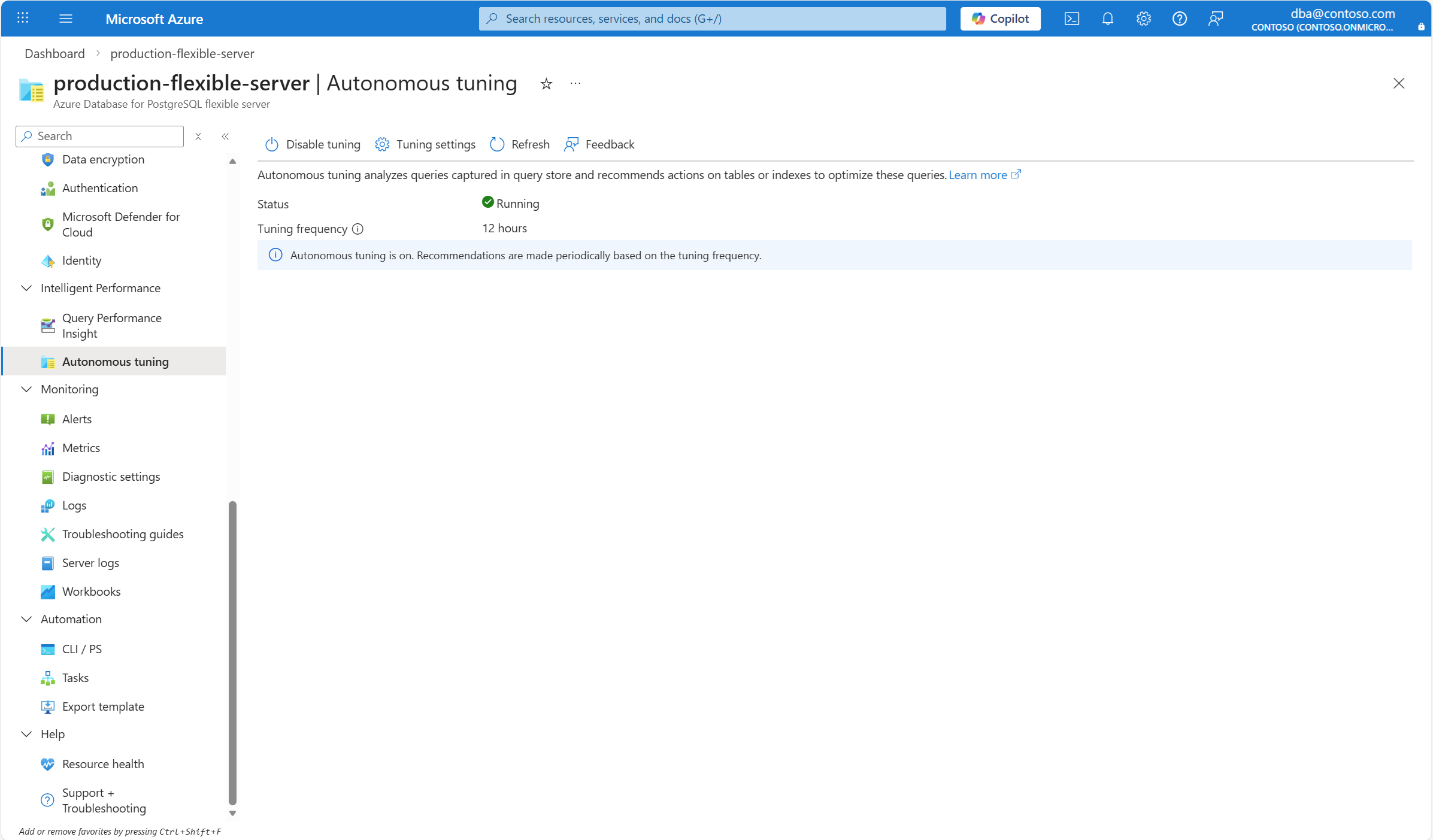
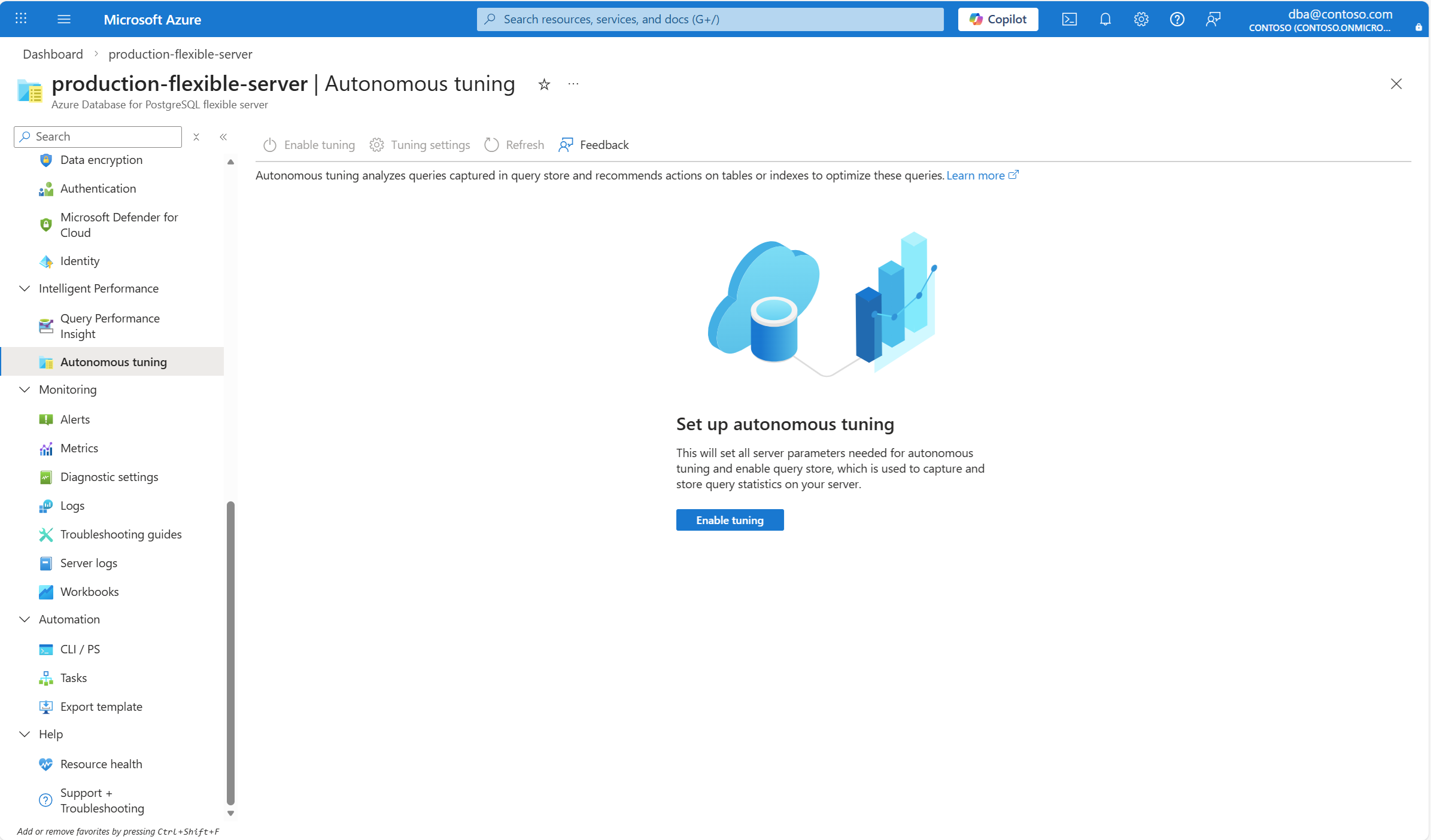
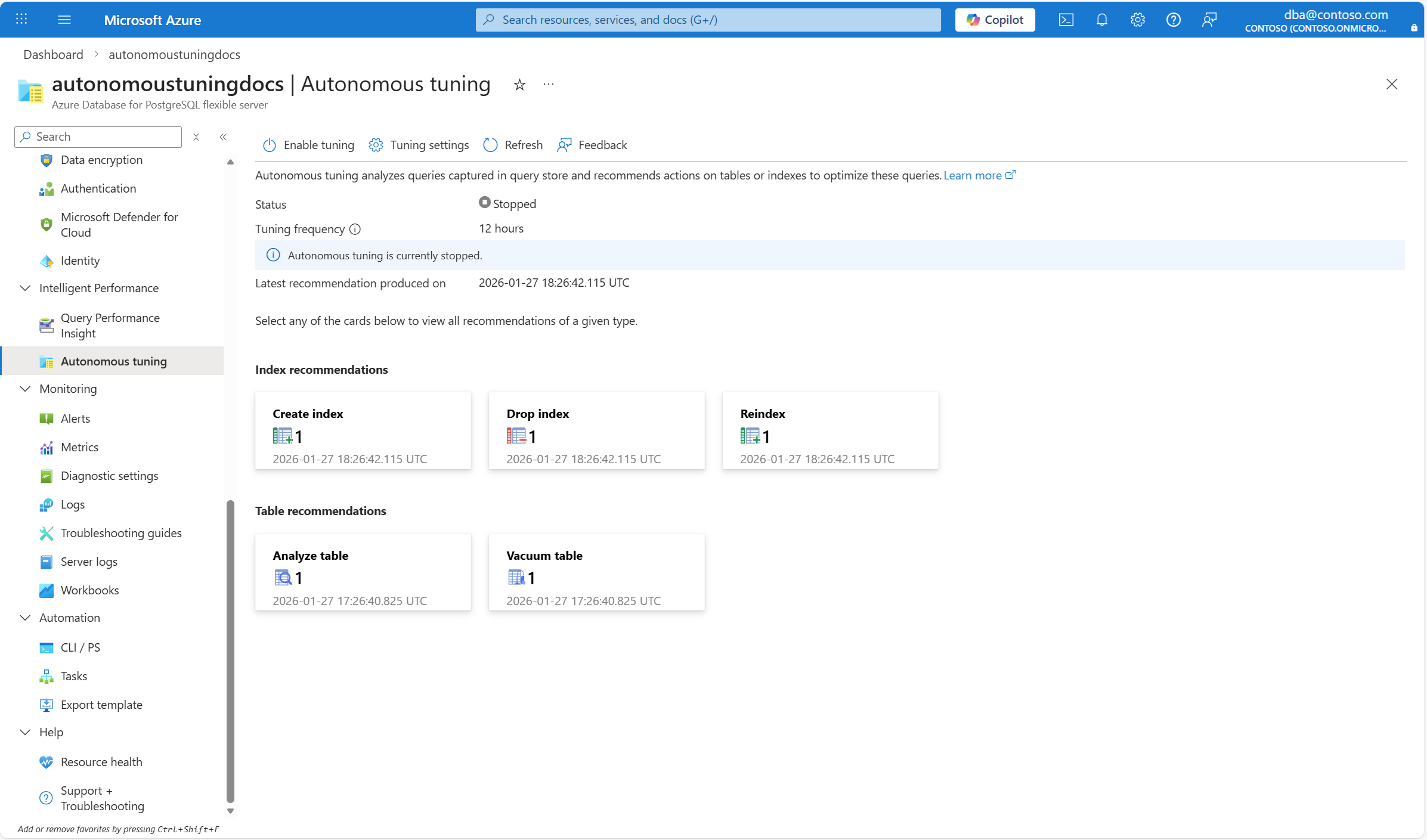
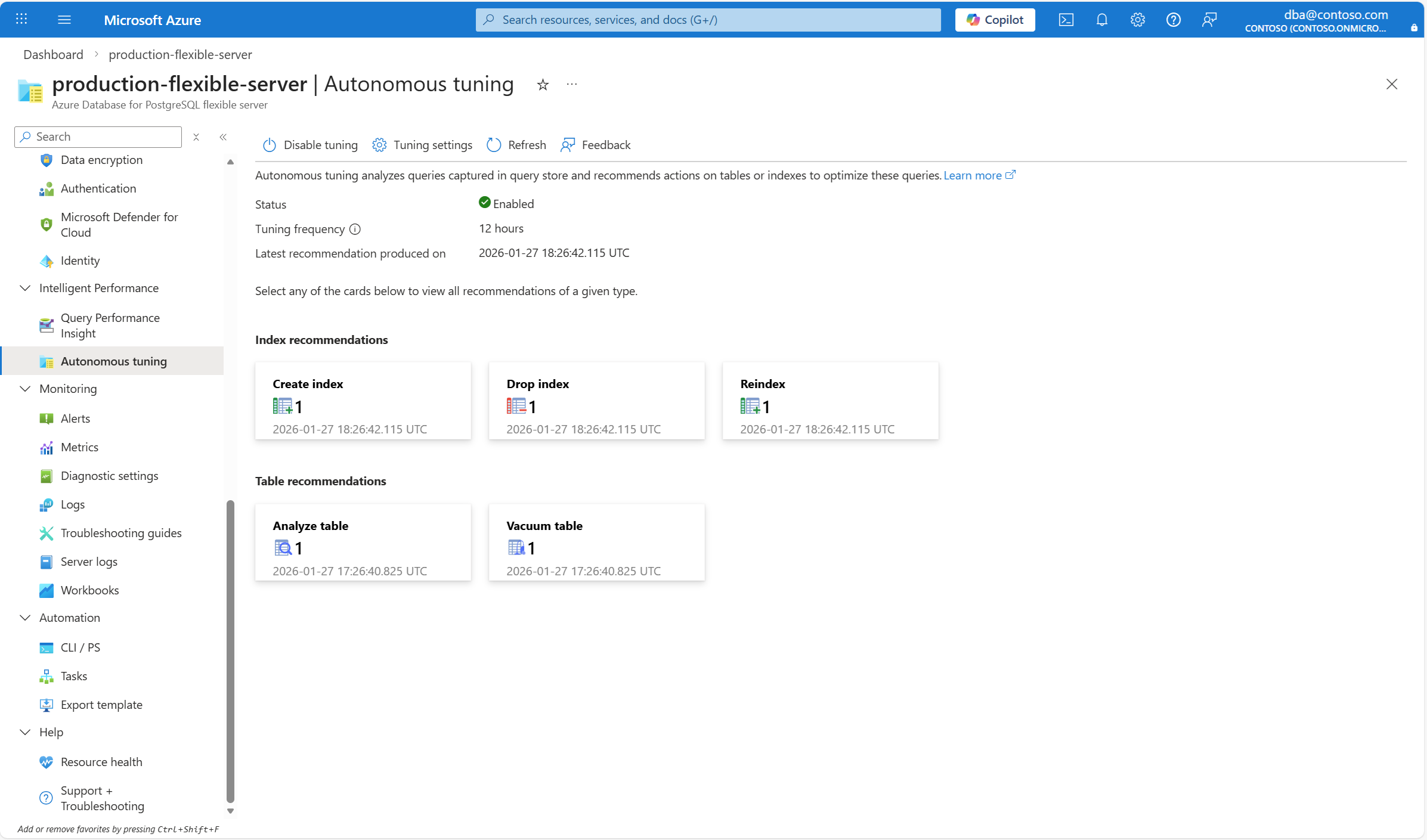
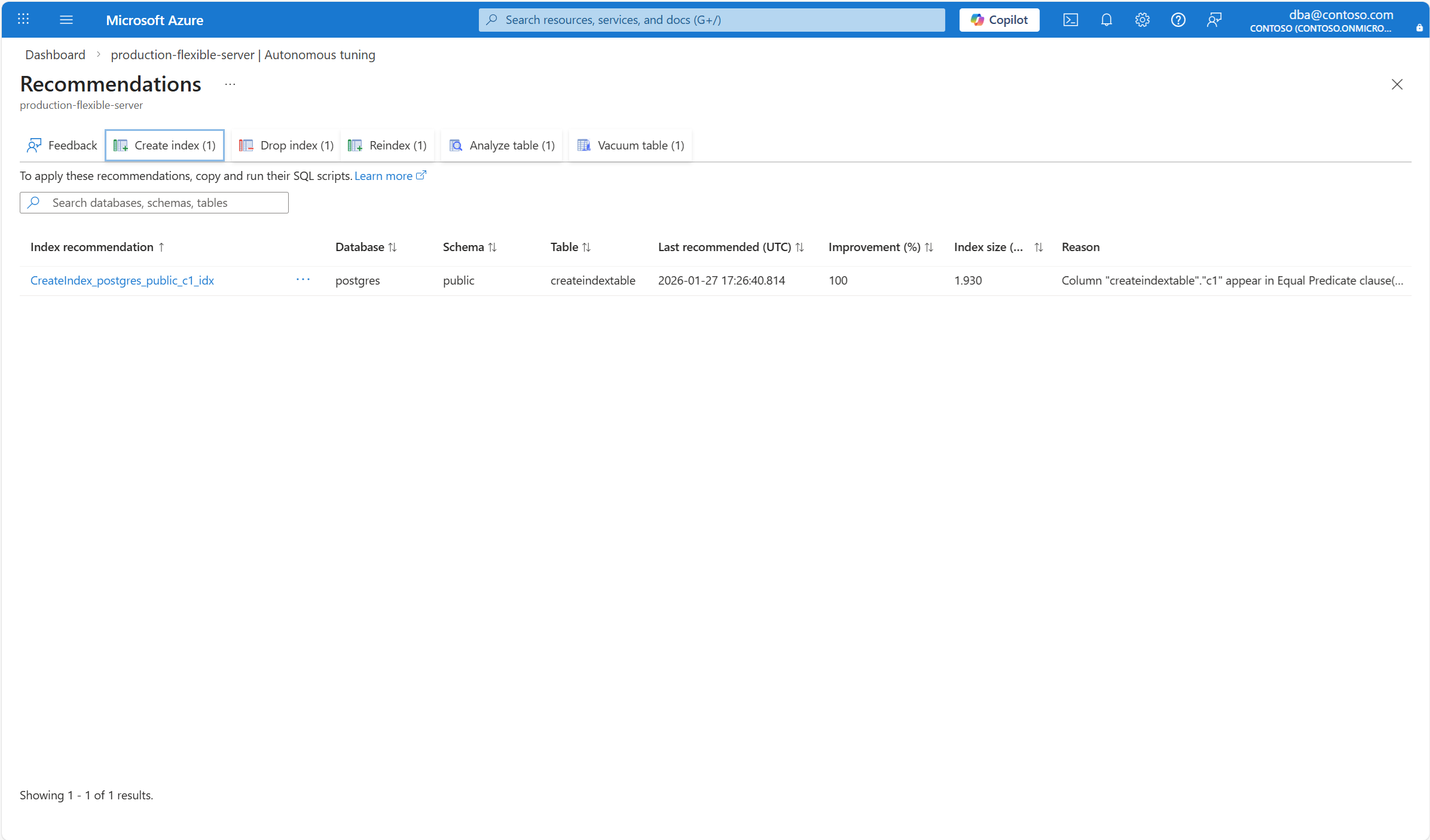
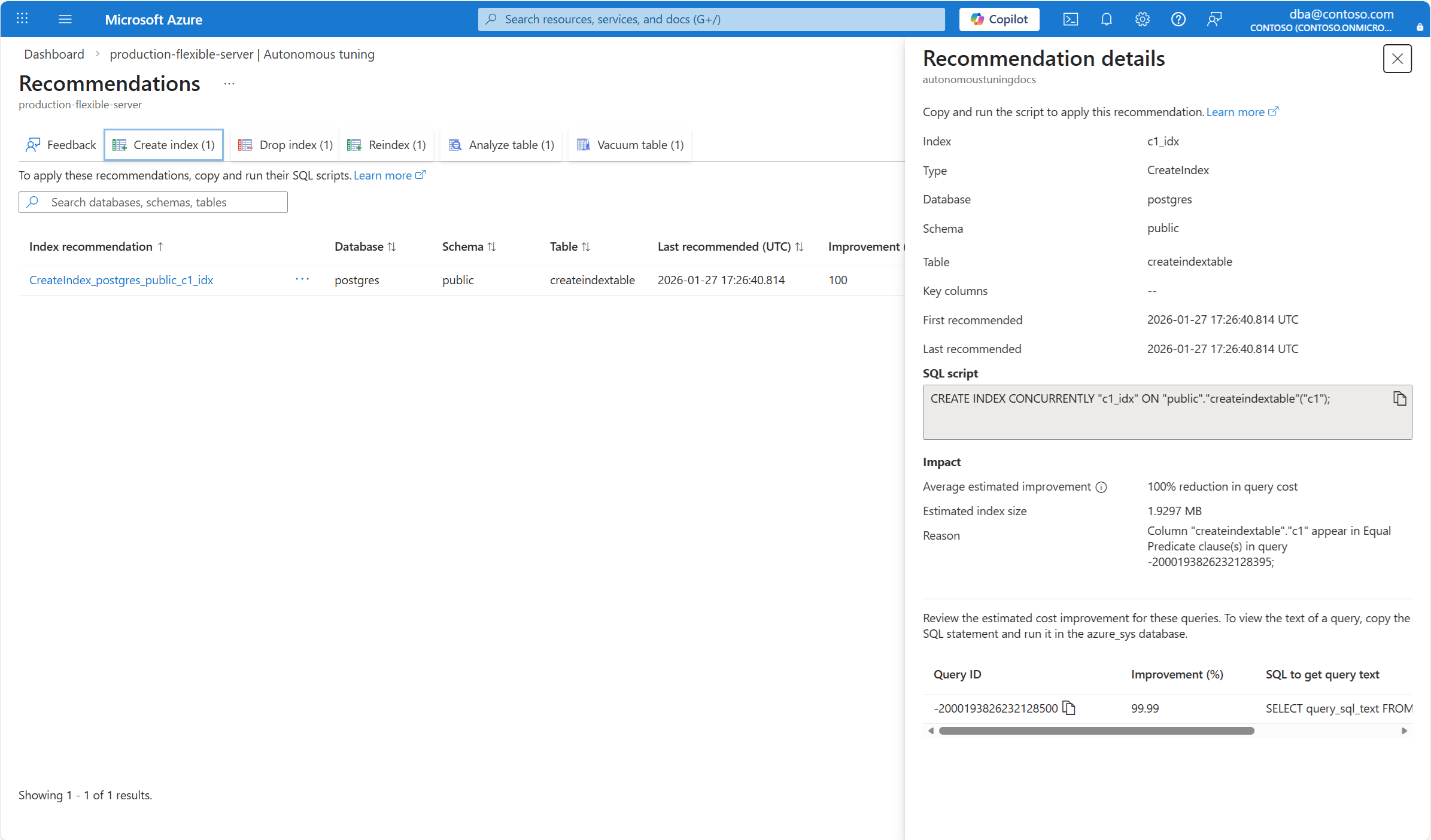
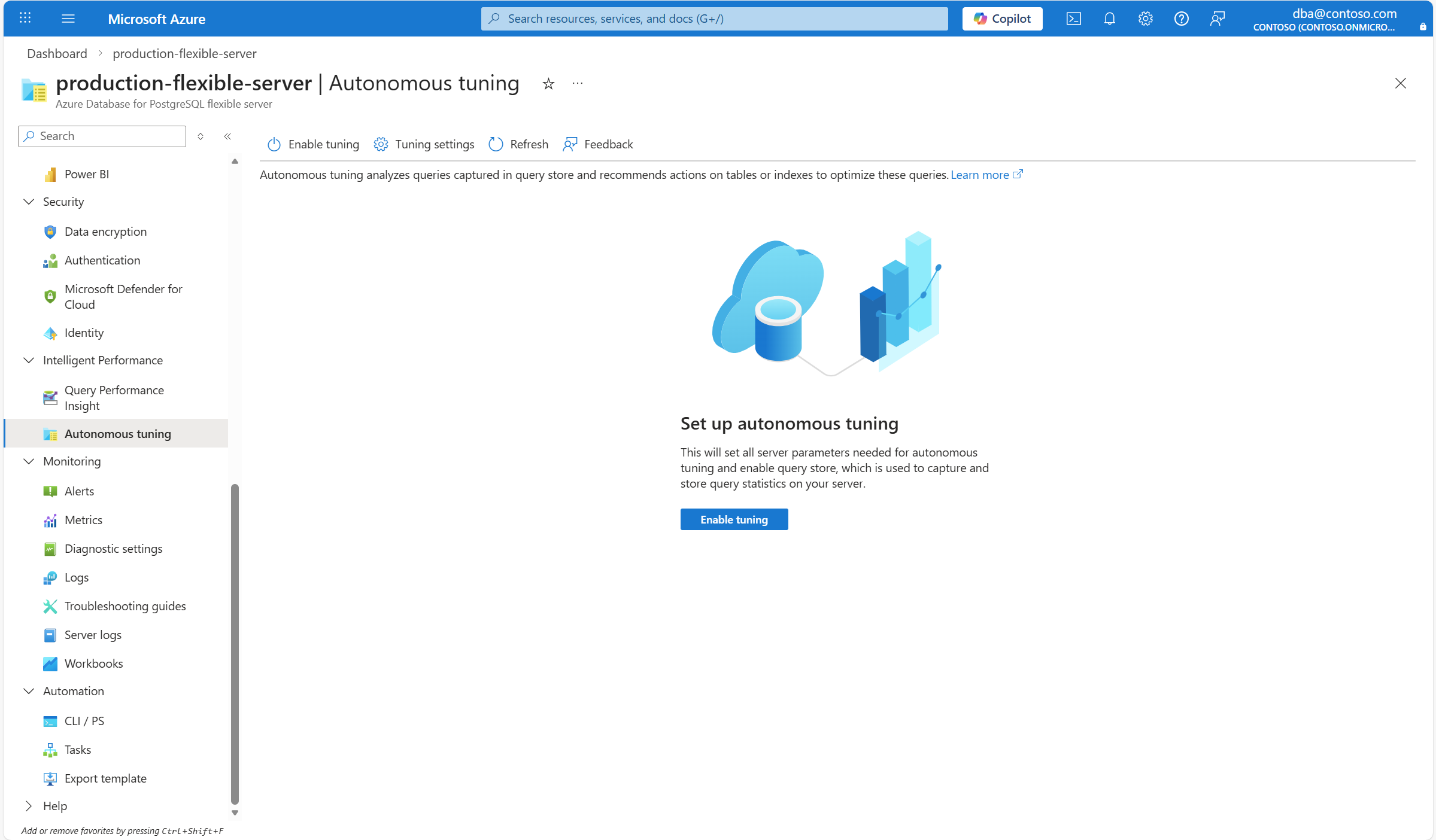
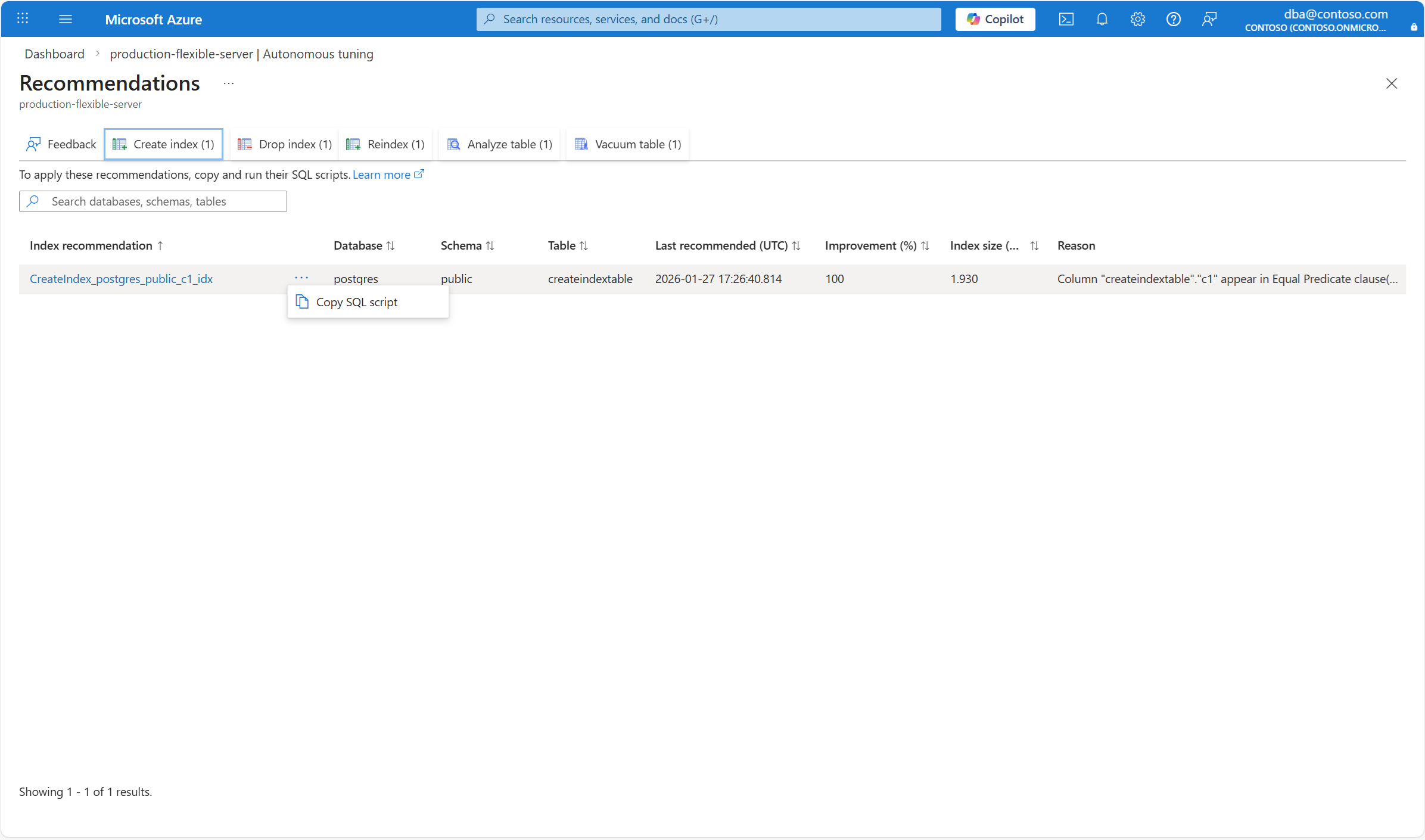
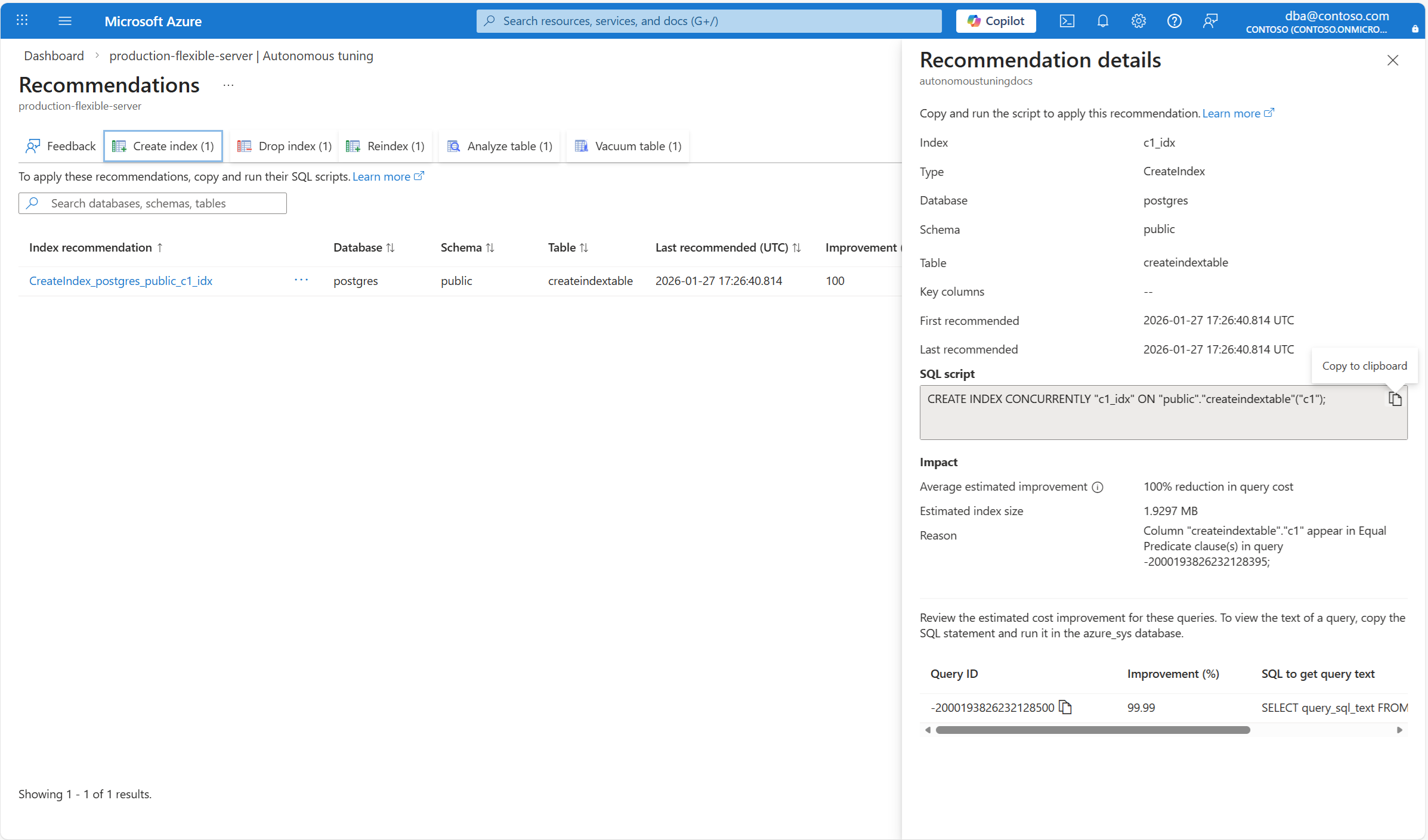
Use the az postgres flexible-server autonomous-tuning list-index-recommendations command to list index recommendations that autonomous tuning generates for an existing server.
To list all CREATE INDEX recommendations, use this command:
az postgres flexible-server autonomous-tuning list-index-recommendations \
  --resource-group <resource_group> \
  --server-name <server> \
  --recommendation-type createindex
The command returns all information about the CREATE INDEX recommendations that autonomous tuning generates, and it shows output similar to the following example:
[
  {
    "analyzedWorkload": {
      "endTime": "2026-01-27T14:40:18.788628+00:00",
      "queryCount": 18,
      "startTime": "2026-01-27T13:40:22.544654+00:00"
    },
    "currentState": "Active",
    "details": {
      "databaseName": "<database>",
      "includedColumns": [
        ""
      ],
      "indexColumns": [
        "\"<tabe>\".\"<column>\""
      ],
      "indexName": "<index>",
      "indexType": "BTREE",
      "schema": "<schema>",
      "table": "<table>"
    },
    "estimatedImpact": [
      {
        "absoluteValue": 1.9296875,
        "dimensionName": "IndexSize",
        "queryId": null,
        "unit": "MB"
      },
      {
        "absoluteValue": 99.98674047373842,
        "dimensionName": "QueryCostImprovement",
        "queryId": -2000193826232128395,
        "unit": "Percentage"
      }
    ],
    "id": "/subscriptions/<subscription_id>/resourceGroups/<resource_group>/providers/Microsoft.DBforPostgreSQL/flexibleServers/<server>/tuningOptions/index/recommendations/<recommendation_id>",
    "implementationDetails": {
      "method": "SQL",
      "script": "CREATE INDEX CONCURRENTLY \"<index>\" ON \"<schema>\".\"<table>\"(\"<column>\");"
    },
    "improvedQueryIds": [
      -2000193826232128395
    ],
    "initialRecommendedTime": "2026-01-27T14:40:19.707617+00:00",
    "kind": "",
    "lastRecommendedTime": "2026-01-27T14:40:19.707617+00:00",
    "name": "CreateIndex_<database>_<schema>_<index>",
    "recommendationReason": "Column \"<table>\".\"<column>\" appear in Equal Predicate clause(s) in query -2000193826232128395;",
    "recommendationType": "CreateIndex",
    "resourceGroup": "<resource_group>",
    "systemData": null,
    "timesRecommended": 1,
    "type": "Microsoft.DBforPostgreSQL/flexibleServers/tuningOptions/index"
  },
  {
    .
    .
    .
  }
]
To list all DROP INDEX recommendations, use this command:
az postgres flexible-server autonomous-tuning list-index-recommendations \
  --resource-group <resource_group> \
  --server-name <server> \
  --recommendation-type dropindex
The command returns all information about the DROP INDEX recommendations that autonomous tuning generates, and it shows output similar to the following example:
[
  {
    "analyzedWorkload": {
      "endTime": "2026-01-27T19:02:47.522193+00:00",
      "queryCount": 0,
      "startTime": "2026-01-27T19:02:47.522193+00:00"
    },
    "currentState": "Active",
    "details": {
      "databaseName": "<database>",
      "includedColumns": [
        ""
      ],
      "indexColumns": [
        "<column>"
      ],
      "indexName": "<index>",
      "indexType": "BTREE",
      "schema": "<schema>",
      "table": "<table>"
    },
    "estimatedImpact": [
      {
        "absoluteValue": 31.0,
        "dimensionName": "Benefit",
        "queryId": null,
        "unit": "Percentage"
      },
      {
        "absoluteValue": 0.0078125,
        "dimensionName": "IndexSize",
        "queryId": null,
        "unit": "MB"
      }
    ],
    "id": "/subscriptions/<subscription_id>/resourceGroups/<resource_group>/providers/Microsoft.DBforPostgreSQL/flexibleServers/<server>/tuningOptions/index/recommendations/recommendations/<recommendation_id>",
    "implementationDetails": {
      "method": "SQL",
      "script": "DROP INDEX CONCURRENTLY \"public\".\"idx_dropindextable_c2\";"
    },
    "improvedQueryIds": null,
    "initialRecommendedTime": "2026-01-27T19:02:47.556792+00:00",
    "kind": "",
    "lastRecommendedTime": "2026-01-27T19:02:47.556792+00:00",
    "name": "DropIndex_<database>_<schema>_<index>",
    "recommendationReason": "Duplicate of \"<index>\". The equivalent index \"<index>\" has a smaller oid compared to \"<index>\".",
    "recommendationType": "DropIndex",
    "resourceGroup": "<resource_group>",
    "systemData": null,
    "timesRecommended": 5,
    "type": "Microsoft.DBforPostgreSQL/flexibleServers/tuningOptions/index"
  },
  {
    .
    .
    .
  }
]
To list all REINDEX recommendations, use this command:
az postgres flexible-server autonomous-tuning list-index-recommendations \
  --resource-group <resource_group> \
  --server-name <server> \
  --recommendation-type reindex
The command returns all information about the REINDEX recommendations that autonomous tuning generates, and it shows output similar to the following example:
[
  {
    "analyzedWorkload": {
      "endTime": "2026-01-27T19:02:47.522193+00:00",
      "queryCount": 0,
      "startTime": "2026-01-27T19:02:47.522193+00:00"
    },
    "currentState": "Active",
    "details": {
      "databaseName": "<database>",
      "includedColumns": [
        ""
      ],
      "indexColumns": [
        "<column>"
      ],
      "indexName": "<index>",
      "indexType": "BTREE",
      "schema": "<schema>",
      "table": "<table>"
    },
    "estimatedImpact": [
      {
        "absoluteValue": 41.0,
        "dimensionName": "Benefit",
        "queryId": null,
        "unit": "Percentage"
      },
      {
        "absoluteValue": 0.0,
        "dimensionName": "IndexSize",
        "queryId": null,
        "unit": "MB"
      }
    ],
    "id": "/subscriptions/<subscription_id>/resourceGroups/<resource_group>/providers/Microsoft.DBforPostgreSQL/flexibleServers/<server>/tuningOptions/index/recommendations/recommendations/<recommendation_id>",
    "implementationDetails": {
      "method": "SQL",
      "script": "REINDEX INDEX CONCURRENTLY \"<schema>\".\"<schema>\";"
    },
    "improvedQueryIds": null,
    "initialRecommendedTime": "2026-01-27T15:26:37.647505+00:00",
    "kind": "",
    "lastRecommendedTime": "2026-01-27T19:26:43.297535+00:00",
    "name": "ReIndex_<database>_<schema>_<index>",
    "recommendationReason": "The index is invalid and the recommended recovery method is to reindex.",
    "recommendationType": "ReIndex",
    "resourceGroup": "<resource_group>",
    "systemData": null,
    "timesRecommended": 5,
    "type": "Microsoft.DBforPostgreSQL/flexibleServers/tuningOptions/index"
  },
  {
    .
    .
    .
  }
]
To list all ANALYZE recommendations, use this command:
az postgres flexible-server autonomous-tuning list-table-recommendations \
  --resource-group <resource_group> \
  --server-name <server> \
  --recommendation-type analyzetable
The command returns all information about the ANALYZE recommendations that autonomous tuning generates, and it shows output similar to the following example:
[
  {
    "analyzedWorkload": {
      "endTime": "2026-01-27T19:02:47.522193+00:00",
      "queryCount": 0,
      "startTime": "2026-01-27T19:02:47.522193+00:00"
    },
    "currentState": null,
    "details": {
      "databaseName": "<database>",
      "includedColumns": null,
      "indexColumns": null,
      "indexName": null,
      "indexType": null,
      "schema": "<schema>",
      "table": "<table>"
    },
    "estimatedImpact": null,
    "id": "/subscriptions/<subscription_id>/resourceGroups/<resource_group>/providers/Microsoft.DBforPostgreSQL/flexibleServers/<server>/tuningOptions/index/recommendations/recommendations/<recommendation_id>",
    "implementationDetails": {
      "method": "SQL",
      "script": "ANALYZE \"<schema>\".\"<table>\";"
    },
    "improvedQueryIds": [
      1574410013562407420
    ],
    "initialRecommendedTime": "2026-01-27T17:26:40.825994+00:00",
    "kind": "",
    "lastRecommendedTime": "2026-01-27T17:26:40.825994+00:00",
    "name": "Analyze_<database>_<schema>_<table>",
    "recommendationReason": "Table \"<schema>\".\"<table>\" has not been analyzed but is being used by queries: \"1574410013562407420\".",
    "recommendationType": "Analyze",
    "resourceGroup": "<resource_group>",
    "systemData": null,
    "timesRecommended": 1,
    "type": "Microsoft.DBforPostgreSQL/flexibleServers/tuningOptions/table"
  },
  {
    .
    .
    .
  }
]
To list all VACUUM recommendations, use this command:
az postgres flexible-server autonomous-tuning list-table-recommendations \
  --resource-group <resource_group> \
  --server-name <server> \
  --recommendation-type vacuumtable
The command returns all information about the VACUUM recommendations that autonomous tuning generates, and it shows output similar to the following example:
[
  {
    "analyzedWorkload": {
      "endTime": "2026-01-27T17:26:40.102894+00:00",
      "queryCount": 5,
      "startTime": "2026-01-27T16:26:40.102895+00:00"
    },
    "currentState": null,
    "details": {
      "databaseName": "<database>",
      "includedColumns": null,
      "indexColumns": null,
      "indexName": null,
      "indexType": null,
      "schema": "<schema>",
      "table": "<table>"
    },
    "estimatedImpact": null,
    "id": "/subscriptions/<subscription_id>/resourceGroups/<resource_group>/providers/Microsoft.DBforPostgreSQL/flexibleServers/<server>/tuningOptions/table/recommendations/<recommendation_id>",
    "implementationDetails": {
      "method": "SQL",
      "script": "VACUUM \"<schema>\".\"<table>\";"
    },
    "improvedQueryIds": [
      -2306335776078168728
    ],
    "initialRecommendedTime": "2026-01-27T17:26:40.823239+00:00",
    "kind": "",
    "lastRecommendedTime": "2026-01-27T17:26:40.823239+00:00",
    "name": "Vacuum_<database>_<schema>_<table>",
    "recommendationReason": "Table \"<schema>\".\"<table>\" should be vacuumed. It has an estimated size of <table_size>GB and a bloat percentage of <bloat_percentage>% (bloat size represents <bloat_size>GB).",
    "recommendationType": "Vacuum",
    "resourceGroup": "<resource_group>",
    "systemData": null,
    "timesRecommended": 1,
    "type": "Microsoft.DBforPostgreSQL/flexibleServers/tuningOptions/table"
  },
  {
    .
    .
    .
  }
]
Using any PostgreSQL client tool of your preference:
Connect to the azure_sys database available in your server with any role that has permission to connect to the server. Members of the public role can read from these views.
Execute queries on the sessions view to retrieve the details about recommendation sessions.
Execute queries on the recommendations view to retrieve the recommendations produced by autonomous tuning for CREATE INDEX, DROP INDEX, and REINDEX.
Views
Views in the azure_sys database provide a convenient way to access and retrieve recommendations generated by autonomous tuning. Specifically, the intelligentperformance.sessions and intelligentperformance.recommendations views contain detailed information about CREATE INDEX, DROP INDEX, REINDEX, ANALYZE, and VACUUM recommendations. These views expose details such as the session identifier, database name, session type, start and stop times of the tuning session, recommendation type, reason why the recommendation was produced, and other relevant details. Users can query these views to easily access and analyze the recommendations produced by autonomous tuning.
The sessions view exposes all the details for all index tuning sessions.
| Column name |
Data type |
Description |
| session_id |
uuid |
Universally unique identifier assigned to every new tuning session that is initiated. |
| database_name |
varchar(64) |
Name of the database in whose context the index tuning session was executed. |
| session_type |
intelligentperformance.recommendation_type |
Indicates the types of recommendations this index tuning session could produce. Possible values are: CreateIndex, DropIndex, Table. Sessions of CreateIndex type can produce recommendations of CreateIndex type. Sessions of DropIndex type can produce recommendations of DropIndex or ReIndex types. Sessions of Table type can produce recommendations of Analyze or Vacuum types. |
| run_type |
intelligentperformance.recommendation_run_type |
Indicates the way in which this session was initiated. Possible values are: Scheduled. Sessions automatically executed as per the value of index_tuning.analysis_interval, are set to Scheduled. |
| state |
intelligentperformance.recommendation_state |
Indicates the current state of the session. Possible values are: Error, Success, InProgress. Sessions whose execution failed are set as Error. Sessions that completed their execution correctly, whether or not they generated recommendations, are set as Success. Sessions that are still executing are set as InProgress. |
| start_time |
timestamp without timezone |
Timestamp at which the tuning session that produced this recommendation was started. |
| stop_time |
timestamp without timezone |
Timestamp at which the tuning session that produced this recommendation was started. NULL if the session is in progress or was aborted due to some failure. |
| recommendations_count |
integer |
Total number of recommendations produced in this session. |
The recommendations view exposes all the details for all recommendations generated on any tuning session whose data is still available in the underlying tables.
| Column name |
Data type |
Description |
| recommendation_id |
integer |
Number that uniquely identifies a recommendation in the whole server. |
| current_state |
intelligentperformance.recommendation_current_state |
Indicates the current state of the recommendation produced. Possible values are: Active, Detected. |
| last_known_session_id |
uuid |
Every index tuning session is assigned a Globally Unique Identifier. The value in this column represents that of the session which most recently produced this recommendation. |
| last_known_session_type |
intelligentperformance.recommendation_type |
Type of the recommendation session where recommendation was last recommended. Possible values are: CreateIndex, DropIndex, ReIndex. |
| database_name |
varchar(64) |
Name of the database in whose context was produced the recommendation. |
| recommendation_type |
intelligentperformance.recommendation_type |
Indicates the type of the recommendation produced. Possible values are: CreateIndex, DropIndex, ReIndex, AnalyzeTable, VacuumTable. |
| initial_recommended_time |
timestamp without timezone |
Timestamp at which the tuning session that produced this recommendation was started. |
| last_recommended_time |
timestamp without timezone |
Timestamp at which the tuning session that produced this recommendation was started. |
| times_recommended |
integer |
Timestamp at which the tuning session that produced this recommendation was started. |
| reason |
text |
Reason justifying why this recommendation was produced. |
| recommendation_context |
json |
Contains the list of query identifiers for the queries affected by the recommendation, the type of index being recommended, the name of the schema and the name of the table on which the index is being recommended, the index columns, the index name, and the estimated size in bytes of the recommended index. |
Reasons for CREATE INDEX recommendations
When autonomous tuning recommends the creation of an index, it adds at least one of the following reasons:
| Reason |
Column <column> appear in Join On clause(s) in query <queryId> |
Column <column> appear in Equal Predicate clause(s) in query <queryId> |
Column <column> appear in Non-Equal Predicate clause(s) in query <queryId> |
Column <column> appear in Group By clause(s) in query <queryId> |
Column <column> appear in Order By clause(s) in query <queryId> |
Reasons for REINDEX recommendations
When autonomous tuning identifies invalid indexes, it proposes reindexing them with the following reason:
The index is invalid and the recommended recovery method is to reindex.
To learn more about why and when indexes are marked as invalid, see the REINDEX in PostgreSQL official documentation.
Reasons for DROP INDEX recommendations
When autonomous tuning detects an index that's unused for at least the number of days set in index_tuning.unused_min_period, it proposes to drop it with the following reason:
The index is unused in the past <days_unused> days.
When autonomous tuning detects duplicate indexes, one of the duplicates survives, and it proposes to drop the remaining. The reason provided always has the following starting text:
Duplicate of <surviving_duplicate>.
Followed by another text that explains the reason why each of the duplicates is chosen for drop:
| Reason |
The equivalent index "<surviving_duplicate>" is a Primary key, while "<droppable_duplicate>" is not. |
The equivalent index "<surviving_duplicate>" is a unique index, while "<droppable_duplicate>" is not. |
The equivalent index "<surviving_duplicate>" is a constraint, while "<droppable_duplicate>" is not. |
The equivalent index "<surviving_duplicate>" is a valid index, while "<droppable_duplicate>" is not. |
The equivalent index "<surviving_duplicate>" has been chosen as replica identity, while "<droppable_duplicate>" is not. |
The equivalent index "<surviving_duplicate>" was used to cluster the table, while "<droppable_duplicate>" was not. |
The equivalent index "<surviving_duplicate>" has a smaller estimated size compared to "<droppable_duplicate>". |
The equivalent index "<surviving_duplicate>" has more tuples compared to "<droppable_duplicate>". |
The equivalent index "<surviving_duplicate>" has more index scans compared to "<droppable_duplicate>". |
The equivalent index "<surviving_duplicate>" has been fetched more times compared to "<droppable_duplicate>". |
The equivalent index "<surviving_duplicate>" has been read more times compared to "<droppable_duplicate>". |
The equivalent index "<surviving_duplicate>" has a shorter length compared to "<droppable_duplicate>". |
The equivalent index "<surviving_duplicate>" has a smaller oid compared to "<droppable_duplicate>". |
If the index is removable due to duplication and is also unused for at least the number of days set in index_tuning.unused_min_period, the following text is appended to the reason:
Also, the index is unused in the past <days_unused> days.
Reasons for ANALYZE recommendations
When autonomous tuning detects a table referenced in one of the queries studied, and determines that the table was never analyzed, it proposes to run ANALYZE on the table with the following reason:
Table "<schema>"."<table>" has not been analyzed but is being used by queries: "<queryId-1>, ..., <queryId-n>"
When autonomous tuning detects a table referenced in one of the queries studied, and determines that the table was analyzed but it currently has no statistics (when server crashes before statistics are persisted), it proposes to run ANALYZE on the table with the following reason:
Table "<schema>"."<table>" lacks statistics, has more than <liveRows> rows, and is used by queries: "<queryId-1>, ..., <queryId-n>"
Reasons for VACUUM recommendations
When autonomous tuning detects a table referenced in one of the queries studied, and determines that the table is bloated, and autovacuum_enabled isn't set to off at server level, it proposes to run VACUUM on the table with the following base reason:
Table "<schema>"."<table>" should be vacuumed. It has an estimated size of <estimatedSize>GB and a bloat percentage of <bloatPercentage>% (bloat size represents <bloatSize>GB).
If autovacuum is enabled at server and table level, the following text is appended to the base reason:
Autovacuum is enabled at both the server and table level, but appears to be falling behind.
If autovacuum is disabled at table level, the following text is appended to the base reason:
Autovacuum is disabled at the table level.