Note
Access to this page requires authorization. You can try signing in or changing directories.
Access to this page requires authorization. You can try changing directories.
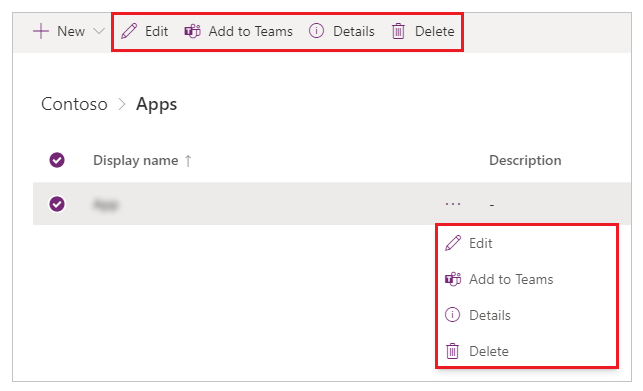
To manage an app, select Apps from the solution explorer. Then select the app that you want to manage, or select Commands (…) next to the app name, and then select commands from the drop-down menu.
Note
The Teams experience changes frequently. If the current Teams UI or screenshots in this article don't match what you see, use the option names and overall flow as your guide.
Edit an app
Select Edit to edit the app in Power Apps Studio. More information: Edit a canvas app in Power Apps and Understanding Power Apps Studio
Tip
Use this option if you want to rename an app, or change app icon and description. For detailed steps, go to rename an app or change app icon and description.
Add to Teams
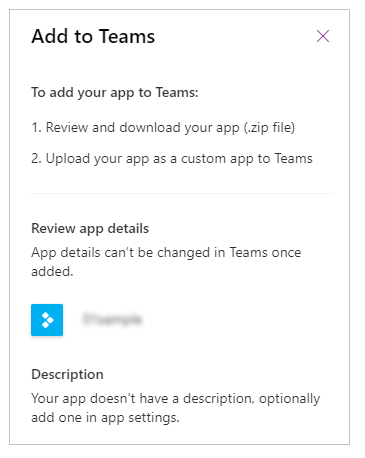
Allows you to download the app and then add it to Teams. For the current end-to-end experience, see Embed a canvas app as personal app in Teams and Publish your app in Teams.
App details
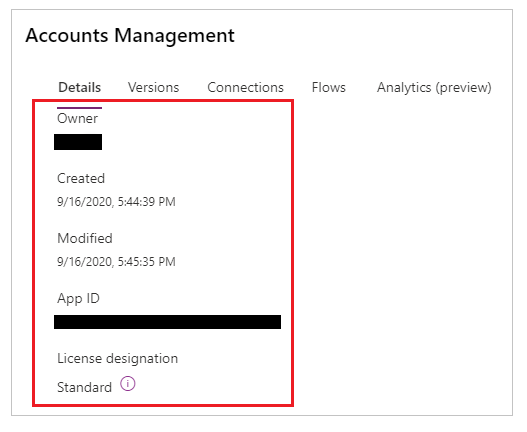
The Details option shows the owner of the app, when the app was created and last modified, app ID and license designation.
Restore an app
A canvas app can have multiple versions. You can restore an app to an available published version.
To restore an app to a specific version:
Select Versions from the app details screen.
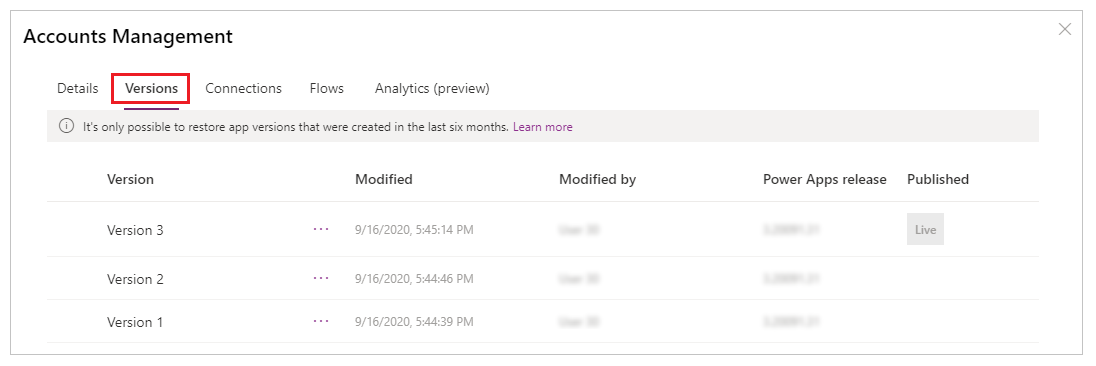
Select a version other than Live that you want to restore.
Select
 .
.Select Restore.
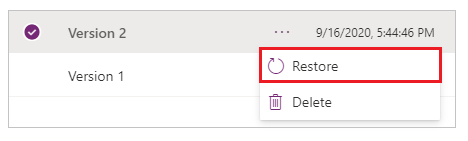
Note
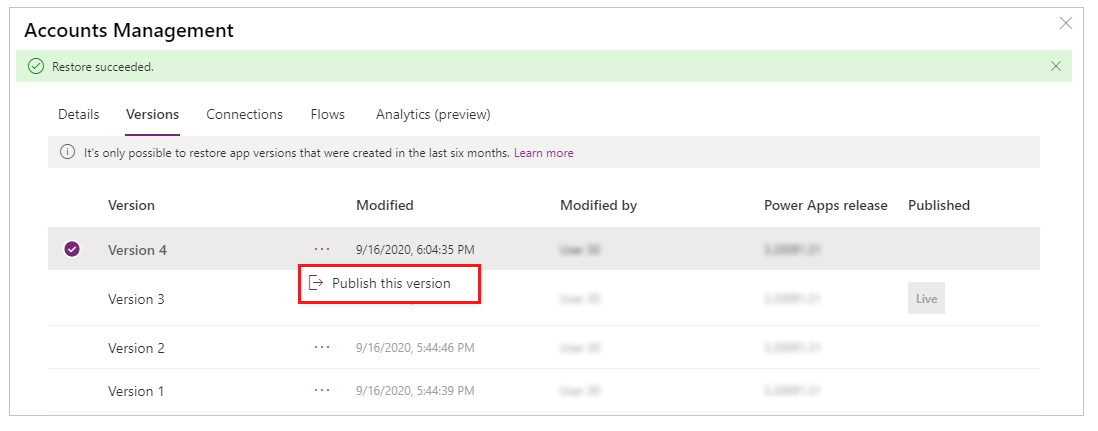
The restored app becomes the latest version of the app. However, the latest version is not yet live. You must publish the restored version to make the restored version available to all users.
Select
for the restored version.Select Publish this version.
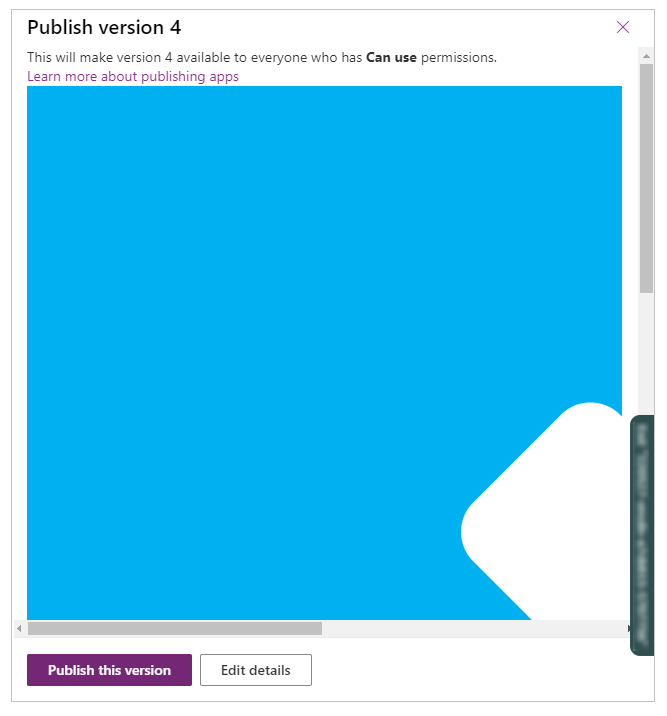
Review the app preview and select Publish this version to confirm.
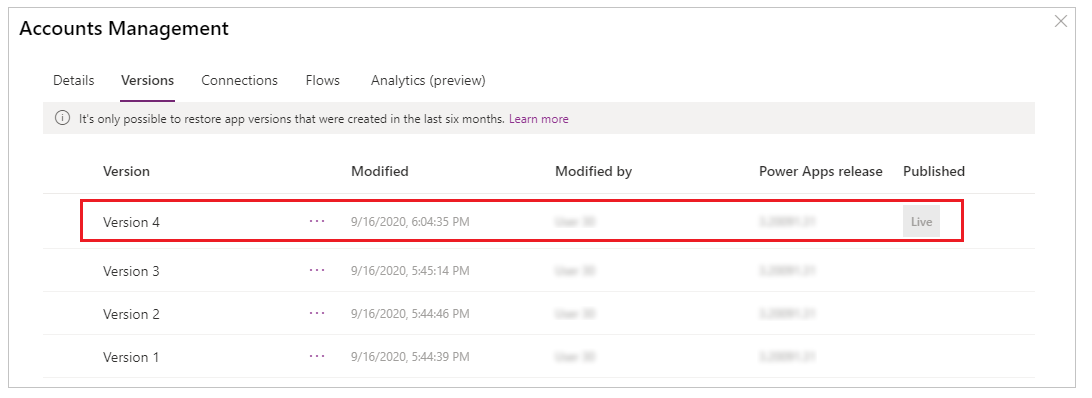
The Versions tab now shows the restored version as Live:
More information: Restore an app
Delete an app
Select Delete to delete an app. When prompted, select Delete from cloud to delete the app.
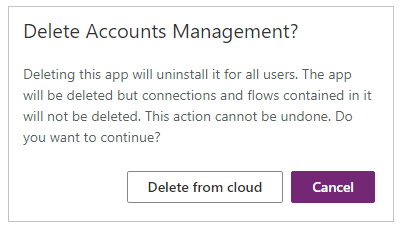
For more information about deleting an app, go to Delete an app.
Rename an app
To rename an app:
Edit the app in Power Apps Studio.
Select the app name from the top-right.
Update the name.
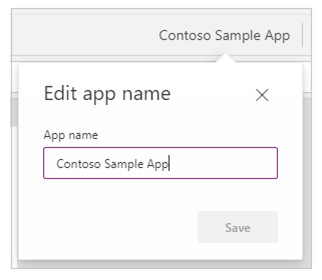
Select Save.
More information: Edit app editor
Change app icon and description
To change the app icon and description:
Edit the app in Power Apps Studio.
Select Settings.
Update the icon and description.
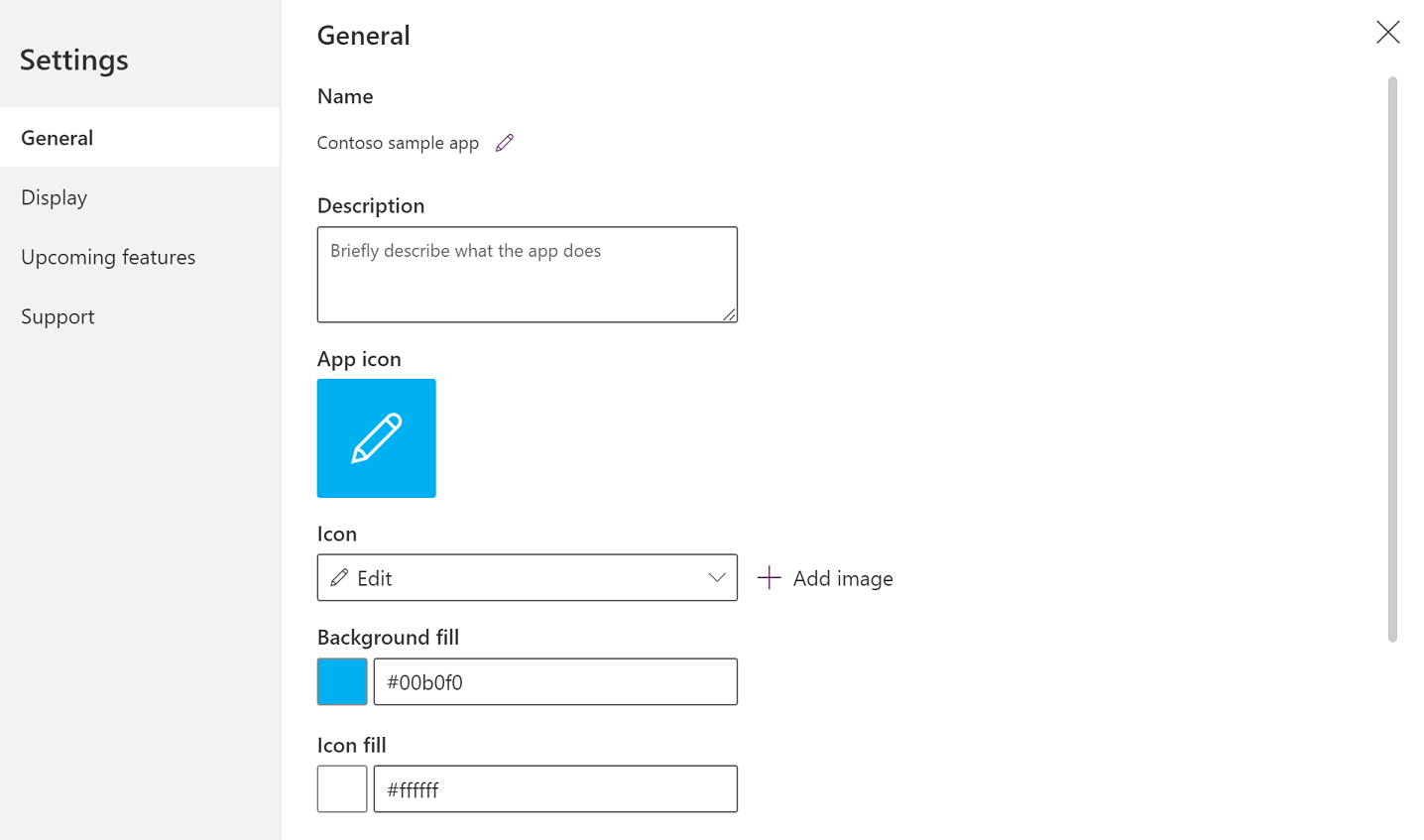
Select Save.
More information: Change app settings
See also
Publish and share your apps Set permission and share apps with colleagues Embed a canvas app as personal app in Teams