Note
Access to this page requires authorization. You can try signing in or changing directories.
Access to this page requires authorization. You can try changing directories.
Azure Virtual Machines
Azure SQL Database
Many customers run multiple Teamcenter solutions across their enterprise, with multiple instances, multiple ISV vendors, and hybrid cloud and on-premises implementations. This fragmentation reduces the ability to access data uniformly.
This article defines the baseline architecture for a Siemens Teamcenter Product Lifecycle Management (PLM) deployment on Azure. Siemens Teamcenter PLM is a software suite that manages the entire product lifecycle. A consolidated Teamcenter deployment on Azure provides a consistent, synchronized PLM experience across your enterprise.
Architecture
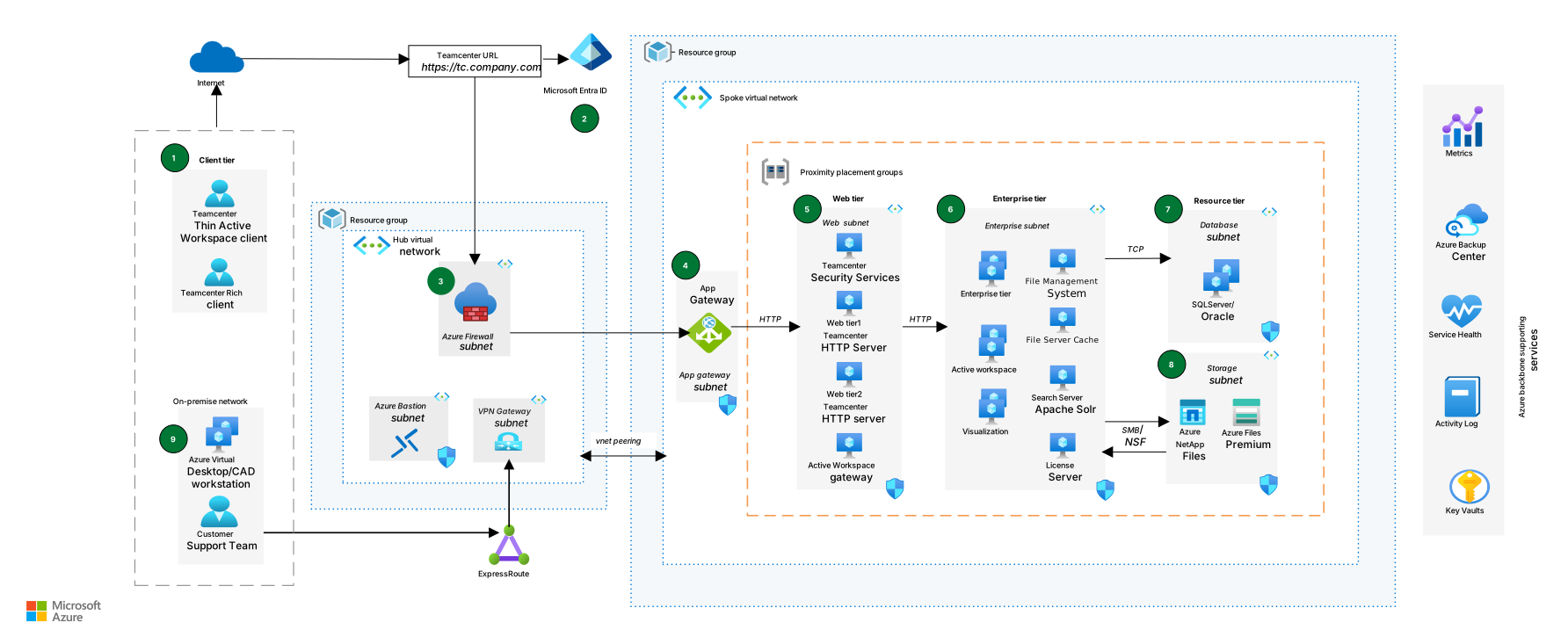
Download a Visio file of this architecture.
Workflow
The following workflow corresponds to the previous diagram:
Teamcenter users access the Teamcenter application through an HTTPS-based public endpoint URL by using either a rich client or an Active Workspace client.
The user authenticates by using credentials that a Teamcenter admin creates. Microsoft Entra ID with SAML configuration provides single sign-on (SSO) to the application.
Azure Firewall filters traffic and applies threat intelligence from Microsoft Cyber Security. Azure Application Gateway then receives the HTTPS traffic. The hub virtual network and spoke virtual network are peered, so they can communicate over the Azure backbone network.
Application Gateway routes traffic to the Teamcenter web server VMs in the web tier. To inspect HTTPS traffic for web exploits, configure an Application Gateway WAF policy (ideally in prevention mode). Azure Firewall for TLS inspection requires Azure Firewall Premium with explicit TLS inspection configuration. For reliable performance, keep VM size, disk configuration, and application installations consistent across all VMs. If needed, use Azure Virtual Machine Scale Sets so that all VM instances share the same base OS image and configuration.
The web subnet in the web tier runs the following Teamcenter components on VMs:
Teamcenter Security Services (TCSS) provide role-based access control (RBAC) and secure access to resources. With TCSS, users can move between Teamcenter applications without repeated authentication challenges. It provides a unified SSO integration framework for the site and simplifies the authentication process.
Teamcenter web servers host non-Microsoft HTTP web servers, JBoss WildFly, Oracle WebLogic, or Java-based servers to support the rich client or Active Workspace client. These VMs also host the Teamcenter servlet container. Network security groups (NSGs) secure inbound and outbound communication between the Application Gateway subnet, web subnet, and enterprise subnets so that only authorized data transfer moves between them.
The Active Workspace gateway routes requests for the Teamcenter Active Workspace client. It handles static content (HTML, CSS, JavaScript, JSON) and dynamic API routing. It directs each request to the appropriate back-end services and microservices responsible for tasks, such as service-oriented architecture (SOA), File Management System (FMS), visualization, and GraphQL. This architecture delivers and processes content within the Teamcenter PLM application that runs on Azure.
The enterprise subnet runs the following core Teamcenter components:
Enterprise tier VMs run the business logic components of Teamcenter. These components include Teamcenter Foundation, Server Manager, Dispatcher, and microservices.
Active Workspace is the portal where users sign in to access information and perform tasks based on their assigned roles.
Visualization VMs run Teamcenter lifecycle visualization. With this feature, every member of your organization can access and view design data commonly stored in CAD data formats.
The FMS volume server stores and retrieves user files (like CAD and PDF) through Server Message Block (SMB) or Network File System (NFS) access protocols from file storage (like managed disks, Azure Files, or Azure NetApp Files). It also supports caching and file distribution. FMS requires an FMS server cache (FSC) and an FMS client cache (FCC). The FCC resides on the client desktop. A separate Teamcenter FMS volume server, independent of FSC, reduces the input/output (I/O) load on the Teamcenter enterprise tier. Network interface throughput typically affects Teamcenter volume servers first, and then the system's disk I/O capacity affects performance. Actual I/O requirements can vary based on your usage patterns.
The FSC VM is a volume server for file management. It serves as a performance cache for shared data access across multiple users. All Teamcenter file access and update operations occur through FSC processes. Cache processes read and write files in volume servers and stream them to and from clients as needed. For remote sites with CAD users, use FSC servers with store-and-forward volume installation.
The Apache Solr search server performs full-text search and real-time data indexing.
The license server VM runs a valid Teamcenter FlexPLM license.
The database subnet hosts a SQL Server database in an infrastructure as a service (IaaS) deployment. SQL Server Always On availability groups use asynchronous replication to support disaster recovery scenarios through a secondary replica. The deployment can also run Oracle databases on the same IaaS infrastructure.
The storage subnet uses Azure Files Premium, Azure NetApp Files, or Nasuni storage.
The customer support team and system admins connect to Azure through Azure VPN Gateway over the on-premises network. They access VM instances by using Remote Desktop Protocol (RDP) through Azure Bastion, which is a managed PaaS service that provides secure VM access without exposing RDP ports to the public internet.
Components
Azure Virtual Network is a service that facilitates secure communication between Azure resources, the internet, and on-premises networks. In this architecture, it creates a secure network infrastructure for the Teamcenter services and supports safe and reliable communication between them.
Azure Virtual Machines is an IaaS that provides on-demand, scalable computing resources without the need for physical hardware maintenance. In this architecture, VMs provide the computing infrastructure that hosts the various Teamcenter services.
Azure Files is a fully managed file share service in the cloud that uses the standard SMB protocol. In this architecture, it provides shared storage space for collaboration, document management, and version control.
Azure NetApp Files is an NFS and SMB file storage service. In this architecture, it hosts and manages file-based Teamcenter applications.
Microsoft Entra ID is a cloud-based identity and access management (IAM) service. In this architecture, it manages and authenticates users, provides SSO, and controls access to Teamcenter services hosted on Azure.
SQL Server on Virtual Machines is a database service that runs SQL Server instances on Azure VMs with full SQL Server compatibility. In this architecture, it hosts the Teamcenter database, which provides reliable, secure, and performant data services.
NSGs are network security layers that filter inbound and outbound traffic based on security rules. In this architecture, NSGs secure the network infrastructure so that only authorized traffic can access the Teamcenter resources.
Azure public IP addresses are publicly routable IP addresses that Azure resources, such as Application Gateway, use to receive inbound internet traffic. In this architecture, the public IP address provides internet access to the hosted Teamcenter services and facilitates remote access and collaboration.
Azure Monitor is a monitoring service that collects, analyzes, and acts on telemetry from cloud and on-premises environments. In this architecture, it monitors the performance and usage of Teamcenter services, which provides vital information to maintain and improve the deployment.
Azure Key Vault is a service for securely storing and accessing secrets used by cloud apps and services. In this architecture, it stores sensitive information such as API keys, passwords, and certificates.
Application Gateway is a web traffic load balancer that manages traffic to web applications. In this architecture, it manages and distributes traffic to the Teamcenter services, which improves performance and reliability.
Azure Virtual Desktop is a desktop and app virtualization service. In this architecture, it provides users with a virtualized desktop environment for CAD workstations so that they can access Teamcenter services from anywhere.
Azure Firewall is a cloud-native network firewall security service that provides threat protection for cloud workloads. In this architecture, Azure Firewall protects the Teamcenter front-end services from threats.
Alternatives
Consider the following alternatives and their trade-offs.
Storage alternatives
Azure NetApp Files is a fully managed, high-performance NFS/SMB file service that provides predictable latency, throughput, and enterprise network-attached storage (NAS) capabilities.
Nasuni provides a global file system with edge caching and centralized management. It supports distributed engineering teams and branch-office access patterns. Selection often depends on performance service-level agreements (SLAs) versus global collaboration and cache-first requirements.
Database alternatives
SQL Server on Virtual Machines provides the most control and compatibility for OS-level tuning, backup tooling, and Always On availability groups.
SQL Managed Instance reduces operational overhead through managed patching and built-in platform features. However, you should validate Teamcenter supportability and required agent and OS dependencies.
Oracle Database on Virtual Machines suits Oracle-standardized estates that require IaaS-level control and Oracle high availability features, such as Data Guard.
Teamcenter client alternatives
The Teamcenter rich client suits organizations that need a full-featured desktop client experience and can manage local workstation requirements and direct network connectivity to the enterprise tier.
Hosting the client in Azure Virtual Desktop centralizes application delivery and can improve performance for remote users by reducing network distance to back-end services and storage. It also simplifies endpoint management and provides controlled access to engineering data.
Scenario details
The Siemens Teamcenter PLM baseline architecture uses four distributed tiers—client, web, enterprise, and resource—within a single availability zone. Each tier serves a specific function and communicates with the other tiers. The web and enterprise tiers run on virtual machines (VMs). The client tier provides user access through client devices and Azure Virtual Desktop. The resource tier delivers managed storage services such as Azure Files and Azure NetApp Files. Teamcenter uses a client-server architecture in which enterprise-tier servers host core business functionality, and users connect through web-based and thick-client interfaces. To support dev/test environments, you can deploy additional instances in separate virtual networks and scale the required compute and storage resources.
The Siemens Teamcenter baseline architecture on Azure targets organizations that want to standardize PLM delivery on Azure while supporting globally distributed engineering teams. Many enterprises operate multiple Teamcenter environments across business units and geographies, which can create data silos, inconsistent user experiences, and higher operational overhead.
| Benefits of Teamcenter on Azure | Details |
|---|---|
| Engineer anywhere | Enhances collaboration by eliminating data silos in multiple on-premises PLM instances. |
| Cost efficiency | Reduces IT infrastructure and nonessential maintenance investments. |
| End-to-end workflow enablement | Interacts with core product design and simulation, and interconnects with CAD/CAM, simulation solvers, manufacturing execution system (MES), enterprise resource planning (ERP), and other IT and OT systems. |
| High-performance technology and speed | Provides compute, storage, and networking capabilities. Maintains consistent performance across Teamcenter PLM instances on Azure. |
| Scalability and global collaboration | Supports expansion across Azure global infrastructure with efficient internal and external enterprise collaboration. |
| Security and compliance | Ensures data protection and global standards adherence by using Azure security controls and compliance policies. |
| Simplified management | Consolidates Teamcenter resources and accelerates the shift to a consistent, enterprise-wide PLM experience. |
This baseline architecture separates client, web, enterprise, and resource tiers within an Azure virtual network. It provides a starting point for implementing secure ingress, tier-to-tier network segmentation, identity integration, and high-performance compute and storage patterns that you can extend for production, development, and test environments. Adjust it based on your requirements for availability, performance, and data management. For example, you can select storage platforms and database options that align with your enterprise standards and choose user access models (local clients or virtual desktops) to meet your security and connectivity requirements.
Potential use cases
Teamcenter covers a wide range of functional solutions for managing data across the product and service lifecycle. Teamcenter deployment on Azure supports the following use cases:
Store product data assets in a single, secured, shared source of truth to streamline processes.
Manage product complexity across mechanical, electrical, and software domains.
Collaborate to manage product design, configuration (bill of materials), and change management across the product lifecycle efficiently.
Connect processes across engineering, design, R&D, and manufacturing.
Reduce time to market for new products.
Support digital thread and digital twin initiatives.
Considerations
These considerations implement the pillars of the Azure Well-Architected Framework, which is a set of guiding tenets that you can use to improve the quality of a workload. For more information, see Well-Architected Framework.
Reliability
Reliability helps ensure that your application can meet the commitments that you make to your customers. For more information, see Design review checklist for Reliability.
Web tier and enterprise tier reliability
Use multiple VMs in the web tier. To increase the resiliency and scalability of the system, run multiple Teamcenter application instances across multiple VMs and load balance traffic between them. A single web server Java virtual machine (JVM) can support several thousand concurrent sessions when properly tuned. Run multiple web servers in parallel to support load balancing and improve reliability.
Use multiple VMs in the enterprise tier. Install the enterprise tier on multiple Azure VMs. This setup provides failover support and load balancing to optimize performance. There are two load balancers. Application gateway load balances between VMs in the web subnet and the Active Workspace gateway load balances at the application level.
Multiple VMs distribute software functions across the network, which achieves high availability and improves overall system reliability. This configuration supports production environments that require uninterrupted operation and efficient resource use. The Teamcenter application handles increased demand and maintains a responsive user experience. This architecture uses Azure scalability and resilience capabilities to optimize Siemens Teamcenter performance and support continuous access to critical PLM functionality.
Configure File Management System (FMS) configuration failover. With configuration failover, the client or the FMS network can fail over from one FSC configuration server to another. The failover happens based on the priority value of the FSC set in the FMS primary configuration file. Like other failovers in FMS configuration, the priority attribute determines the failover configuration. Zero is the highest priority. Numbers greater than zero represent a decreasingly lower priority. For more information about failover configuration for the following components, see Siemens Support Center:
- FSC volume server failover configuration
- FSC remote cache failover configuration
- FSC remote multiple-level cache failover configuration
- Microservices configuration
Resource tier reliability
Configure database backups. For SQL Server, you can use Azure Backup with Recovery Services Vault to back up SQL Server databases that run on VMs. This solution lets you perform most of the key backup management operations without being limited to the scope of an individual vault. For more information about Oracle, see Oracle Database in Virtual Machines backup strategies.
Use Azure Backup. When you perform server-level backups, avoid backing up the active database files directly. The backup might not capture the complete state of the database files at the time of backup. Instead, server-level backups should focus on the backup file that the database backup utility generates. This approach ensures a more reliable and consistent backup of the application's database and protects the integrity and availability of your Teamcenter application data. It safeguards critical information and supports efficient recovery from any unforeseen problems or data loss.
Configure volume backups. Azure Files takes snapshots of file shares as point-in-time, read-only copies of your data. You can use Azure Files or Azure NetApp Files snapshots as a general-purpose backup solution to protect against accidental deletions and unintended data changes. For the Teamcenter volume server, use file volume backups. This configuration backs up the volume server so that you can recover from data loss or system failures. This approach improves the resilience of the Teamcenter application.
Test database and storage backups. Plan, document, and test the backup and recovery strategy for the Teamcenter database and file manager servers.
Configure backup frequency. Base backup frequency on your business requirements and the rate of user growth. A daily backup might not provide sufficient protection. Adjust the frequency accordingly.
Coordinate volume data with database backups. Coordinate backups for the FMS volume servers with database backups. You can use this configuration to sync the actual files with the file metadata. The database stores metadata that points to files in FMS, so these backups must stay in sync.
Enhance database reliability. Deploy SQL Server VMs in availability sets to improve database reliability. Availability sets deploy VMs across fault domains and update domains, which reduces the impact of datacenter-level downtime. Create an availability set during VM provisioning. Consider replicating Azure storage across different Azure datacenters for extra redundancy.
For Oracle databases, use availability zones where available. Use availability sets only in regions where availability zones are unavailable. Oracle also provides Data Guard and GoldenGate solutions. For more information, see Oracle databases on Virtual Machines.
Use Always On availability groups. Configure the database server with an Always On availability group for SQL Server on Virtual Machines. Always On availability groups use the underlying Windows Server Failover Clustering (WSFC) service to maintain high availability.
Security
Security provides assurances against deliberate attacks and the misuse of your valuable data and systems. For more information, see Design review checklist for Security.
Configure the login service and identity service. The login service and identity service are core components of TCSS. Build them by using the Web Application Manager and deploy them as Java EE web applications on a supported Java EE web application server.
The login service accepts both IPv4 and IPv6 URLs. It stores active TCSS sessions and the state information required for SSO.
The identity service accepts only IPv4 addressing. It includes a table that maps to the application root URL. To use TCSS, install the TCSS session agent in the web tier.
Cost Optimization
Cost Optimization focuses on ways to reduce unnecessary expenses and improve operational efficiencies. For more information, see Design review checklist for Cost Optimization.
Use the Azure pricing calculator. The Azure pricing calculator can help you estimate and optimize cost. See a preconfigured estimate in the Azure pricing calculator. Your estimates might differ based on your Azure Teamcenter implementation. The estimate excludes Azure Firewall and Azure Bastion, which are shared hub infrastructure resources that the platform team typically manages and budgets separately. The estimate also excludes all non-Microsoft licensing.
Consider constrained vCPU VMs. If your workload requires more memory and fewer CPUs, consider using one of the constrained vCPU VM sizes to reduce software licensing costs that charge per vCPU.
Use the right VM SKUs. Use the VM SKUs in the following table. Contact the Siemens support team for the latest Teamcenter on Azure certification matrix and SKU recommendations.
| Role of the server | SKUs |
|---|---|
| Enterprise server, FMS, and ODS | Standard F16s v2 |
| FSC, Apache Solr server | Standard D8ds v5, DDv5 |
| Visualization, CAD workstation | Standard NV_A10_v5 |
| Database servers | Standard E32-16ds_v4 |
| Pool manager for 4T and AWC | Dv4 and Ev4 |
Performance Efficiency
Performance Efficiency refers to your workload's ability to scale to meet user demands efficiently. For more information, see Design review checklist for Performance Efficiency.
Use proximity placement groups (PPGs). Use PPGs to achieve optimal network latency, particularly for CAD applications. Employ PPGs when significant network latency between the application layer and the database affects the workload. Take note of the limitations on VM type availability within the same datacenter.
Stripe premium disks. When hosting volumes for the Teamcenter Volume Server, attach multiple premium disks to a VM and stripe them together. This configuration enhances the combined input/output operations per second (IOPS) and throughput limit. On a DS series VM, you can stripe up to 32 premium disks, and for GS series, up to 64 premium disks can be striped. Ensure that the combined IOPS doesn't exceed the limit that the SKU defines. For more information, see Siemens Support Center.
Use asynchronous indexing flow. For full-text search (FTS) indexing via the Apache Solr server, use an asynchronous file content indexing flow. It's important when you index contents from CAD files associated with Teamcenter objects. Asynchronous indexing flow uses separate and independent Dispatcher processes to track requests. It reduces the need for resource-intensive processes that require extra CPU and memory resources. The asynchronous indexing flow separates file content indexing from metadata indexing. After metadata indexing completes, your users can search for all indexable objects without waiting for file content indexing. This indexing flow improves search time.
Contributors
Microsoft maintains this article. The following contributors wrote this article.
Principal author:
- Sunita Phanse | Senior Technical Program Manager
To see nonpublic LinkedIn profiles, sign in to LinkedIn.