Note
Access to this page requires authorization. You can try signing in or changing directories.
Access to this page requires authorization. You can try changing directories.
Important
Items marked (preview) in this article are currently in public preview. This preview is provided without a service-level agreement, and we don't recommend it for production workloads. Certain features might not be supported or might have constrained capabilities. For more information, see Supplemental Terms of Use for Microsoft Azure Previews.
When a toolbox contains many tools, passing all tool definitions to the model on every turn creates three compounding problems: token costs grow with every tool added to the context, the context window fills with definitions the current task doesn't need, and the model picks the wrong tools from an overcrowded list. Tool search solves this by replacing the full tool list with two focused meta-tools—keeping cost flat regardless of toolbox size.
When tool search is enabled, the model receives two built-in meta-tools: tool_search, which it calls with a natural-language description of the capability it needs, and call_tool, which it uses to invoke any discovered tool by name. Foundry evaluates tool_search queries against the full set of tools in the toolbox and returns only the ones that match, keeping the active context focused and relevant.
Use tool search when:
- Your toolbox has more than 10–15 tools and you want to avoid context bloat.
- Different agent tasks need different subsets of tools, and you want the model to pick the right subset dynamically.
Prerequisites
- An active Microsoft Foundry project.
- An existing or new toolbox with at least one tool. See Curate intent-based toolbox in Foundry.
- RBAC: Grant the Foundry User role on the Foundry project to each relevant identity (developer, agent managed identity, and end users in OAuth flows).
- Foundry Toolkit: Install Visual Studio Code and Foundry Toolkit for Visual Studio Code.
How tool search works
When you include {"type": "toolbox_search_preview"} in a toolbox, all tools in the toolbox are hidden from the initial tools/list response. Instead, Foundry injects two meta-tools:
tool_search— the model calls this with a natural-language description of the capability it needs. Foundry evaluates the query and returns the matching tool definitions.call_tool— the model uses this to invoke any discovered tool by name.
The model doesn't browse a full tool list—it describes intent, discovers the right tools, and calls them.
The tool_search function accepts the following parameters:
| Parameter | Type | Required | Description |
|---|---|---|---|
query |
string | Yes | Natural-language description of the capability or task you need a tool for. |
limit |
integer | No | Maximum number of tools to return. Defaults to a platform value when omitted. |
The model can call tool_search as many times as needed during a single turn. Each call returns only the tools that match the query, so the active context stays focused on what's relevant to the current step. Tools returned by tool_search remain callable for the rest of the turn without repeated searching.
Note
The toolbox_search_preview entry is a configuration directive that activates tool search. It doesn't appear in tools/list itself and doesn't count toward the unnamed-tool-per-type limit.
Enable tool search
Add {"type": "toolbox_search_preview"} to your toolbox version's tools list. All other tools in the toolbox are available through tool search — they aren't exposed in the initial tool list the model sees.
Use Foundry Toolkit for Visual Studio Code to enable tool search when you create or edit a toolbox. The Tool search checkbox adds the toolbox_search_preview configuration entry to the toolbox version.
- Select Foundry Toolkit in the Activity Bar.
- Under My Resources, expand Your project name > Tools.
- Select the + Add Toolbox icon.
- On the Build a Custom Toolbox tab, enter the toolbox name and description, and add the tools you want.
- Select Tool search.
- Select Publish.
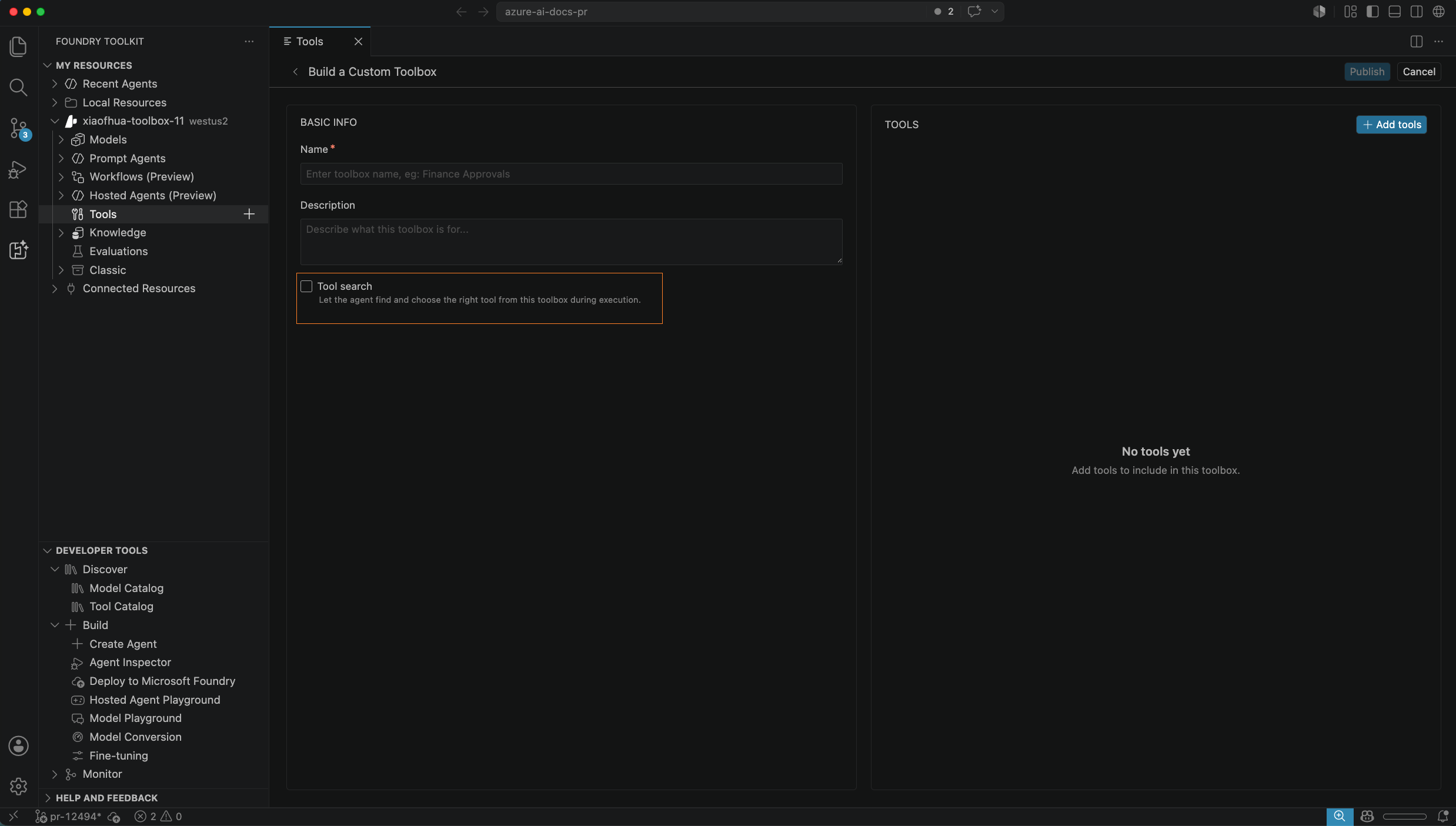
Publishing a new toolbox creates its first version. That version becomes the default version automatically. For the full toolbox creation workflow, see Curate intent-based toolbox in Foundry.
import os
from azure.identity import DefaultAzureCredential
from azure.ai.projects import AIProjectClient
from azure.ai.projects.models import MCPTool, ToolboxSearchPreviewTool

client = AIProjectClient(
    endpoint=os.environ["FOUNDRY_PROJECT_ENDPOINT"],
    credential=DefaultAzureCredential(),
)

# ToolboxSearchPreviewTool() enables tool search — other tools in the toolbox are discovered on
# demand through tool_search instead of being listed up front. Add as many MCP servers as you need;
# tool search keeps the agent's initial tool surface small regardless of toolbox size.
inner_mcp_tool = MCPTool(
    server_label="github",
    server_url="https://api.githubcopilot.com/mcp",
    require_approval="never",
    project_connection_id="github-mcp-conn",
)

toolbox_version = client.beta.toolboxes.create_version(
    name="my-toolbox",
    description="Large toolbox with tool search enabled",
    tools=[inner_mcp_tool, ToolboxSearchPreviewTool()],
)
print(f"Created toolbox `{toolbox_version.name}` (version {toolbox_version.version})")
To pin critical tools or add search keywords for specific tools, use tool_configs on the individual tool entry. See Fine-tune tool discovery.
POST {project_endpoint}/toolboxes/my-toolbox/versions?api-version=v1
Authorization: Bearer {token}
Content-Type: application/json

{
  "description": "Large toolbox with tool search enabled",
  "tools": [
    {
      "type": "toolbox_search_preview"
    },
    {
      "type": "work_iq_preview",
      "project_connection_id": "{workiq-connection-id}",
      "tool_configs": {
        "calendar_events": {
          "pin": true,
          "additional_search_text": "meetings appointments schedule calendar invites"
        }
      }
    },
    {
      "type": "mcp",
      "server_label": "github",
      "server_url": "https://api.githubcopilot.com/mcp",
      "require_approval": "never",
      "project_connection_id": "github-mcp-conn"
    }
  ]
}
Note
Use token scope https://ai.azure.com/.default when getting the bearer token.
using Azure.AI.Projects;
using Azure.AI.Projects.Agents;
using Azure.Identity;

var projectEndpoint = Environment.GetEnvironmentVariable("FOUNDRY_PROJECT_ENDPOINT");
DefaultAzureCredential credential = new();
AIProjectClient projectClient = new(endpoint: new Uri(projectEndpoint), tokenProvider: credential);
AgentToolboxes toolboxClient = projectClient.AgentAdministrationClient.GetAgentToolboxes();

// ToolboxSearchPreviewTool enables tool search — other tools are discovered on demand via tool_search
ProjectsAgentTool mcpTool = ProjectsAgentTool.AsProjectTool(ResponseTool.CreateMcpTool(
    serverLabel: "github",
    serverUri: new Uri("https://api.githubcopilot.com/mcp"),
    toolCallApprovalPolicy: new McpToolCallApprovalPolicy(GlobalMcpToolCallApprovalPolicy.NeverRequireApproval)));
ToolboxSearchPreviewTool searchTool = new()
{
    Name = "ToolBoxSearch",
    Description = "Search for tools by capability"
};

ToolboxVersion toolboxVersion = toolboxClient.CreateToolboxVersion(
    name: "my-toolbox",
    tools: [mcpTool, searchTool],
    description: "Large toolbox with tool search enabled");
Console.WriteLine($"Created toolbox `{toolboxVersion.Name}` (version {toolboxVersion.Version})");
import { DefaultAzureCredential } from "@azure/identity";
import { AIProjectClient } from "@azure/ai-projects";

const projectEndpoint = process.env["FOUNDRY_PROJECT_ENDPOINT"];
const project = new AIProjectClient(projectEndpoint, new DefaultAzureCredential());

// { type: "toolbox_search_preview" } enables tool search — other tools in the toolbox are
// discovered on demand through tool_search instead of being listed up front. Add as many MCP
// servers as you need; tool search keeps the agent's initial tool surface small regardless of size.
const toolboxVersion = await project.beta.toolboxes.createVersion(
  "my-toolbox",
  [
    {
      type: "mcp",
      server_label: "github",
      server_url: "https://api.githubcopilot.com/mcp",
      require_approval: "never",
      project_connection_id: "github-mcp-conn",
    },
    { type: "toolbox_search_preview" },
  ],
  { description: "Large toolbox with tool search enabled" },
);
console.log(`Created toolbox \`${toolboxVersion.name}\` (version ${toolboxVersion.version})`);
Verify tool search is active
Use the version-specific endpoint to confirm that tool_search appears in tools/list and that no other toolbox tools are exposed in the initial listing.
Foundry Toolkit creates and publishes the toolbox. To verify the MCP endpoint response for a specific toolbox version, select the Python, .NET, JavaScript, or REST API tab in this section.
Install the MCP client SDK if you haven't already:
pip install mcp
import asyncio
from azure.identity import DefaultAzureCredential
from mcp.client.streamable_http import streamablehttp_client
from mcp import ClientSession

url = "https://<account>.services.ai.azure.com/api/projects/<proj>/toolboxes/<name>/versions/<version>/mcp?api-version=v1"

token = DefaultAzureCredential().get_token("https://ai.azure.com/.default").token
headers = {
    "Authorization": f"Bearer {token}",
    "Foundry-Features": "Toolboxes=V1Preview",
}

async def verify_toolbox():
    async with streamablehttp_client(url, headers=headers) as (read, write, _):
        async with ClientSession(read, write) as session:
            await session.initialize()

            # List available tools -- only tool_search should appear initially
            tools_result = await session.list_tools()
            print(f"Tools found: {len(tools_result.tools)}")
            for tool in tools_result.tools:
                print(f"  - {tool.name}: {(tool.description or '')[:80]}")

            # Confirm tool_search is present
            names = [t.name for t in tools_result.tools]
            assert "tool_search" in names, "tool_search not found -- check toolbox_search_preview config"

asyncio.run(verify_toolbox())
Use the version-specific endpoint (/versions/{version}/mcp) to validate before promoting.
1. Initialize the MCP session:
POST {project_endpoint}/toolboxes/{toolbox_name}/versions/{version}/mcp?api-version=v1
Authorization: Bearer {token}
Content-Type: application/json
Foundry-Features: Toolboxes=V1Preview

{"jsonrpc":"2.0","id":1,"method":"initialize","params":{"protocolVersion":"2025-03-26","capabilities":{},"clientInfo":{"name":"test","version":"1.0"}}}
2. Send the initialized notification:
POST {project_endpoint}/toolboxes/{toolbox_name}/versions/{version}/mcp?api-version=v1
Authorization: Bearer {token}
Content-Type: application/json
Foundry-Features: Toolboxes=V1Preview

{"jsonrpc":"2.0","method":"notifications/initialized"}
3. List available tools:
POST {project_endpoint}/toolboxes/{toolbox_name}/versions/{version}/mcp?api-version=v1
Authorization: Bearer {token}
Content-Type: application/json
Foundry-Features: Toolboxes=V1Preview

{"jsonrpc":"2.0","id":2,"method":"tools/list","params":{}}
In result.tools, tool_search should be present and all other toolbox tools should be absent from the initial listing.
Use any MCP-compatible .NET client. Acquire a token with scope https://ai.azure.com/.default, include the Foundry-Features: Toolboxes=V1Preview header, and call tools/list against the version-specific MCP endpoint. See the REST API tab for the request shape.
Use any MCP-compatible JavaScript client (for example, the @modelcontextprotocol/sdk package). Acquire a token with scope https://ai.azure.com/.default, include the Foundry-Features: Toolboxes=V1Preview header, and call tools/list against the version-specific MCP endpoint. See the REST API tab for the request shape.
Fine-tune tool discovery
Tool search works without additional configuration. For predictable usage patterns, you can tune how specific tools are surfaced and indexed.
Foundry Toolkit supports enabling tool search. To configure pinned tools or extra search keywords, select the Python, .NET, JavaScript, or REST API tab in this section.
Pin critical tools
Use pin to make a specific tool always appear in tools/list alongside tool_search and call_tool. Pinned tools are callable immediately without a search round-trip. To pin every tool in an MCP server or built-in tool entry, use "*" as the key.
tools=[
    {"type": "toolbox_search_preview"},
    {
        "type": "mcp",
        "server_label": "analytics",
        "server_url": "https://db-mcp.internal/sse",
        "tool_configs": {
            "execute_query": {"pin": True},  # always visible — no search needed
        },
    },
]
{
  "tools": [
    { "type": "toolbox_search_preview" },
    {
      "type": "mcp",
      "server_label": "analytics",
      "server_url": "https://db-mcp.internal/sse",
      "tool_configs": {
        "execute_query": { "pin": true }
      }
    }
  ]
}
In the .NET SDK, attach tool_configs to the MCP tool entry when constructing the toolbox version. The configuration shape is identical to the JSON shown in the REST API tab.
In JavaScript, include tool_configs on the MCP tool object passed to project.beta.toolboxes.createVersion. The configuration shape is identical to the JSON shown in the REST API tab.
To pin every tool in an entry, use "*" as the key:
{
    "type": "mcp",
    "server_label": "analytics",
    "server_url": "https://db-mcp.internal/sse",
    "tool_configs": {
        "*": {"pin": True},  # every tool in this server is always visible
    },
}
{
  "type": "mcp",
  "server_label": "analytics",
  "server_url": "https://db-mcp.internal/sse",
  "tool_configs": {
    "*": { "pin": true }
  }
}
Use the same "*" wildcard key inside tool_configs on the .NET MCP tool entry to pin every tool from an MCP server. See the REST API tab for the JSON shape.
Use the same "*" wildcard key inside tool_configs on the JavaScript MCP tool object to pin every tool from an MCP server. See the REST API tab for the JSON shape.
Add search keywords
If a tool's MCP description doesn't match the vocabulary users naturally use, add keywords with additional_search_text. The extra text is used only for search ranking—it's never exposed to the model in the tool schema.
{
    "type": "mcp",
    "server_label": "analytics",
    "server_url": "https://db-mcp.internal/sse",
    "tool_configs": {
        "execute_query": {
            "pin": True,
            "additional_search_text": "SQL database analytics reporting dashboard queries",
        },
        "list_tables": {
            "additional_search_text": "schema columns metadata table structure discover",
        },
    },
}
{
  "type": "mcp",
  "server_label": "analytics",
  "server_url": "https://db-mcp.internal/sse",
  "tool_configs": {
    "execute_query": {
      "pin": true,
      "additional_search_text": "SQL database analytics reporting dashboard queries"
    },
    "list_tables": {
      "additional_search_text": "schema columns metadata table structure discover"
    }
  }
}
In the .NET SDK, set additional_search_text (and optionally pin) inside tool_configs on the MCP tool entry. The shape matches the JSON shown in the REST API tab.
In JavaScript, set additional_search_text (and optionally pin) inside tool_configs on the MCP tool object passed to project.beta.toolboxes.createVersion. The shape matches the JSON shown in the REST API tab.
Auto-pinning
Foundry automatically tracks which tools each user calls most frequently and surfaces them directly in tools/list—no configuration required. After a short warmup period, frequently used tools appear without a search round-trip. The hot set is per-user and updates as usage patterns shift; stale entries age out automatically.
Auto-pinning composes with explicit pin and additional_search_text configuration. Pin the critical tools you know about upfront, add keywords for tools with ambiguous names, and let auto-pinning handle the long tail as usage patterns emerge.
Configuration reference
toolbox_search_preview
| Field | Type | Required | Description |
|---|---|---|---|
type |
"toolbox_search_preview" |
Yes | Activates tool search for the toolbox. |
Include {"type": "toolbox_search_preview"} in your toolbox's tools list to enable tool search. All other configuration fields are optional.
tool_configs (per-tool)
Set tool_configs on an individual MCP tool entry to control how specific tools behave within the search context. Use an exact tool name as the key to configure a specific tool, or "*" to apply the configuration to all tools in that entry.
| Field | Type | Description |
|---|---|---|
pin |
boolean | When true, the tool appears directly in tools/list alongside tool_search and call_tool. The model can call it without searching first. |
additional_search_text |
string | Extra keywords added to the tool's search index entry. Used for search ranking only—never visible to the model in the tool schema. |
Considerations
- All toolbox tools are hidden from the initial listing. When
toolbox_search_previewis in a toolbox, no other toolbox tools appear intools/list. The model discovers them only throughtool_search. Tools added directly to an agent outside the toolbox are unaffected and remain visible. - Tool descriptions drive match quality. Foundry uses tool names and descriptions to evaluate search queries. A tool without a description, or with a vague one, is unlikely to be returned even for relevant queries. Write descriptions that describe what the tool does and the kinds of tasks it handles.
tool_searchdoesn't count toward tool limits. It's injected by the platform and doesn't consume the unnamed-tool-per-type slot.- Multiple searches per turn are supported. The model can call
tool_searchmore than once in a single turn if different steps need different capabilities. - Returned tools persist for the turn. Once a tool is returned by
tool_search, the model can call it multiple times without re-searching. - Pinned tools always appear in
tools/list. Tools with"pin": Trueintool_configsappear alongsidetool_searchandcall_toolon every turn, regardless of search queries. - Auto-pinning surfaces frequently used tools automatically. Foundry tracks per-user tool call frequency and promotes the most-called tools to
tools/listafter a short warmup period. The hot set is per-user and updates as usage patterns shift. - OAuth consent may be required. If any tool in the toolbox connects to an OAuth-based MCP server, the first call returns a
CONSENT_REQUIREDerror (code-32007) with a consent URL in the response. Open that URL in a browser, complete the OAuth flow, then retry. Subsequent calls succeed without re-prompting. See Troubleshoot toolbox errors for handling this error.
Best practices
- Add a description to every tool. Tool search uses descriptions to match tools to queries. A missing or vague description causes poor discovery.
- Use tool search for large toolboxes. This is the most effective configuration when you have 10 or more tools.
- Use tool search together with toolbox versioning. Test your configuration on a version-specific endpoint before promoting it to default.
- Mention tool search in the system prompt. Guide the model to call
tool_searchbefore concluding that a capability is unavailable. For example: "If you need a tool that isn't in your current list, calltool_searchwith a description of what you need before responding that you can't help." - Pin always-needed tools. Use
"pin": Trueintool_configsfor tools called on nearly every turn to skip the search round-trip. - Use
additional_search_textwhen descriptions are ambiguous. If your team uses different vocabulary than the MCP server's tool descriptions, add keywords to improve search precision without modifying the server.
Troubleshoot
| Symptom | Likely cause | Fix |
|---|---|---|
tool_search is missing from tools/list |
toolbox_search_preview wasn't included in the toolbox version, or you're connected to a version that predates the change. |
Add {"type": "toolbox_search_preview"} to the tools list and create a new version. Confirm you're using the updated version's endpoint. |
tool_search returns no results for a query |
Tools in the toolbox have no description or descriptions don't relate to the query. | Add or improve descriptions on the tools in the toolbox. Descriptions should explain what the tool does and the kinds of tasks it handles. |
A toolbox tool appears in the initial tools/list |
The tool was added directly to the agent instead of, or in addition to, the toolbox definition. | Remove the tool from the agent's direct tool list and rely on the toolbox. Tools added directly to an agent are always visible, regardless of tool search. |
The model never calls tool_search |
The model doesn't know tool_search can retrieve additional tools. |
Add an instruction in the system prompt telling the model to call tool_search when a needed capability isn't in its current tool list. |
tool_search is called but the tool returned fails to execute |
The underlying tool's connection or configuration is invalid. | Verify the project_connection_id and other fields on the returned tool. Test the tool directly through the toolbox MCP endpoint without tool search enabled. |