Note
Access to this page requires authorization. You can try signing in or changing directories.
Access to this page requires authorization. You can try changing directories.
Important
Items marked (preview) in this article are currently in public preview. This preview is provided without a service-level agreement, and we don't recommend it for production workloads. Certain features might not be supported or might have constrained capabilities. For more information, see Supplemental Terms of Use for Microsoft Azure Previews.
Warning
When you connect to non-Foundry tools, you might incur costs and data might be sent outside Foundry's compliance boundary and processed according to the applicable terms and data handling policies. See the tool's documentation to learn how to manage access to the tool.
A single agent can depend on multiple tools - APIs, Model Context Protocol (MCP) servers, connectors, and flows - each with its own authentication model and owning team. As you scale across an organization, teams re-implement the same tools independently, credentials get duplicated, governance becomes inconsistent, and there's little visibility into what tools exist or who's using them. Developers stall, not because the models aren't capable, but because tool integration becomes the bottleneck.
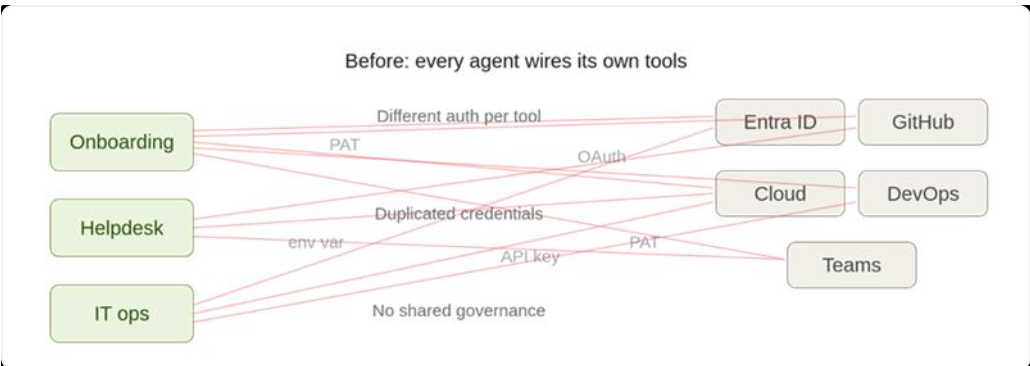
Enterprises already have the infrastructure: gateways, credential vaults, policies, and observability. What's been missing is a developer experience that packages this infrastructure into something reusable, discoverable, and governed by default.
Toolbox provides that experience. Define a curated set of tools once, manage them centrally in Foundry, and expose them through a single MCP-compatible endpoint that any agent can consume. The platform handles credential injection, token refresh, and enterprise policy enforcement at runtime.
Toolbox covers the full tool lifecycle through four pillars - Build and Consume are available today:
| Pillar | Status | What it enables |
|---|---|---|
| Build | Available today | Select tools, configure authentication centrally, and publish a reusable toolbox that any team can consume. |
| Consume | Available today | Connect any agent to a single MCP-compatible endpoint to dynamically discover and invoke all tools in the toolbox. |
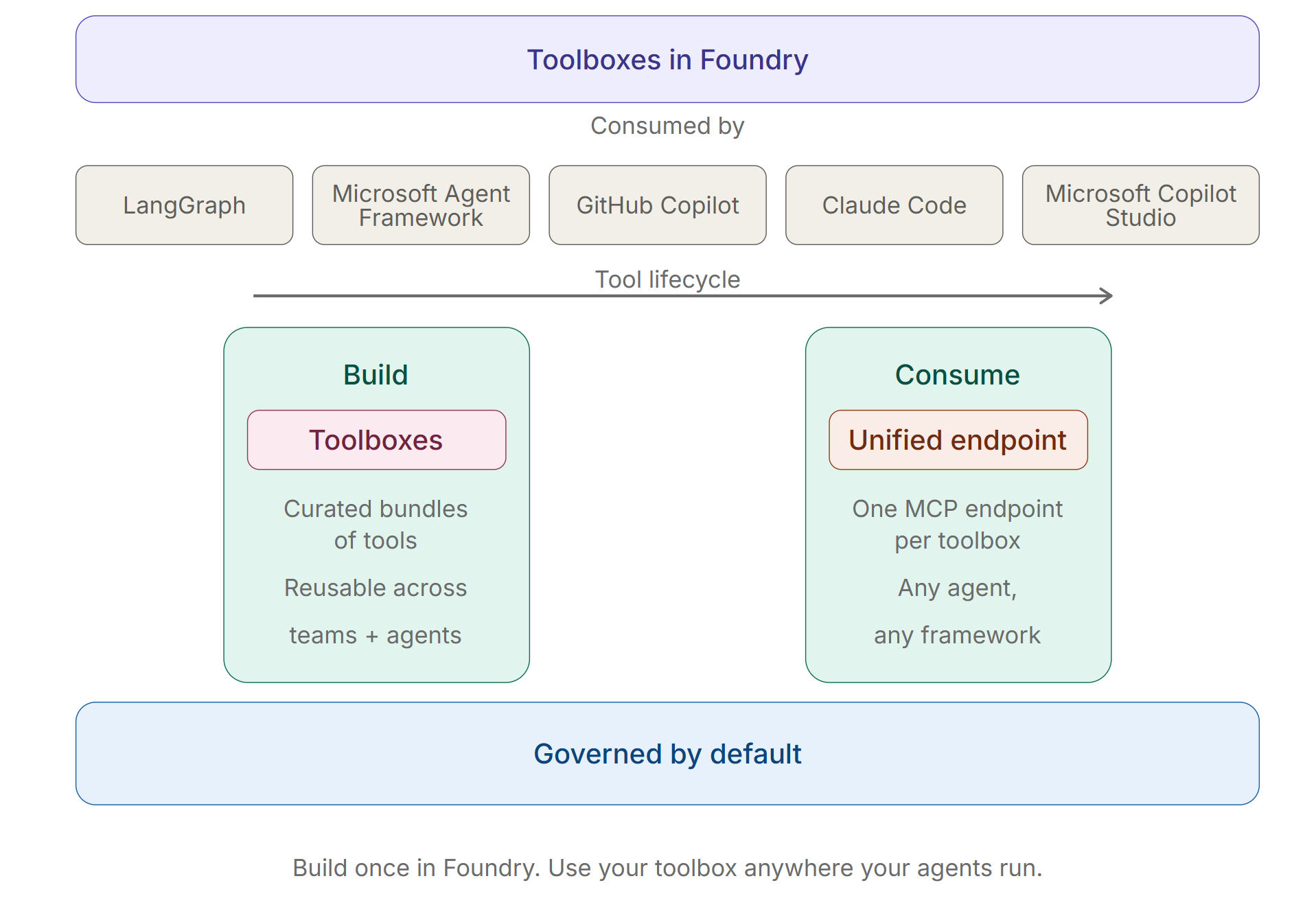
You create toolboxes in Foundry, but the consumption surface is open. Any MCP-compatible agent runtime or client can use a toolbox - including agents built with any framework, MCP-enabled IDEs, and custom code.
Because a toolbox is a managed resource, you can add, remove, or reconfigure tools without changing code in your agent. Your agent always connects to a single endpoint. Toolbox versioning gives you explicit control over when changes take effect - create and test a new version, then promote it to default when you're ready. Every agent that points to the toolbox picks up the promoted version automatically, with no code changes and no redeployment.
In this article, you learn how to:
- Create a toolbox with one or more tools.
- Get the toolbox MCP endpoint.
- Verify that tools load correctly.
- Integrate a toolbox into your hosted agent.
- Manage toolbox versions and promote a version to default.
- Apply a guardrail (RAI policy) to a toolbox version.
For tool configuration syntax and authentication options for each tool type, see Configure tools.
Feature support
| Feature | Python SDK | REST API | .NET SDK | JavaScript SDK | azd | Foundry Toolkit |
|---|---|---|---|---|---|---|
| Toolbox update, list, get, and delete | ✔️ | ✔️ | ✔️ | ✔️ | N/A | ✔️ |
| Toolbox version create | ✔️ | ✔️ | ✔️ | ✔️ | ✔️ | ✔️ |
| Toolbox version list, get, and delete | ✔️ | ✔️ | ✔️ | ✔️ | N/A | No. UI shows the latest version only. |
| MCP tool | ✔️ | ✔️ | ✔️ | ✔️ | ✔️ | ✔️ |
| Web Search tool | ✔️ | ✔️ | ✔️ | ✔️ | ✔️ | ✔️ |
| Azure AI Search tool | ✔️ | ✔️ | ✔️ | ✔️ | ✔️ | ✔️ |
| Code Interpreter tool | ✔️ | ✔️ | ✔️ | ✔️ | ✔️ | ✔️ |
| File Search tool | ✔️ | ✔️ | ✔️ | ✔️ | ✔️ | ✔️ |
| OpenAPI tool | ✔️ | ✔️ | ✔️ | ✔️ | ✔️ | No |
| Agent-to-Agent (A2A) tool | ✔️ | ✔️ | ✔️ | ✔️ | ✔️ | No |
| Fabric IQ tool | ✔️ | ✔️ | ✔️ | ✔️ | ✔️ | ✔️ |
| Guardrail (RAI policy) | ✔️ | ✔️ | ✔️ | ✔️ | ✔️ | ✔️ |
| Skill references | ✔️ | ✔️ | ✔️ | ✔️ | ✔️ | No |
| Tool Search tool | ✔️ | ✔️ | ✔️ | ✔️ | ✔️ | ✔️ |
| Work IQ tool | ✔️ | ✔️ | ✔️ | ✔️ | ✔️ | ✔️ |
| Browser Automation tool | ✔️ | ✔️ | ✔️ | ✔️ | ✔️ | No |
Prerequisites
An active Microsoft Foundry project.
RBAC: Grant the Foundry User role on the Foundry project to each identity that applies to your scenario:
- Developer (always required) — the identity that creates, updates, and manages toolbox versions.
- Agent identity (required if using a hosted agent) — the agent's managed identity that calls tools at runtime.
- End user (required only for OAuth flows) — any user whose identity is proxied through OAuth or UserEntraToken connections (for example, OAuth-based MCP or user Entra token (managed user identity passthrough) flows).
Your Foundry project needs to be at one of the supported regions. Individual tool types within a toolbox are further limited by region and model – not all tool types are available in every region or with every model. See Region and model compatibility.
Install the Microsoft Foundry Toolkit for Visual Studio Code extension from the Visual Studio Code Marketplace.
Python SDK:
pip install azure-ai-projects azure-identity.NET SDK:
dotnet add package Azure.AI.Projects --prereleaseanddotnet add package Azure.IdentityJavaScript SDK:
npm install @azure/ai-projects @azure/identityAzure Developer CLI: Install the Azure Developer CLI (
azd, 1.25 or later) and the unified Foundry CLI extension bundle:# If you previously installed individual extensions, uninstall them first. azd ext uninstall azure.ai.foundry # Install the unified bundle (provides azd ai agent, connection, inspector, # project, routine, skill, and toolbox). azd ext install azure.ai.foundry
Important
- Every request to the toolbox MCP endpoint must include the header
Foundry-Features: Toolboxes=V1Preview. Calls that omit this header fail. Include it in all HTTP clients, MCP transports, and SDK wrappers that call the toolbox endpoint. - A toolbox supports at most one tool without a
namefield per tool type (Web Search, Azure AI Search, Code Interpreter, File Search). To include more than one instance of the same tool type, set a uniquenameon each instance to differentiate them. Including two instances of the same type without anamereturns aninvalid_payloaderror. For details, see Multiple tool types. - Add a
descriptionto every tool in your toolbox to help the model select the right tool for each request. - Carefully review each tool's documentation to learn more about individual tool setup, limitations, and warnings.
Tip
If you're using GitHub Copilot for Azure to scaffold a hosted agent that consumes the toolbox, the following skill references describe the same endpoint contract (env var, headers, MCP protocol, citation patterns, and troubleshooting) that the agent must implement:
- Toolbox reference — endpoint format, MCP protocol, OAuth consent handling, citation patterns, and troubleshooting.
- Use toolbox in a hosted agent — endpoint resolution, env-var contract, payload shape, code integration patterns, and tracing.
Step 1: Create a toolbox version
Create a toolbox version based on the tools you need.
Tip
When you include the Fabric IQ tool against a Power BI semantic model, restrict the tool surface with allowed_tools so the agent reasons over the schema and runs queries directly instead of pre-generating DAX. The recommended list is GetInstructions, DiscoverArtifacts, GetReportMetadata, GetSemanticModelSchema, ExecuteQuery, and ValueSearch — omit GenerateQuery. For end-to-end Fabric IQ setup, including OAuth and the Power BI semantic model endpoint, see Use the Fabric IQ tool.
import os
from azure.identity import DefaultAzureCredential
from azure.ai.projects import AIProjectClient
from azure.ai.projects.models import MCPTool, ToolboxSearchPreviewTool, WebSearchTool

# Create Foundry project client
endpoint = "https://<your-foundry-account>.services.ai.azure.com/api/projects/<your-project>"
project = AIProjectClient(
    endpoint=endpoint,
    credential=DefaultAzureCredential(),
)

# Create toolbox version with web search, MCP, tool search, Work IQ, and Fabric IQ tools.
# Work IQ and Fabric IQ are dict-shaped here because they require a project_connection_id
# pointing at the corresponding connection. See work-iq.md and fabric-iq.md for setup details.
toolbox_version = project.beta.toolboxes.create_version(
    name="my-toolbox",
    description="Toolbox with web search, MCP, tool search, Work IQ, and Fabric IQ",
    tools=[
        WebSearchTool(),
        MCPTool(
            server_label="myserver",
            server_url="https://your-mcp-server.example.com",
            require_approval="never",
            project_connection_id="my-key-auth-connection",
        ),
        ToolboxSearchPreviewTool(),
        {
            "type": "work_iq_preview",
            "name": "workiq",
            "project_connection_id": os.environ["WORK_IQ_PROJECT_CONNECTION_ID"],
        },
        {
            "type": "fabric_iq_preview",
            "server_label": "fabriciq",
            "project_connection_id": os.environ["FABRIC_IQ_PROJECT_CONNECTION_ID"],
            "require_approval": "never",
            # For Power BI semantic models, restrict the tool surface so the agent reasons
            # over the schema and runs queries directly instead of pre-generating DAX.
            # "allowed_tools": [
            #     "GetInstructions",
            #     "DiscoverArtifacts",
            #     "GetReportMetadata",
            #     "GetSemanticModelSchema",
            #     "ExecuteQuery",
            #     "ValueSearch",
            # ],
        },
    ],
)
print(f"Created toolbox: {toolbox_version.name}, version: {toolbox_version.version}")
using Azure.Identity;
using Azure.AI.Projects;

// Create Foundry project client
var projectEndpoint = "https://<your-foundry-account>.services.ai.azure.com/api/projects/<your-project>";
var workIqConnectionId = Environment.GetEnvironmentVariable("WORK_IQ_PROJECT_CONNECTION_ID");
var fabricIqConnectionId = Environment.GetEnvironmentVariable("FABRIC_IQ_PROJECT_CONNECTION_ID");
AIProjectClient projectClient = new(new Uri(projectEndpoint), new DefaultAzureCredential());
AgentToolboxes toolboxClient = projectClient.AgentAdministrationClient.GetAgentToolboxes();

ProjectsAgentTool webTool = ProjectsAgentTool.AsProjectTool(
    ResponseTool.CreateWebSearchTool());

ProjectsAgentTool mcpTool = ProjectsAgentTool.AsProjectTool(ResponseTool.CreateMcpTool(
    serverLabel: "myserver",
    serverUri: new Uri("https://your-mcp-server.example.com"),
    toolCallApprovalPolicy: new McpToolCallApprovalPolicy(
        GlobalMcpToolCallApprovalPolicy.NeverRequireApproval
    )
));

ToolboxSearchPreviewTool searchTool = new() { Name = "ToolBoxSearch" };
WorkIQPreviewTool workIqTool = new(workIqConnectionId) { Name = "workiq" };
FabricIQPreviewTool fabricIqTool = new(fabricIqConnectionId)
{
    ServerLabel = "fabriciq",
    RequireApproval = BinaryData.FromObjectAsJson("never"),
};

ToolboxVersion toolboxVersion = await toolboxClient.CreateToolboxVersionAsync(
    toolboxName: "my-toolbox",
    tools: [webTool, mcpTool, searchTool, workIqTool, fabricIqTool],
    description: "Toolbox with web search, MCP, tool search, Work IQ, and Fabric IQ"
);
Console.WriteLine($"Created toolbox: {toolboxVersion.Name}, version: {toolboxVersion.Version}");
POST {project_endpoint}/toolboxes/my-toolbox/versions?api-version=v1
Authorization: Bearer {token}
Content-Type: application/json

{
  "description": "Toolbox with web search, MCP, tool search, Work IQ, and Fabric IQ",
  "tools": [
    {
      "type": "web_search",
      "description": "Search the web for current information"
    },
    {
      "type": "mcp",
      "server_label": "myserver",
      "server_url": "https://your-mcp-server.example.com",
      "require_approval": "never",
      "project_connection_id": "my-key-auth-connection"
    },
    {
      "type": "toolbox_search_preview"
    },
    {
      "type": "work_iq_preview",
      "name": "workiq",
      "project_connection_id": "{workiq-connection-id}"
    },
    {
      "type": "fabric_iq_preview",
      "server_label": "fabriciq",
      "project_connection_id": "{fabric-iq-connection-id}",
      "require_approval": "never"
    }
  ]
}
Note
Use token scope https://ai.azure.com/.default when getting the bearer token.
import { DefaultAzureCredential } from "@azure/identity";
import { AIProjectClient } from "@azure/ai-projects";

// Create Foundry project client
const projectEndpoint = "https://<your-foundry-account>.services.ai.azure.com/api/projects/<your-project>";
const workIqProjectConnectionId = process.env["WORK_IQ_PROJECT_CONNECTION_ID"];
const fabricIqProjectConnectionId = process.env["FABRIC_IQ_PROJECT_CONNECTION_ID"];

const project = new AIProjectClient(projectEndpoint, new DefaultAzureCredential());

const toolboxVersion = await project.beta.toolboxes.createVersion(
  "my-toolbox",
  [
    {
      type: "web_search",
      description: "Search the web for current information",
    },
    {
      type: "mcp",
      server_label: "myserver",
      server_url: "https://your-mcp-server.example.com",
      require_approval: "never",
      project_connection_id: "my-key-auth-connection",
    },
    { type: "toolbox_search_preview" },
    {
      type: "work_iq_preview",
      name: "workiq",
      project_connection_id: workIqProjectConnectionId,
    },
    {
      type: "fabric_iq_preview",
      server_label: "fabriciq",
      project_connection_id: fabricIqProjectConnectionId,
      require_approval: "never",
    },
  ],
  {
    description: "Toolbox with web search, MCP, tool search, Work IQ, and Fabric IQ",
  },
);
console.log(`Created toolbox: ${toolboxVersion.name}, version: ${toolboxVersion.version}`);
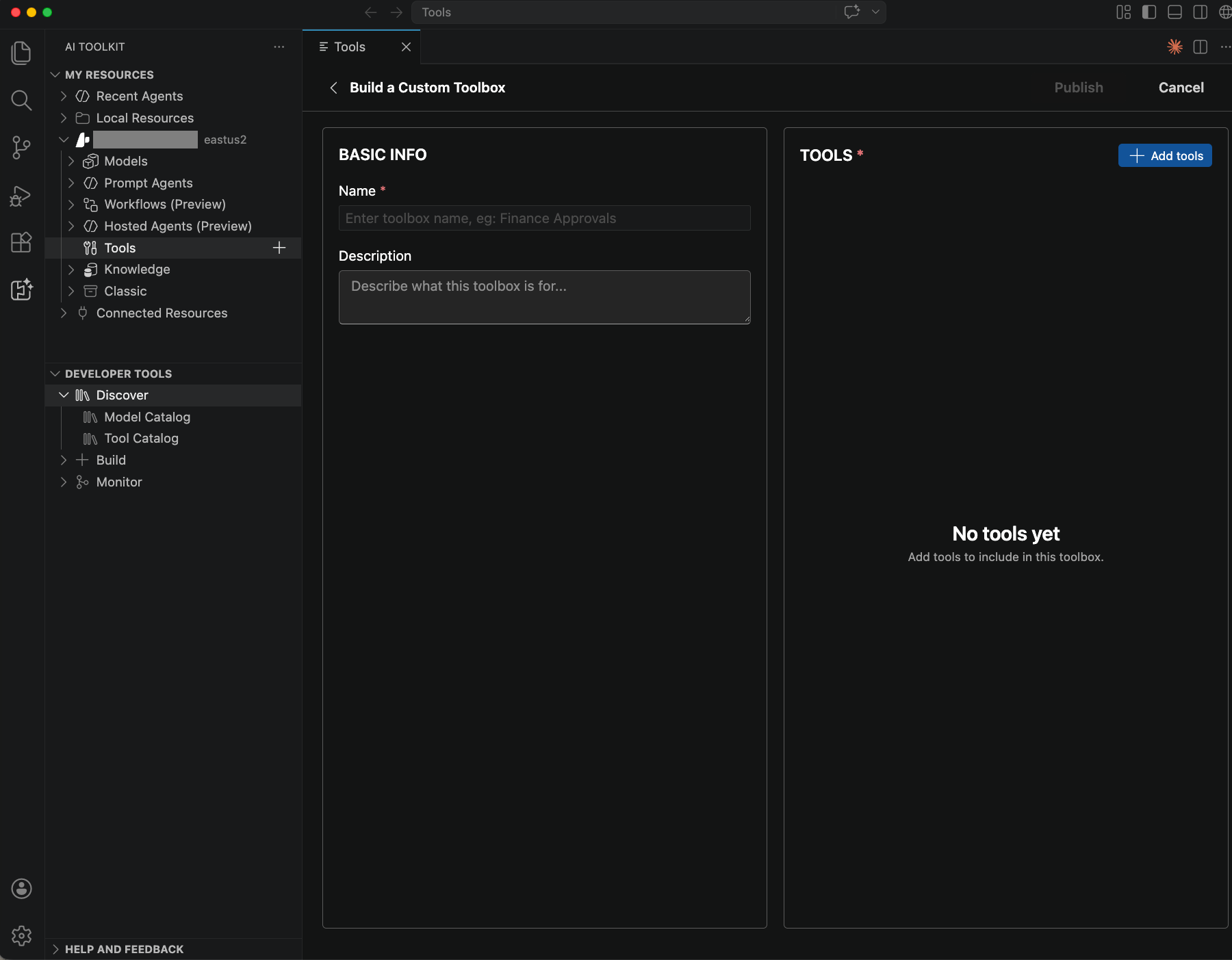
Use the Microsoft Foundry Toolkit for Visual Studio Code extension to create and publish a toolbox from the Tools view.
- Select Foundry Toolkit in the Activity Bar.
- Under My Resources, expand Your project name > Tools.
- Select the + Add Toolbox icon.
- On the Build a Custom Toolbox tab, enter the toolbox name and description, and add the tools you want.
- To enable intent-based tool routing, select Tool search.
- To add Work IQ or Fabric IQ tools, select + Add tool and choose the corresponding tool type. Provide the required project connection when prompted. For end-to-end setup details, see Use the Work IQ tool and Use the Fabric IQ tool.
- Select Publish.
Publishing a new toolbox creates its first version. That version becomes the default version automatically.
With the unified azure.ai.foundry extension bundle (see Prerequisites), create a toolbox in two steps:
- Use
azd ai connection createto register each project connection that the toolbox references (one call per credential record). - Use
azd ai toolbox create --from-file <toolbox.yaml>to create the toolbox. The YAML references connections by name and never embeds credentials.
The pattern is the same for every connection kind and auth type:
Set the active project once per shell:
azd ai project set $PROJECT_ENDPOINTCreate a connection with
azd ai connection create. The flags differ per auth type, but the command shape is always:azd ai connection create <name> \ --kind <remote-tool|remote-a2a|cognitive-search|GroundingWithCustomSearch> \ --target <endpoint-url> \ --auth-type <none|custom-keys|api-key|oauth2|user-entra-token|project-managed-identity|agentic-identity> \ [--custom-key "Header=Value" | --key <key> | --client-id ... --client-secret ... --authorization-url ... --token-url ... | --audience <aad-resource-uri>]Use
azd ai connection listandazd ai connection show <name>to inspect connections, andazd ai connection delete <name> --forceto remove them.Author a toolbox YAML that references one or more existing connections by name. The YAML never embeds credentials:
# my-toolbox.yaml
description: <human-readable description>
connections:
  - name: <project-connection-name>   # must already exist in the project
# Optional: add connectionless built-in tools and policies.
tools:
  - type: web_search
    name: web
  - type: code_interpreter
    container: { type: auto }
    name: code
  # Tool search is connectionless.
  - type: toolbox_search_preview
  # Work IQ requires project_connection_id plus a unique name.
  - type: work_iq_preview
    name: workiq
    project_connection_id: <work-iq-connection-name>
  # Fabric IQ requires project_connection_id plus server_label.
  - type: fabric_iq_preview
    server_label: fabriciq
    project_connection_id: <fabric-iq-connection-name>
    require_approval: never
    # For Power BI semantic models, restrict the tool surface with allowed_tools
    # so the agent reasons over the schema and runs queries directly instead of
    # pre-generating DAX. See fabric-iq.md for the full guidance.
    # allowed_tools:
    #   - GetInstructions
    #   - DiscoverArtifacts
    #   - GetReportMetadata
    #   - GetSemanticModelSchema
    #   - ExecuteQuery
    #   - ValueSearch
  # For Azure AI Search, set the index in the tool entry:
  # - type: azure_ai_search
  #   name: search
  #   azure_ai_search:
  #     indexes:
  #       - project_connection_id: <azure-ai-search-connection-name>
  #         index_name: <search-index-name>
  # For Bing Custom Search, set the instance in the tool entry:
  # - type: bing_custom_search
  #   name: bing
  #   custom_search_configuration:
  #     project_connection_id: <bing-connection-name>
  #     instance_name: <bing-instance-name>
# Optional: attach existing project skills as MCP resources.
skills:
  - name: <skill-name>          # uses the skill's default version
  - name: <other-skill>
    version: "2"               # pin to a specific skill version (string)
policies:
  rai_config:
    rai_policy_name: <policy-name>    # must already exist on the project
At least one of
connections,skills, ortoolsmust be non-empty. Skill references must point to skills that already exist in the same Foundry project; see Use skills in Foundry to create them withazd ai skill create. For end-to-end Tool Search, Work IQ, and Fabric IQ setup details, see Use tool search, Use the Work IQ tool, and Use the Fabric IQ tool.Create the toolbox from that file:
azd ai toolbox create <toolbox-name> --from-file ./my-toolbox.yamlThe first version becomes the default automatically. Use
azd ai toolbox list,azd ai toolbox show <name>,azd ai toolbox version list <name>, andazd ai toolbox delete <name> --forceto manage toolboxes.
Example: MCP server with key-based auth
# 1. Create the connection
azd ai connection create my-gh-conn \
  --kind remote-tool \
  --target https://api.githubcopilot.com/mcp/ \
  --auth-type custom-keys \
  --custom-key "Authorization=Bearer $GITHUB_PAT"

# 2. Create the toolbox
azd ai toolbox create my-toolbox \
  --from-file ./my-toolbox.yaml \
  --no-prompt
# my-toolbox.yaml
description: GitHub MCP toolbox
connections:
  - name: my-gh-conn
Step 2: Get the toolbox MCP endpoint
Two endpoint patterns exist depending on your role:
| Role | Endpoint | When to use |
|---|---|---|
| Toolbox developer | {project_endpoint}/toolboxes/{toolbox_name}/versions/{version}/mcp?api-version=v1 |
Test or validate a specific version before promoting it to default. |
| Toolbox consumer | {project_endpoint}/toolboxes/{toolbox_name}/mcp?api-version=v1 |
Connect agents to the toolbox. Always serves the default_version. The first version you create is automatically set as the default. |
Note
The first version of a new toolbox is automatically promoted to default_version (v1). If you need to change the default later, see Promote a version to default.
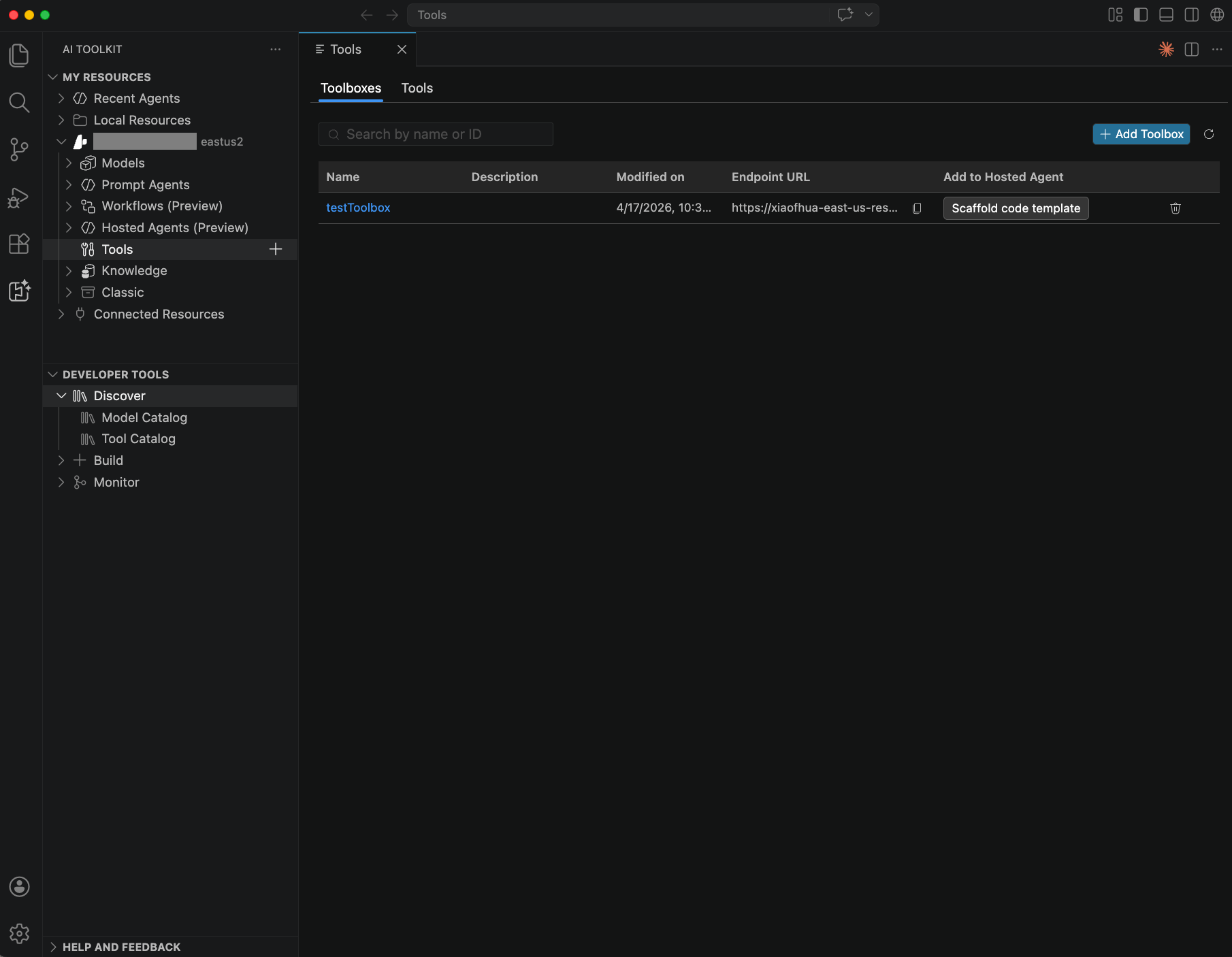
In the Microsoft Foundry Toolkit for Visual Studio Code extension, copy the toolbox consumer endpoint from the Toolboxes view.
- Select Foundry Toolkit in the Activity Bar.
- Under My Resources, expand Your project name > Tools.
- On the Toolboxes tab, locate your toolbox.
- In the Endpoint URL column, copy the endpoint.
The Endpoint URL value is the toolbox consumer endpoint. To construct a version-specific endpoint, use the developer pattern shown in the previous table.
Step 3: Verify tool availability
Before running the full agent, confirm that the toolbox loads the expected tools by using an MCP client SDK against the endpoint. Use the version-specific endpoint to validate a version before promoting it to default.
Install the MCP client SDK:
pip install mcp
Connect to the toolbox and list tools
import asyncio
from azure.identity import DefaultAzureCredential
from mcp.client.streamable_http import streamablehttp_client
from mcp import ClientSession

url = "https://<account>.services.ai.azure.com/api/projects/<proj>/toolboxes/<name>/versions/<version>/mcp?api-version=v1"

token = DefaultAzureCredential().get_token("https://ai.azure.com/.default").token
headers = {
    "Authorization": f"Bearer {token}",
    "Foundry-Features": "Toolboxes=V1Preview",
}

async def verify_toolbox():
    async with streamablehttp_client(url, headers=headers) as (read, write, _):
        async with ClientSession(read, write) as session:
            await session.initialize()

            # List available tools
            tools_result = await session.list_tools()
            print(f"Tools found: {len(tools_result.tools)}")
            for tool in tools_result.tools:
                print(f"  - {tool.name}: {(tool.description or '')[:80]}")

            # Call a tool (replace with actual tool name and arguments)
            result = await session.call_tool("<tool_name>", arguments={})
            print(result)

asyncio.run(verify_toolbox())
Note
Use the REST API tab to verify tool availability from .NET, or use the Python MCP client SDK.
Use the version-specific endpoint (/versions/{version}/mcp) to validate a version before promoting it.
1. Initialize the MCP session:
POST {project_endpoint}/toolboxes/{toolbox_name}/versions/{version}/mcp?api-version=v1
Authorization: Bearer {token}
Content-Type: application/json
Foundry-Features: Toolboxes=V1Preview

{"jsonrpc":"2.0","id":1,"method":"initialize","params":{"protocolVersion":"2025-03-26","capabilities":{},"clientInfo":{"name":"test","version":"1.0"}}}
2. Send the initialized notification:
POST {project_endpoint}/toolboxes/{toolbox_name}/versions/{version}/mcp?api-version=v1
Authorization: Bearer {token}
Content-Type: application/json
Foundry-Features: Toolboxes=V1Preview

{"jsonrpc":"2.0","method":"notifications/initialized"}
3. List available tools:
POST {project_endpoint}/toolboxes/{toolbox_name}/versions/{version}/mcp?api-version=v1
Authorization: Bearer {token}
Content-Type: application/json
Foundry-Features: Toolboxes=V1Preview

{"jsonrpc":"2.0","id":2,"method":"tools/list","params":{}}
4. Call a tool:
POST {project_endpoint}/toolboxes/{toolbox_name}/versions/{version}/mcp?api-version=v1
Authorization: Bearer {token}
Content-Type: application/json
Foundry-Features: Toolboxes=V1Preview

{"jsonrpc":"2.0","id":3,"method":"tools/call","params":{"name":"<TOOL_NAME>","arguments":{}}}
Install the MCP client SDK:
npm install @modelcontextprotocol/sdk
Connect to the toolbox and list tools
import { DefaultAzureCredential } from "@azure/identity";
import { StreamableHTTPClientTransport } from "@modelcontextprotocol/sdk/client/streamableHttp.js";
import { Client } from "@modelcontextprotocol/sdk/client/index.js";

const url = "https://<account>.services.ai.azure.com/api/projects/<proj>/toolboxes/<name>/versions/<version>/mcp?api-version=v1";

const credential = new DefaultAzureCredential();
const token = await credential.getToken("https://ai.azure.com/.default");

const transport = new StreamableHTTPClientTransport(
  new URL(url),
  {
    requestInit: {
      headers: {
        Authorization: `Bearer ${token.token}`,
        "Foundry-Features": "Toolboxes=V1Preview",
      },
    },
  },
);

const client = new Client({ name: "test", version: "1.0" });
await client.connect(transport);

// List available tools
const toolsResult = await client.listTools();
console.log(`Tools found: ${toolsResult.tools.length}`);
for (const tool of toolsResult.tools) {
  console.log(`  - ${tool.name}: ${(tool.description || "").slice(0, 80)}`);
}

// Call a tool (replace with actual tool name and arguments)
const result = await client.callTool({ name: "<tool_name>", arguments: {} });
console.log(result);

await client.close();
Use the endpoint from Step 2 together with a scaffolded hosted agent sample to validate toolbox loading in VS Code.
- In Foundry Toolkit, under My Resources > Your project name > Tools, locate the toolbox you want to test.
- Select Scaffold code template.
- Choose a project folder when prompted.
- Follow the generated
README.mdto install dependencies, configure environment variables, and run the sample locally. - Use Agent Inspector or run
python main.pyto confirm the toolbox tools load and respond.
For version-specific validation before you promote a new toolbox version, use the Python or REST API tab in this step.
Note
Use the REST API tab to verify tool availability, or use the Python MCP client SDK.
Check — initialize: HTTP 200. If you skip the initialize step, subsequent calls fail.
Check — tools/list:
len(tools) > 0— empty means the toolbox version wasn't provisioned correctly.- Each tool has
name,description, andinputSchema. For tool naming conventions, see the MCP specification. inputSchemahas apropertiesfield (some MCP servers omit this field, which breaks OpenAI).- For MCP tools, names are prefixed with the
server_label- for example,myserver.some_tool. For all other tool types, the name is thenamefield value or the default tool name. - MCP tools include a
_meta.tool_configurationblock containing runtime settings such asrequire_approval. See Handle tool approval requirements. - Note the exact parameter names for the call step (for example
queryvsqueries).
Check - tools/call:
- No top-level
errorfield. If present, inspecterror.code. For standard MCP error codes, see the MCP specification:-32006→ OAuth consent required (extract URL fromerror.message).- Other codes → server-side failure.
result.content[]contains entries with"type": "text"- this is the tool output.- For AI Search, check
result.structuredContent.documents[]for chunk metadata (title,url,id,score). - For File Search, check
result.content[].resource._metafor chunk metadata (title,file_id,document_chunk_id,score). - For Web Search, check
result.content[].resource._meta.annotations[]for URL citations (type,url,title,start_index,end_index). - For Fabric IQ, check
result.structuredContent.documents[]for citation chunks. Each document includestitleandurlfields pointing back to the Fabric item (Ontology, data agent, or Power BI semantic model) used to ground the response. - Watch for
"ServerError"in text content - the tool executed but hit an internal error.
Tool-specific tools/call argument examples:
| Tool type | Arguments |
|---|---|
| AI Search | {"query": "search text"} |
| File Search | {"queries": ["search text"]} |
| Code Interpreter | {"code": "print(2 ** 100)"} |
| Web Search | {"search_query": "weather in seattle"} |
| A2A | {"message": {"parts": [{"type": "text", "text": "Hello"}]}} |
| Fabric IQ | Varies by exposed tool — typically {"query": "..."} for query tools |
| Work IQ | {"message": {"parts": [{"type": "text", "text": "Hello"}]}} |
| MCP | {"query": "what is agent service"} |
Step 4: Integrate the toolbox into your agent
LangGraph
See the full sample for the complete implementation.
.env file:
FOUNDRY_PROJECT_ENDPOINT=https://<account>.services.ai.azure.com/api/projects/<project>
TOOLBOX_ENDPOINT=https://<account>.services.ai.azure.com/api/projects/<project>/toolboxes/<toolbox-name>/versions/<version>/mcp?api-version=v1
TOOLBOX_NAME=agent-tools
FOUNDRY_AGENT_TOOLBOX_FEATURES=Toolboxes=V1Preview
AZURE_AI_MODEL_DEPLOYMENT_NAME=gpt-4o
main.py (key pattern):
from langchain_azure_ai.tools import AzureAIProjectToolbox

toolbox = AzureAIProjectToolbox(toolbox_name=TOOLBOX_NAME)
tools = await toolbox.get_tools()
Important
Class langchain_azure_ai.tools.AzureAIProjectToolbox requires langchain-azure-ai[tools]>1.2.3.
Microsoft Agent Framework
Use MCPStreamableHTTPTool from the Agent Framework SDK to connect directly to the toolbox MCP endpoint.
.env file:
FOUNDRY_PROJECT_ENDPOINT=https://<account>.services.ai.azure.com/api/projects/<project>
TOOLBOX_ENDPOINT=https://<account>.services.ai.azure.com/api/projects/<project>/toolboxes/<toolbox-name>/versions/<version>/mcp?api-version=v1
FOUNDRY_AGENT_TOOLBOX_FEATURES=Toolboxes=V1Preview
AZURE_AI_MODEL_DEPLOYMENT_NAME=gpt-4o
main.py (key pattern):
# Auth: wrap token provider in an httpx.Auth subclass
credential = DefaultAzureCredential()
token_provider = get_bearer_token_provider(credential, "https://ai.azure.com/.default")
http_client = httpx.AsyncClient(
    auth=_ToolboxAuth(token_provider),
    headers={"Foundry-Features": "Toolboxes=V1Preview"},
    timeout=120.0,
)

# Toolbox MCP endpoint (platform-injected at runtime via TOOLBOX_ENDPOINT)
TOOLBOX_ENDPOINT = "https://<account>.services.ai.azure.com/api/projects/<project>/toolboxes/<toolbox-name>/versions/<version>/mcp?api-version=v1"

# Connect MCPStreamableHTTPTool to the toolbox endpoint
mcp_tool = MCPStreamableHTTPTool(
    name="toolbox",
    url=TOOLBOX_ENDPOINT,
    http_client=http_client,
    load_prompts=False,
)

agent = chat_client.as_agent(
    name="my-toolbox-agent",
    instructions="You are a helpful assistant with access to Foundry toolbox tools.",
    tools=[mcp_tool],
)
ResponsesAgentServerHost().run()
See the full sample for the complete implementation.
Copilot SDK
Use the GitHub Copilot SDK to build a toolbox-powered agent that bridges Copilot's tool invocation to the Foundry toolbox MCP endpoint.
Note
The Copilot SDK rejects tool names containing dots. The bridge automatically replaces . with _ in tool names. For example, myserver.get_info becomes myserver_get_info.
.env file:
GITHUB_TOKEN=<your-github-token>
TOOLBOX_ENDPOINT=https://<account>.services.ai.azure.com/api/projects/<project>/toolboxes/<toolbox-name>/versions/<version>/mcp?api-version=v1
agent.py (key pattern — MCP bridge):
# 1. Open an MCP session to the toolbox endpoint
bridge = McpBridge(endpoint=TOOLBOX_ENDPOINT, token=_get_toolbox_token())
await bridge.initialize()
mcp_tools = await bridge.list_tools()

# 2. Map MCP tool list to Copilot SDK tool definitions
#    Dots in tool names are replaced with underscores (Copilot SDK requirement)
copilot_tools = [
    {
        "name": t["name"].replace(".", "_"),
        "description": t.get("description", ""),
        "parameters": t.get("inputSchema", {}),
    }
    for t in mcp_tools
]

# 3. Wire tool calls back to the MCP session
async def tool_handler(name: str, arguments: dict) -> str:
    return await bridge.call_tool(name.replace("_", ".", 1), arguments)

# 4. Run the Copilot SDK agent
agent = Agent(
    tools=copilot_tools,
    tool_handler=tool_handler,
    token=os.environ["GITHUB_TOKEN"],
)
Microsoft Agent Framework
Use ResponsesServer from the Agent Framework SDK with a custom ToolboxMcpClient to discover and invoke toolbox tools through the MCP endpoint.
Environment variables:
AZURE_OPENAI_ENDPOINT=https://<account>.services.ai.azure.com
AZURE_AI_MODEL_DEPLOYMENT_NAME=gpt-4o
TOOLBOX_MCP_ENDPOINT=https://<account>.services.ai.azure.com/api/projects/<project>/toolboxes/<toolbox-name>/versions/<version>/mcp?api-version=v1
Program.cs (key pattern):
using Azure.AI.AgentServer.Responses;
using Azure.AI.AgentServer.Responses.Models;
using Azure.AI.OpenAI;
using Azure.Identity;
using Microsoft.Extensions.DependencyInjection;
using OpenAI.Chat;

// Azure OpenAI endpoint and model deployment
var openAiEndpoint = "https://<account>.services.ai.azure.com";
var deployment = "gpt-4o";  // supports all toolbox tool types

// Toolbox MCP endpoint (platform-injected at runtime via TOOLBOX_MCP_ENDPOINT)
var toolboxEndpoint = "https://<account>.services.ai.azure.com/api/projects/<project>/toolboxes/<toolbox-name>/versions/<version>/mcp?api-version=v1";

// Azure OpenAI client
var credential = new DefaultAzureCredential();
var openAIClient = new AzureOpenAIClient(new Uri(openAiEndpoint), credential);
var chatClient = openAIClient.GetChatClient(deployment);

// Toolbox MCP client — discovers tools via tools/list, calls them via tools/call
var toolboxClient = new ToolboxMcpClient(toolboxEndpoint, credential);

ResponsesServer.Run<ToolboxHandler>(configure: builder =>
{
    builder.Services.AddSingleton(new AgentConfig(chatClient, toolboxClient));
});
ToolboxMcpClient wraps direct JSON-RPC calls to the MCP endpoint. ToolboxHandler connects LLM tool calls back to the MCP client by using a standard tool-calling loop. For the complete implementation of both classes, see the full sample.
Note
Integration samples for this step are available for Python and .NET only.
Note
Integration samples for this step are available for Python and .NET only.
Use the Microsoft Foundry Toolkit for Visual Studio Code extension to scaffold a Hosted agent sample that's already wired to your toolbox.
- Select Foundry Toolkit in the Activity Bar.
- Under My Resources, expand Your project name > Tools.
- On the Toolboxes tab, locate the toolbox you want to consume, and then select Scaffold code template.
- In the Command Palette, choose a project folder when prompted.
- Open the generated
README.mdand follow the setup, local run, and deployment steps for the scaffold.
The generated project includes the hosted agent entry point, deployment files, and a README.md with the exact setup, run, and deployment steps. The scaffolded agent handles the Foundry-Features: Toolboxes=V1Preview header for you.
If you want to integrate a toolbox into an existing hosted agent project instead of generating a new sample, use the copied endpoint from Step 2 with the Python or .NET patterns in this section.
Pass the toolbox endpoint to your agent
After you create the toolbox in Step 1, retrieve its MCP endpoint with azd ai toolbox show and pass that endpoint to your agent code as an environment variable. The agent reads the variable at startup and uses it to connect to the toolbox.
Get the toolbox endpoint:
azd ai toolbox show <toolbox-name> --output jsonThe
mcp_endpointfield in the response is the consumer endpoint that always resolves to the toolbox'sdefault_version.Set the endpoint as an environment variable that your agent reads at startup:
# .env (or however your runtime loads environment variables)
TOOLBOX_ENDPOINT=https://<account>.services.ai.azure.com/api/projects/<project>/toolboxes/<toolbox-name>/mcp?api-version=v1
In your agent code, read
TOOLBOX_ENDPOINTand connect to it with an MCP client. Use the Python or .NET integration patterns earlier in this section as a reference for the client setup, theFoundry-Features: Toolboxes=V1Previewheader, and the Entra token (https://ai.azure.com/.defaultscope).
Handle tool approval requirements
The toolbox returns a _meta.tool_configuration object into every tool entry returned by tools/list. When a tool has require_approval set to "always", the agent runtime must present the pending action to the user and wait for confirmation before invoking the tool. The MCP endpoint does not block tools/call — enforcement is entirely the agent runtime's responsibility.
Read require_approval from tools/list
Each tool entry in a tools/list response includes a _meta block returned by the toolbox:
{
  "name": "myserver.my_tool",
  "description": "...",
  "inputSchema": { "type": "object" },
  "_meta": {
    "tool_configuration": {
      "type": "mcp",
      "server_label": "myserver",
      "server_url": "https://your-mcp-server.example.com",
      "require_approval": "always"
    }
  }
}
require_approval value |
Behavior |
|---|---|
"always" |
The agent must ask the user for confirmation before every invocation. |
"never" |
The agent can invoke the tool freely. |
Implement approval gating (LangGraph)
Query tools/list at startup to build an approval map, then inject a constraint into the system prompt for any tool that requires approval:
async def _fetch_require_approval_tools(
    endpoint: str,
    auth: httpx.Auth,
    extra_headers: dict,
) -> dict[str, str]:
    async with httpx.AsyncClient(auth=auth, headers=extra_headers, timeout=30.0) as hc:
        payload = {"jsonrpc": "2.0", "id": 1, "method": "tools/list", "params": {}}
        resp = await hc.post(endpoint, json=payload)
        resp.raise_for_status()
    return {
        t["name"]: t["_meta"]["tool_configuration"]["require_approval"]
        for t in resp.json().get("result", {}).get("tools", [])
        if t.get("_meta", {}).get("tool_configuration", {}).get("require_approval")
    }
After loading tools from the MCP client, detect which tools require approval and adjust the system prompt:
approval_map = await _fetch_require_approval_tools(
    TOOLBOX_ENDPOINT, toolbox_auth, extra_headers
)
always_approval = [name for name, val in approval_map.items() if val == "always"]
Note
- Detection happens at startup. The approval check runs once when the agent initializes. There's no per-call overhead.
- Graceful fallback. If no tools have
require_approval: "always", the system prompt is unchanged and the agent behaves as before. require_approvalis agent-enforced. The toolbox MCP proxy executestools/callregardless of this setting. Your agent runtime is responsible for gating the call.
Configure require_approval on a tool
Set require_approval when you create a toolbox version. The MCP tool examples in Step 1 show both "always" and "never" values. You can also set it through the SDK:
from azure.ai.projects.models import MCPTool

# Set require_approval on an MCP tool
toolbox_version = project.beta.toolboxes.create_version(
    name="my-toolbox",
    tools=[
        MCPTool(
            server_label="myserver",
            server_url="https://your-mcp-server.example.com",
            require_approval="always",  # "always" | "never"
            project_connection_id="my-connection",
        )
    ],
)
{
  "tools": [
    {
      "type": "mcp",
      "server_label": "myserver",
      "server_url": "https://your-mcp-server.example.com",
      "require_approval": "always",
      "project_connection_id": "my-connection"
    }
  ]
}
ProjectsAgentTool mcpTool = ProjectsAgentTool.AsProjectTool(ResponseTool.CreateMcpTool(
    serverLabel: "myserver",
    serverUri: new Uri("https://your-mcp-server.example.com"),
    toolCallApprovalPolicy: new McpToolCallApprovalPolicy(
        GlobalMcpToolCallApprovalPolicy.AlwaysRequireApproval
    )
));
const tools = [
  {
    type: "mcp",
    server_label: "myserver",
    server_url: "https://your-mcp-server.example.com",
    require_approval: "always",
    project_connection_id: "my-connection",
  },
];
Use the Python, .NET, JavaScript, REST API, or azd tab to configure require_approval in your toolbox definition. The Microsoft Foundry Toolkit for Visual Studio Code extension workflow in this article focuses on creating and consuming the toolbox in Visual Studio Code.
resources:
  - kind: toolbox
    name: my-toolbox
    tools:
      - type: mcp
        server_label: myserver
        server_url: https://your-mcp-server.example.com
        require_approval: always
        project_connection_id: my-connection
Step 5: Manage toolbox versions
Note
You can delete toolbox versions through the Python SDK, .NET SDK, JavaScript SDK, and REST API only. The azd CLI supports list, get, and publish (default-version promotion) operations.
Toolbox versions are immutable snapshots of a toolbox's tool configuration. Every call to the create endpoint produces a new ToolboxVersionObject. The parent ToolboxObject has a default_version field that controls which version the MCP endpoint serves. Creating a new version doesn't automatically promote it - you decide when to update default_version. This process lets you stage changes, test a new version independently, and promote it to production on your own schedule.
Note
For the Azure Developer CLI, every mutating operation that targets the current default version — azd ai toolbox connection add/remove and azd ai toolbox skill add/remove — creates a new toolbox version that carries forward all previously attached connections and skills with the requested change applied. None of these commands automatically change default_version; run azd ai toolbox publish <toolbox-name> <version> when you're ready to make the new version active. To inspect a pending (non-default) version, use azd ai toolbox show <name> --version <n>.
| Object | Key fields | Description |
|---|---|---|
ToolboxObject |
id, name, default_version |
The toolbox container. default_version points to the active version. |
ToolboxVersionObject |
id, name, version, description, created_at, tools[], policies |
An immutable snapshot of the toolbox's tool list at a point in time. policies.rai_config.rai_policy_name specifies the optional guardrail applied to this version. |
Create a new version
Each create call produces a new version. If the toolbox doesn't exist yet, the process automatically creates it. When you create the first version of a new toolbox, the default version is v1 until you manually update to another version.
# Create a new toolbox version
toolbox_version = project.beta.toolboxes.create_version(
    name="<toolbox-name>",
    description="Updated tools v2",
    tools=[...],
)
print(f"Created version: {toolbox_version.version}")
ToolboxVersion toolboxVersion = await toolboxClient.CreateToolboxVersionAsync(
    toolboxName: "<toolbox-name>",
    tools: [tool],
    description: "Updated tools v2"
);
Console.WriteLine($"Created version: {toolboxVersion.Version}");
POST {project_endpoint}/toolboxes/<toolbox-name>/versions?api-version=v1
Authorization: Bearer {token}
Content-Type: application/json

{
  "description": "Updated tools v2",
  "tools": [...]
}
const toolboxVersion = await project.beta.toolboxes.createVersion(
  "<toolbox-name>",
  [/* tools array */],
  { description: "Updated tools v2" },
);
console.log(`Created version: ${toolboxVersion.version}`);
Use the Python, .NET, JavaScript, or REST API tab to create a new toolbox version. The Microsoft Foundry Toolkit for Visual Studio Code extension workflow in this article focuses on creating a toolbox and scaffolding a Hosted agent that consumes it.
This operation isn't supported with the Azure Developer CLI. To create a toolbox version, use the Python, .NET, REST API, or JavaScript tab.
The response is a ToolboxVersionObject containing the new version identifier.
List versions
# List all toolbox versions
versions = list(project.beta.toolboxes.list_versions(name="<toolbox-name>"))
for v in versions:
    print(f"{v.version} — created {v.created_at}")
List<ToolboxVersion> versions = await toolboxClient
    .GetToolboxVersionsAsync("<toolbox-name>")
    .ToListAsync();
Console.WriteLine($"Found {versions.Count} toolbox version(s).");
foreach (ToolboxVersion v in versions)
{
    Console.WriteLine($"  - {v.Name} ({v.Version})");
}
GET {project_endpoint}/toolboxes/<toolbox-name>/versions?api-version=v1
Authorization: Bearer {token}
const versions = project.beta.toolboxes.listVersions("<toolbox-name>");
for await (const v of versions) {
  console.log(`${v.version} — created ${v.created_at}`);
}
Use the Python, .NET, JavaScript, or REST API tab to list toolbox versions.
# The current default version is marked with *
azd ai toolbox version list <toolbox-name>
Get a specific version
# Get a specific toolbox version
version_obj = project.beta.toolboxes.get_version(
    name="<toolbox-name>",
    version="<version_id>",
)
ToolboxVersion versionObj = await toolboxClient.GetToolboxVersionAsync(
    "<toolbox-name>",
    "<version_id>"
);
Console.WriteLine($"Retrieved toolbox: {versionObj.Name} ({versionObj.Id})");
GET {project_endpoint}/toolboxes/<toolbox-name>/versions/{version}?api-version=v1
Authorization: Bearer {token}
const versionObj = await project.beta.toolboxes.getVersion(
  "<toolbox-name>",
  "<version_id>",
);
console.log(`Retrieved version: ${versionObj.version}`);
Use the Python, .NET, JavaScript, or REST API tab to get a specific toolbox version.
azd ai toolbox version get <toolbox-name> <version_id>
Promote a version to default
The MCP endpoint always serves the default_version. To switch which version is active, update the toolbox:
# Promote a version to default
toolbox = project.beta.toolboxes.update(
    "<toolbox-name>",
    default_version="<version_id>",
)
print(f"Active version: {toolbox.default_version}")
ToolboxRecord record = await toolboxClient.UpdateToolboxAsync(
    "<toolbox-name>",
    "<version_id>"
);
Console.WriteLine($"Active version: {record.DefaultVersion}");
PATCH {project_endpoint}/toolboxes/<toolbox-name>?api-version=v1
Authorization: Bearer {token}
Content-Type: application/json

{
  "default_version": "<version_id>"
}
default_version can't be empty. Replace it with a new version.
const toolbox = await project.beta.toolboxes.update(
  "<toolbox-name>",
  "<version_id>",
);
console.log(`Active version: ${toolbox.default_version}`);
Use the Python, .NET, JavaScript, or REST API tab to promote a toolbox version to default.
Toolbox versions are immutable. Use publish to make any existing version the new default:
# Roll back or forward to a specific version
azd ai toolbox publish <toolbox-name> <version_id> --no-prompt
publish is the only path that changes default_version from the CLI; mutating verbs (connection add/remove, skill add/remove) always create a new version without promoting it.
Delete a version
# Delete a toolbox version
project.beta.toolboxes.delete_version(
    name="<toolbox-name>",
    version="<version_id>",
)
await toolboxClient.DeleteToolboxVersionAsync(
    "<toolbox-name>",
    "<version_id>"
);
DELETE {project_endpoint}/toolboxes/<toolbox-name>/versions/{version}?api-version=v1
Authorization: Bearer {token}
await project.beta.toolboxes.deleteVersion(
  "<toolbox-name>",
  "<version_id>",
);
Use the Python, .NET, JavaScript, or REST API tab to delete a toolbox version.
This operation isn't supported with the Azure Developer CLI. To delete a toolbox version, use the Python, .NET, REST API, or JavaScript tab.
Configure tools
Choose the tool type and authentication pattern that match your scenario. Select the tab for your preferred SDK or deployment method.
Each tool's azd tab below shows the declarative agent.yaml manifest consumed by azd ai agent init. To create a toolbox imperatively (without an agent project), use the generic four-step azd ai toolbox create --from-file workflow and apply the per-tool data shown in the following sections.
Multiple tool types
A single toolbox can bundle different tool types. The following example combines Web Search, Azure AI Search, and an MCP server in one toolbox:
{
  "description": "Web search, knowledge base search, and custom MCP server",
  "tools": [
    {
      "type": "web_search",
      "description": "Search the web for current information"
    },
    {
      "type": "azure_ai_search",
      "name": "my_aisearch",
      "description": "Search internal product documentation",
      "azure_ai_search": {
        "indexes": [
          {
            "index_name": "<INDEX_NAME>",
            "project_connection_id": "<CONNECTION_NAME>"
          }
        ]
      }
    },
    {
      "type": "mcp",
      "server_label": "myserver",
      "server_url": "https://your-mcp-server.example.com",
      "require_approval": "never",
      "project_connection_id": "my-key-auth-connection"
    }
  ]
}
Note
Each tool type (web_search, azure_ai_search, code_interpreter, file_search) can appear at most once without a name field. To include multiple instances of the same type, set a unique name on each instance - see the next example.
Multi-tool restrictions
You can include at most one instance of each built-in tool type without a name field in a toolbox. If you include two instances of the same type without a name, the API returns:
400 invalid_payload: Multiple tools without identifiers found...
Two instances of the same tool type
Use the name field to include multiple instances of the same tool type in one toolbox. Each named instance is treated as a separate tool and must have a unique name.
{
  "description": "Two Azure AI Search indexes in a single toolbox",
  "tools": [
    {
      "type": "azure_ai_search",
      "name": "product-search",
      "description": "Search product catalog and specifications",
      "azure_ai_search": {
        "indexes": [
          {
            "index_name": "<PRODUCT_INDEX_NAME>",
            "project_connection_id": "<PRODUCT_CONNECTION_NAME>"
          }
        ]
      }
    },
    {
      "type": "azure_ai_search",
      "name": "support-search",
      "description": "Search support tickets and troubleshooting guides",
      "azure_ai_search": {
        "indexes": [
          {
            "index_name": "<SUPPORT_INDEX_NAME>",
            "project_connection_id": "<SUPPORT_CONNECTION_NAME>"
          }
        ]
      }
    }
  ]
}
The following sections show each tool type's configuration in detail.
Model Context Protocol (MCP)
Key-based auth:
{
  "description": "my-mcp-toolbox",
  "tools": [
    {
      "type": "mcp",
      "server_label": "myserver",
      "server_url": "https://your-mcp-server.example.com",
      "project_connection_id": "my-mcp-connection"
    }
  ]
}
No auth (public MCP server):
{
  "description": "Public MCP server",
  "tools": [
    {
      "type": "mcp",
      "server_label": "myserver",
      "server_url": "https://your-mcp-server.example.com"
    }
  ]
}
OAuth or identity-based auth:
For OAuth (managed connector, custom app registration), agent identity, or user Entra token auth, first create the appropriate connection in your Foundry project, then reference it with project_connection_id:
{
  "description": "MCP server with OAuth/identity auth",
  "tools": [
    {
      "type": "mcp",
      "server_label": "myserver",
      "server_url": "https://your-mcp-server.example.com",
      "project_connection_id": "<OAUTH_OR_IDENTITY_CONNECTION_NAME>"
    }
  ]
}
The connection's authType determines the authentication flow. Supported connection auth types for MCP include CustomKeys, OAuth2 (managed or custom), AgenticIdentity, and UserEntraToken. See the azd tab for connection configuration examples for each auth type.
from azure.ai.projects.models import MCPTool

tools = [
    MCPTool(
        server_label="myserver",
        server_url="https://your-mcp-server.example.com",
        project_connection_id="my-mcp-connection",
    )
]
ProjectsAgentTool tool = ProjectsAgentTool.AsProjectTool(ResponseTool.CreateMcpTool(
    serverLabel: "myserver",
    serverUri: new Uri("https://your-mcp-server.example.com")
));

ToolboxVersion toolboxVersion = await toolboxClient.CreateToolboxVersionAsync(
    toolboxName: "my-toolbox",
    tools: [tool],
    description: "my-mcp-toolbox"
);
const tools = [
  {
    type: "mcp",
    server_label: "myserver",
    server_url: "https://your-mcp-server.example.com",
    project_connection_id: "my-mcp-connection",
  },
];
Create a project connection for your MCP server with the auth type that matches your scenario, then reference it from a minimal toolbox YAML.
Step 1. Create the connection
Note
Export your project endpoint and set it as the active project for the azd ai commands:
PROJECT_ENDPOINT="https://<account>.services.ai.azure.com/api/projects/<project>"
azd ai project set $PROJECT_ENDPOINT
Pick the auth variant you need:
# No auth — public MCP server
azd ai connection create my-mcp-conn \
  --kind remote-tool \
  --target https://learn.microsoft.com/api/mcp \
  --auth-type none

# Custom-keys header (for example, GitHub PAT)
azd ai connection create my-mcp-conn \
  --kind remote-tool \
  --target https://api.githubcopilot.com/mcp/ \
  --auth-type custom-keys \
  --custom-key "Authorization=Bearer $GITHUB_PAT"

# OAuth — bring your own app registration
azd ai connection create my-mcp-conn \
  --kind remote-tool \
  --target https://your-mcp-server.example.com \
  --auth-type oauth2 \
  --authorization-url https://auth.example.com/authorize \
  --token-url https://auth.example.com/token \
  --client-id <oauth-client-id> \
  --client-secret <oauth-client-secret> \
  --scopes "<scope1> <scope2>"

# User Entra token (managed user identity passthrough; for example, Microsoft Fabric)
azd ai connection create my-mcp-conn \
  --kind remote-tool \
  --target https://api.fabric.microsoft.com/v1/mcp/fabricaihub/integrations/m365 \
  --auth-type user-entra-token \
  --audience https://analysis.windows.net/powerbi/api

# Project managed identity — the project's system-assigned MI
azd ai connection create my-mcp-conn \
  --kind remote-tool \
  --target https://<resource>.cognitiveservices.azure.com/language/mcp \
  --auth-type project-managed-identity \
  --audience https://cognitiveservices.azure.com

# Agentic identity — the agent's per-project identity
azd ai connection create my-mcp-conn \
  --kind remote-tool \
  --target https://<resource>.cognitiveservices.azure.com/language/mcp \
  --auth-type agentic-identity \
  --audience https://cognitiveservices.azure.com
--auth-type |
Additional flags |
|---|---|
none |
— |
custom-keys |
--custom-key "Header=Value" (repeatable) |
oauth2 |
--authorization-url, --token-url, --client-id, --client-secret, --scopes |
user-entra-token |
--audience <entra-audience> |
project-managed-identity |
--audience <entra-audience> (optional) |
agentic-identity |
--audience <entra-audience> |
For identity-based auth (user-entra-token, project-managed-identity, agentic-identity), assign the corresponding principal the required RBAC role on the target resource before you call the toolbox.
Step 2. Define the toolbox
# my-toolbox.yaml
description: MCP server tools
connections:
  - name: my-mcp-conn
Step 3. Create the toolbox
azd ai toolbox create my-toolbox --from-file my-toolbox.yaml
Important
The first time a user calls a toolbox with an OAuth-based MCP in a project, the MCP endpoint returns a CONSENT_REQUIRED error (code -32006) with a consent URL:
{
  "error": {
    "code": -32006,
    "message": "User consent is required. Please visit: https://..."
  }
}
This error is expected. Open the consent URL in a browser, complete the OAuth authorization flow, and then retry the agent call. Subsequent calls succeed without re-prompting.
Web Search
Important
- Web Search uses Grounding with Bing Search and Grounding with Bing Custom Search, which are First Party Consumption Services governed by these Grounding with Bing terms of use and the Microsoft Privacy Statement.
- The Microsoft Data Protection Addendum doesn't apply to data sent to Grounding with Bing Search and Grounding with Bing Custom Search. When you use Grounding with Bing Search and Grounding with Bing Custom Search, data transfers occur outside compliance and geographic boundaries.
- Use of Grounding with Bing Search and Grounding with Bing Custom Search incurs costs. See pricing for details.
- See the management section for information about how Azure admins can manage access to use of web search.
Use this pattern to add web search. No project connection is required for the web search with Grounding with Bing. To use a Grounding with custom Bing Search instance, add a web_search.custom_search_configuration object pointing to your Grounding with Bing Custom Search connection.
{
  "description": "Built-in web search",
  "tools": [
    {
      "type": "web_search",
      "name": "<OPTIONAL_TOOL_NAME>",
      "description": "<Optional description for the model>"
    }
  ]
}
With a Grounding with Bing Custom Search connection:
{
  "description": "Custom Bing Search instance",
  "tools": [
    {
      "type": "web_search",
      "name": "<OPTIONAL_TOOL_NAME>",
      "description": "<Optional description for the model>",
      "web_search": {
        "custom_search_configuration": {
          "project_connection_id": "<BING_CONNECTION_NAME>",
          "instance_name": "<BING_INSTANCE_NAME>"
        }
      }
    }
  ]
}
from azure.ai.projects.models import WebSearchTool

tools = [
    WebSearchTool()
]
ProjectsAgentTool tool = ProjectsAgentTool.AsProjectTool(
    ResponseTool.CreateWebSearchTool()
);

ToolboxVersion toolboxVersion = await toolboxClient.CreateToolboxVersionAsync(
    toolboxName: "my-toolbox",
    tools: [tool],
    description: "Built-in web search"
);
const tools = [
  {
    type: "web_search",
    name: "<OPTIONAL_TOOL_NAME>",
    description: "<Optional description for the model>",
  },
];
Default (Grounding with Bing Search, no connection required):
# my-toolbox.yaml
description: Web search toolbox
tools:
  - type: web_search
azd ai toolbox create my-toolbox --from-file my-toolbox.yaml
Grounding with Bing Custom Search:
# Step 1. Create the Bing Custom Search connection
azd ai connection create my-bing-custom \
  --kind GroundingWithCustomSearch \
  --target https://api.bing.microsoft.com/ \
  --auth-type api-key \
  --key "<bing-custom-search-key>"
--kind GroundingWithCustomSearch requires exact PascalCase.
# Step 2. Define the toolbox (my-toolbox.yaml)
description: Bing Custom Search toolbox
connections:
  - name: my-bing-custom
    instance_name: your-bing-custom-instance
# Step 3. Create the toolbox
azd ai toolbox create my-toolbox --from-file my-toolbox.yaml
Note
When Web Search returns results over MCP, the response is a resource content item containing the synthesized answer with inline Markdown source links. URL citations are in content[].resource._meta.annotations[]. For example:
{
  "jsonrpc": "2.0",
  "id": "ws-call-1",
  "result": {
    "_meta": {
      "tool_configuration": {
        "type": "web_search",
        "name": "web-search-default"
      }
    },
    "content": [
      {
        "type": "resource",
        "resource": {
          "uri": "about:web-search-answer",
          "mimeType": "text/plain",
          "text": "Here are the latest updates on Azure OpenAI Service...\n\n- **GPT-image-1 Release (January 7, 2026)** Microsoft introduced GPT-image-1 ([serverless-solutions.com](https://...)).\n\n..."
        },
        "annotations": {
          "audience": ["assistant"]
        },
        "_meta": {
          "annotations": [
            {
              "type": "url_citation",
              "url": "https://www.serverless-solutions.com/blog/...",
              "title": "Microsoft Expands Azure AI Foundry with Powerful New OpenAI Models",
              "start_index": 741,
              "end_index": 879
            }
          ],
          "action": {
            "type": "search",
            "query": "Azure OpenAI service updates 2026",
            "queries": ["Azure OpenAI service updates 2026"]
          },
          "response_id": "resp_001fcebcc300..."
        }
      }
    ],
    "isError": false
  }
}
Azure AI Search
{
  "description": "Azure AI Search over my data",
  "tools": [
    {
      "type": "azure_ai_search",
      "name": "<OPTIONAL_TOOL_NAME>",
      "description": "<Optional description for the model>",
      "azure_ai_search": {
        "indexes": [
          {
            "index_name": "<INDEX_NAME>",
            "project_connection_id": "<CONNECTION_NAME>"
          }
        ]
      }
    }
  ]
}
from azure.ai.projects.models import AzureAISearchTool

tools = [
    AzureAISearchTool(
        index_name="<INDEX_NAME>",
        project_connection_id="<CONNECTION_NAME>",
    )
]
ProjectsAgentTool tool = new AzureAISearchTool(
    new AzureAISearchToolOptions(
        indexes: [
            new AzureAISearchIndexResource(
                indexName: "<INDEX_NAME>",
                projectConnectionId: "<CONNECTION_NAME>"
            )
        ]
    )
);

ToolboxVersion toolboxVersion = await toolboxClient.CreateToolboxVersionAsync(
    toolboxName: "my-toolbox",
    tools: [tool],
    description: "Azure AI Search over my data"
);
const tools = [
  {
    type: "azure_ai_search",
    name: "<OPTIONAL_TOOL_NAME>",
    description: "<Optional description for the model>",
    azure_ai_search: {
      indexes: [
        {
          index_name: "<INDEX_NAME>",
          project_connection_id: "<CONNECTION_NAME>",
        },
      ],
    },
  },
];
# Step 1. Create the Azure AI Search connection
azd ai connection create my-search \
  --kind cognitive-search \
  --target "https://<your-search>.search.windows.net/" \
  --auth-type api-key \
  --key "<aisearch-admin-key>"
cognitive-search connections also accept --auth-type project-managed-identity (no key). When you use project-managed identity, assign the project's system-assigned managed identity the Search Index Data Reader role on the search service.
# Step 2. Define the toolbox (my-toolbox.yaml)
description: Azure AI Search toolbox
connections:
  - name: my-search
    index: your-index-name
# Step 3. Create the toolbox
azd ai toolbox create my-toolbox --from-file my-toolbox.yaml
Configure tool parameters
| Azure AI Search tool parameter | Required | Notes |
|---|---|---|
project_connection_id |
Yes | The resource ID of the project connection to Azure AI Search. |
index_name |
Yes | The name of the index in your Azure AI Search resource. |
top_k |
No | Defaults to 5. |
query_type |
No | Defaults to vector_semantic_hybrid. Supported values: simple, vector, semantic, vector_simple_hybrid, vector_semantic_hybrid. |
filter |
No | Applies to all queries the agent makes to the index. |
The search results include chunk metadata in result.structuredContent.documents[]. Each document includes title, url, id, and score fields that you can use to generate citation details in your application.
Code Interpreter
Use this pattern to let the agent write and execute Python code. The pattern doesn't require a project connection or extra configuration.
To upload a file for Code Interpreter to use through a toolbox, upload the file at the resource-level Files endpoint (POST {account_endpoint}/openai/v1/files) with the x-aml-project-id header. Unlike the prompt agent flow, files uploaded through the project-scoped Files endpoint (/api/projects/{name}/openai/v1/files) receive an owner_id that the toolbox container can't verify, so tools/call fails with an ownership-verification error.
Get the project GUID from Azure Resource Manager. Use
properties.amlWorkspace.internalId(dashed UUID format), notproperties.internalId(no dashes — the toolbox container rejects it):ARM_TOKEN=$(az account get-access-token --query accessToken -o tsv) PROJECT_GUID=$(curl -s -H "Authorization: Bearer $ARM_TOKEN" \ "https://management.azure.com/subscriptions/{sub}/resourceGroups/{rg}/providers/Microsoft.CognitiveServices/accounts/{account}/projects/{project}?api-version=2025-06-01" \ | jq -r '.properties.amlWorkspace.internalId')Upload the file at the account (resource) level with the
x-aml-project-idheader:TOKEN=$(az account get-access-token --resource https://ai.azure.com/.default --query accessToken -o tsv) curl -X POST "https://{account}.services.ai.azure.com/openai/v1/files" \ -H "Authorization: Bearer $TOKEN" \ -H "x-aml-project-id: $PROJECT_GUID" \ -F "purpose=assistants" \ -F "file=@your-file.csv"
The returned file id is the value you supply as <FILE_ID> in the tool configuration. Files are mounted in the sandbox at /mnt/data/{file-id}-{original-filename}. See Code Interpreter for additional upload examples and language-specific samples.
Important
When Code Interpreter is used through a toolbox in a hosted agent, user isolation isn't supported. All users in the same project share the same container context.
{
  "description": "Code interpreter for data analysis",
  "tools": [
    {
      "type": "code_interpreter",
      "name": "<OPTIONAL_TOOL_NAME>",
      "description": "<Optional description for the model>",
      "container": {
            "type": "auto",
            "file_ids": ["<FILE_ID>"]
        }
    }
  ]
}
from azure.ai.projects.models import CodeInterpreterTool

tools = [
    CodeInterpreterTool()
]
ProjectsAgentTool tool = ProjectsAgentTool.AsProjectTool(
    ResponseTool.CreateCodeInterpreterTool(
        new CodeInterpreterToolContainer()
    )
);

ToolboxVersion toolboxVersion = await toolboxClient.CreateToolboxVersionAsync(
    toolboxName: "my-toolbox",
    tools: [tool],
    description: "Code interpreter for data analysis"
);
const tools = [
  {
    type: "code_interpreter",
    name: "<OPTIONAL_TOOL_NAME>",
    description: "<Optional description for the model>",
    container: {
      type: "auto",
      file_ids: ["<FILE_ID>"],
    },
  },
];
Code Interpreter is connectionless. Declare it directly under tools:.
# my-toolbox.yaml
description: Code interpreter toolbox
tools:
  - type: code_interpreter
    container: { type: auto }
azd ai toolbox create my-toolbox --from-file my-toolbox.yaml
Download output files from Code Interpreter
When Code Interpreter produces output files (for example, a generated CSV or chart), use the following steps to list and download them.
Step 1: List files using the Container API
Extract the container_id from content[]._meta.container_id in the tools/call response, then call the Container Files API to list all files in the container:
GET {project_endpoint}/containers/{container_id}/files?api-version=v1
Authorization: Bearer {token}
The response returns a list of files with their names and IDs.
Step 2: Download the file using the File API
Use the file name returned from Step 1 to download the file via the File API download endpoint.
File Search
Use this pattern to let the agent search over uploaded files stored in a vector store. Provide vector_store_ids referencing vector stores already created in your Foundry project.
To create a file and vector store for use with a toolbox, upload the file at the resource-level Files endpoint with the x-aml-project-id header (the same requirement as Code Interpreter — see the previous section for how to obtain the project GUID from properties.amlWorkspace.internalId):
- Upload your file:
POST {account_endpoint}/openai/v1/fileswithpurpose=assistantsand headerx-aml-project-id: {project-guid}. - Create a vector store:
POST {account_endpoint}/openai/v1/vector_storeswith the returned file ID and the samex-aml-project-idheader.
The resulting vector store ID is the value you supply as <VECTOR_STORE_ID>. See File Search for full examples in each language.
Important
When File Search is used through a toolbox in a hosted agent, user isolation isn't supported. All users in the same project share access to the same vector store.
{
  "description": "Search over uploaded documents",
  "tools": [
    {
      "type": "file_search",
      "name": "<OPTIONAL_TOOL_NAME>",
      "description": "<Optional description for the model>",
      "file_search": {
        "vector_store_ids": ["<VECTOR_STORE_ID>"]
      }
    }
  ]
}
from azure.ai.projects.models import FileSearchTool

tools = [
    FileSearchTool(
        vector_store_ids=["<VECTOR_STORE_ID>"]
    )
]
ProjectsAgentTool tool = ProjectsAgentTool.AsProjectTool(
    ResponseTool.CreateFileSearchTool(
        vectorStoreIds: ["<VECTOR_STORE_ID>"]
    )
);

ToolboxVersion toolboxVersion = await toolboxClient.CreateToolboxVersionAsync(
    toolboxName: "my-toolbox",
    tools: [tool],
    description: "Search over uploaded documents"
);
const tools = [
  {
    type: "file_search",
    name: "<OPTIONAL_TOOL_NAME>",
    description: "<Optional description for the model>",
    file_search: {
      vector_store_ids: ["<VECTOR_STORE_ID>"],
    },
  },
];
File Search is connectionless but requires an existing vector store ID. Declare it directly under tools:.
# my-toolbox.yaml
description: File search toolbox
tools:
  - type: file_search
    vector_store_ids:
      - vs_xxxxxxxxxxxx
azd ai toolbox create my-toolbox --from-file my-toolbox.yaml
Note
When File Search returns results over MCP, chunk metadata is embedded in the tool response content as 【index†filename†file_id【 markers. For example:
{
  "jsonrpc": "2.0",
  "id": "fs-call-1",
  "result": {
    "content": [
      {
        "type": "resource",
        "resource": {
          "uri": "file://assistant-tvfqncbtruyffxkfewenyy/",
          "_meta": {
            "title": "mcp-test-file.txt",
            "file_id": "assistant-TVfQnCBtRuyfFxkfeweNYY",
            "document_chunk_id": "f7327b7f-5ed0-43c6-9bee-e8e9552afcb5",
            "score": 0.03333333507180214
          },
          "text": "# 【0†mcp-test-file.txt†assistant-TVfQnCBtRuyfFxkfeweNYY【\nContent Snippet:\nAzure OpenAI Service is a cloud service..."
        }
      }
    ]
  }
}
The _meta block inside each resource item contains the title, file_id, document_chunk_id, and relevance score for the matched chunk. Use these metadata fields in your application to generate citation details or deep-link back to the source file.
OpenAPI
Use this pattern to expose any REST API described by an OpenAPI spec. Choose the auth.type that matches your API's security model.
Important
When managed identity auth is used, you must assign the appropriate RBAC role to your Foundry project's managed identity on the target service. For example, assign Reader or higher on the target Azure resource. Without this assignment, the agent receives a 401 Unauthorized response when calling the API. For full setup steps, see Authenticate by using managed identity.
Anonymous auth:
{
  "description": "REST API via OpenAPI spec",
  "tools": [
    {
      "type": "openapi",
      "openapi": {
        "name": "my-api",
        "spec": { "<paste OpenAPI spec object here>" },
        "auth": {
          "type": "anonymous"
        }
      }
    }
  ]
}
Project connection auth:
Use this pattern when the API requires a key or token stored in a Foundry project connection.
{
  "description": "REST API with connection-based auth",
  "tools": [
    {
      "type": "openapi",
      "openapi": {
        "name": "my-api",
        "spec": { "<paste OpenAPI spec object here>" },
        "auth": {
          "type": "connection",
          "security_scheme": {
            "project_connection_id": "<CONNECTION_NAME>"
          }
        }
      }
    }
  ]
}
Managed identity auth:
Use this pattern when the target API authenticates via Microsoft Entra ID. The Foundry project's managed identity calls the API on behalf of the agent. Make sure the managed identity has the required RBAC role on the target service before using this pattern.
{
  "description": "REST API with managed identity auth",
  "tools": [
    {
      "type": "openapi",
      "openapi": {
        "name": "my-api",
        "spec": { "<paste OpenAPI spec object here>" },
        "auth": {
          "type": "managed_identity",
          "security_scheme": {
            "audience": "<TARGET_SERVICE_AUDIENCE>"
          }
        }
      }
    }
  ]
}
from azure.ai.projects.models import OpenAPITool

tools = [
    OpenAPITool(
        name="my-api",
        spec={"<paste OpenAPI spec object here>"},
        auth={"type": "anonymous"},
    )
]
BinaryData specBytes = BinaryData.FromString("<OpenAPI spec JSON>");
ProjectsAgentTool tool = new OpenAPITool(
    new OpenApiFunctionDefinition(
        name: "my-api",
        spec: specBytes,
        openApiAuthentication: new OpenApiAnonymousAuthDetails()
    )
);

ToolboxVersion toolboxVersion = await toolboxClient.CreateToolboxVersionAsync(
    toolboxName: "my-toolbox",
    tools: [tool],
    description: "REST API via OpenAPI spec"
);
const tools = [
  {
    type: "openapi",
    openapi: {
      name: "my-api",
      spec: { /* paste OpenAPI spec object here */ },
      auth: {
        type: "anonymous",
      },
    },
  },
];
OpenAPI tools embed the spec directly under tools:. Connection-based auth (connection_auth) references a project connection; anonymous OpenAPI tools need no connection.
Step 1. (Optional) Create the auth connection
Skip this step for anonymous OpenAPI tools.
# API-key auth (passed by the platform on every call)
azd ai connection create my-api-conn \
  --kind remote-tool \
  --target https://api.example.com \
  --auth-type custom-keys \
  --custom-key "Authorization=Bearer <token>"
OpenAPI tools also accept --auth-type oauth2 connections. See the MCP section above for the full set of azd ai connection create flags.
Step 2. Define the toolbox
The OpenAPI spec is inline under tools[].openapi.spec.
# my-toolbox.yaml
description: OpenAPI toolbox
tools:
  - type: openapi
    name: my-api
    openapi:
      name: my-api
      spec:
        openapi: "3.0.1"
        info:
          title: "My API"
          version: "1.0"
        servers:
          - url: https://api.example.com/v1
        paths:
          /search:
            get:
              operationId: search
              parameters:
                - name: query
                  in: query
                  required: true
                  schema:
                    type: string
              responses:
                "200":
                  description: OK
      auth:
        type: connection_auth
        connection_id: my-api-conn
For anonymous APIs, replace the auth: block with:
      auth:
        type: anonymous
        security_scheme:
          type: anonymous
Step 3. Create the toolbox
azd ai toolbox create my-toolbox --from-file my-toolbox.yaml
Agent-to-Agent (A2A)
Use this pattern to call another agent as a tool. Provide the base URL of the remote agent and, if it requires authentication, a project connection.
{
  "description": "Delegate tasks to a specialist agent",
  "tools": [
    {
      "type": "a2a_preview",
      "name": "<AGENT_NAME>",
      "description": "<What this agent does>",
      "base_url": "<AGENT_BASE_URL>",
      "project_connection_id": "<CONNECTION_NAME>"
    }
  ]
}
from azure.ai.projects.models import A2APreviewTool

tools = [
    A2APreviewTool(
        name="<AGENT_NAME>",
        description="<What this agent does>",
        base_url="<AGENT_BASE_URL>",
        project_connection_id="<CONNECTION_NAME>",
    )
]
ProjectsAgentTool tool = new A2APreviewTool()
{
    ProjectConnectionId = "<CONNECTION_NAME>",
};

ToolboxVersion toolboxVersion = await toolboxClient.CreateToolboxVersionAsync(
    toolboxName: "my-toolbox",
    tools: [tool],
    description: "Delegate tasks to a specialist agent"
);
const tools = [
  {
    type: "a2a_preview",
    name: "<AGENT_NAME>",
    description: "<What this agent does>",
    base_url: "<AGENT_BASE_URL>",
    project_connection_id: "<CONNECTION_NAME>",
  },
];
Create a remote-a2a connection for the remote agent, then reference it from a minimal toolbox YAML.
Step 1. Create the connection
Pick the auth variant you need:
# No auth
azd ai connection create my-a2a-conn \
  --kind remote-a2a \
  --target https://your-remote-agent.azurecontainerapps.io \
  --auth-type none

# Custom-keys header
azd ai connection create my-a2a-conn \
  --kind remote-a2a \
  --target https://your-remote-agent.azurecontainerapps.io \
  --auth-type custom-keys \
  --custom-key "Authorization=Bearer <token>"

# OAuth — bring your own app registration
azd ai connection create my-a2a-conn \
  --kind remote-a2a \
  --target https://your-remote-agent.azurecontainerapps.io \
  --auth-type oauth2 \
  --authorization-url https://auth.example.com/authorize \
  --token-url https://auth.example.com/token \
  --client-id <oauth-client-id> \
  --client-secret <oauth-client-secret> \
  --scopes "<scope1> <scope2>"

# User Entra token (managed user identity passthrough)
azd ai connection create my-a2a-conn \
  --kind remote-a2a \
  --target https://your-remote-agent.azurecontainerapps.io \
  --auth-type user-entra-token \
  --audience "<entra-audience>"

# Project managed identity
azd ai connection create my-a2a-conn \
  --kind remote-a2a \
  --target https://your-remote-agent.azurecontainerapps.io \
  --auth-type project-managed-identity \
  --audience "<entra-audience>"

# Agentic identity
azd ai connection create my-a2a-conn \
  --kind remote-a2a \
  --target https://your-remote-agent.azurecontainerapps.io \
  --auth-type agentic-identity \
  --audience "<entra-audience>"
--auth-type |
Additional flags |
|---|---|
none |
— |
custom-keys |
--custom-key "Header=Value" (repeatable) |
oauth2 |
--authorization-url, --token-url, --client-id, --client-secret, --scopes |
user-entra-token |
--audience <entra-audience> |
project-managed-identity |
--audience <entra-audience> (optional) |
agentic-identity |
--audience <entra-audience> |
Step 2. Define the toolbox
# my-toolbox.yaml
description: Agent-to-Agent toolbox
connections:
  - name: my-a2a-conn
Step 3. Create the toolbox
azd ai toolbox create my-toolbox --from-file my-toolbox.yaml
Fabric IQ
Use this pattern to give the agent access to Microsoft Fabric data - ontologies, data agents, and Power BI semantic models - through Fabric IQ. Provide the project connection, MCP server URL, and server label for the target Fabric item.
{
  "description": "Fabric IQ for enterprise Fabric data access",
  "tools": [
    {
      "type": "fabric_iq_preview",
      "project_connection_id": "<CONNECTION_NAME>",
      "server_label": "<SERVER_LABEL>",
      "server_url": "<SERVER_URL>"
    }
  ]
}
tools = [
    {
        "type": "fabric_iq_preview",
        "project_connection_id": "<CONNECTION_NAME>",
        "server_label": "<SERVER_LABEL>",
        "server_url": "<SERVER_URL>",
    }
]
Fabric IQ is served as an MCP endpoint. Create a remote-tool connection to the Fabric IQ server with user-entra-token (recommended; the caller's identity is forwarded to Fabric), then reference it from a minimal toolbox YAML.
# Step 1. Create the Fabric IQ connection
azd ai connection create my-fabric-conn \
  --kind remote-tool \
  --target https://api.fabric.microsoft.com/v1/mcp/fabricaihub/integrations/m365 \
  --auth-type user-entra-token \
  --audience https://analysis.windows.net/powerbi/api
remote-tool connections also accept --auth-type oauth2. For the full flag set, see the MCP section above.
# Step 2. Define the toolbox (my-toolbox.yaml)
description: Fabric IQ (semantic model)
tools:
  - type: fabric_iq_preview
    project_connection_id: my-fabric-conn
# Step 3. Create the toolbox
azd ai toolbox create my-toolbox --from-file my-toolbox.yaml
For server_url patterns by Fabric item type, see Find your Fabric IQ server details.
Annotation chunks are returned in result.structuredContent.documents[]. Each document includes title and url fields that you can use to generate citation details in your application.
Tool Search
Use this pattern to enable intent-based tool routing. When toolbox_search_preview is included in a toolbox, the platform selects the most relevant tools for each request instead of exposing all tools to the model at once. No additional configuration is required.
{
  "description": "Toolbox with intent-based tool routing",
  "tools": [
    {
      "type": "toolbox_search_preview"
    }
  ]
}
tools = [
    {"type": "toolbox_search_preview"}
]
Tool Search is connectionless. Declare it directly under tools:.
# my-toolbox.yaml
description: Toolbox with intent-based tool routing
tools:
  - type: toolbox_search_preview
azd ai toolbox create my-toolbox --from-file my-toolbox.yaml
Note
toolbox_search_preview is a configuration directive that activates tool search. It doesn't appear in tools/list responses and doesn't count toward the unnamed-tool-per-type limit.
When tool search is enabled, Foundry injects two meta-tools alongside your toolbox tools: tool_search and call_tool. The call_tool meta-tool acts as a proxy that lets agent frameworks invoke any discovered tool by name through a single declared entry point. This avoids schema-validation errors that occur when a framework tries to call a tool that wasn't present in the initial tools/list. If your framework supports direct tool calls without schema pre-validation, you can also call a discovered tool directly after finding it with tool_search.
In Foundry Toolkit for Visual Studio Code, select Tool search on the Build a Custom Toolbox tab when you create or edit a toolbox. For more information, see Enable tool search in a toolbox.
Work IQ
Use this pattern to give the agent access to the user's Microsoft 365 work context - email, meetings, files, and chats - through Work IQ. Provide a project connection to your Work IQ endpoint.
{
  "description": "Work IQ for Microsoft 365 data access",
  "tools": [
    {
      "type": "work_iq_preview",
      "project_connection_id": "<CONNECTION_NAME>"
    }
  ]
}
tools = [
    {
        "type": "work_iq_preview",
        "project_connection_id": "<CONNECTION_NAME>",
    }
]
Work IQ is served as an A2A endpoint. Create a remote-a2a connection to the Work IQ server with oauth2, then reference it from a minimal toolbox YAML.
# Step 1. Create the Work IQ connection
azd ai connection create my-workiq-conn \
  --kind remote-a2a \
  --target https://agent365.svc.cloud.microsoft/agents/agents/workiq \
  --auth-type oauth2 \
  --authorization-url https://login.microsoftonline.com/common/oauth2/v2.0/authorize \
  --token-url https://login.microsoftonline.com/common/oauth2/v2.0/token \
  --client-id <oauth-client-id> \
  --client-secret <oauth-client-secret> \
  --scopes "<scope1> <scope2>"
# Step 2. Define the toolbox (my-toolbox.yaml)
description: Work IQ toolbox
tools:
  - type: work_iq_preview
    project_connection_id: my-workiq-conn
# Step 3. Create the toolbox
azd ai toolbox create my-toolbox --from-file my-toolbox.yaml
Browser Automation
{
  "description": "Perform actions using a real web browser",
  "tools": [
    {
      "type": "browser_automation_preview",
      "name": "<OPTIONAL_TOOL_NAME>",
      "description": "<Optional description for the model>",
      "browser_automation_preview": {
        "connection": {
          "project_connection_id": "<BROWSER_AUTOMATION_PROJECT_CONNECTION_ID>"
        }
      }
    }
  ]
}
from azure.ai.projects.models import (
    BrowserAutomationPreviewTool,
    BrowserAutomationToolParameters,
    BrowserAutomationToolConnectionParameters,
)

tools = [
    BrowserAutomationPreviewTool(
        browser_automation_preview=BrowserAutomationToolParameters(
            connection=BrowserAutomationToolConnectionParameters(
                project_connection_id="<BROWSER_AUTOMATION_PROJECT_CONNECTION_ID>",
            )
        )
    )
]
ProjectsAgentTool tool = new BrowserAutomationPreviewTool(
    new BrowserAutomationToolOptions(
        new BrowserAutomationToolConnectionParameters("<BROWSER_AUTOMATION_PROJECT_CONNECTION_ID>")
    )
);
const tools = [
  {
    type: "browser_automation_preview",
    name: "<OPTIONAL_TOOL_NAME>",
    description: "<Optional description for the model>",
    browser_automation_preview: {
      connection: {
          project_connection_id: "<BROWSER_AUTOMATION_PROJECT_CONNECTION_ID>"
      }
    }
  },
];
# Step 1. Create the Playwright Workspace connection
azd ai connection create my-browser-conn \
  --kind PlaywrightWorkspace \
  --target wss://your-browser-endpoint.api.playwright.microsoft.com/playwrightworkspaces/browsers \
  --auth-type api-key \
  --key "<playwright-workspaces-access-token>"
--kind PlaywrightWorkspace requires exact PascalCase.
# Step 2. Define the toolbox (my-toolbox.yaml)
description: Browser Automation toolbox
tools:
  - type: browser_automation_preview
    project_connection_id: my-browser-conn
# Step 3. Create the toolbox
azd ai toolbox create my-toolbox --from-file my-toolbox.yaml
Troubleshoot
| Symptom | Likely cause | Fix |
|---|---|---|
tools/list returns zero tools for MCP or A2A tools |
Invalid or missing connection credentials for the remote MCP server or A2A agent. The toolbox can't retrieve tool manifests from the remote endpoint without valid auth. | Verify the project_connection_id exists in your Foundry project and the credentials are correct. Try connecting to the MCP server directly to test the auth setup. If using managed identity (PMI, agent identity, or MI), verify the correct RBAC role assignments for the caller on the target resource. |
tools/list returns zero tools for OpenAPI tools |
Invalid OpenAPI spec. The toolbox constructs the tool manifest from the spec, which fails if the spec is malformed. | Validate your OpenAPI spec content. Check that it conforms to OpenAPI 3.0 or 3.1 and includes valid paths, operationId values, and parameter schemas. If using managed identity auth, also verify RBAC role assignments on the target service. |
tools/list returns fewer tools than expected |
The allowed_tools filter contains incorrect or misspelled tool names. Tool names are case-sensitive and must follow the MCP specification for tool names (no whitespace or special characters). |
Remove allowed_tools temporarily and call tools/list to get the full tool list. Use the exact names from the response to set values for allowed_tools. |
tools/list returns zero tools (other tool types) |
Toolbox not fully provisioned or tool type unsupported in region. For built-in tools (Web Search, AI Search, Code Interpreter, File Search), tool manifests are constructed server-side and don't require auth — if they return empty, the toolbox version might not be provisioned yet. | Wait 10 seconds and retry. |
400 Multiple tools without identifiers |
Two unnamed tool types in one toolbox | Keep at most one unnamed type; add server_label to all MCP tools. |
CONSENT_REQUIRED (code -32006) |
OAuth connection requires user consent | Open the consent URL in a browser and complete the OAuth flow, then retry. |
401 on MCP calls |
Expired token or wrong scope | Use scope https://ai.azure.com/.default and refresh the token. |
| Tool names not matching | MCP tool names are prefixed with server_label |
Use {server_label}.{tool_name} format (for example, myserver.get_info). |
500 on send_ping() |
Toolbox MCP server doesn't implement the MCP ping method. |
Don't call send_ping(). If your framework calls it automatically (for example, Microsoft Agent Framework's MCPStreamableHTTPTool._ensure_connected()), disable the ping check or override the method with a no-op. |
500 on prompts/list |
The Foundry MCP server doesn't implement prompts/list. |
Pass load_prompts=False (or equivalent) to your MCP client constructor. |
500 with non-streaming tools/call |
Non-streaming mode (stream=False) isn't supported for toolbox MCP endpoints. |
Always use stream=True when calling toolbox MCP tools. |
500 on tools/list |
Transient server error | Retry after a few seconds. |
| Environment variables overwritten at runtime | The platform reserves all environment variables prefixed with FOUNDRY_ and might silently overwrite user-defined values. |
Rename custom environment variables to avoid the FOUNDRY_ prefix (for example, use TOOLBOX_MCP_ENDPOINT instead of FOUNDRY_TOOLBOX_ENDPOINT). |
Configure guardrails
Apply a named guardrail policy to a toolbox version to enforce responsible AI content filtering on tool inputs and outputs. The guardrail runs at the toolbox layer, independently of any model-level content filter.
A guardrail is referenced by its policy name, which you configure in the Foundry portal under Guardrails. Set policies.rai_config.rai_policy_name to the name of the policy when creating a toolbox version.
from azure.identity import DefaultAzureCredential
from azure.ai.projects import AIProjectClient
from azure.ai.projects.models import WebSearchTool

endpoint = "https://<your-foundry-account>.services.ai.azure.com/api/projects/<your-project>"
project = AIProjectClient(endpoint=endpoint, credential=DefaultAzureCredential())

toolbox_version = project.beta.toolboxes.create_version(
    name="my-toolbox",
    description="Toolbox with guardrail",
    tools=[WebSearchTool()],
    policies={
        "rai_config": {
            "rai_policy_name": "/subscriptions/<subscription-id>/resourceGroups/<resource-group>/providers/Microsoft.CognitiveServices/accounts/<account-name>/raiPolicies/<policy-name>"
        }
    },
)
print(f"Created version: {toolbox_version.version}")
POST {endpoint}/toolboxes/{toolbox_name}/versions?api-version=v1
Authorization: Bearer {token}
Content-Type: application/json
Foundry-Features: Toolboxes=V1Preview

{
  "description": "Toolbox with guardrail",
  "tools": [{ "type": "web_search" }],
  "policies": {
    "rai_config": {
      "rai_policy_name": "/subscriptions/<subscription-id>/resourceGroups/<resource-group>/providers/Microsoft.CognitiveServices/accounts/<account-name>/raiPolicies/<policy-name>"
    }
  }
}
#pragma warning disable AAIP001
using Azure.AI.Projects;
using Azure.AI.Projects.Agents;
using Azure.Identity;

var projectEndpoint = Environment.GetEnvironmentVariable("FOUNDRY_PROJECT_ENDPOINT");
DefaultAzureCredential credential = new();
AIProjectClient projectClient = new(endpoint: new Uri(projectEndpoint), tokenProvider: credential);
AgentToolboxes toolboxClient = projectClient.AgentAdministrationClient.GetAgentToolboxes();

var toolboxVersion = toolboxClient.CreateToolboxVersion(
    toolboxName: "my-toolbox",
    description: "Toolbox with guardrail",
    tools: [new WebSearchTool()],
    policies: new ToolboxPolicies
    {
        RaiConfig = new RaiConfig { RaiPolicyName = "/subscriptions/<subscription-id>/resourceGroups/<resource-group>/providers/Microsoft.CognitiveServices/accounts/<account-name>/raiPolicies/<policy-name>" }
    });
Console.WriteLine($"Created version: {toolboxVersion.Version}");
const toolboxVersion = await project.beta.toolboxes.createVersion(
  "my-toolbox",
  [{ type: "web_search" }],
  {
    description: "Toolbox with guardrail",
    policies: {
      rai_config: {
        rai_policy_name: "/subscriptions/<subscription-id>/resourceGroups/<resource-group>/providers/Microsoft.CognitiveServices/accounts/<account-name>/raiPolicies/<policy-name>",
      },
    },
  },
);
console.log(`Created version: ${toolboxVersion.version}`);
name: my-toolbox
description: Toolbox with guardrail
policies:
  rai_config:
    rai_policy_name: /subscriptions/<subscription-id>/resourceGroups/<resource-group>/providers/Microsoft.CognitiveServices/accounts/<account-name>/raiPolicies/<policy-name>
tools:
  - type: web_search
Guardrail configuration isn't yet available in the VS Code extension. Use the REST API, SDK, or azd to configure guardrails.
Attach skills to a toolbox
Attach skills to a toolbox version to make them available to agents through the toolbox MCP endpoint. Each skill reference specifies the skill name and an optional version. Omit version to use the skill's default_version; pin a version string to use an immutable snapshot.
Important
Skills attached to a toolbox must exist in the same Foundry project. Cross-project references aren't supported.
When an agent or MCP client connects to the toolbox endpoint, skills are exposed as MCP Resources. The MCP client or agent framework must support the MCP Resources protocol to auto-discover and load skills. To verify that skills are discoverable, call resources/list on the toolbox MCP endpoint and confirm your skill names appear in the response.
POST {endpoint}/toolboxes/{toolbox_name}/versions?api-version=v1
Authorization: Bearer {token}
Content-Type: application/json
Accept: application/json
Foundry-Features: Toolboxes=V1Preview

{
  "description": "Toolbox with a skill reference",
  "tools": [],
  "skills": [
    {
      "type": "skill_reference",
      "name": "greeting"
    }
  ]
}
To pin a specific version:
{
  "skills": [
    {
      "type": "skill_reference",
      "name": "greeting",
      "version": "v1"
    }
  ]
}
from azure.ai.projects.models import ToolboxSkillReference

toolbox_version = project.beta.toolboxes.create_version(
    name="my-toolbox",
    description="Toolbox with a skill reference",
    tools=[],
    skills=[
        ToolboxSkillReference(name="greeting"),              # use default version
        # ToolboxSkillReference(name="greeting", version="v1"),  # pin to v1
    ],
)
print(f"Created toolbox version: {toolbox_version.id}")
#pragma warning disable AAIP001
var skillRef = new ToolboxSkillReference("greeting");
// To pin: new ToolboxSkillReference("greeting") { Version = "v1" }

AgentsToolboxVersion toolboxVersion = toolboxesClient.CreateToolboxVersion(
    toolboxName: "my-toolbox",
    description: "Toolbox with a skill reference",
    tools: [],
    skills: [skillRef]
);
Console.WriteLine($"Created toolbox version: {toolboxVersion.Id}");
const toolboxVersion = await project.beta.toolboxes.createVersion(
  "my-toolbox",
  [],
  {
    description: "Toolbox with a skill reference",
    skills: [
      { type: "skill_reference", name: "greeting" },
      // { type: "skill_reference", name: "greeting", version: "v1" },  // pin to v1
    ],
  },
);
console.log(`Created toolbox version: ${toolboxVersion.id}`);
The Azure Developer CLI supports skill references in two places: declaratively as a top-level skills: block in the azd ai toolbox create --from-file YAML, and imperatively with the azd ai toolbox skill add/list/remove verbs. Each reference takes a name (required) and an optional version (string). Omit version to follow the skill's default_version; pin a version string to lock the toolbox to an immutable snapshot.
Declare skills when you create the toolbox
# my-toolbox.yaml
description: Toolbox with skill references
connections:
  - name: my-gh-conn
skills:
  - name: greeting              # follows the skill's default version
  - name: review-checklist
    version: "2"               # pin to skill version 2
azd ai toolbox create my-toolbox --from-file ./my-toolbox.yaml --no-prompt
Add, list, and remove skills on an existing toolbox
# Add a skill (follows default version)
azd ai toolbox skill add my-toolbox greeting

# Add a skill pinned to a specific version
azd ai toolbox skill add my-toolbox review-checklist@2

# Add multiple skills from a file (same shape as the create YAML's skills block)
azd ai toolbox skill add my-toolbox --from-file ./skills.yaml

# List skill references on the current default version
azd ai toolbox skill list my-toolbox --output table

# Remove a skill (--force skips the confirmation prompt; multiple names allowed)
azd ai toolbox skill remove my-toolbox greeting --force
skill list shows only the default version. Pinned skills show their version; unpinned skills show (default). To inspect skills on a pending version, run azd ai toolbox show <toolbox> --version <n> --output json and read the skills array.
Important
skill add and skill remove each create a new toolbox version that carries forward every previously attached connection and skill with the requested change applied. They don't promote the new version to default, so changes aren't visible to MCP clients until you run azd ai toolbox publish <toolbox> <version>. To change the pinned version of a skill that's already attached — for example, upgrade greeting from v1 to v2 — run three commands in order: skill remove, publish the new version, then skill add <name>@<new-version> (skill add blocks duplicates when checked against the current default version).
Skill names must match ^[a-z0-9]([a-z0-9\-]*[a-z0-9])?$ (lowercase letters, digits, and hyphens; max 64 characters; no leading or trailing hyphen). A trailing @ in <name>@<version> (an empty version) is rejected.
Skill references aren't currently configurable through the VS Code extension. Use the REST API or SDK to configure skills.
Validate skill discovery
After attaching skills to a toolbox version, verify that they're discoverable through the toolbox MCP endpoint using the MCP Python SDK:
import asyncio
from azure.identity import DefaultAzureCredential
from mcp import ClientSession
from mcp.client.streamable_http import streamablehttp_client

async def list_skills():
    credential = DefaultAzureCredential()
    token = credential.get_token("https://ai.azure.com/.default").token
    toolbox_url = "{endpoint}/toolboxes/my-toolbox/mcp?api-version=v1"
    headers = {
        "Authorization": f"Bearer {token}",
        "Foundry-Features": "Toolboxes=V1Preview",
    }
    async with streamablehttp_client(toolbox_url, headers=headers) as (read, write, _):
        async with ClientSession(read, write) as session:
            await session.initialize()
            resources = await session.list_resources()
            for resource in resources.resources:
                print(f"Skill: {resource.uri} - {resource.name}")

asyncio.run(list_skills())
Skills appear as MCP resources with URIs in the format skill://{name}.
Consume skills from an agent (Microsoft Agent Framework, .NET)
In .NET, use AgentSkillsProviderBuilder().UseMcpSkills(mcpClient) from the Microsoft Agent Framework SDK to discover MCP-based skills from a toolbox endpoint and inject them as AIContextProviders on the agent. The agent then loads each skill's instructions at runtime when the model decides it's relevant.
using var httpClient = new HttpClient(new BearerTokenHandler(credential, "https://ai.azure.com/.default")
{
    InnerHandler = new HttpClientHandler(),
});

await using McpClient mcpClient = await McpClient.CreateAsync(
    new HttpClientTransport(
        new HttpClientTransportOptions
        {
            Endpoint = new Uri(toolboxMcpServerUrl),
            Name = "foundry_toolbox",
            TransportMode = HttpTransportMode.StreamableHttp,
            AdditionalHeaders = new Dictionary<string, string>
            {
                ["Foundry-Features"] = "Toolboxes=V1Preview",
            },
        },
        httpClient));

var skillsProvider = new AgentSkillsProviderBuilder()
    .UseMcpSkills(mcpClient)
    .Build();

AIProjectClient aiProjectClient = new(new Uri(endpoint), credential);

AIAgent agent = aiProjectClient.AsAIAgent(
    options: new ChatClientAgentOptions
    {
        Name = "ToolboxMcpSkillsAgent",
        ChatOptions = new()
        {
            ModelId = deploymentName,
            Instructions = "You are a helpful assistant. Use available skills to answer the user.",
        },
        AIContextProviders = [skillsProvider],
    });
For the complete implementation, including the BearerTokenHandler that attaches a fresh Foundry bearer token to each request, see the Foundry Toolbox MCP Skills sample in the Microsoft Agent Framework repository.
Virtual network support
When your Foundry project uses network isolation (private link), not all toolbox tool types are supported. The following table shows the support status for each tool type and how traffic flows in a network-isolated environment.
| Tool type | VNet support | Traffic flow |
|---|---|---|
| MCP | ✅ Supported | Through your VNet subnet |
| Azure AI Search | ✅ Supported | Through private endpoint |
| Code Interpreter | ✅ Supported | Microsoft backbone network |
| Web Search | ✅ Supported | Public endpoint |
| OpenAPI | ✅ Supported | Depends on target API network configuration |
| File Search | ❌ Not supported | Not yet available |
| Agent-to-Agent (A2A) | ✅ Supported | Through private endpoint |
| Fabric IQ | ❌ Not supported | Not yet available |
| Work IQ | ❌ Not supported | Not yet available |
| Browser Automation | ❌ Not supported | Not yet available |
For full network isolation setup instructions, including VNet injection for the agent client, DNS configuration, and private endpoint requirements, see Configure network isolation for Microsoft Foundry.
Region and model compatibility
Toolbox availability depends on two factors beyond the project region:
- Region: Some tool types aren't available in every region that supports the agent service. For example, a region that supports the toolbox endpoint might not support all built-in tool types.
Before deploying a toolbox, verify that your target region supports the tool types you plan to use. For the full compatibility tables, see Tool support by region and model.