Note
Access to this page requires authorization. You can try signing in or changing directories.
Access to this page requires authorization. You can try changing directories.
Important
Items marked (preview) in this article are currently in public preview. This preview is provided without a service-level agreement, and we don't recommend it for production workloads. Certain features might not be supported or might have constrained capabilities. For more information, see Supplemental Terms of Use for Microsoft Azure Previews.
When your agent doesn't have production traffic yet, you can still build a meaningful evaluation dataset. The Microsoft Foundry data generation service synthesizes question-and-answer pairs from material you already have: an agent's instructions, an inline prompt, or a reference document you upload. The output is a versioned dataset you can run evaluators against.
Three input source types are available, and you can combine them in a single job for richer coverage:
- Agent definition—seed generation from a deployed agent's instructions or prompt.
- Prompt—pass an inline text prompt that describes the domain or steers difficulty.
- Reference file—upload a document (for example, a policy, spec, or knowledge-base export) and generate questions grounded in its content.
Synthetic generation and trace-based generation are complementary: synthetic datasets cover edge cases and prelaunch scenarios, while trace-based datasets reflect real production behavior. Using both gives the strongest evaluation signal. See Convert agent traces into evaluation datasets.
When to use synthetic generation
Use synthetic generation when:
- You're prelaunch and have no production traces yet.
- Your agent has low traffic and a trace window doesn't yield enough distinct samples.
- You need a stable regression baseline that doesn't drift with changing production behavior.
- You want to expand coverage of edge cases the agent hasn't encountered in production.
- You're iterating on an agent's instructions and want a quick smoke-test dataset.
Choose a source type
| Source | Use when |
|---|---|
Agent definition (AgentDataGenerationJobSource) |
You have a deployed agent and want a dataset that reflects its actual instructions and persona. |
Prompt (PromptDataGenerationJobSource) |
You want to generate from inline text such as a policy snippet, or steer generation with an instruction like "expert-level questions only." |
Reference file (FileDataGenerationJobSource) |
You have a longer document (spec, policy, knowledge base) that should ground the generated questions in real domain content. |
You can combine sources in a single job. A common pattern is to pair a reference file (for grounding) with a prompt (for steering tone or difficulty).
Prerequisites
- Python SDK version
2.2.0or later:pip install "azure-ai-projects>=2.2.0" azure-identity. - A Microsoft Foundry project endpoint URL in the format
https://<your-resource>.services.ai.azure.com/api/projects/<your-project>. - Foundry User role or higher on the project.
- An Azure OpenAI model deployment that supports the Responses API. The
simple_qnarecipe uses this model to synthesize question-and-answer pairs. For the supported-model list, see Azure OpenAI Responses API model support.
Supported regions for Synthetic data generation
Synthetic data generation is supported in the following regions:
- UAE North
- West US 3
- North Central US
- East US
- West Europe
- South Central US
- Switzerland North
- Sweden Central
- East US 2
- West US
- France Central
- South Africa North
- Australia East
- Japan East
- UK South
- Norway East
- Poland Central
- South India
- Germany West Central
- Italy North
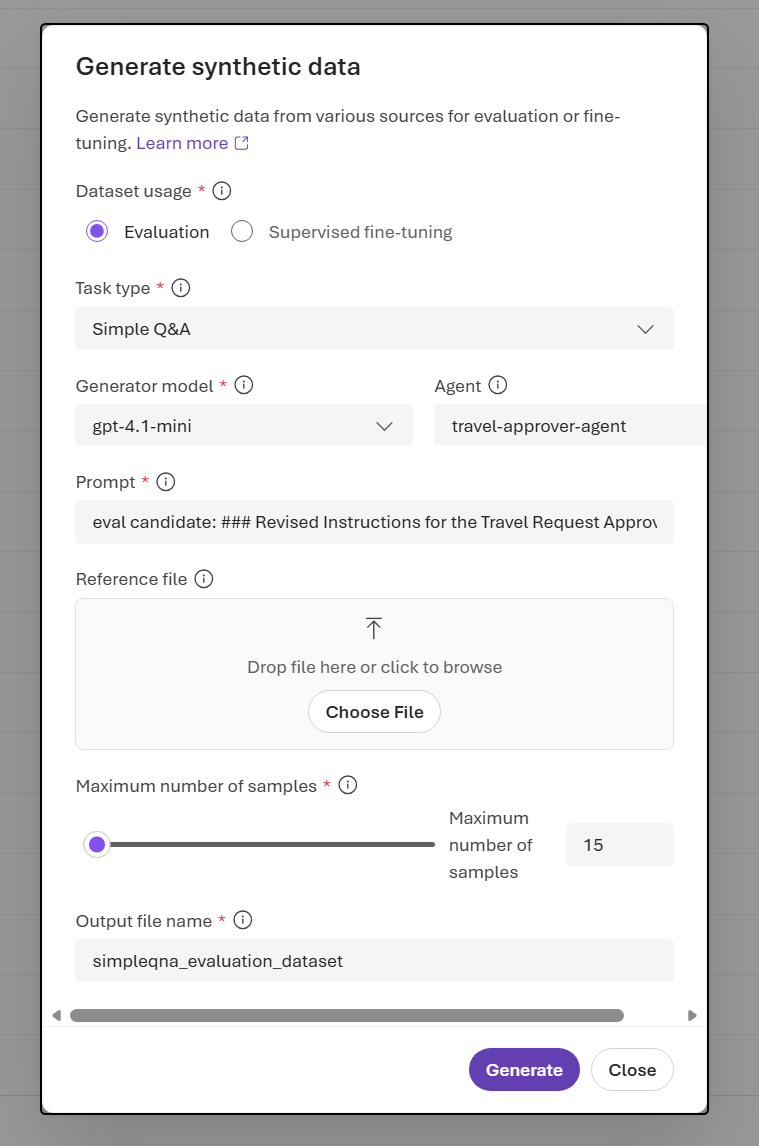
Generate a dataset from the portal
- In the portal, open the Data Generation tab. Select Create dataset, and then select Generate synthetic.
- In Generate synthetic data, set Dataset usage to Evaluation.
- Confirm Task type is Simple Q&A.
- Select a Generator model.
- Provide one or more source inputs: Agent, Prompt, or Reference file.
- Set Maximum number of samples and Output file name.
- Select Generate.
- Track the dataset generation job status in the Data Generation tab.
- When the job finishes, preview the generated rows on the Data tab.
Generate a dataset from an agent definition (SDK)
This flow seeds generation from a deployed agent's instructions. The service fetches the agent's prompt and uses your configured model to synthesize question-and-answer pairs from it.
First, create an AIProjectClient by using your project endpoint and DefaultAzureCredential. You can find all data generation operations under project_client.beta.datasets.
from azure.identity import DefaultAzureCredential
from azure.ai.projects import AIProjectClient

credential = DefaultAzureCredential()
project_client = AIProjectClient(
    endpoint="https://<your-resource>.services.ai.azure.com/api/projects/<your-project>",
    credential=credential,
)
Then submit a SimpleQnA job whose source is an agent reference. If you already have a deployed agent, skip the create_version call and pass its existing name and version to AgentDataGenerationJobSource.
import time
from azure.ai.projects.models import (
    AgentDataGenerationJobSource,
    DataGenerationJob,
    DataGenerationJobInputs,
    DataGenerationJobOutputOptions,
    DataGenerationJobScenario,
    DataGenerationModelOptions,
    DatasetDataGenerationJobOutput,
    JobStatus,
    PromptAgentDefinition,
    SimpleQnADataGenerationJobOptions,
)

MODEL_NAME = "gpt-4.1-mini"
TERMINAL_STATUSES = {JobStatus.SUCCEEDED, JobStatus.FAILED, JobStatus.CANCELLED}

# 1. Reference (or create) a prompt agent whose instructions seed generation.
agent = project_client.agents.create_version(
    agent_name="retail-agent",
    definition=PromptAgentDefinition(
        model=MODEL_NAME,
        instructions=(
            "You are a customer support assistant for Contoso Retail. "
            "Answer questions about the product catalog, loyalty program, store hours, "
            "and the return policy. If a question falls outside this scope, say you "
            "don't have that information."
        ),
    ),
)

# 2. Define a SimpleQnA evaluation job sourced from the agent definition.
job = DataGenerationJob(
    inputs=DataGenerationJobInputs(
        name="retail-agent-eval-set",
        scenario=DataGenerationJobScenario.EVALUATION,
        sources=[
            AgentDataGenerationJobSource(
                description="Agent definition used to seed QnA generation.",
                agent_name=agent.name,
                agent_version=agent.version,
            ),
        ],
        options=SimpleQnADataGenerationJobOptions(
            # Service requires max_samples to be between 15 and 1000.
            max_samples=15,
            # simple_qna requires model_options.
            model_options=DataGenerationModelOptions(model=MODEL_NAME),
        ),
        output_options=DataGenerationJobOutputOptions(name="retail-agent-eval-set"),
    ),
)

# 3. Submit and poll until complete.
job = project_client.beta.datasets.create_generation_job(job=job)
print(f"Submitted {job.id} (status: {job.status})")

while job.status not in TERMINAL_STATUSES:
    time.sleep(10)
    job = project_client.beta.datasets.get_generation_job(job_id=job.id)
    print(f"  status: {job.status}")

if job.status != JobStatus.SUCCEEDED:
    message = job.error.message if job.error is not None else "<no error message>"
    raise RuntimeError(f"Job ended in {job.status}: {message}")

# 4. Resolve the generated dataset.
output_name = ""
output_version = ""
for output in (job.result.outputs if job.result is not None else None) or []:
    if isinstance(output, DatasetDataGenerationJobOutput):
        output_name = output.name or ""
        output_version = output.version or ""
        break

dataset = project_client.datasets.get(name=output_name, version=output_version)
print(f"Generated dataset: {dataset.name} v{dataset.version} (id: {dataset.id})")
The job produces a versioned dataset with single-turn query and ground_truth fields. Preview it on the Data tab in the portal to spot-check the generated rows before evaluating.
Generate a dataset from a prompt (SDK)
If you don't have a deployed agent yet, or if you want to generate data from a self-contained snippet of source material, pass the text as a PromptDataGenerationJobSource. This approach is useful for policy documents, FAQ content, or short specs.
from azure.ai.projects.models import (
    DataGenerationJob,
    DataGenerationJobInputs,
    DataGenerationJobOutputOptions,
    DataGenerationJobScenario,
    DataGenerationModelOptions,
    JobStatus,
    PromptDataGenerationJobSource,
    SimpleQnADataGenerationJobOptions,
)

MODEL_NAME = "gpt-4.1-mini"

job = DataGenerationJob(
    inputs=DataGenerationJobInputs(
        name="contoso-refund-eval-set",
        scenario=DataGenerationJobScenario.EVALUATION,
        sources=[
            PromptDataGenerationJobSource(
                description="Contoso refund policy",
                prompt=(
                    "Contoso offers a full refund within 30 days of purchase for any product "
                    "returned in its original condition. After 30 days, store credit may be "
                    "issued at the discretion of customer support. Digital goods are "
                    "non-refundable once downloaded."
                ),
            ),
        ],
        options=SimpleQnADataGenerationJobOptions(
            max_samples=15,
            model_options=DataGenerationModelOptions(model=MODEL_NAME),
        ),
        output_options=DataGenerationJobOutputOptions(name="contoso-refund-eval-set"),
    ),
)

job = project_client.beta.datasets.create_generation_job(job=job)
Poll and resolve the dataset by using the same pattern shown in the previous section.
Generate a dataset from reference files (SDK)
For longer source material, upload a document as an Azure OpenAI file and reference it by ID. This option works best when the agent's domain knowledge lives in a spec, knowledge-base export, or policy document, because the generated questions stay grounded in that content.
The file must be in the processed state before the data generation service can use it, and it needs to contain at least 1 KB of content.
Supported reference file extensions are:
.txt, .md, .csv, .json, .xml, .html, .pdf, .png, .jpg, .jpeg, .gif, .tiff, .tif, .svg.
import io
import time
from azure.ai.projects.models import (
    DataGenerationJob,
    DataGenerationJobInputs,
    DataGenerationJobOutputOptions,
    DataGenerationJobScenario,
    DataGenerationModelOptions,
    FileDataGenerationJobSource,
    JobStatus,
    SimpleQnADataGenerationJobOptions,
)

MODEL_NAME = "gpt-4.1-mini"
REFERENCE_DOCUMENT = open("retail-agent-reference.md", "rb").read()

# 1. Upload the reference document via the Azure OpenAI Files API.
openai_client = project_client.get_openai_client()
seed_file = openai_client.files.create(
    file=("retail-agent-reference.md", io.BytesIO(REFERENCE_DOCUMENT)),
    purpose="user_data",
)

# 2. Wait for the file to finish processing.
while seed_file.status not in ("processed", "error"):
    time.sleep(2)
    seed_file = openai_client.files.retrieve(file_id=seed_file.id)
if seed_file.status != "processed":
    raise RuntimeError(f"File failed to process: {seed_file.status}")

# 3. Submit a SimpleQnA job that references the uploaded file.
job = DataGenerationJob(
    inputs=DataGenerationJobInputs(
        name="retail-agent-file-eval-set",
        scenario=DataGenerationJobScenario.EVALUATION,
        sources=[
            FileDataGenerationJobSource(
                description="Contoso Retail product catalog and policy reference.",
                id=seed_file.id,
            ),
        ],
        options=SimpleQnADataGenerationJobOptions(
            max_samples=15,
            model_options=DataGenerationModelOptions(model=MODEL_NAME),
        ),
        output_options=DataGenerationJobOutputOptions(name="retail-agent-file-eval-set"),
    ),
)

job = project_client.beta.datasets.create_generation_job(job=job)
Run an evaluation against the generated dataset
The generated dataset uses the standard query and ground_truth schema, so it works directly with the evaluation APIs. Pass the dataset's name and version (or its id) to your evaluation run.
For the full evaluation flow, including selecting evaluators and reviewing results, see Run cloud evaluations and Evaluate your agent.
Manage data generation jobs
Use project_client.beta.datasets job-management APIs to list, inspect, cancel, and delete synthetic generation jobs.
from azure.ai.projects.models import DataGenerationJobScenario

# List recent evaluation jobs.
for job in project_client.beta.datasets.list_generation_jobs(
    limit=20,
    order="desc",
    scenario=DataGenerationJobScenario.EVALUATION,
):
    print(f"{job.id}  {job.status:<12}  {job.inputs.name}")

# Inspect a specific job's status.
job = project_client.beta.datasets.get_generation_job(job_id="job_...")
print(f"{job.id}  {job.status}")

# Cancel a running job.
project_client.beta.datasets.cancel_generation_job(job_id="job_...")

# Delete a job record (produced datasets are not deleted).
project_client.beta.datasets.delete_generation_job(job_id="job_...")
For more context, see Manage data generation jobs.
Limitations
- If your Foundry project is connected to your own storage account, public network access must be enabled on that storage account for successful dataset creation.
Best practices
- Mirror your production system prompt. When you generate from an agent definition or a prompt, use instructions that match what your production agent actually runs. Drift here weakens the evaluation signal.
- Combine a reference file with a prompt for grounded coverage. The file anchors generated questions in real domain content; the prompt steers tone, difficulty, or topic emphasis.
- Generate a small batch first. Start at the minimum
max_samplesof 15, review the rows manually on the Data tab, then scale up once the output quality looks right. - Regenerate when the agent's instructions change. A dataset generated from one version of an agent's prompt becomes stale when the prompt changes significantly. Rerun the job and version the new output.
- Combine synthetic and trace-based generation for the strongest coverage. Synthetic data fills gaps before launch and for edge cases; production traces reflect how your agent actually behaves. Use both sources together rather than treating them as alternatives. See Convert agent traces into evaluation datasets.