Note
Access to this page requires authorization. You can try signing in or changing directories.
Access to this page requires authorization. You can try changing directories.
Important
Items marked (preview) in this article are currently in public preview. This preview is provided without a service-level agreement, and we don't recommend it for production workloads. Certain features might not be supported or might have constrained capabilities. For more information, see Supplemental Terms of Use for Microsoft Azure Previews.
Production traces are the most representative source of how your agent behaves with real users. This article shows you how to use data generation in Microsoft Foundry to turn the traces your agent already emits into a curated, versioned dataset you can evaluate against. Then run an evaluation on the result. When you select traces, Foundry uses intelligent sampling to autoselect a representative set, so you get a high-value dataset without manual cleanup.
Converting traces into a dataset closes the observability loop: the production behavior you capture through tracing becomes the test set you use to measure and improve quality. The same job can also produce fine-tuning data.
Trace-based and synthetic generation are complementary: production traces reflect real user behavior, while synthetic generation covers prelaunch scenarios and edge cases. If your agent doesn't have production traces yet, or you want to extend coverage beyond what production traffic exercises, see Generate a synthetic evaluation dataset.
Intelligent sampling
When you select a time range of traces, the service doesn't just randomly sample from that window. It autoselects a representative set by using intelligent sampling, which curates a high-value set of traces from raw, noisy production data. You don't configure individual filter stages; the service handles selection for you. Intelligent sampling does the following tasks:
- Filters out uninteresting traces such as single-character messages and other low-intent traffic that add no evaluation signal.
- Selects a diverse, representative sample by using MinHash so the result covers the range of your agent's scenarios rather than overindexing on frequent, near-identical prompts.
- Handles sensitive content including personal data.
This process matters because evaluations are expensive and most raw traces add little signal. Recent research shows that careful selection can reach the same evaluation quality with a small fraction of the original traces. A representative set produces better signal at lower cost than evaluating everything. Intelligent sampling is the mechanism that makes trace selection practical at production scale, so you get evaluation-ready datasets without writing custom filtering or deduplication code.
Intelligent sampling uses the same trace-selection algorithm across three experiences in Foundry:
- Creating a dataset from traces - covered in this article.
- Creating a trace-based evaluation - evaluate against existing traces with a representative sample from the selected time range.
- Generating a rubric evaluator from production traces - the same sampling algorithm selects traces used as input.
In the trace-based dataset flow, the Intelligent sampling option appears in the time-range UI and is on by default.
Prerequisites
- Python SDK version
2.2.0or later:pip install "azure-ai-projects>=2.2.0" azure-identity(SDK path only) - A Microsoft Foundry project endpoint URL in the format
https://<your-resource>.services.ai.azure.com/api/projects/<your-project> - Foundry User role or higher on the project.
- Set up tracing for a deployed agent that emits traces. Foundry agents emit traces automatically, and OpenTelemetry-instrumented third-party agents are also supported. For setup steps, see Set up tracing for your agent.
Supported regions for traces to dataset generation
Traces to dataset generation is supported in the following regions:
- UAE North
- West US 3
- North Central US
- East US
- West Europe
- South Central US
- Switzerland North
- Sweden Central
- East US 2
- West US
- France Central
- South Africa North
- Australia East
- Japan East
- UK South
- Norway East
- Poland Central
- South India
- Germany West Central
- Italy North
Generate an evaluation dataset from traces (portal)
You can create a dataset from traces directly in the portal without writing code. This method is the quickest way to turn recent production traffic into an evaluation dataset.
In the portal, open the Data Generation tab. Select Create dataset > From traces.
In the Create dataset dialog, confirm the subtitle Curate a dataset from production traces for evaluation or fine-tuning. Then configure the dataset:
- Dataset usage: Set to Evaluation.
- Name: Enter a dataset name.
- Agent: Select the deployed agent whose traces you want to use.
- Date range: Choose the window to pull traces from, such as the last day or last seven days.
- Maximum samples: Set the cap on rows in the dataset. Use at least 15 samples.
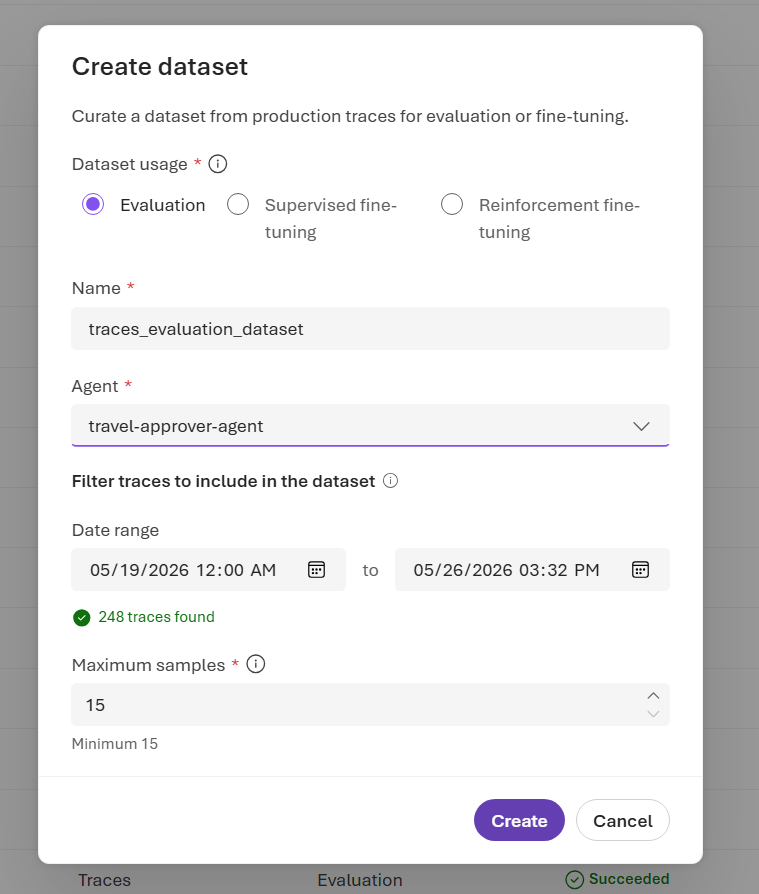
Select Create to submit the job. Dataset generation runs as a background job. You can track its status on the Data Generation tab.
When the job finishes, go to the Data tab and select the dataset to preview the generated rows, including the description, query, and response for each. From there you can download or delete the dataset.
Use the dataset. Finished generation jobs link directly to the next step: evaluation jobs link to starting an evaluation run, and fine-tuning jobs link to starting a fine-tuning job.
Generate an evaluation dataset from traces (SDK)
Drive your deployed agent with realistic traffic, and then use those conversations to build an evaluation dataset. The flow is: define a time window, point at your agent, set a cap on rows, and submit the job.
First, create an AIProjectClient by using your project endpoint and DefaultAzureCredential. You can find all data generation operations under project_client.beta.datasets.
from azure.identity import DefaultAzureCredential
from azure.ai.projects import AIProjectClient

credential = DefaultAzureCredential()
project_client = AIProjectClient(
    endpoint="https://<your-resource>.services.ai.azure.com/api/projects/<your-project>",
    credential=credential,
)
Note
Application Insights takes 30–90 seconds to ingest spans. If you submit the job too quickly after capturing traffic, the job runs against an empty window and produces no samples.
import time
from datetime import datetime, timedelta, timezone

from azure.ai.projects.models import (
    DataGenerationJob,
    DataGenerationJobInputs,
    DataGenerationJobOutputOptions,
    DataGenerationJobScenario,
    DatasetDataGenerationJobOutput,
    JobStatus,
    TracesDataGenerationJobOptions,
    TracesDataGenerationJobSource,
)

AGENT_NAME = "retail-agent"
TERMINAL_STATUSES = {JobStatus.SUCCEEDED, JobStatus.FAILED, JobStatus.CANCELLED}

# 1. Record the window around your traffic.
end_time = datetime.now(tz=timezone.utc)
start_time = end_time - timedelta(days=7)

# 2. Define the job. Note the EVALUATION scenario.
job = DataGenerationJob(
    inputs=DataGenerationJobInputs(
        name="retail-agent-eval-set",
        scenario=DataGenerationJobScenario.EVALUATION,
        sources=[
            TracesDataGenerationJobSource(
                description="Application Insights conversation traces for the Foundry agent.",
                agent_name=AGENT_NAME,
                start_time=start_time,
                end_time=end_time,
                # agent_version="3",   # pin to a specific version (recommended)
            ),
        ],
        options=TracesDataGenerationJobOptions(
            # Service requires max_samples to be between 15 and 1000.
            max_samples=100,
        ),
        output_options=DataGenerationJobOutputOptions(name="retail-agent-eval-set"),
    ),
)

# 3. Submit and poll until complete.
job = project_client.beta.datasets.create_generation_job(job=job)
print(f"Submitted {job.id} (status: {job.status})")

while job.status not in TERMINAL_STATUSES:
    time.sleep(10)
    job = project_client.beta.datasets.get_generation_job(job_id=job.id)
    print(f"  status: {job.status}")

if job.status != JobStatus.SUCCEEDED:
    message = job.error.message if job.error is not None else "<no error message>"
    raise RuntimeError(f"Job ended in {job.status}: {message}")

# 4. Resolve the generated dataset.
output_name = ""
output_version = ""
for output in (job.result.outputs if job.result is not None else None) or []:
    if isinstance(output, DatasetDataGenerationJobOutput):
        output_name = output.name or ""
        output_version = output.version or ""
        break

dataset = project_client.datasets.get(name=output_name, version=output_version)
print(f"Generated dataset: {dataset.name} v{dataset.version} (id: {dataset.id})")
if job.result is not None and job.result.generated_samples is not None:
    print(f"Generated samples: {job.result.generated_samples}")
The job produces a versioned dataset registered in your project. The number of rows is capped by max_samples but might be lower if the window doesn't contain enough distinct, high-quality traces after intelligent sampling.
Whether you created the dataset from the portal or the SDK, you can preview it on the Data tab to inspect the generated rows before evaluating. You can also download or delete it from there.
Run an evaluation against the generated dataset
After the dataset exists, evaluate your agent against it. The generated dataset uses the standard query-response schema, so it works directly with the evaluation APIs. Pass the dataset's name and version (or its id) to your evaluation run.
For the full evaluation flow, including selecting evaluators and reviewing results, see Run cloud evaluations.
Manage data generation jobs
Use project_client.beta.datasets APIs to list, inspect, cancel, and delete data generation jobs.
from azure.ai.projects.models import DataGenerationJobScenario

# List recent evaluation jobs.
for job in project_client.beta.datasets.list_generation_jobs(
    limit=20,
    order="desc",
    scenario=DataGenerationJobScenario.EVALUATION,
):
    print(f"{job.id}  {job.status:<12}  {job.inputs.name}")

# Cancel a running job.
project_client.beta.datasets.cancel_generation_job(job_id="job_...")

# Delete a job record (produced datasets are not deleted).
project_client.beta.datasets.delete_generation_job(job_id="job_...")
Limitations
- The Application Insights resource connected to your Foundry project must allow public network access so the service can query Application Insights data. If Application Insights is behind an Azure Monitor Private Link Scope, make sure public network query access is enabled.
- If your Foundry project is connected to your own storage account, public network access must be enabled on that storage account for successful dataset creation.
Best practices
- Pin
agent_versionfor trace jobs. Without it, the job mixes spans from every active version, which can include stale behavior and weaken your evaluation signal. - Check
generated_samplesafter every job.max_samplesis a ceiling, not a guarantee. Intelligent sampling removes duplicates and low-quality traces, so you can get fewer rows than the cap. - Use a representative time window. A seven-day window usually captures enough variety. Narrow windows around a known incident are useful for building targeted regression sets.
Related content
- Generate a synthetic evaluation dataset—bootstrap an evaluation dataset without production traces.
- Agent tracing in Microsoft Foundry
- Run cloud evaluations