Note
Access to this page requires authorization. You can try signing in or changing directories.
Access to this page requires authorization. You can try changing directories.
Currently viewing:  New Foundry portal version - Switch to version for the classic Foundry portal
This article covers the end-to-end tasks for operating provisioned throughput deployments in production: managing provisioned throughput unit (PTU) quota, creating deployments, purchasing Azure Reservations, making inference calls, benchmarking, monitoring utilization, handling high load, scaling, and cleaning up resources.
This article assumes familiarity with the concepts in What is provisioned throughput? and the billing details in PTU billing and cost management.
Prerequisites
- An Azure subscription with a valid payment method. If you don't have an Azure subscription, create a paid Azure account to begin.
- Azure Contributor or Cognitive Services Contributor role on the subscription or resource group where you plan to create the deployment.
- A Microsoft Foundry project in the region where you have PTU quota. A Foundry project is managed under a Foundry resource.
Estimate PTU requirements
Before creating a provisioned deployment, you should estimate how many PTUs your workload needs. For the estimation formulas, a worked example, and walkthrough of the capacity calculator, see Determine PTU sizing for a workload.
Check and request PTU quota
PTU quota is granted per subscription, per region, and limits the total PTUs you can deploy in that region across all models. For details on how quota and capacity relate, see PTU quota vs. capacity.
To check current usage or request additional quota:
- Go to Operate > Quota > Provisioned throughput unit in the Foundry portal.
- Select the desired subscription and region to view current usage.
- To request more quota, select Request Quota and complete the form.
Tip
You can also follow this direct link to the quota request form.
Create a provisioned deployment
To create a provisioned deployment, see Quickstart: Create a provisioned throughput deployment.
PTU quota is shared across all provisioned deployments of the same deployment type within a region. If you have remaining quota after your initial deployment, you can use it to deploy other supported models without requesting more quota. Check your quota usage in the Quota page under Operate in the Foundry portal.
You can manage your quota by requesting additional quota, or by deleting existing deployments to free up PTUs for new deployments.
Scale your deployment
You can increase or decrease the PTU count of a provisioned deployment at any time through the Foundry portal or the Azure CLI. For capacity constraints on scale-up, billing adjustment timing, and the effect on existing reservations, see Scale provisioned deployments.
Purchase a reservation
After your provisioned deployment is in place, consider purchasing an Azure Reservation to get a discounted rate on your PTU billing. A reservation provides a significant discount over hourly billing for deployments you plan to run for more than a few days.
Follow this order of operations to avoid purchasing a reservation for capacity that doesn't exist or doesn't match your deployed PTUs:
- Use Foundry to deploy your model in a region with available quota. This step confirms capacity is available.
- After deployment, note the deployment details: deployment type (Global Provisioned, Data Zone Provisioned, or Regional Provisioned), region (for Data Zone and Regional deployments), and subscription.
- Purchase a new reservation that matches those details, or verify that an existing reservation already covers the deployment. For Global deployments, the reservation region doesn't need to match the deployment region because a single Global reservation can cover Global PTU deployments across multiple regions.
For guidance on sizing, pricing, and managing reservations, see PTU billing and cost management.
Make inference calls
For inference code examples using your provisioned deployment, see the quickstart. The inferencing code for provisioned deployments is the same as for any other deployment type. Use your deployment name (not the model name) as the model parameter value.
Run a benchmark
The exact performance and throughput capabilities of your deployment depend on the number of PTUs deployed, the kind of requests you make, and your workload shape (including prompt size, generation size, call rate, and similar factors). The best way to determine the throughput for your workload is to run a benchmark on your own data.
The benchmarking tool provides preconfigured workload shapes and outputs key performance metrics. Use this tool to run benchmarks on your deployment. For details and configuration settings, see the azure-openai-benchmark repository on GitHub.
Recommended benchmarking workflow:
- Estimate your PTU requirements using the capacity calculator.
- Run a benchmark with this traffic shape for at least 10 minutes to observe steady-state results.
- Observe utilization, tokens processed, and call rate from the benchmark tool and Azure Monitor.
- Run a benchmark with your own traffic shape and workload using your client implementation. Implement retry logic using the OpenAI client library or custom retry logic.
Measure deployment utilization
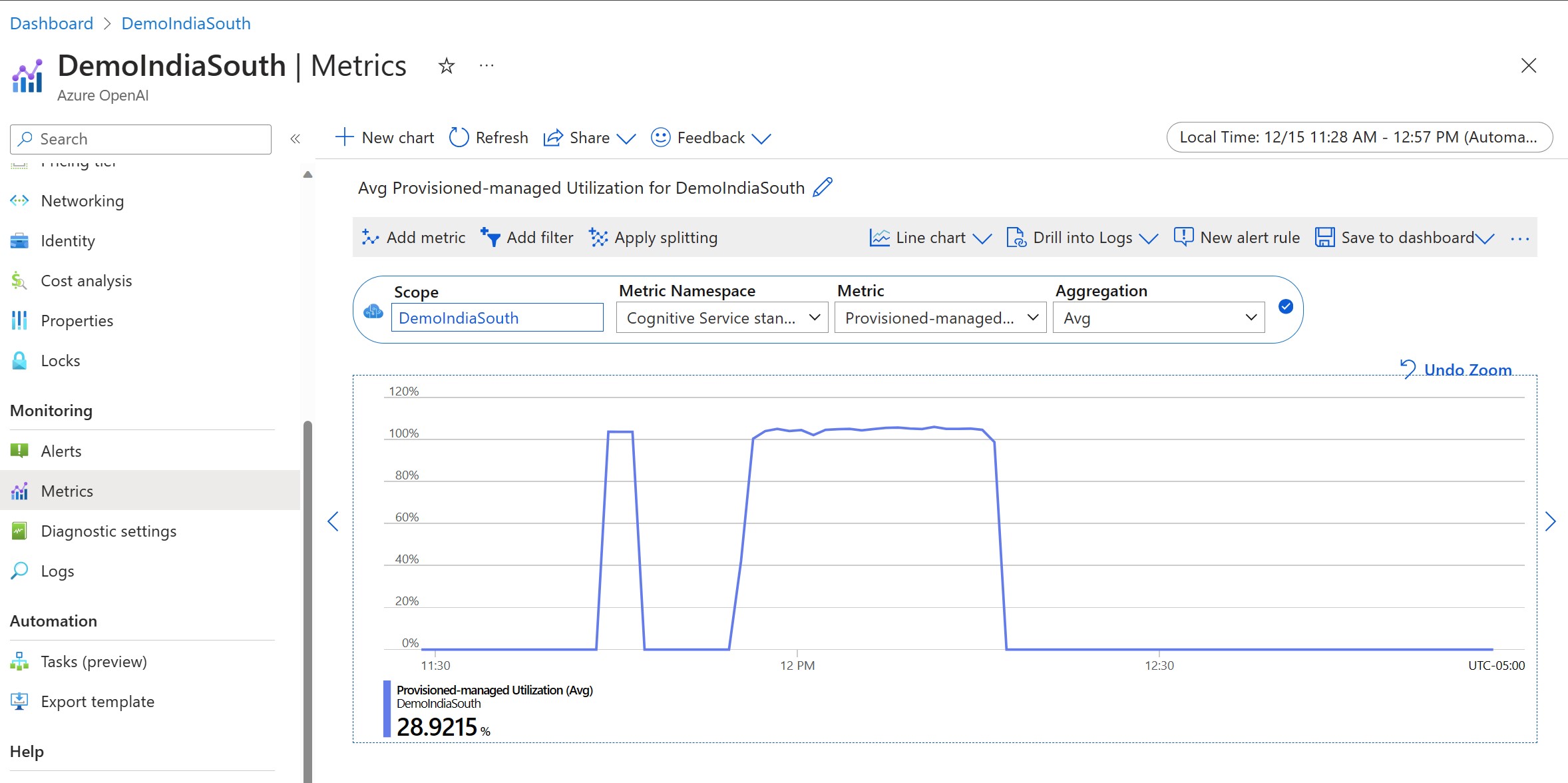
When you create a provisioned deployment, the service allocates a fixed amount of inference throughput. To track how much of that capacity your workload consumes, use the Provisioned-managed utilization V2 metric in Azure Monitor.
PTU utilization is defined as:
PTU deployment utilization = (PTUs consumed in the time period) / (PTUs deployed in the time period)
To view the metric:
- Sign in to the Azure portal.
- Navigate to your Foundry resource and select Metrics in the left navigation.
- Select the Provisioned-managed utilization V2 metric.
- If you have more than one deployment in the resource, select Apply Splitting to see values split by deployment.
How utilization works
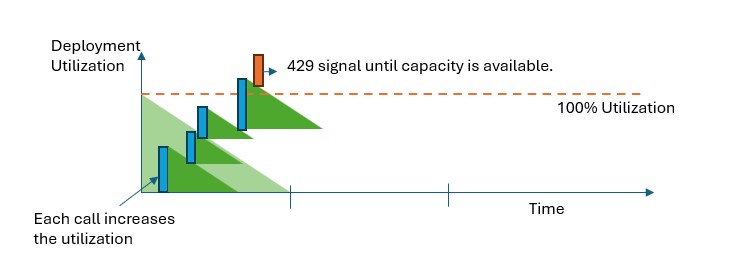
Each customer has a set amount of capacity they can use on a provisioned deployment. To maintain utilization below 100% while allowing some burstiness in traffic, the service uses a variation of the leaky bucket algorithm as follows:
- Throttling at 100%: When a request is made, if current utilization is at 100%, the service returns HTTP 429 immediately, with
retry-after-msandretry-afterresponse headers indicating how long to wait. - Request estimate: For each incoming request, the service estimates the compute cost by combining the prompt token count (less any cached tokens) and the specified
max_tokensin the call. Cached tokens receive a 100% discount and don't contribute to utilization. Ifmax_tokensisn't specified, the service estimates a value—this can lead to lower concurrency than expected when actual generated tokens are fewer than estimated. For highest concurrency, setmax_tokensas close as possible to your true generation size. - Post-request correction: When a request finishes, the service corrects the utilization estimate using actual token counts. If the actual compute cost exceeds the estimate, the difference is added to utilization; if it's less, the difference is subtracted.
- Continuous drain: Utilization drains continuously at a rate proportional to deployed PTUs. A deployment with more PTUs drains faster.
Accepted requests always complete with predictable latency, because 429 responses are returned immediately rather than queuing traffic.
Note
Calls are accepted until utilization reaches 100%. Bursts just over 100% might be permitted for short periods, but over time your traffic is capped at 100% utilization.
Handle high utilization
When utilization reaches 100%, the service returns HTTP 429 immediately and includes the retry-after and retry-after-ms response headers indicating how long to wait before the next request is accepted. This approach maintains per-call latency targets while giving you control over how to handle high-load situations.
A 429 from a provisioned deployment isn't a service error; rather, it's a traffic-management signal.
What to do when you receive a 429 response
The response includes the retry-after-ms and retry-after headers that tell you how long to wait before the next call is accepted. How you handle a 429 depends on your application requirements:
- Redirect to another deployment or model: This option produces the lowest additional latency because the action can be taken as soon as you receive the 429 signal. The spillover feature automates the process of redirecting requests from your provisioned deployment to a standard deployment.
- Retry using the wait time in the response headers: If you need the provisioned deployment and can tolerate added latency, wait the time indicated in
retry-after-msand retry. The Azure OpenAI SDKs implement this retry behavior by default. You might still need further tuning based on your use-cases.
Concurrent call limits
The number of concurrent calls a deployment can sustain depends on each call's shape—prompt size, max_tokens value, and similar factors. The service accepts calls until utilization reaches 100%. To estimate the maximum concurrent calls for a specific call shape, use the capacity calculator on the Foundry portal's Quota page. If the model generates fewer tokens than the max_tokens value, the deployment can accept more concurrent requests.
Modify retry logic in the client libraries
The OpenAI SDKs retry 429 responses by default, respecting the retry-after time. You can configure or disable the retry behavior using the max_retries option:
import os
from openai import OpenAI

# Configure the default for all requests:
client = OpenAI(
    api_key=os.getenv("AZURE_OPENAI_API_KEY"),
    base_url="https://<myResourceName>.openai.azure.com/openai/v1/",
    max_retries=5, # default is 2
)

# Or, configure per-request:
client.with_options(max_retries=5).chat.completions.create(
    messages=[
        {
            "role": "user",
            "content": "When was Microsoft founded?",
        }
    ],
    model="gpt-5.1",
)
Reference: Azure OpenAI supported programming languages
Clean up resources
Hourly billing begins the moment a provisioned deployment is created and stops when the deployment is deleted. Charges for deployments on a deleted resource continue until the resource is purged, so always delete all deployments before deleting the resource itself.
Delete a provisioned deployment cleanly
To delete a provisioned deployment cleanly:
- In the Foundry portal, navigate to the resource and delete the deployment.
- If you're removing the Azure resource too, delete all its deployments first, then delete the resource.
- If you deleted the resource in the previous step, purge it to ensure billing stops. See Recover or purge deleted Azure AI resources for instructions.
- Go to the Reservations page in the Azure portal to review your existing reservations. Deleting a deployment doesn't cancel or change any PTU reservation. You can cancel or exchange a reservation in the Azure portal, but this action might incur fees. See PTU billing and cost management for more information.