Note
Access to this page requires authorization. You can try signing in or changing directories.
Access to this page requires authorization. You can try changing directories.
Currently viewing:  New Foundry portal version - Switch to version for the classic Foundry portal
Spillover manages traffic fluctuations on provisioned deployments by automatically routing overage requests to a corresponding standard deployment. When your provisioned deployment is fully utilized and returns non-200 responses (such as a 429 when PTUs are exhausted), spillover redirects those requests to the standard deployment, helping you reduce disruptions during traffic bursts. This optional capability can be configured for all requests on a deployment or managed on a per-request basis.
Prerequisites
- An Azure subscription. Create one for free.
- A provisioned managed deployment and a standard deployment in the same Foundry resource.
- Azure CLI installed for REST API examples, or access to the Foundry portal.
- The
AZURE_OPENAI_ENDPOINTenvironment variable set to your Azure OpenAI endpoint URL. - Cognitive Services Contributor role or higher on the Foundry resource to create or modify deployments.
Enable spillover for all requests on a provisioned deployment
-
Sign in to Microsoft Foundry. Make sure the New Foundry toggle is on. These steps refer to Foundry (new).

Select the subscription and the resource in the region where you have quota.
Select Discover in the upper-right navigation, then Models in the left pane.
Select the Collections filter and filter by Direct from Azure to see models sold directly by Azure. A selection of these models support the provisioned throughput deployment option.
Select the model you want to deploy to open its model card.
Select Deploy > Custom settings to configure your deployment. The Deployment type dropdown menu lists provisioned deployment types that are available for the selected model.
Note
To enable spillover, your account must have at least one active pay-as-you-go deployment that matches the model and version of your current provisioned deployment.
Set the Deployment type to one of the provisioned options, for example Global Provisioned Throughput.
Select Traffic spillover to enable spillover for your provisioned deployment.
Enable spillover for select inference requests
To selectively enable spillover on a per-request basis, set the x-ms-spillover-deployment inference request header to the standard deployment target for spillover requests. If the x-ms-spillover-deployment header isn't set on a given request, spillover isn't initiated in the event of a non-200 response. The use or omission of this header provides the flexibility to control when spillover should or should not be initiated for a given workload or scenario.
curl $AZURE_OPENAI_ENDPOINT/openai/deployments/spillover-ptu-deployment/chat/completions?api-version=2024-10-21 \
  -H "Content-Type: application/json" \
  -H "x-ms-spillover-deployment: spillover-standard-deployment" \
  -H 'Authorization: Bearer YOUR_AUTH_TOKEN' \
  -d '{"messages":[{"role": "system", "content": "You are a helpful assistant."},{"role": "user", "content": "Does Azure OpenAI support customer managed keys?"},{"role": "assistant", "content": "Yes, customer managed keys are supported by Azure OpenAI."},{"role": "user", "content": "Do other Azure services support this too?"}]}'
A successful request returns HTTP status 200 with the chat completion response. If spillover occurs, the response includes the x-ms-spillover-from-deployment header.
Reference: Create chat completion
Note
If the spillover capability is enabled for the deployment using the spilloverDeploymentName property and also enabled at the request level using the x-ms-spillover-deployment header, the system defaults to the setting of the deployment property. If you want to ensure that spillover is only enabled on a per-request basis, don't set the spilloverDeploymentName property on the provisioned deployment and only rely on the x-ms-spillover-deployment header on a per-request basis.
Identify spillover requests
The following HTTP response headers indicate that a specific request spilled over:
x-ms-spillover-from-deployment: Contains the PTU deployment name. The presence of this header indicates that the request is a spillover request.x-ms-deployment-name: Contains the name of the deployment that serves the request. If the request spills over, the deployment name is the name of the standard deployment.
For a request that spills over, if the standard deployment request fails for any reason, the original PTU response is returned to the caller. The response includes an x-ms-spillover-error header that contains the response code of the spillover request (such as 429 or 500) so that the caller knows the reason for the failed spillover.
Monitor spillover usage
Spillover relies on a combination of provisioned and standard deployments to manage traffic overages, so monitoring can be conducted at the deployment level for each deployment. To view how many requests were processed on the primary provisioned deployment versus the spillover standard deployment, apply the splitting feature in Azure Monitor metrics to view the requests processed by each deployment and their respective status codes. Similarly, use the splitting feature to view how many tokens were processed on the primary provisioned deployment versus the spillover standard deployment for a given time period.
The following Azure Monitor metrics chart provides an example of the split of requests between the primary provisioned deployment and the spillover standard deployment when spillover is initiated. To create a chart, navigate to your resource in the Azure portal.
Select Monitoring > Metrics from the left navigation menu.
Add the
Azure OpenAI Requestsmetric.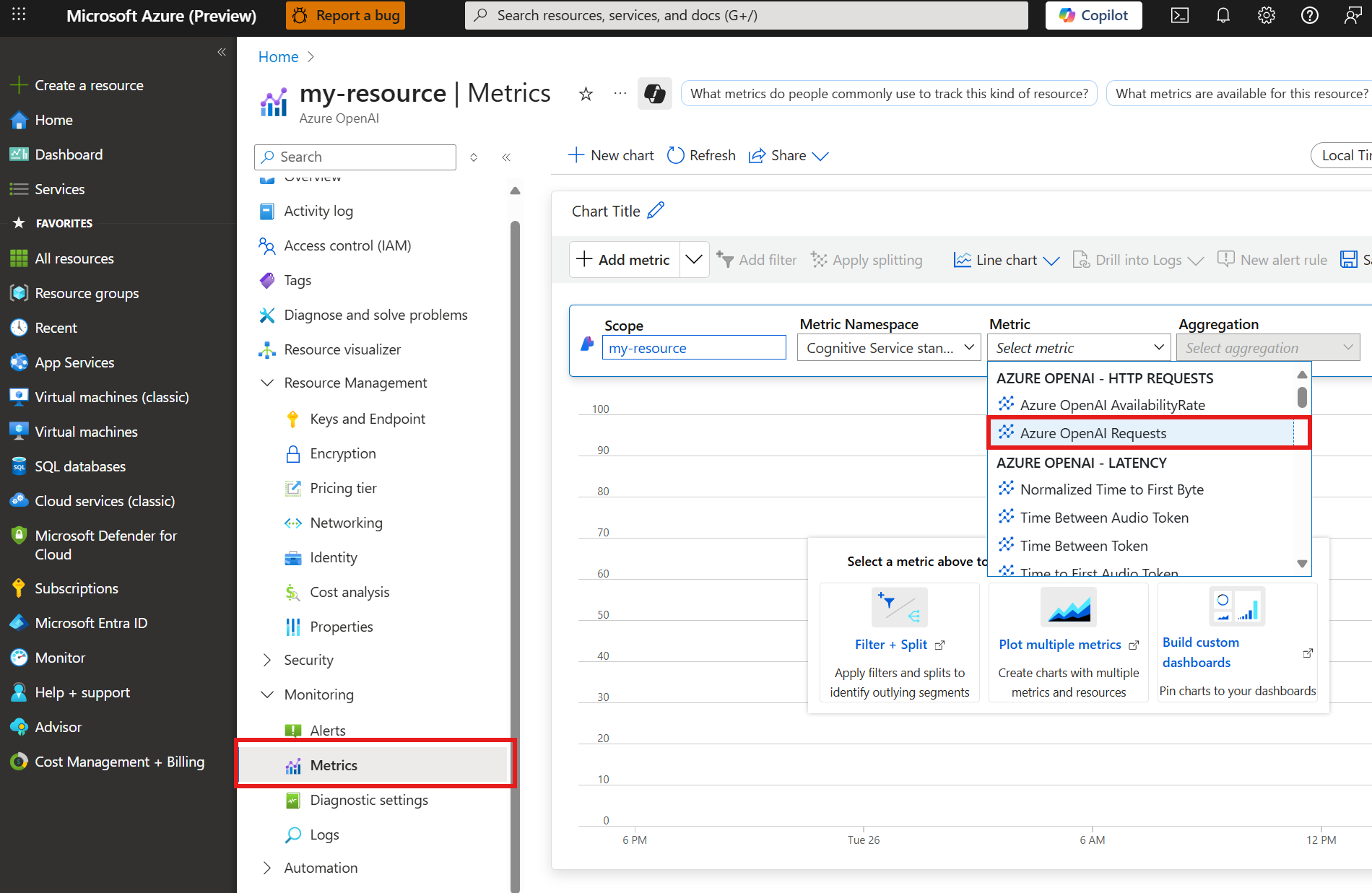
Select Apply splitting and apply the
ModelDeploymentNamesplit andStatusCodesplits to theAzure OpenAI Requestsmetric. This shows a chart with the200(success) and429(too many requests) response codes generated for your resource.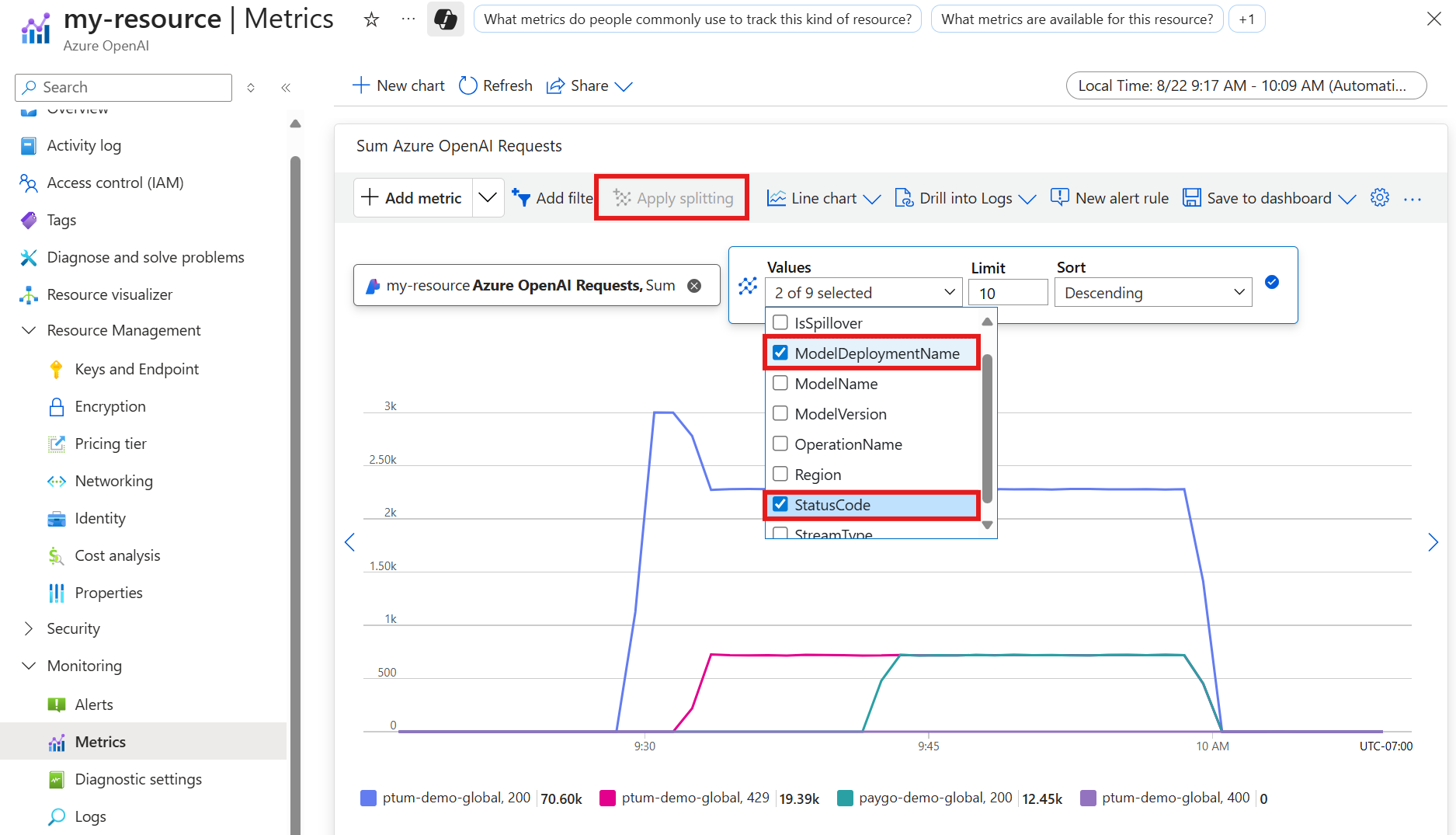
Be sure to add the model deployments you want to view when applying the
ModelDeploymentNamesplit.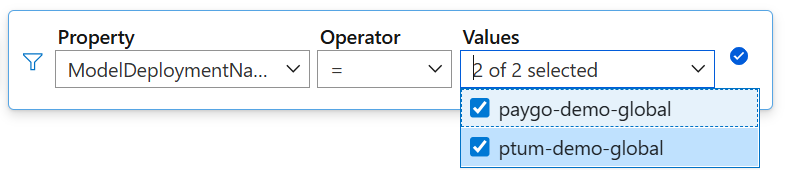
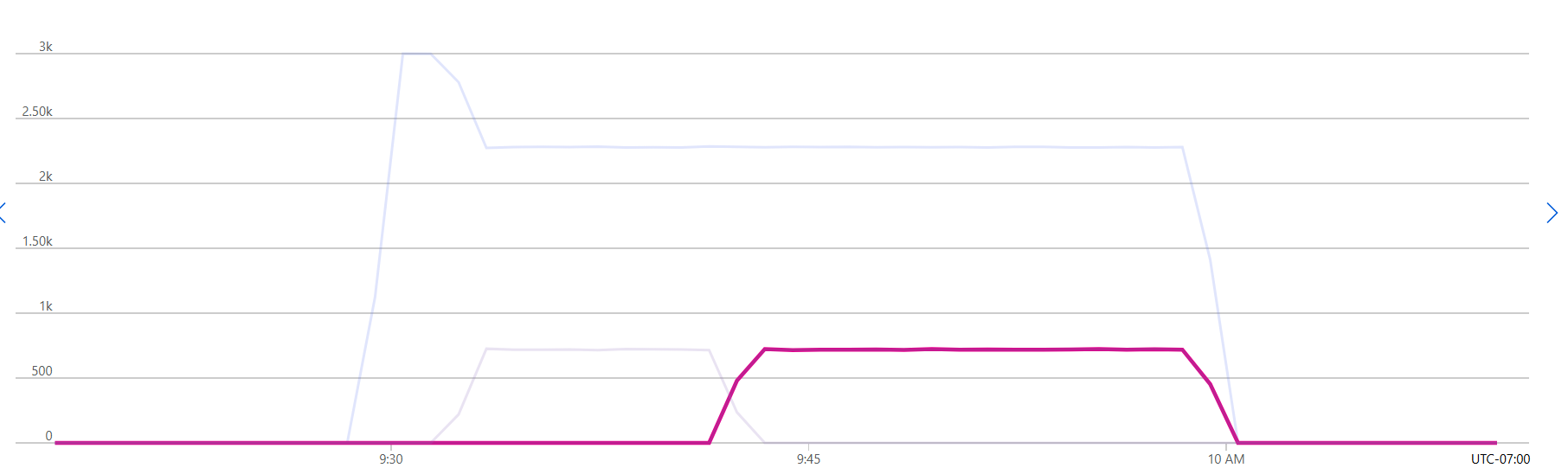
The following example shows an instance where a spike in requests sent to the provisioned throughput deployment generates
429error codes. Shortly after, spillover occurs and requests begin going to the pay-as-you-go deployment used for spillover, generating200responses for that deployment.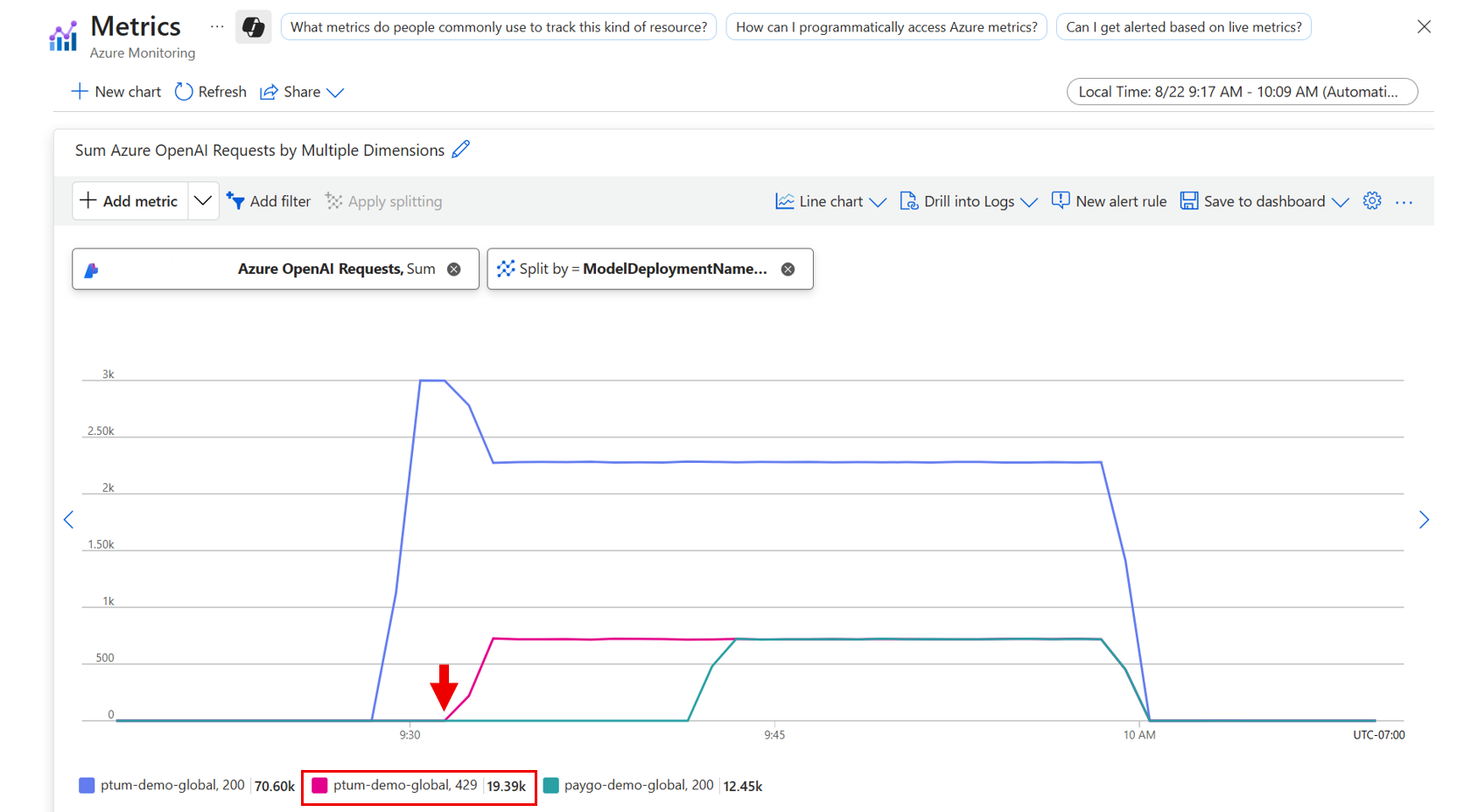
Note
As requests go to the pay-as-you-go deployment, they still generate 429 response codes on the provisioned deployment before being redirected.
View spillover metrics
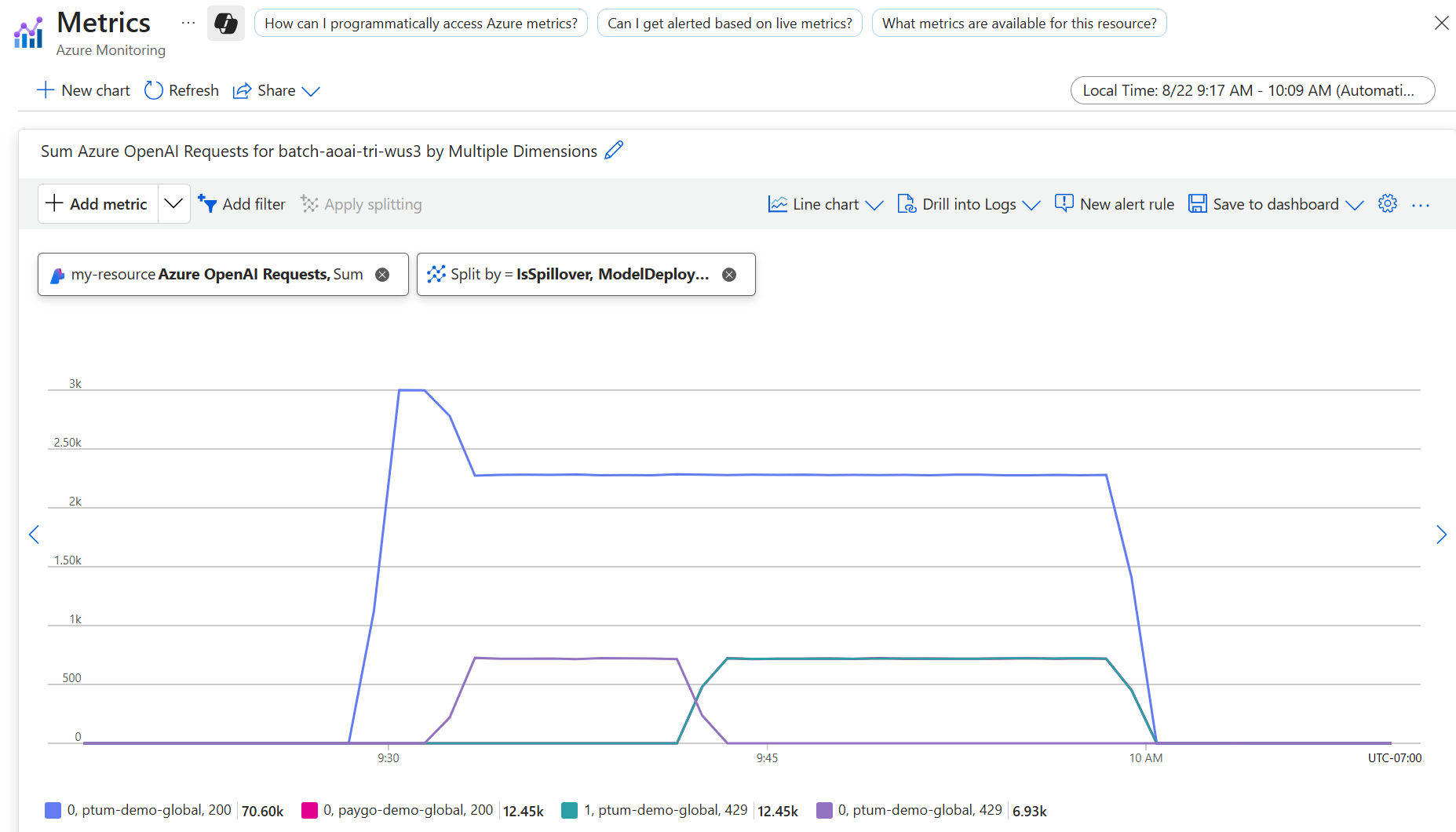
Applying the IsSpillover split lets you view the requests to your deployment that are being redirected to your spillover deployment. Following from the previous example, you can see how the 429 responses from the primary deployment match the 200 response codes generated by the spillover deployment.
When to enable spillover
To maximize the utilization of your provisioned deployment, enable spillover for all global and data zone provisioned deployments. With spillover, bursts or fluctuations in traffic can be automatically managed by the service. This capability reduces the risk of experiencing disruptions when a provisioned deployment is fully utilized. Alternatively, spillover is configurable per-request to provide flexibility across different scenarios and workloads. Spillover also works with the Foundry Agent Service.
When spillover comes into effect
When you enable spillover for a deployment or configure it for a given inference request, spillover initiates when a specific non-200 response code is received as a result of one of these scenarios:
Provisioned throughput units (PTU) are completely used, which results in a
429response code.You send a long context token request, which results in a
400error code. For example, when you usegpt 4.1series models, PTU supports only context lengths less than 128K and returns HTTP 400.Server errors occur when processing your request, which results in error code
500or503.
When a request results in one of these non-200 response codes, Azure OpenAI automatically sends the request from your provisioned deployment to your standard deployment to be processed.
Note
Even if a subset of requests is routed to the standard deployment, the service prioritizes sending requests to the provisioned deployment before sending any overage requests to the standard deployment. This prioritization might incur additional latency.
Spillover cost
Because spillover uses a combination of provisioned and standard deployments to manage traffic fluctuations, billing for spillover involves two components:
For any requests processed by your provisioned deployment, only the hourly provisioned deployment cost applies. No additional costs are incurred for these requests.
For any requests routed to your standard deployment, the request is billed at the associated input token, cached token, and output token rates for the specified model version and deployment type.