Note
Access to this page requires authorization. You can try signing in or changing directories.
Access to this page requires authorization. You can try changing directories.
Important
Route maps for Azure Route Server is currently in preview. See the Supplemental Terms of Use for Microsoft Azure Previews for legal terms that apply to Azure features that are in beta, preview, or otherwise not yet released into general availability.
Route filtering is a common Border Gateway Protocol (BGP) practice. A network virtual appliance (NVA), SD-WAN appliance, or on-premises network might advertise more routes than you want in Azure. You can drop the unwanted routes as Azure Route Server learns them. Dropping routes on ingress keeps them out of the route tables of your virtual networks, ExpressRoute gateways, and VPN gateways.
Filter inbound routes when you need to:
- Resolve overlapping address spaces.
- Restrict which branch routes reach Azure.
- Prevent accidental route leaks.
- Reduce the size of your route tables.
- Enforce routing policy between routing domains.
This article shows you how to use route maps for Azure Route Server to drop matched routes in the inbound direction by using the Azure portal. For an overview of route maps, see About route maps for Azure Route Server.
Prerequisites
- An Azure account with an active subscription. Create an account for free.
- An Azure Route Server deployed in a virtual network, with at least one BGP peering to a network virtual appliance (NVA), an ExpressRoute gateway connection, or a VPN gateway connection. For the full list of prerequisites, see Configure route maps: Prerequisites.
- Verify which routes Azure Route Server learns from the peer before you configure a route map. Use the Effective Routes view on your route server to confirm the routes you plan to drop.
Considerations
Review the following considerations before you drop routes:
- Dropping a route affects only what Azure Route Server accepts and propagates. The route isn't removed from the peer that advertised it, and the peer continues to advertise it.
- Apply the route map in the inbound direction to filter routes before Azure Route Server propagates them. An outbound route map filters routes as Route Server advertises them, which is a different outcome.
- Route-map rules are evaluated sequentially, so rule order determines which rule acts on a route first.
- A match condition that uses a broad prefix, such as 10.0.0.0/8, can match far more routes than you intend. Confirm the scope of a match condition before you save the route map.
- Validate the routes that Azure Route Server learns before and after you apply the route map. This confirms that only the intended routes were dropped.
For the complete list of route maps limitations, see About route maps: Considerations and limitations.
Understand the scenario
In this scenario, an NVA peers with Azure Route Server and advertises four routes. You want Azure Route Server to accept 10.100.0.0/16 and drop the three routes in the 10.122.0.0/16 range. You create a route map that matches routes containing 10.122.0.0/16 and drops them. You then apply the route map to the BGP peering in the inbound direction.
The following table shows the routes before and after the route map is applied:
| Route advertised by the NVA | Before the route map | After the route map |
|---|---|---|
| 10.122.1.0/24 | Learned | Dropped |
| 10.122.2.0/24 | Learned | Dropped |
| 10.122.3.0/24 | Learned | Dropped |
| 10.100.0.0/16 | Learned | Learned |
Configure the route map
Configure a route map rule that matches the unwanted prefix range and drops the matched routes.
In the Azure portal, go to your Azure Route Server resource.
In the left menu under Settings, select route maps.
On route maps, select + Add Route Map.
On Create Route Map, enter a Name for the route map, and then select + Add rule.
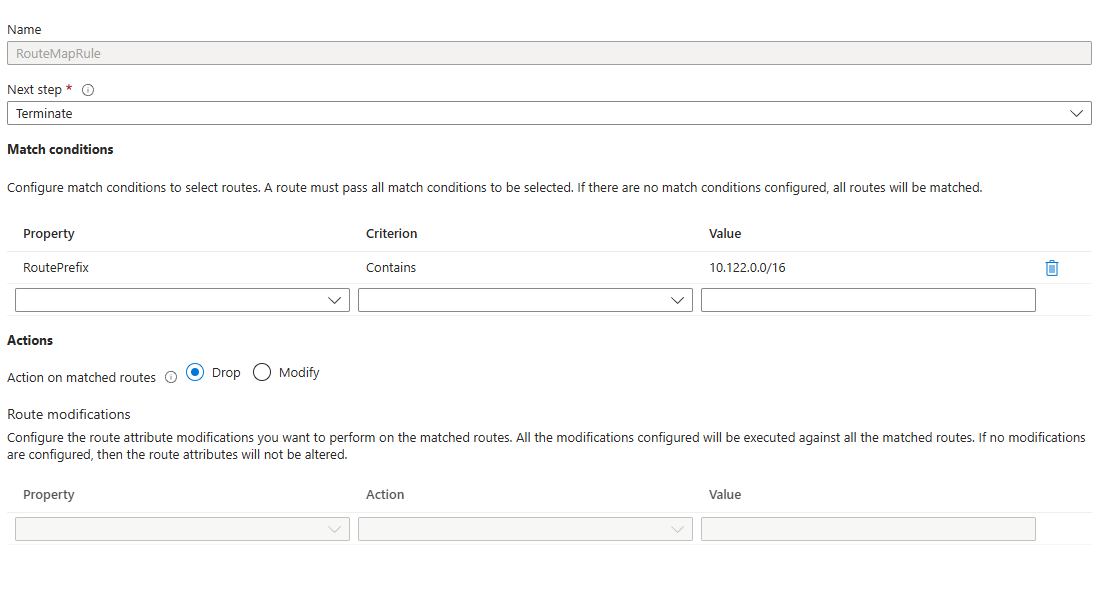
On Create Route Map rule, enter a Name for the rule, and configure the following settings:
Next step: Select Terminate so that dropped routes aren't evaluated against later rules.
Match condition
Property Criterion Value RoutePrefix Contains 10.122.0.0/16 Action on matched routes: Select Drop.
When you select Drop, the matched routes are denied and the Route modifications table is unavailable. To permit and modify matched routes instead, select Modify.
Select Add to save the rule to the route map.
On Create Route Map, select Save to save the route map and its rules.
It takes a few minutes to save. After the save completes, the Provisioning state shows Succeeded.
Note
The first time you create a route map on an Azure Route Server, the route server undergoes a one-time upgrade that takes approximately 30 minutes.
Apply and verify the route map
Apply the route map to the inbound direction of the BGP peering that advertises the routes you want to drop. For steps, see Apply a route map to BGP peerings and gateway connections.
Use the Effective Routes view on your route server to confirm the result. The routes in the 10.122.0.0/16 range no longer appear, and 10.100.0.0/16 is still present.
Use the Route Map dashboard on the route server to confirm that the rule is matching the routes you expect.
Frequently asked questions
Does dropping a route remove it from the peer?
No. The route map controls only what Azure Route Server accepts and propagates. The peer keeps the route in its own routing table and continues to advertise it.
What's the difference between dropping routes inbound and outbound?
An inbound route map filters routes as Azure Route Server learns them, so the dropped routes never reach your virtual networks or gateway connections. An outbound route map filters routes as Azure Route Server advertises them, so Route Server still learns the routes but doesn't pass them on.
Can I drop routes based on something other than the prefix?
Yes. A match condition can use the route prefix, the AS-PATH, or a BGP community. For the supported match conditions, see About route maps: Match conditions.
What happens if a route matches more than one rule?
Rules are evaluated in the order defined in the route map. The Next step setting on each rule determines whether evaluation continues to the next rule or stops.
How do I confirm which routes were dropped?
Compare the Effective Routes view before and after you apply the route map. You can also use the Route Map dashboard on the route server to see how rules are matching routes.