Note
Access to this page requires authorization. You can try signing in or changing directories.
Access to this page requires authorization. You can try changing directories.
Important
Route maps for Azure Route Server is currently in preview. See the Supplemental Terms of Use for Microsoft Azure Previews for legal terms that apply to Azure features that are in beta, preview, or otherwise not yet released into general availability.
A BGP community is a tag that you attach to a route so that downstream routers, network virtual appliances (NVAs), SD-WAN controllers, and on-premises networks can make routing decisions based on route metadata rather than on prefixes or AS-PATH alone. Common uses include traffic engineering, route classification, route filtering, WAN policy enforcement, and SD-WAN route selection.
This article shows you how to use route maps for Azure Route Server to add a BGP community to matched routes by using the Azure portal. For an overview of route maps, see About route maps for Azure Route Server.
Prerequisites
- An Azure account with an active subscription. Create an account for free.
- An Azure Route Server deployed in a virtual network, with at least one BGP peering to an NVA, an ExpressRoute gateway connection, or a VPN gateway connection. For the full list of prerequisites, see Configure route maps: Prerequisites.
- Verify that routes are learned through Azure Route Server before you configure a route map. Use the Effective Routes view on your route server to confirm the routes.
Considerations
Review the following considerations before you tag routes with BGP communities:
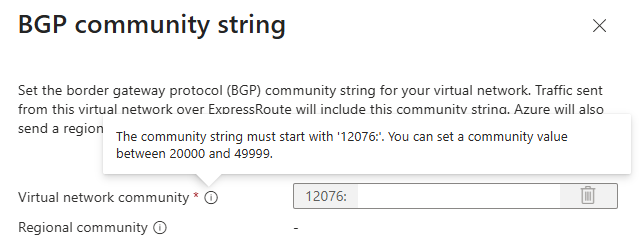
- Custom BGP communities that are associated with a virtual network are restricted to the range 12076:20000 through 12076:49999.
- When you enable a custom BGP community, the regional BGP community is also advertised automatically unless you filter it by using a route map.
- BGP communities that are associated with virtual networks are advertised only to ExpressRoute. VPN gateways don't currently advertise BGP communities.
- BGP communities are treated as a set. Unlike AS-PATH prepending, the order in which you add communities doesn't matter.
- Standard BGP communities are typically transitive unless a routing policy removes them. The receiving network decides whether to preserve, modify, or strip the community.
When you configure a custom BGP community on a virtual network, the Azure portal shows the supported value range, as shown in the following screenshot:
For the complete list of route maps limitations, see About route maps: Considerations and limitations.
Understand the scenario
In this scenario, a workload subnet uses the prefix 10.0.0.0/16 and Azure Route Server uses ASN 65515. You create a route map that matches the workload prefix and adds the BGP community 3356:70 before the route is advertised to downstream peers. The route remains reachable and carries the community value, which downstream peers can use for policy decisions such as preferring the route, adjusting local preference, or triggering an SD-WAN routing policy.
The following table shows the route attributes before and after the route map is applied:
| Prefix | AS-PATH | Communities | |
|---|---|---|---|
| Before the route map | 10.0.0.0/16 | 65515 | None |
| After the route map | 10.0.0.0/16 | 65515 | 3356:70 |
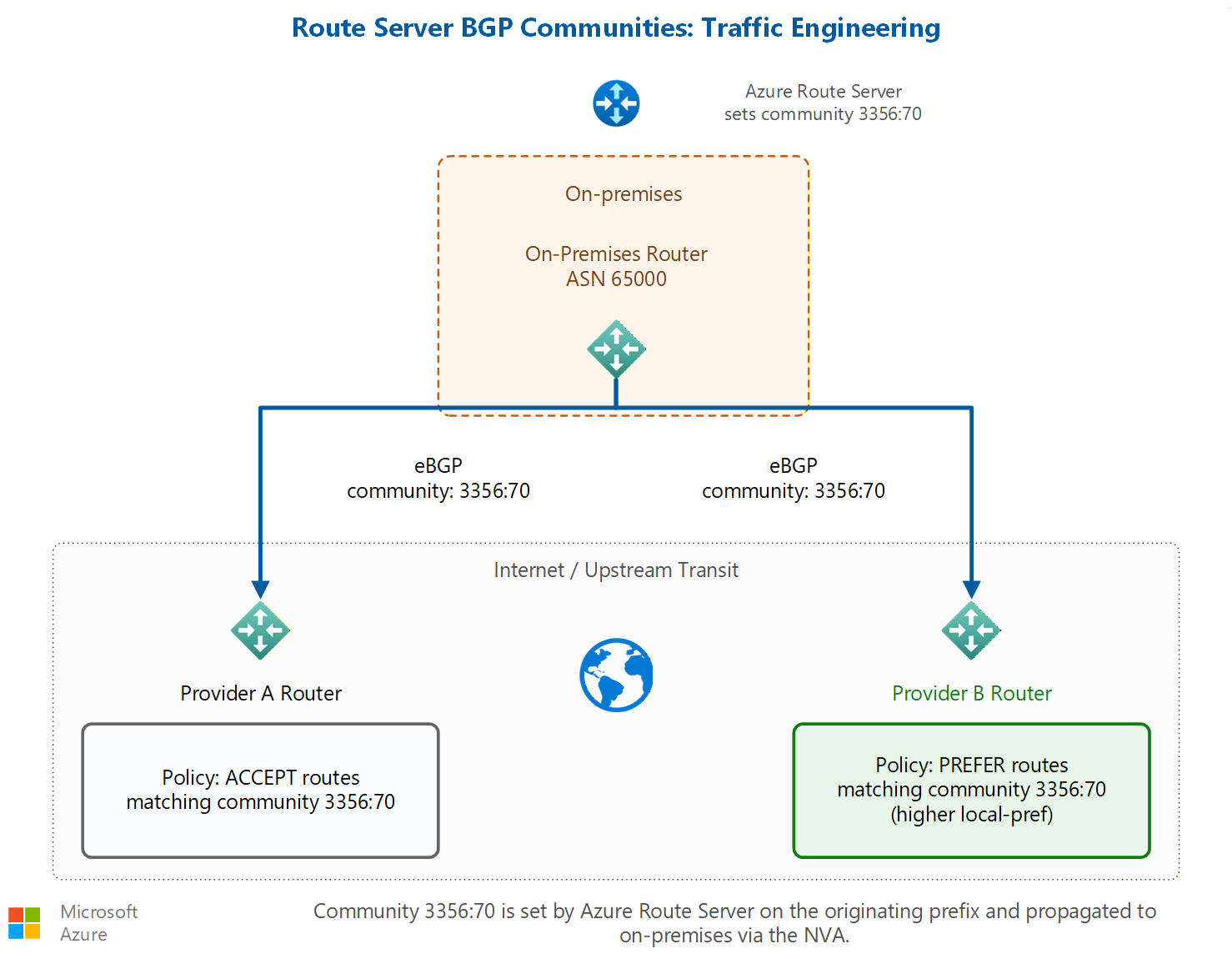
The community travels with the route, so networks beyond your NVA can act on it. In the following diagram, two upstream providers receive the same tagged route and apply different policies to it:
Configure the route map
Configure a route map rule that matches the workload prefix and adds the BGP community.
In the Azure portal, go to your Azure Route Server resource.
In the left menu under Settings, select route maps.
On route maps, select + Add Route Map.
On Create Route Map, enter a Name for the route map, and then select + Add rule.
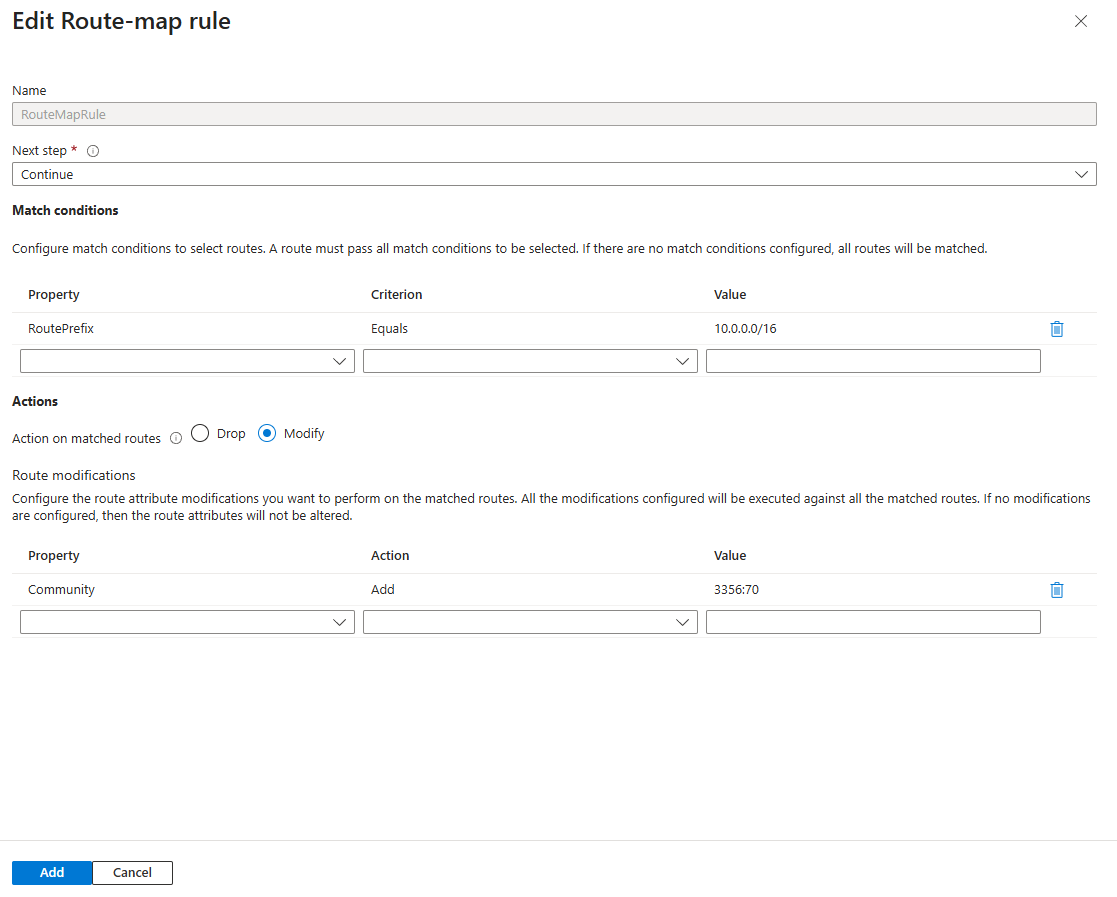
On Create Route Map rule, enter a Name for the rule, and configure the match condition and action by using the following values:
Match condition
Property Criterion Value RoutePrefix Equals 10.0.0.0/16 Action on matched routes: Select Modify.
Route modifications
Property Action Value Community Add 3356:70 To add multiple communities, enter comma-separated values. Downstream devices evaluate all communities attached to the route.
Select Add to save the rule to the route map.
On Create Route Map, select Save to save the route map and its rules.
It takes a few minutes to save. After the save completes, the Provisioning state shows Succeeded.
Note
The first time you create a route map on an Azure Route Server, the route server undergoes a one-time upgrade that takes approximately 30 minutes.
Apply and verify the route map
Apply the route map to the outbound direction of the BGP peering or gateway connection that advertises the workload route. For steps, see Apply a route map to BGP peerings and gateway connections.
Use the Route Map dashboard on the route server to confirm that the community is added as expected.
Verify the community on the receiving device. Because communities are carried in the route advertisement, you can check the advertised route on a remote or on-premises BGP peer, and the community attribute appears on the route.
Example: classify routes per spoke virtual network
You can use different BGP communities to classify routes from different spoke virtual networks, and then let downstream networks apply policy based on the tag. For example, tag routes from each spoke with a community that identifies its purpose or environment:
| Community | Meaning |
|---|---|
| 3356:70 | Preferred Azure route |
| 65000:100 | Production |
| 65000:200 | Development |
| 65000:300 | Disaster recovery |
Downstream routers and NVAs can then prefer routes, adjust local preference, advertise routes to specific locations, block route propagation, or trigger SD-WAN routing policies based on the community value.
Frequently asked questions
Can I add multiple communities to a route?
Yes. You can attach multiple communities to a route, and downstream devices evaluate them. Communities are treated as a set, so their order doesn't matter.
Can I change the AS-PATH and the community on the same route?
Yes. A single route map rule can make multiple changes to a matched route.
Can I tag only selected routes?
Yes. Use match conditions such as a route prefix to selectively tag routes.
How can downstream routers use communities?
Downstream routers can use communities to prefer routes, increase or decrease local preference, advertise routes to specific locations, block route propagation, or trigger SD-WAN routing policies.
How is community tagging verified?
Check the route on the receiving BGP peer, including a remote or on-premises device, and verify that the community attribute appears on the advertised route. You can also use the Route Map dashboard on the route server.