Note
Access to this page requires authorization. You can try signing in or changing directories.
Access to this page requires authorization. You can try changing directories.
In Microsoft Defender for Endpoint, administrators can use the unified submissions feature to submit files and file hashes (SHAs) to Microsoft for review. The unified submissions experience is a one-stop shop for submitting emails, URLs, email attachments, and files in one, easy-to-use submission experience. Admins can use the Microsoft Defender portal or the Microsoft Defender for Endpoint Alert page to submit suspicious files.
What do you need to know before you begin?
The new unified submissions experience is available in subscriptions that include Microsoft Defender XDR or Microsoft Defender for Endpoint Plan 2.
You need to assign permissions before you can perform the procedures in this article. Use one of the following options:
Microsoft Defender for Endpoint permissions:
- Submit files / file hashes: Alerts investigation or Manage security settings in Security Center
- View submissions: View Data - Security operations
Microsoft Defender unified RBAC permissions:
- Submit files / file hashes: Alerts (Manage) or Core security settings (manage)
- View submissions: Security data basics (read)
For more information, see Use the Submissions page to submit suspected spam, phish, URLs, legitimate email getting blocked, and email attachments to Microsoft.
Submit a file or file hash to Microsoft from the Defender portal
Use the following steps to submit a file or file hash to Microsoft from the Submissions page in the Defender portal.
In the Microsoft Defender portal, go to Investigation & response > Actions & submissions > Submissions. Or, go directly to the Submissions page.
On the Submissions page, select the Files tab.
On the Files tab, select
 Add new submission.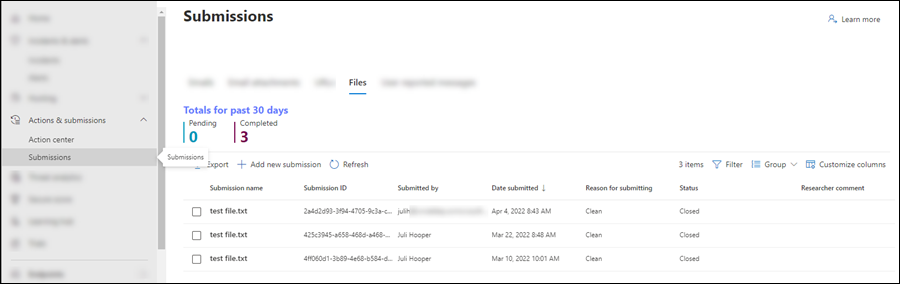
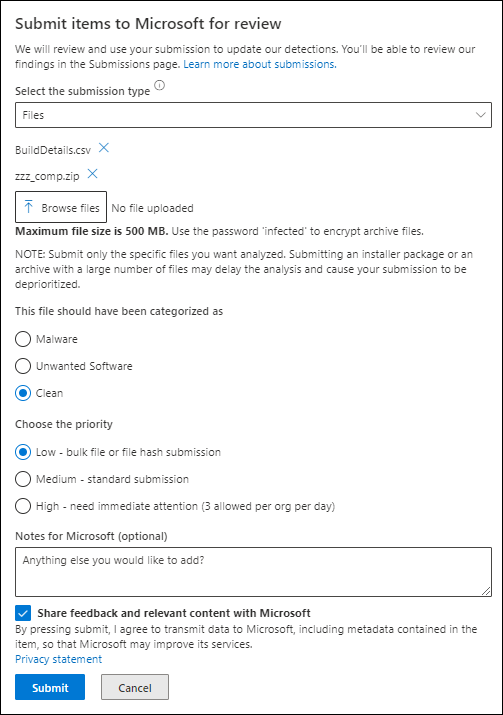
In the Submit items to Microsoft for review pane that opens, from the Select the submission type dropdown list, select Files or File hash.
If you selected Files, configure the following options:
Select Browse files. In the dialog that opens, find and select the file, and then select Open. Repeat this step as many times as necessary. To remove an entry from the flyout pane, select
 next to the entry.
- The maximum total size of all files is 500 MB.
- Use the password 'infected' to encrypt archive files.
The file should have been categorized as: Select one of the following values:
- Malware (false negative)
- Unwanted software
- Clean (false positive)
Choose the priority: Select one of the following values:
- Low - bulk file or file hash submission
- Medium - standard submission
- High - needs immediate attention (max three per day)
Notes for Microsoft (optional): Enter an optional note.
Share feedback and relevant content with Microsoft: Read the privacy statement and then select this option.
If you selected File hash, configure the following options:
In the empty box, enter the file hash value, for example,
AA11BB22CC33DD44EE55FF66AA77BB88CC99DD00BB22CC33DD44EE55FF66AA77. Then select Enter key. Repeat this step as many times as necessary. To remove an entry from the flyout pane, select
next to the entry.The file should have been categorized as: Select one of the following values:
- Malware (false negative)
- Unwanted software
- Clean (false positive)
Notes for Microsoft (optional): Enter an optional note.
Share feedback and relevant content with Microsoft: Read the privacy statement and then select this option.
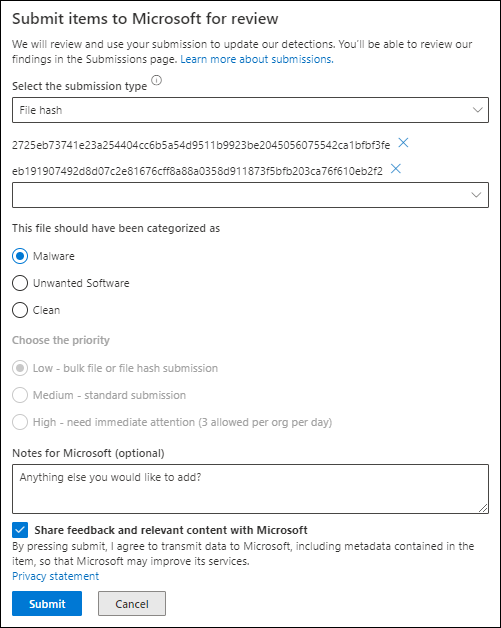
When you finish in the Submit items to Microsoft for review flyout pane, select Submit.
Back on the Files tab of the Submissions page, the submission is shown.
To view the details of the submission, select the submission by clicking anywhere in the row other than the checkbox next to the Submission name. The details of the submission are in the details pane that opens.
Report items to Microsoft from the Alerts page in the Defender portal
Use the following steps to report items to Microsoft from the Alerts page in the Defender portal.
In the Microsoft Defender portal, go to Investigation & response > Incidents & alerts > Alerts. Or, go directly to the Alerts page.
On the Alerts page, find the alert that contains the file you want to report. For example, you can select
 Filter, and then select Service/detection sources > Microsoft Defender for Endpoint.
Select the alert from the list by clicking anywhere in the row other than the checkbox next to the Alert name value.
In the details pane that opens, select
 > Submit items to Microsoft for review.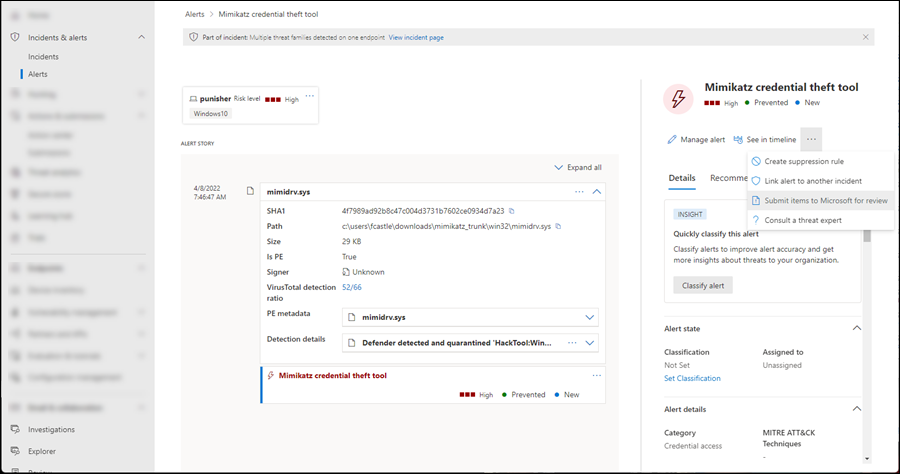
The options that are available in the Submit items to Microsoft for review pane that opens are the same as described in Submit a file or file hash to Microsoft from the Defender portal.
The only difference is an Include alert story option that you can select to attach a JSON file that helps Microsoft investigate the submission.
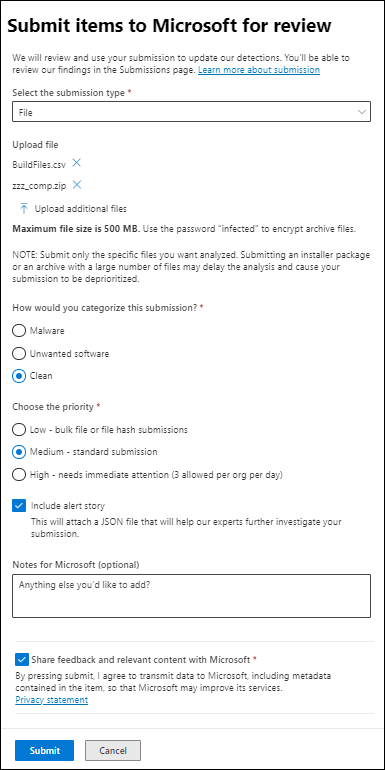
When you finish in the Submit items to Microsoft for review flyout pane, select Submit.
The submission is available on the Files tab of the Submissions page.