Note
Access to this page requires authorization. You can try signing in or changing directories.
Access to this page requires authorization. You can try changing directories.
APPLIES TO:  Power BI Desktop
  Power BI service
Copilot helps you create insightful summaries about your reports. It takes the visuals that report authors curate and build, and generates summaries, overviews, insights, and answers that are grounded in the report data. You can access these summaries in the Copilot report pane or in the standalone Copilot agent in Power BI.
Note
Keep the following requirements in mind:
- Your administrator needs to enable Copilot in Microsoft Fabric.
- Your Fabric capacity needs to be in one of the regions listed in this article, Fabric region availability. If it isn't, you can't use Copilot.
- Your administrator needs to enable the tenant switch before you start using Copilot. See the article Copilot tenant settings for details.
- If your tenant or capacity is outside the US or France, Copilot is disabled by default. The one exception is if your Fabric tenant admin enables the Data sent to Azure OpenAI can be processed outside your tenant's geographic region, compliance boundary, or national cloud instance tenant setting. You can find this setting in the Fabric admin portal.
- Copilot in Microsoft Fabric isn't supported on trial SKUs. Only paid SKUs are supported.
- To see the standalone Copilot experience in Power BI, your tenant admin needs to enable the tenant switch.
Why summarize a report?
When you work with a Power BI report, it can take 30 minutes to several hours to analyze the data and understand key questions and insights. This process is especially true when you're preparing summaries for leadership. This analysis might involve digging through multiple pages of visuals, identifying patterns, noting anomalies, and drafting a narrative that explains what's happening, and why it matters. Whether you're summarizing for an executive briefing, preparing talking points for a stakeholder meeting, or trying to get a quick grasp of the data to inform a business decision - the process can be time-consuming.
Copilot summaries let you generate a concise summary of the report's data in seconds, whether you're in the report or the standalone experience. Summaries highlight key trends, insights, and potential issues. That ability helps you quickly answer core business questions and decide on next steps without needing to manually interpret every chart or rely entirely on an analyst for support.
Get started in reports with standard prompts
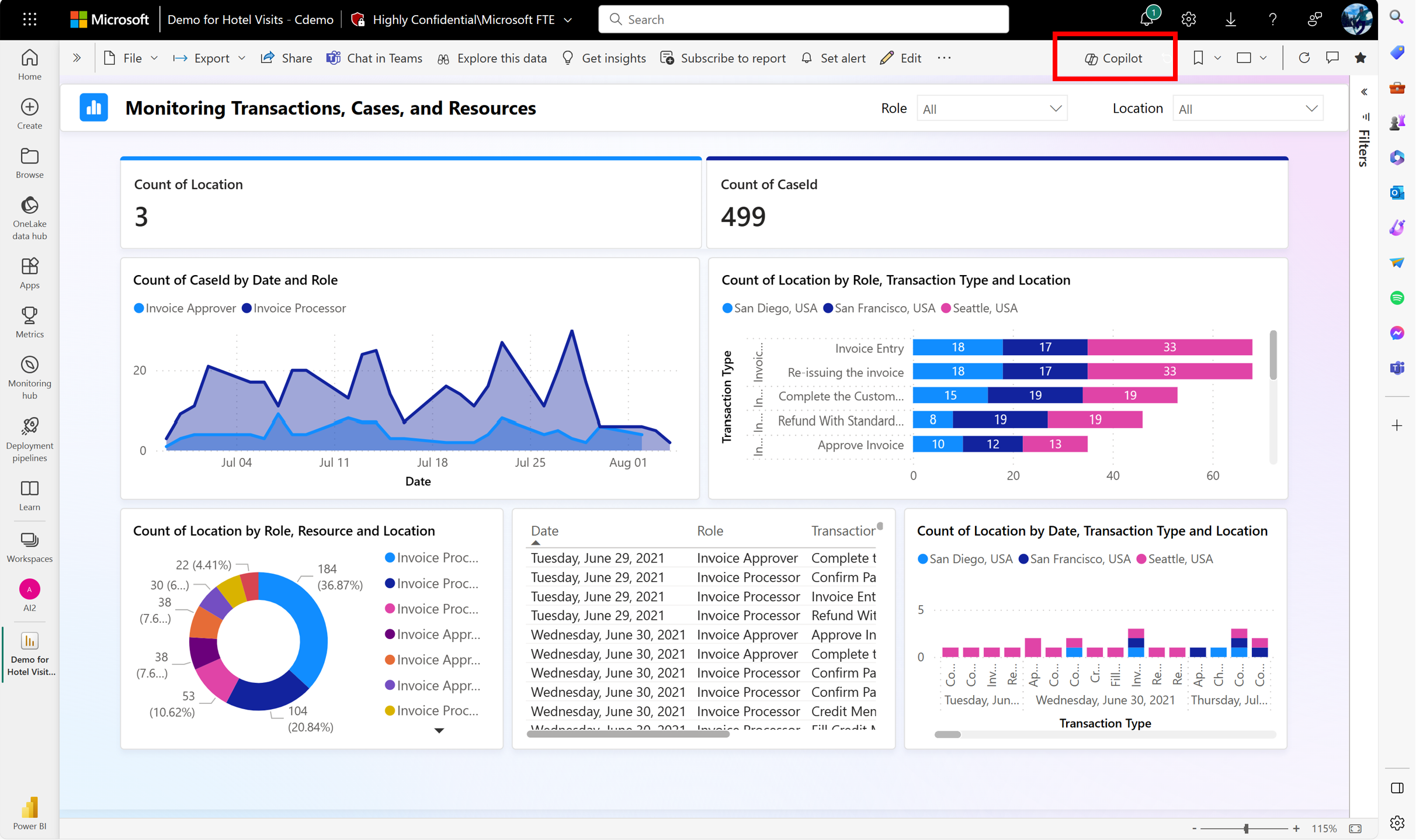
Let's begin with the report experience. Here, you're inside of a Power BI Report that has access to Copilot. To get started, select the Copilot button in the ribbon in either Power BI Desktop or the Power BI service. In the service, the button is available in both edit mode and view mode.
Tip
If you don't see Copilot, your admins likely didn't enable it, or you could be in a workspace that doesn't meet the Copilot requirements.
The Copilot pane opens.
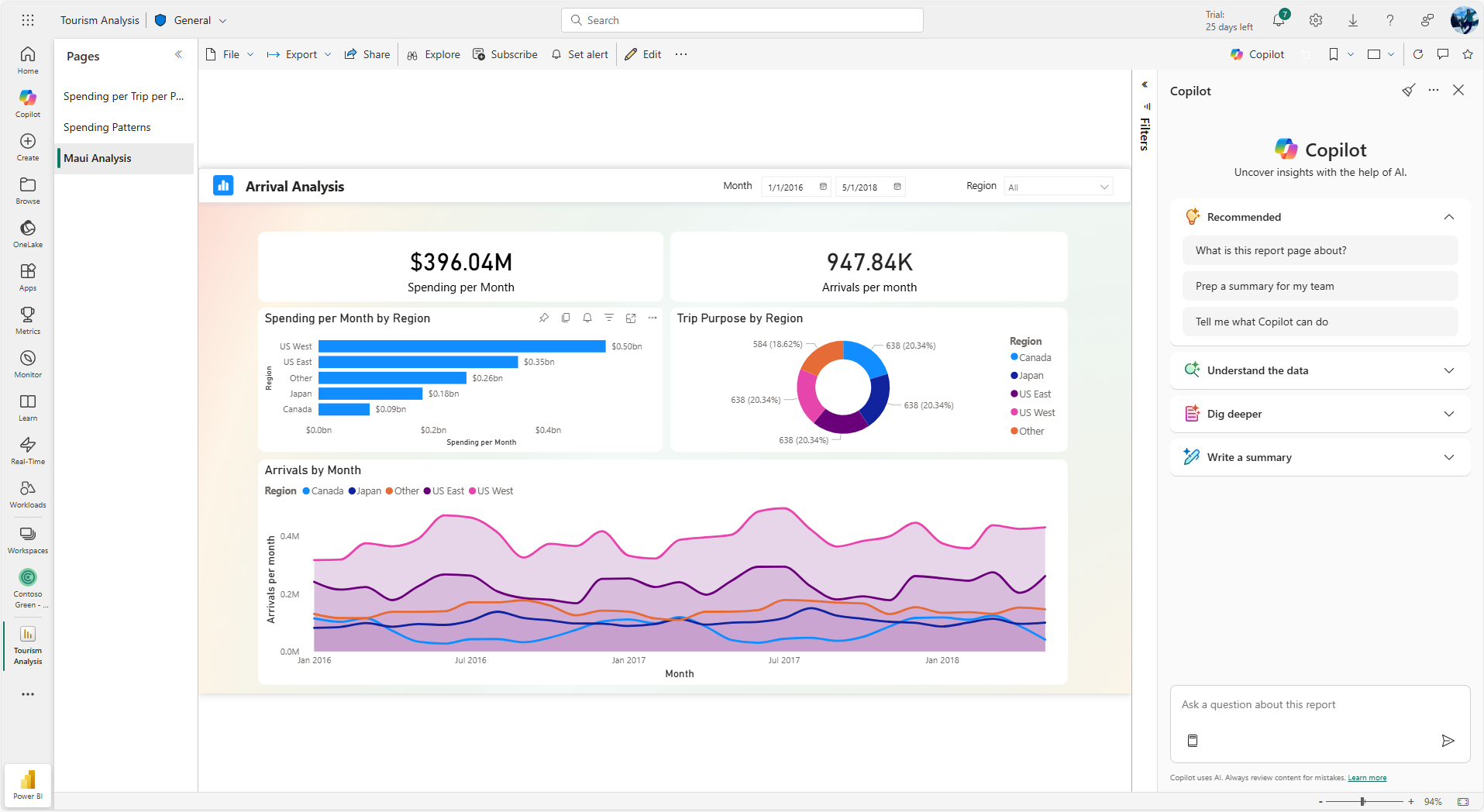
Copilot pane interface
The Copilot pane provides a streamlined interface for interacting with your report data. Key features include:
- Suggested prompts: When you first open the pane, you see button suggestions for common tasks. These starter prompts disappear after you begin your conversation to provide more space for responses. If you need to access starter prompts again, you can find them in the prompt guide (book icon) or clear your chat to start over.
- Input box: The input box remains enabled while Copilot processes your request, so you can type your next prompt. However, you need to wait until the current prompt finishes processing before you can submit the next one.
- Response actions: Each response includes actions at the bottom, including the copy button and feedback buttons, so you can easily reuse content or provide feedback on the quality of responses.
You can choose from suggested prompts of summaries from the main Copilot menu such as "What is this report page about?” or “Prep a summary for my team.”
Or you can select other prompts from the user prompt guide in the lower left-hand corner of the dialogue input box.
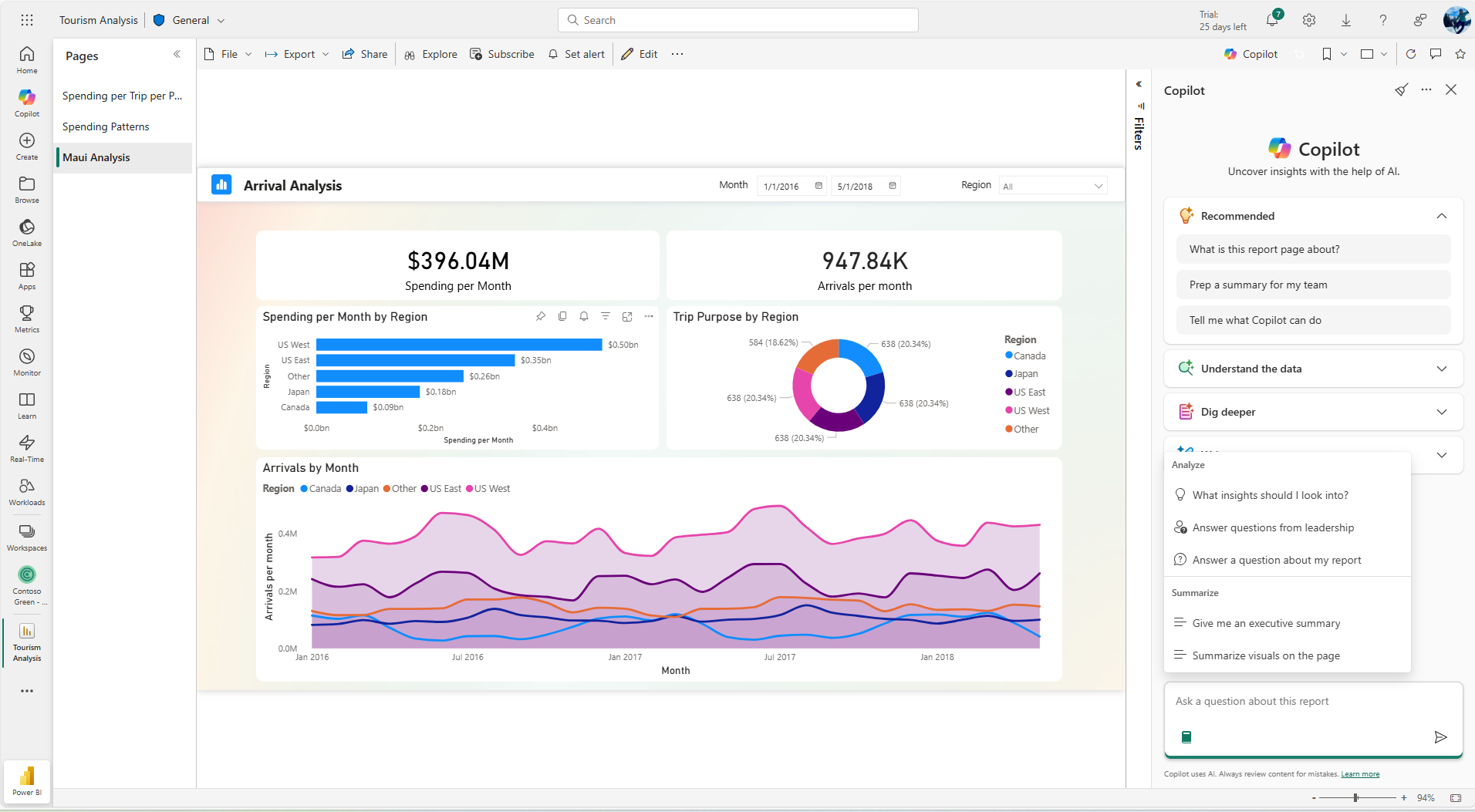
After you choose a prompt, select Enter and watch Copilot generate your summary. Once the summary begins, you can watch it update as it writes the response.
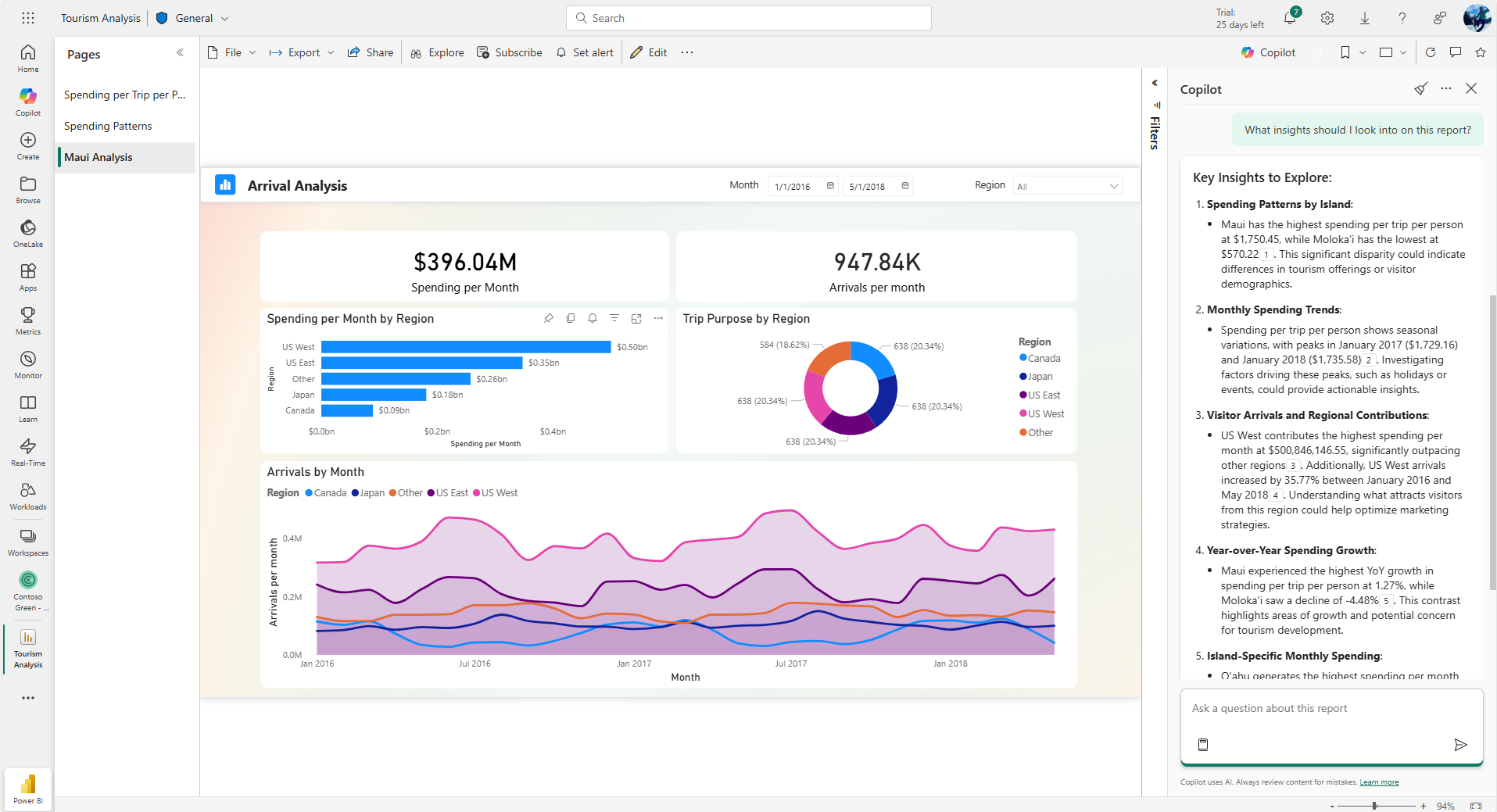
Copilot uses Azure OpenAI to look at the visual metadata on the report and create a natural language summary. By default, Copilot summarizes visuals across the entire report. You can adjust the scope of the summary by specifying the prompt. The summaries give a general overview of the data that's currently visualized.
Additional entry points for Copilot summaries
In addition to opening the Copilot pane and typing a prompt, Copilot provides quick entry points that let you generate summaries with a single click. These shortcuts reduce friction and make it easier to get insights without needing to manually craft a prompt.
Summarize shortcut on the ribbon
The Summarize button, available on the report ribbon in the Power BI service, helps report consumers quickly get a high-level understanding of their data. When selected, Copilot opens the report pane and generates a concise, report-wide summary that surfaces key trends, performance highlights, and notable changes across pages and visuals. This experience is designed to help users orient themselves quickly before diving deeper into the report.

To use the Summarize shortcut:
- Open a report in the Power BI service in view mode.
- In the report ribbon, select Summarize.
- The Copilot pane opens and automatically generates a report-wide executive summary, including key trends, performance highlights, and notable changes.
The summary is generated using the executive summary prompt and doesn't require you to type anything. If a cached summary is available, you see a preview of the summary with a call to action to view the full response. Summaries use the same streaming, citations, and feedback capabilities (copy, thumbs up/down) as standard Copilot responses. New summaries are appended to any existing conversation in the Copilot pane, so you don't lose your chat history.
Note
The Summarize ribbon shortcut is available only in the Power BI service in view mode (consumption scenarios). It isn't available in Power BI Desktop or edit mode.
Copilot summary shortcut on the visual header
For deeper analysis of a specific chart, you can access the Copilot summary directly from the visual header. With a single click, Copilot opens the report pane and produces a visual-level, insight-focused summary of the selected visual. The summary highlights what stands out in the chart, such as trend shifts over time, differences across categories or regions, and key drivers of change, without requiring you to manually interpret every data point.

To use the visual header summary shortcut:
- Hover over a visual in the report to reveal the visual header icons.
- Select the Copilot summary icon in the visual header.
- Copilot opens the report pane and automatically generates a detailed, insight-focused overview of the selected visual's data.
The summary is scoped specifically to the selected visual and reflects the visual's current state, including any applied filters, slicers, or row-level security (RLS). The prompt is automatically submitted, so you don't need to press Enter. The Copilot response clearly indicates that the summary is scoped to the specific visual, and new summaries are appended to any existing chat history in the pane.
Note
- The visual header summary shortcut is available in both edit and view mode in the Power BI service, and in Power BI Desktop.
- If the report author hides the visual header, the Copilot summary icon isn't available for that visual.
- The shortcut is disabled for unsupported visual types, such as key influencers, textbox visuals, decomposition trees, and narrative visuals.
Citations
In a summary response from the Copilot pane, citations are provided within the summary to indicate which visuals Copilot referenced to generate the summary. These citations help you quickly cross-check the summary output to ensure accuracy, increasing productivity. If a reference is from a page you aren't currently on, the reference takes you to that page when clicked.
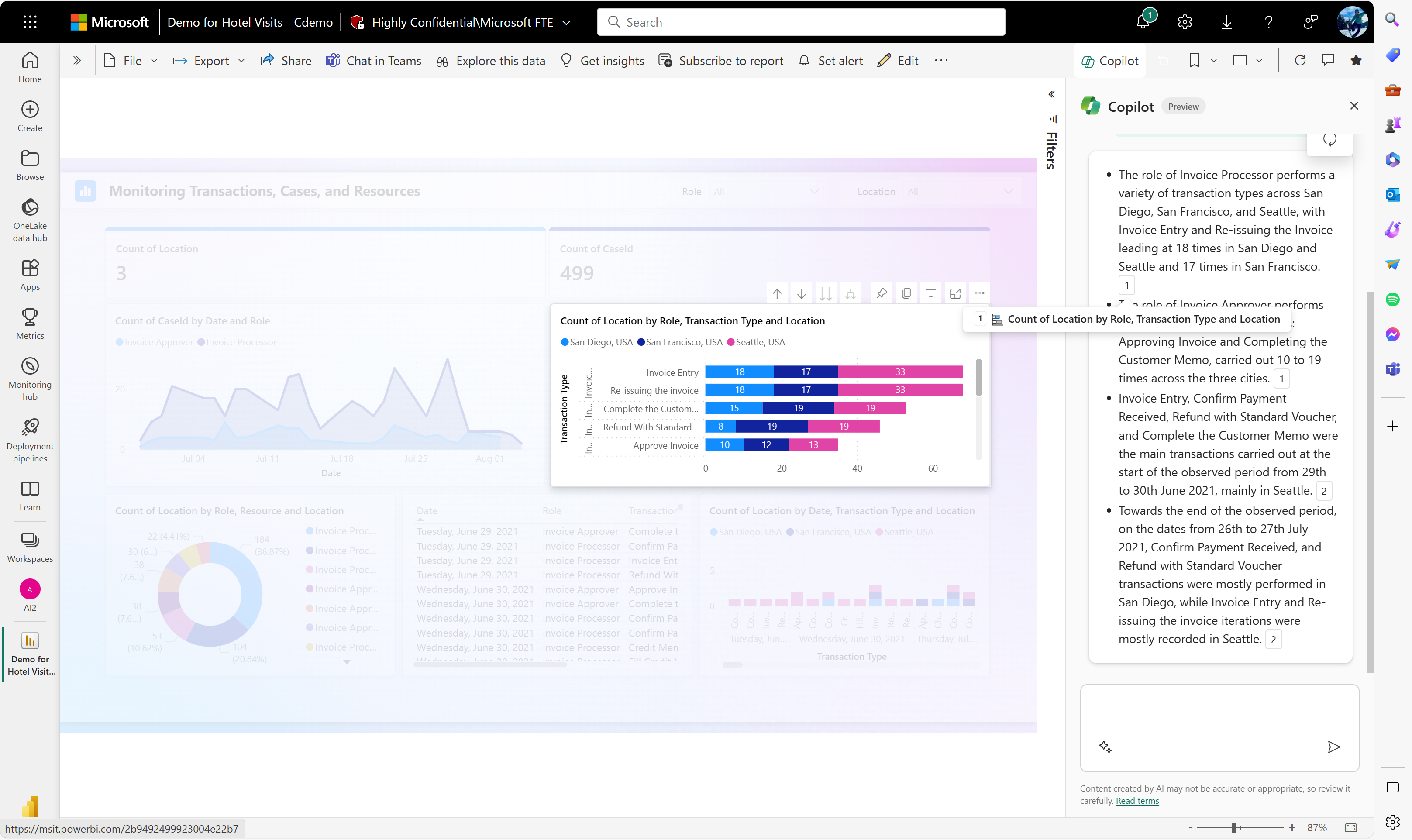
Custom prompts
The benefit goes beyond providing a generic summary for a consumer. You can type custom prompts to request a specific summary, such as a bulleted list or a summary specifically about sales, or about another nuanced slice of your data. You can even ask about data behind slicers and filters on your report page. As long as the filter or slicer exists in the report, Copilot can filter the response for you.
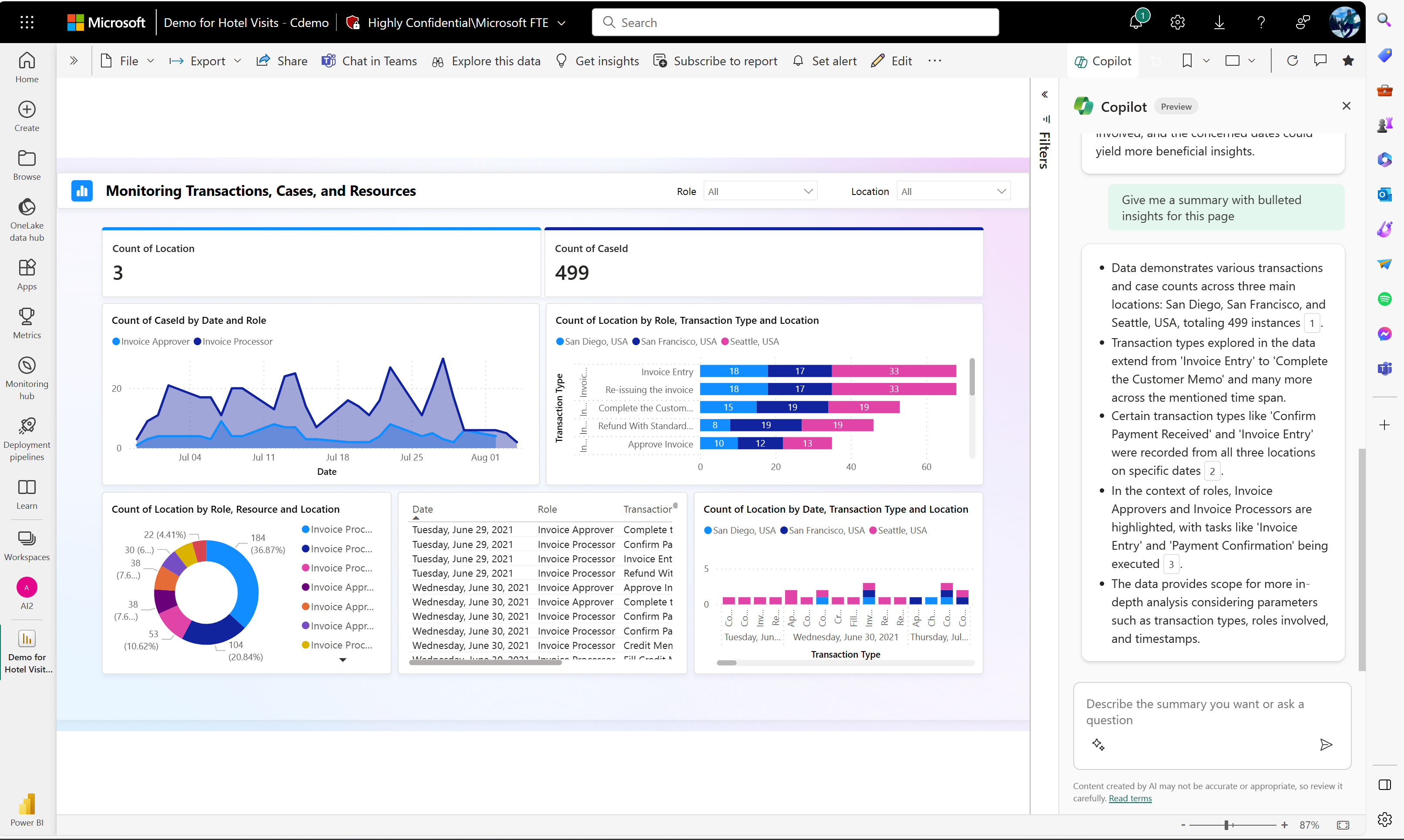
Copilot allows you to generate a custom summary to fit your business needs. Here are some examples of custom summaries:
- Give me a summary of my revenue over the last fiscal year and describe any significant outliers.
- Summarize the trends that are shown across this report.
- Outline the insights about bike sales and Washington.
- Summarize the data in a way that allows me to use it in an email to leadership.
- Summarize the data specific to Seattle, WA.
Benefits
This customization allows you to focus on nuanced aspects of the data that are relevant to your objectives or questions. Some key advantages include:
- Relevance: Customized summaries ensure that the information provided is directly aligned with your specific inquiry or area of interest, making the insights more relevant and actionable.
- Efficiency: You can quickly obtain targeted information without sifting through irrelevant details. This streamlines the decision-making process and enhances overall efficiency.
- Personalization: Customized summaries cater to individual preferences and priorities, providing an experience personalized for you. This personalization fosters a sense of ownership and engagement with the data.
- Precision: You can receive precise details on the metrics or dimensions that matter most to you, allowing for a more detailed and nuanced understanding of the data.
- Improved decision-making: Customized summaries empower you to make informed decisions based on specific, tailored insights, contributing to more effective and strategic decision-making.
- Flexibility: You have the flexibility to adapt the summary to changing business needs or evolving questions, ensuring that the insights remain pertinent over time.
Answer questions about your report content in the Copilot pane
In the Copilot pane, you can ask specific questions about your report content and get a summarized response. This feature lets you request summaries and ask extra follow-up questions about your report or about a summary you received. The Copilot pane generates an answer that contains visual references within the report. You can ask fact-based questions from the report. You can even ask about data behind different slicers and filters in your report, and the citation references the correct, filtered visual. Some filter types aren't supported, such as relative date filters.
Examples of questions you can ask
- Which team had the highest sales?
- What was the spend per visitor for Maui in November 2023?
- What is the value for revenue variance?
- Which product had the highest profit margin?
- What is the difference in revenue by product streams, and are they statistically significant?
Get started in the standalone Power BI Copilot experience
Now, take a look at the standalone Copilot experience. For more details, see Standalone Copilot experience in Power BI (preview). Although the core functionality remains the same, this version includes some enhanced features that are unique to the standalone experience.
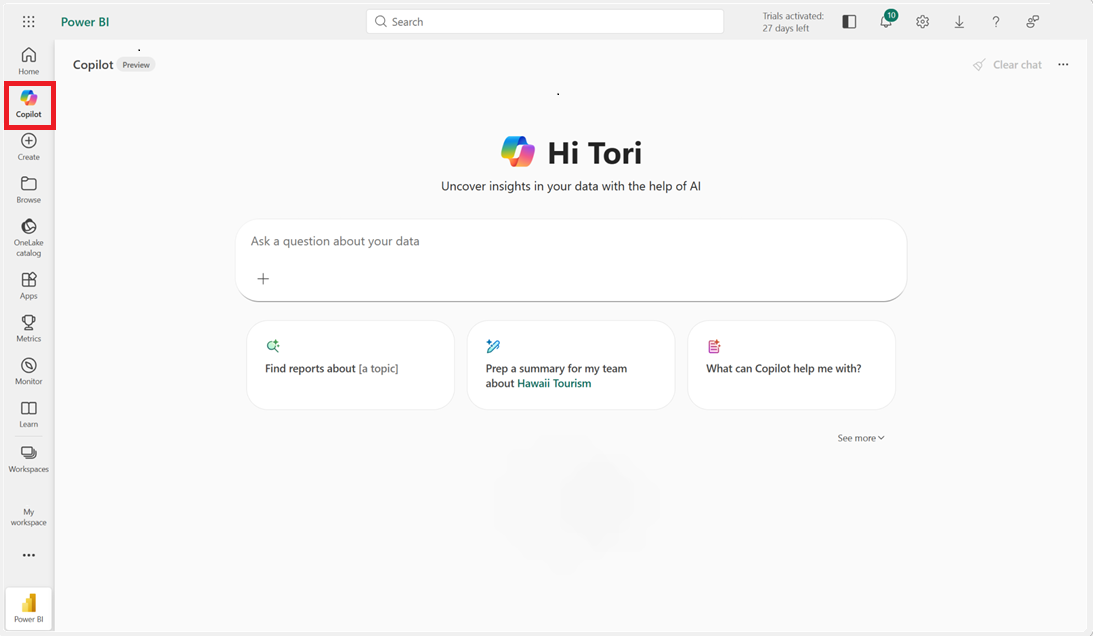
To get started, select the Copilot button in the left navigation menu in Power BI service. You see a landing page that offers helpful prompts to get started exploring data. This experience is similar to the starter prompts shown in the report pane, but by using these prompts you can search for relevant reports you have access to. This feature means you don't need to start the exploration experience in the context of the report, you can just ask Copilot to find it for you.
Tip
If you know the report you want to explore, attach it in the Add items section.
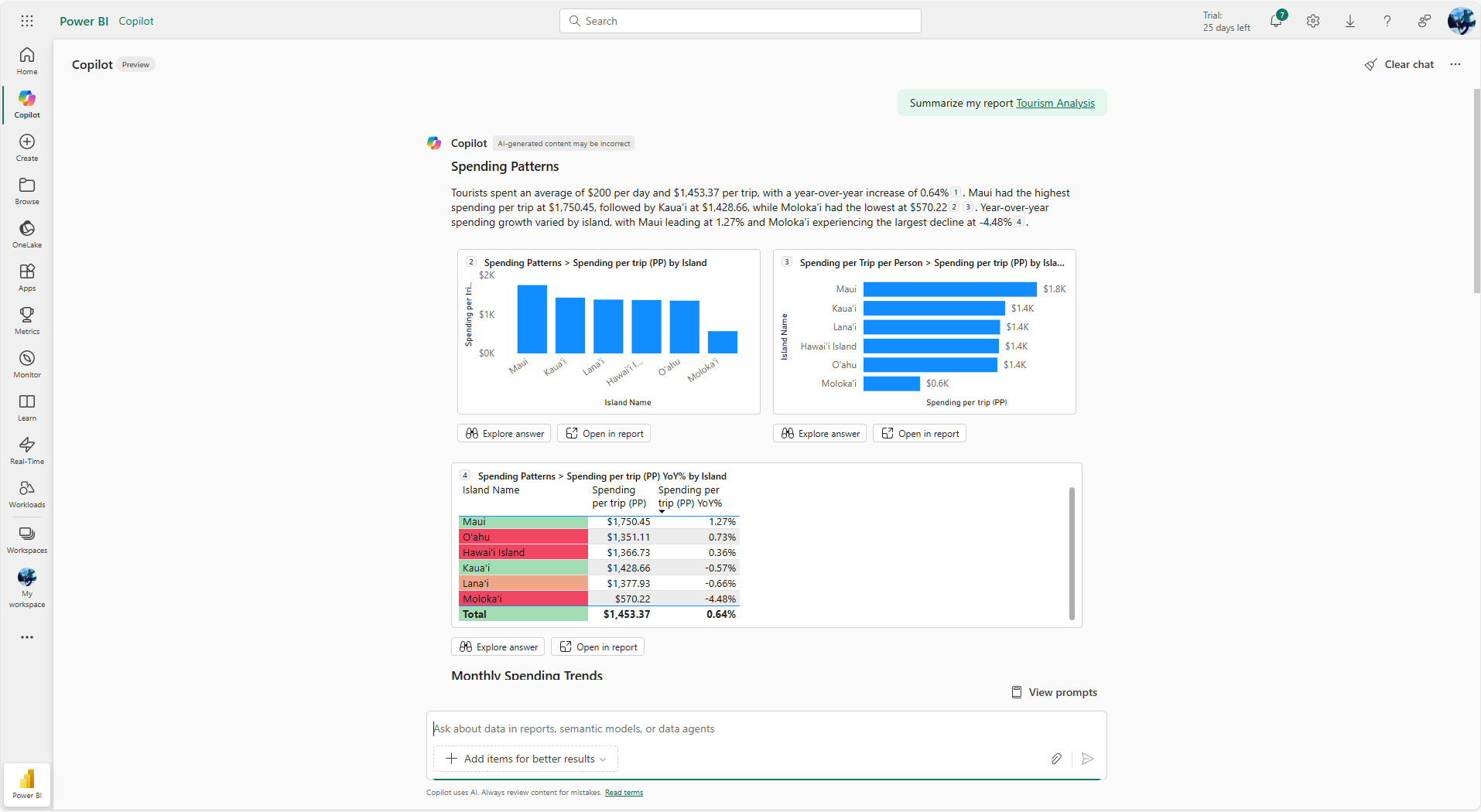
In this standalone Copilot experience, you can ask to summarize data, ask questions, generate insights, or create executive overviews based on your Power BI reports. You can also ask follow-up questions, use custom prompts, continue the conversation, and jump directly into the report for deeper analysis when needed.
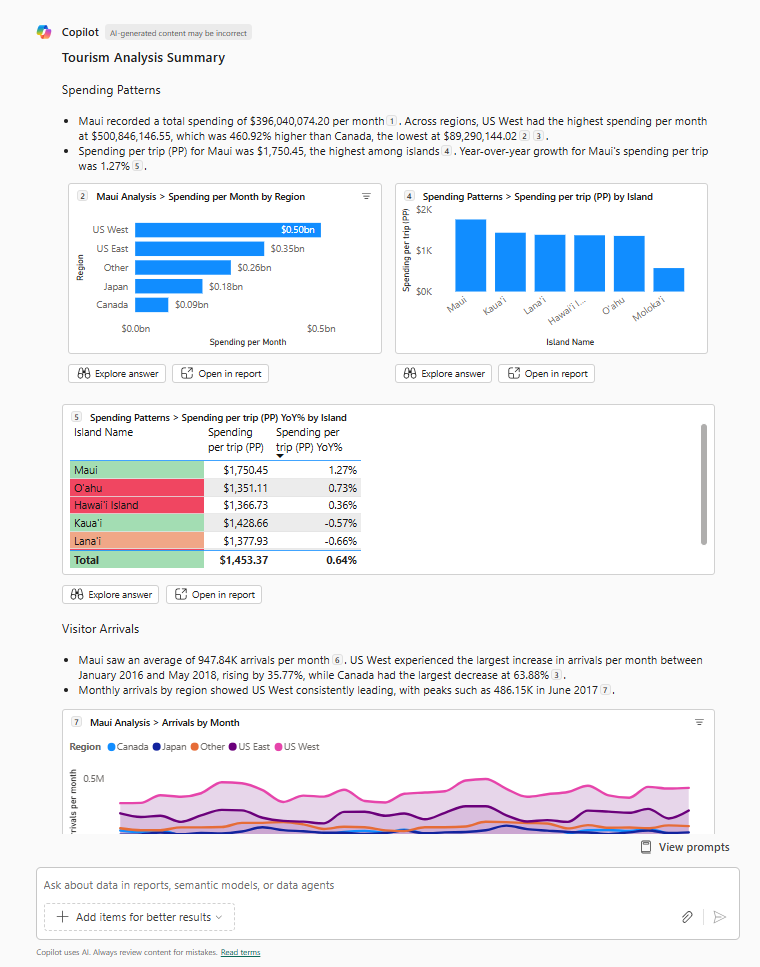
A few key differences exist in the standalone Copilot experience compared to the report pane. The first difference is the way visuals are embedded directly into the summary responses. Unlike report summaries, where visuals remain part of the main report view, the standalone experience presents them alongside the text. Visual citations are especially important here; they let you validate the data in the summary, see the original visual it references, and explore further without leaving the Copilot view. The overall layout reads more like a newspaper article, combining narrative and visuals into a single, digestible format.
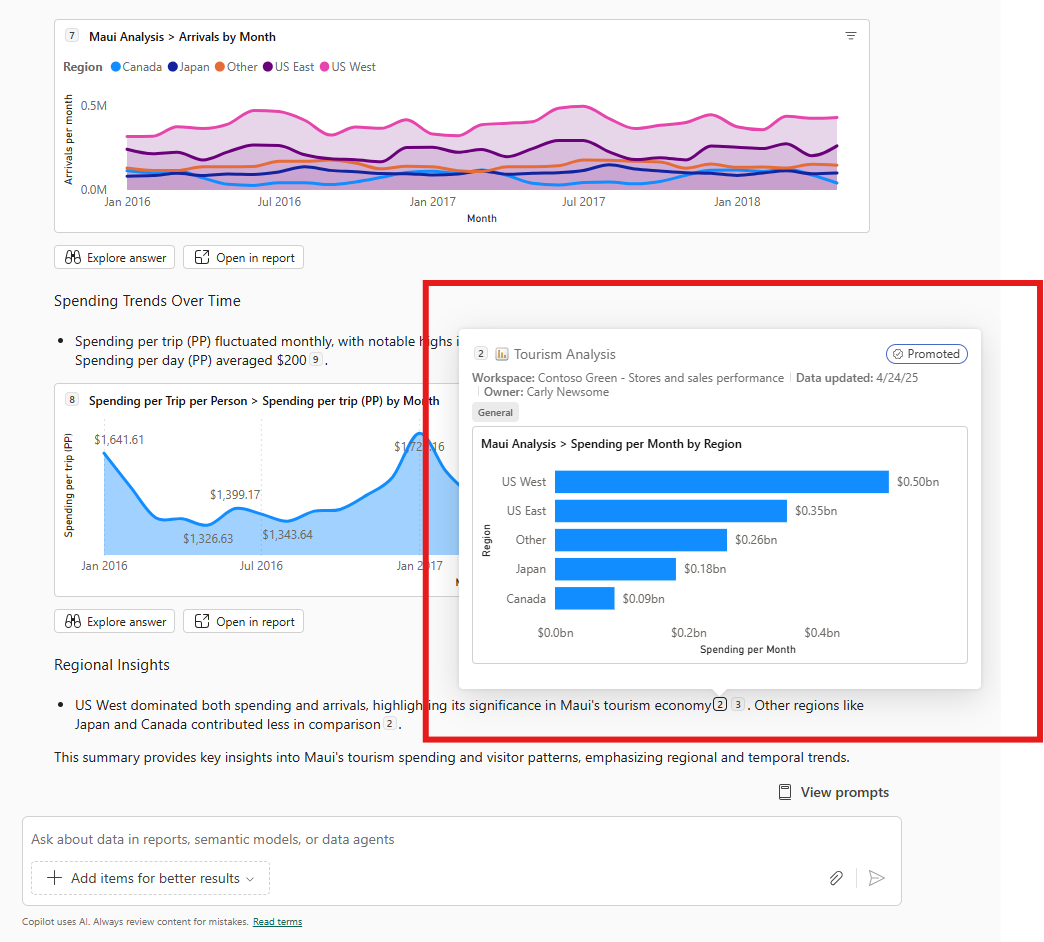
You can even hover over some of the additional visual citations that aren't rendered inline to make sure you have a good understanding of which visual the information in the summary came from.
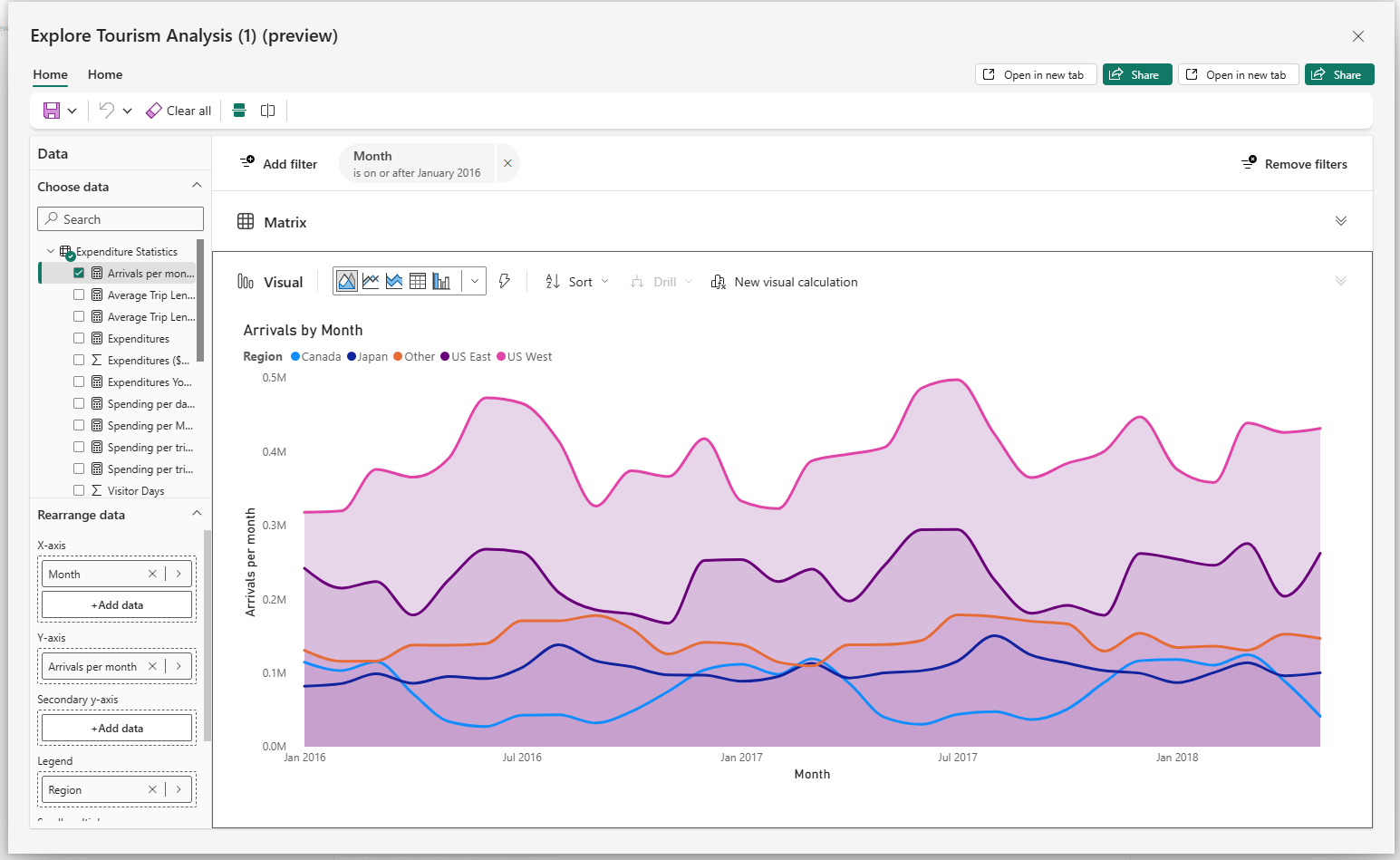
In this immersive experience, you can also dive deeper into the visuals provided to continue your analysis - another key difference from the Copilot pane in the report view. Use the Explore buttons under the visuals to open them in a format that supports deeper exploration, allowing you to slice, dice, and interact with the data more directly.
Remember, you can filter. Here's an example where you ask Copilot specifically for a summary about Maui, rather than an overview.
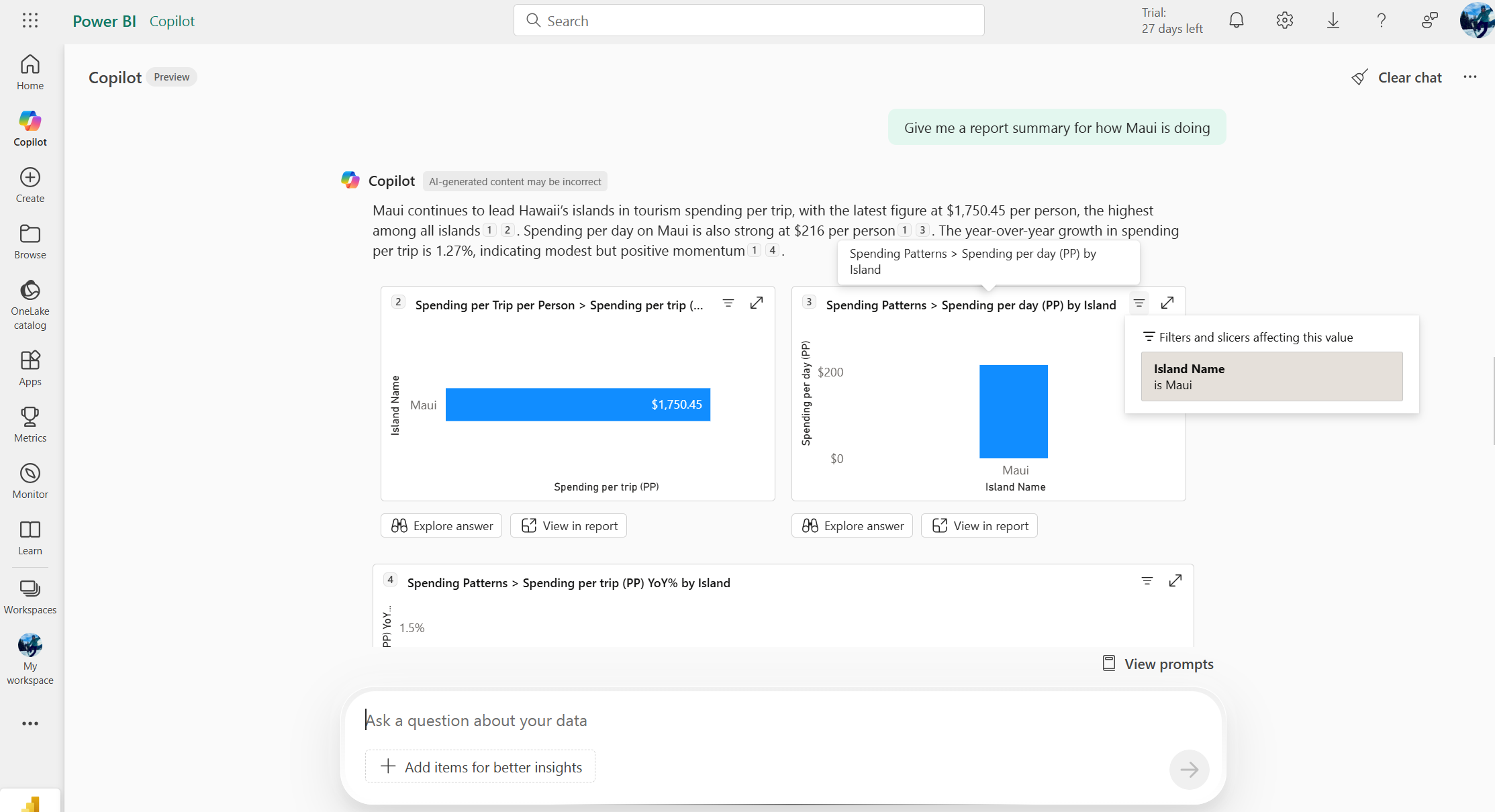
You can see based on the description that the summary was filtered, but you can even hover over the filter icon and see that the Maui filter was applied to all the visuals you see in the response. You can select the view in report button in the standalone experience and be taken to the visual being referenced, with the appropriate filters applied. Some filtering limitations exist.
Best practices
To get the most accurate and useful results from Copilot summaries and responses to your report questions, optimize your report data. The following best practices help ensure Copilot works effectively when delivering report summaries and answers.
How Copilot summarization and report answers work
Copilot report summaries and answers are based on the report’s visualized data and follow a two-step process:
- Identifying relevant visuals (up to 20) based on the user’s prompt.
- Summarizing (or answering with) the data from those visuals.
The quality of the results depends heavily on the amount of data and the clarity of labels. When Copilot resorts to sampling due to volume, accuracy might decrease.
Tip
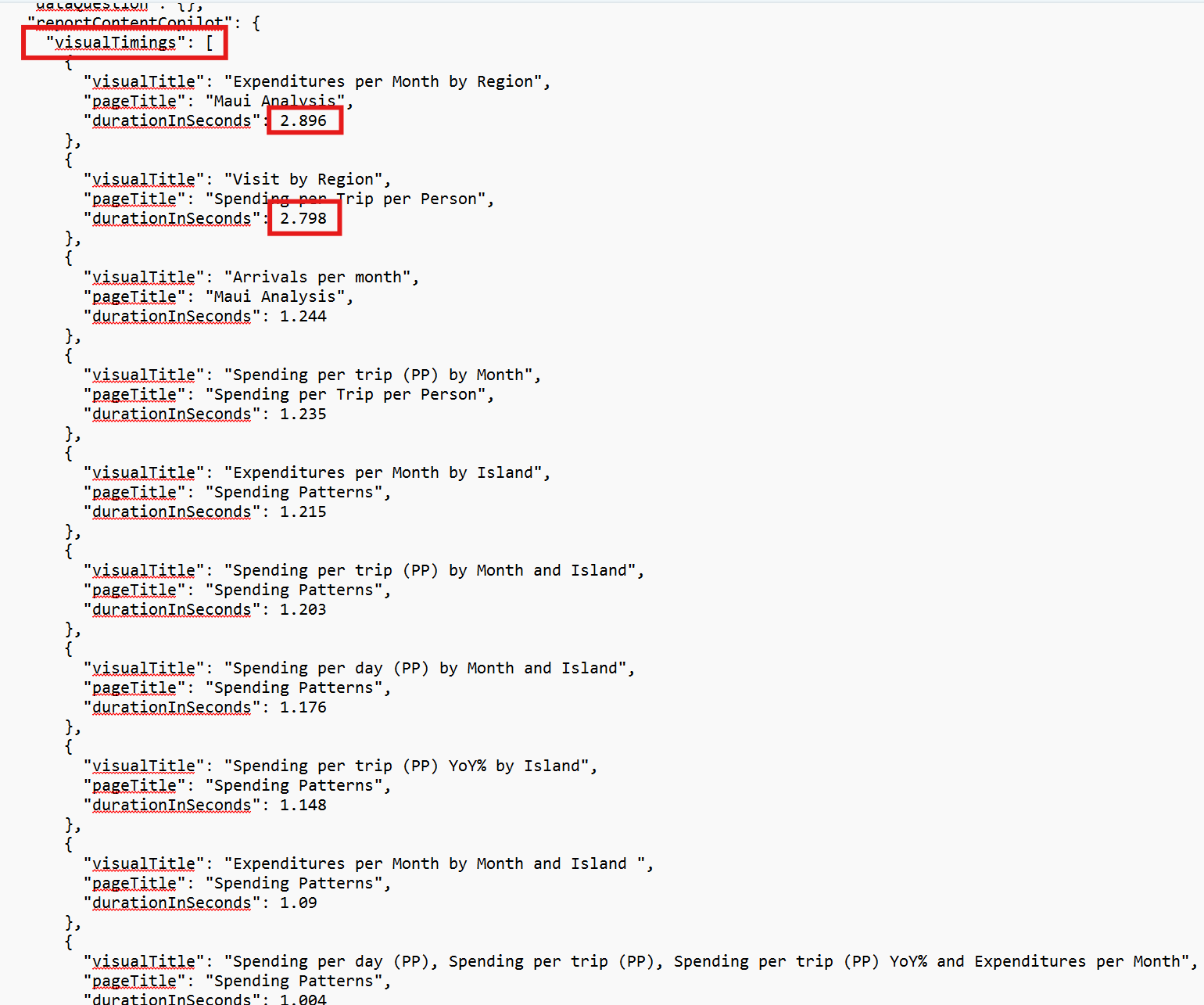
If report summaries or answers take longer than you expect, check the visuals being used and how long they take to query. If crucial visuals important for answering questions take a long time to load, break the visuals into smaller pieces to make them faster for Copilot. Additionally, remove long running query time visuals if they're not important for Copilot to use. You can see this information in the diagnostics available in the ellipses menu.
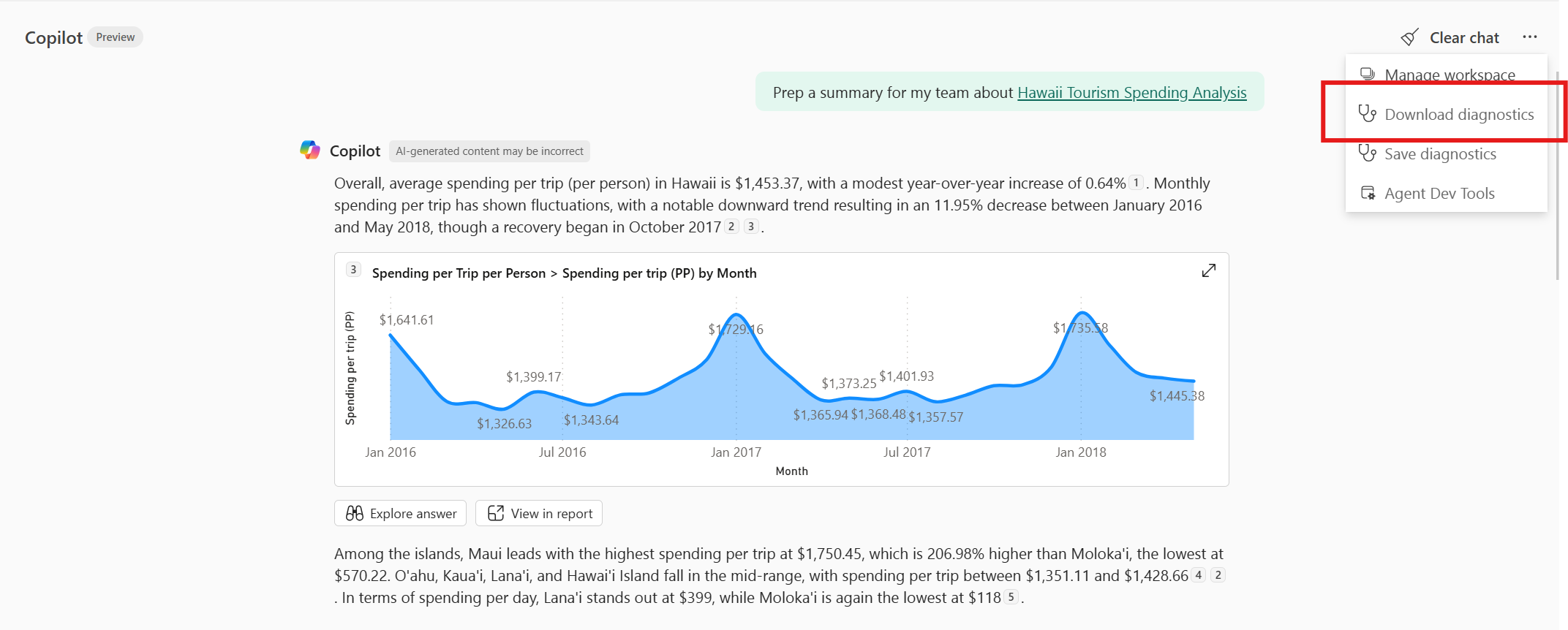
The information you provide is:
- Visual title
- The page the visual is located on
- The time in seconds it took to load or query the visual
Report composition
- Limit the number of visuals on a report page to improve accuracy. While Copilot can rank visuals from reports with hundreds of visuals, it summarizes from only the top 20 visuals, so it might miss some insights.
- If business users frequently request specific summary requests or questions, check the visual timings in diagnostics to optimize your report.
- Avoid duplicate visuals that present the same data. Exception: visuals that show data at different granularities for the same insight.
- Prioritize distinct, simple visuals for each insight rather than a single, complex visual that shows everything.
- Use default filters that reveal data to answer most commonly asked questions, as summaries don't currently apply filters to answer the specific prompt.
- Use clear, descriptive titles for pages, visuals, and filters.
- Ensure the fields have meaningful names, even if they're not displayed on the chart.
Visual composition
- Copilot summarizes visuals with expandable elements (like decomposition trees or matrices) in their current state. For example, if you expand only one country in a matrix that shows Country > City, Copilot sees only the cities for that country. Set the default expansion thoughtfully.
- Avoid overly complex matrices with many row levels or multiple values. Use simpler, supporting visuals to highlight key takeaways from those complex visuals.
- The simpler the visual, the easier it is to summarize. Use cards to surface key high-level insights.
Data volume and token usage
- Visuals might not send all data. For example, tables paginate after 100 rows, and only visible rows are summarized. If full summarization is important, reduce the data shown by using filters, trimming columns, or splitting data into multiple visuals. To learn more, see limitations.
- Avoid high-density visuals, like daily line charts spanning years. Instead, aggregate data by week or month. To learn more, see limitations.
- Hidden elements like tooltips are also included in what Copilot sees, which can increase token usage.
- Limit the number of series in categorical charts (fewer than 10). Use an "Other" bucket for small categories. Too many series can result in wide, hard-to-parse tables.
- Use display units where possible. For example, show "1.2K" instead of "1,234" unless high precision is necessary.
- Avoid large text fields. Any text longer than 500 characters is truncated.
Limitations and considerations
The following limitations and considerations apply to both experiences (also see the best practices section).
Filter limitations:
- To apply filters in Copilot responses, the report must include filters and slicers.
- Page and report level filters are supported, but visual level filters aren't yet supported.
- Basic, categorical filters and slicers are supported.
- Advanced filters are supported, except for relative date/time filters, is/is not blank or empty filters, and numerical range filters (between X and Y).
- Field parameters aren't supported as slicers or filter types.
To make the Copilot button available in reports, the report needs to be in:
- An eligible workspace: the workspace needs to have a paid dedicated Fabric capacity.
- A tenant where the admin settings are enabled.
Copilot summaries only consider visuals with less than 30,000 rows of data. If visuals include more data, Copilot answers use the semantic model itself, not the report visual.
Copilot summaries might not work accurately on table or matrix visuals with more than 500 rows. If the visual surpasses 100 rows, Copilot answers use the semantic model itself, not the report visual.
The standalone Copilot experience isn't yet available in the following regions: Spain Central, Qatar, India-West, and Mexico.
Provide feedback with diagnostics
Copilot includes an updated feedback dialog that you can use to share diagnostics with your feedback submission. When you select the thumbs up or thumbs down button on a Copilot response, you can:
- Add comments: Provide specific details about what worked well or what needs improvement.
- Attach diagnostics: Include diagnostic information with your feedback submission. Diagnostics provide conversational context to your rating and are helpful during support case investigations.
- Preview diagnostics: Before submitting, you can preview the diagnostics file to ensure you aren't sending any sensitive information.
Sharing diagnostics with your feedback helps the product team better understand your experience and improve Copilot capabilities.
Send feedback
We always welcome your feedback about our products. Your feedback helps us improve the product.