Note
Access to this page requires authorization. You can try signing in or changing directories.
Access to this page requires authorization. You can try changing directories.
APPLIES TO:  Power BI Desktop
Power BI service
Power BI Desktop
Power BI service
This guide covers all matrix visual format settings in Power BI Desktop and the Power BI service. Use it to customize layouts, grid settings, column and row headers, subtotals, and more to present your data in the most effective way possible.
Prerequisites
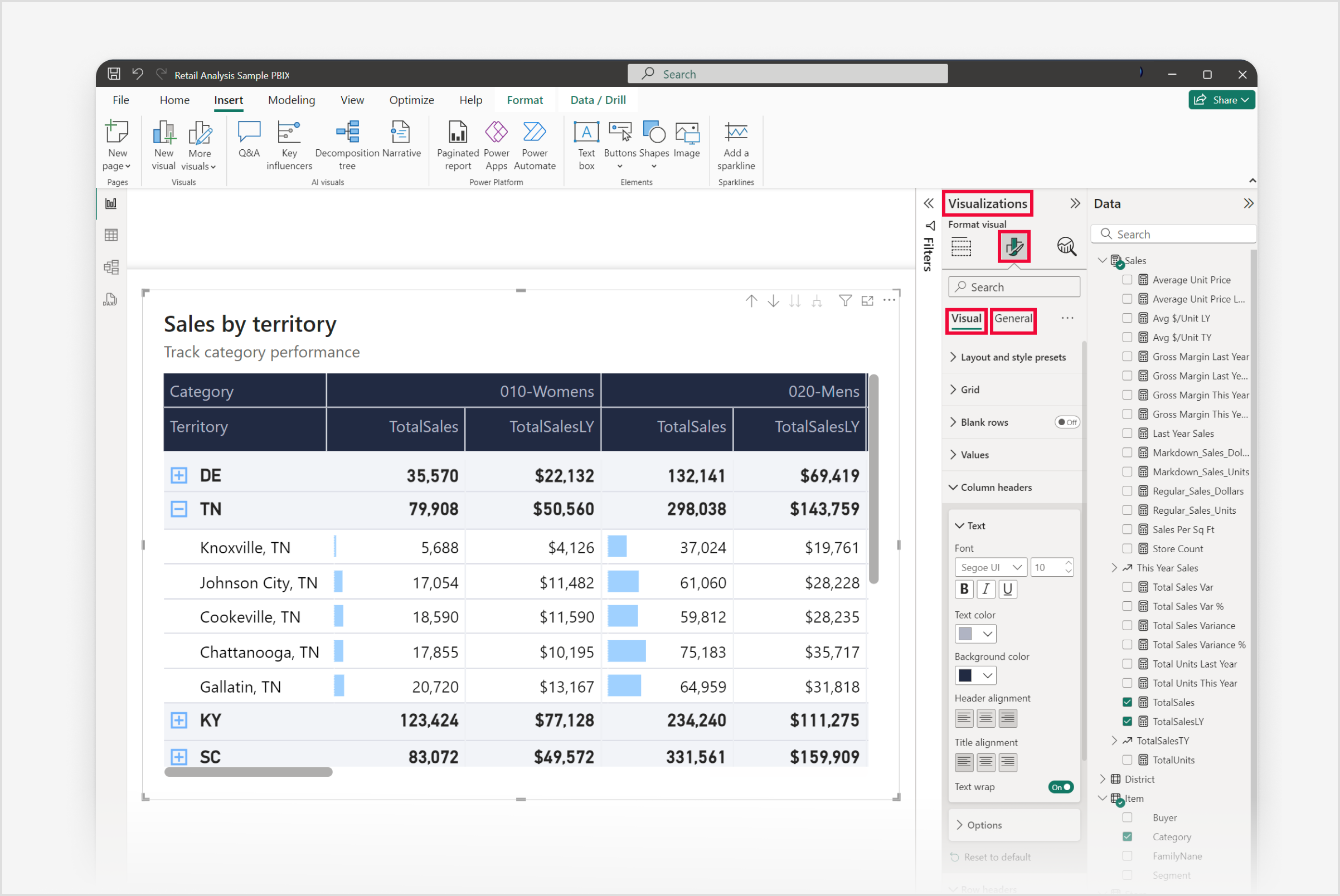
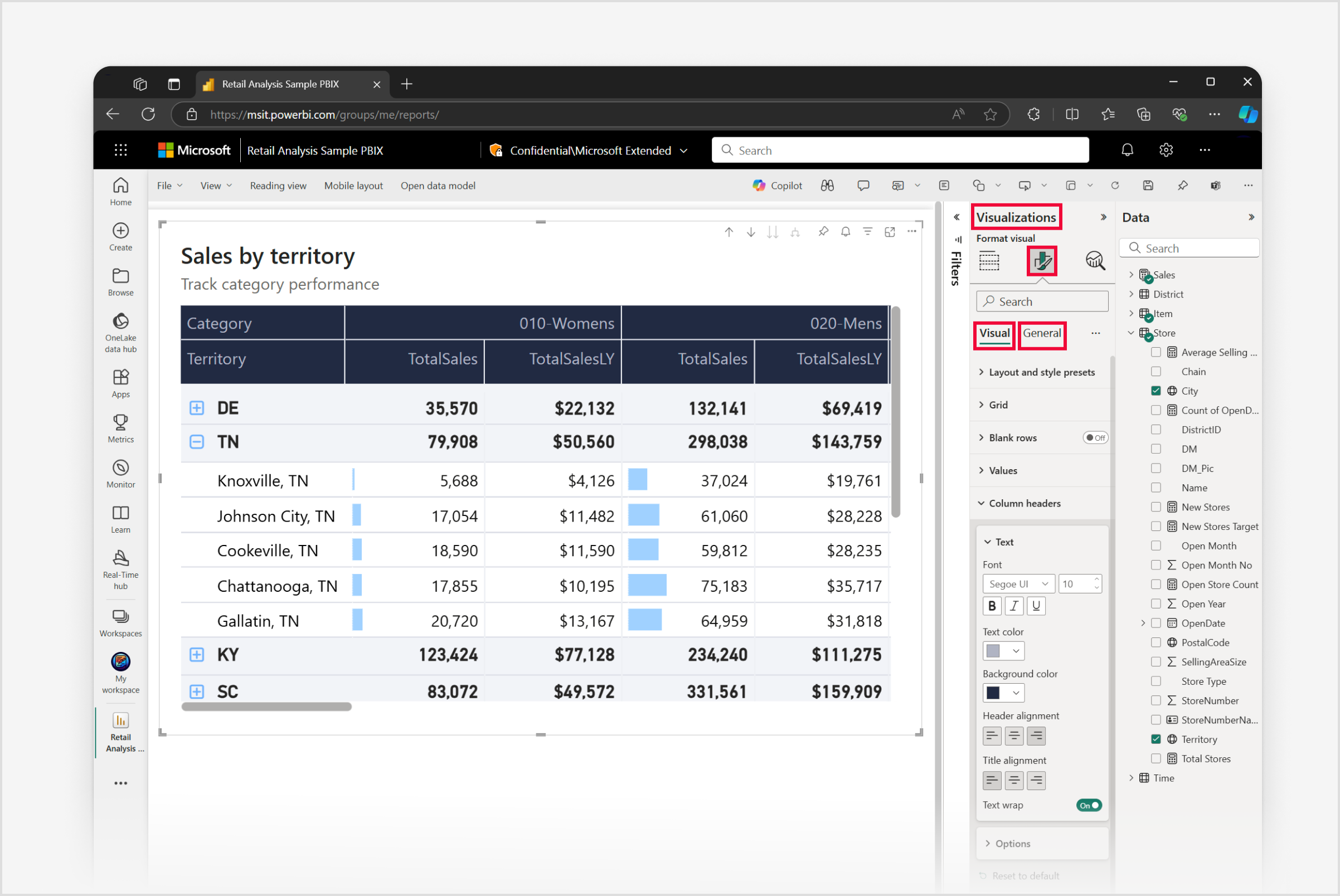
To format and customize your matrix visual in Power BI Desktop, select the Format visual icon in the Visualizations Pane. This selection grants access to the vast array of formatting options under the Visual and General tabs, enabling you to refine both the appearance and functionality of your matrix visuals.
Note
Sharing your report with a Power BI colleague requires that you both have an individual Power BI Pro or Premium Per User (PPU) license, or that you have saved the report in Premium capacity or Fabric F64 or greater capacity.
Format settings for matrix visuals
Layout and style presets
Style
Use the Style setting to choose from a set of predefined styles with unique combinations of colors and formatting. Apply these styles with a single click to change the overall look of your matrix visual. These styles include:
- Default
- None
- Minimal
- Bold header
- Alternating rows
- Contrast alternating rows
- Flashy rows
- Bold header flashy rows
- Sparse
- Condensed
Layout
The Layout menu offers three options for customizing the presentation of your data:
- Compact: The default space-saving layout where row labels display in a single column. The hierarchy shows through indentation. Use this layout to display more data in less space.
- Outline: Each level of the hierarchy appears in its own column. This layout works like a traditional pivot table, so it's easy to read and understand the hierarchy at a glance.
- Tabular: Similar to the outline layout but without indentation. Each hierarchy level is still in its own column, but the data is presented in a flat structure.
Repeat row headers
This toggle controls whether the row headers repeat on each page of a paginated report. When enabled, the row headers appear at the top of each page. This feature is particularly useful when you have a matrix that spans multiple pages, ensuring that the context of the data isn't lost when moving between pages.
Grid settings
Horizontal gridlines
Turn on the Horizontal gridlines toggle to add lines horizontally across the chart. These lines improve readability and visually separate data points. You can also adjust the line color and width.
Color
This setting allows you to customize the color by selecting colors from the color palette.
Width
The Width setting allows you to define the thickness in pixels, offering a range from 1 to 10 (widest).
Vertical gridlines
Turn on the Vertical gridlines toggle to add lines vertically across the chart. These lines improve readability and visually separate data points. You can also adjust the line color and width.
Color
This setting allows you to customize the color by selecting colors from the color palette.
Width
The Width setting allows you to define the thickness in pixels, offering a range from 1 to 10 (widest).
Grid border
Use the Border settings to customize the appearance of the borders around the matrix and its individual sections.
Selection
Use this menu to define the borders for different sections of the matrix. Here's what each option in the Section menu means:
- All: Applies the border settings to the entire matrix, including column headers, row headers, and the values section.
- Column header: Applies the border settings only to the column headers of the matrix.
- Row header: Applies the border settings exclusively to the row headers of the matrix.
- Values section: Applies the border settings only to the area of the matrix where the data values are displayed.
Grid border position
Choose from four options to specify the position of the border:
- Top
- Bottom
- Left
- Right
Color
This setting allows you to customize the color by selecting colors from the color palette.
Width
The Width setting allows you to define the thickness in pixels, offering a range from 1 to 10 (widest).
Grid options
The Options menu includes options for row padding and global font size. Adjust the spacing and text size within the matrix visual.
Row padding
This setting controls the amount of space between rows. It often makes the matrix easier to read by adding more white space. Decreasing it can make the matrix more compact.
Global font size
This setting changes the font size for all text within the matrix visual. Increasing the font size can improve readability, especially when presenting to an audience or for users with visual impairments. Decreasing it can allow more data to be displayed on the screen.
Blank rows settings
Use the Blank rows toggle to add blank rows within the matrix. These blank rows separate higher-level row header categories, which can make the report easier to read and better organized. When you turn on this feature, you can customize the appearance of these rows by using the available settings.
Color
This setting allows you to customize the color by selecting colors from the color palette.
Transparency
The Transparency setting allows you to adjust the transparency level, ranging from 0% for full opacity to 100% for complete transparency, enabling you to achieve either a subtle or a more pronounced effect.
Blank rows border
Use the Border settings to customize the appearance of the borders around the matrix and its individual sections.
Blank rows border position
Choose from four options to specify the position of the border:
- Top
- Bottom
- Top and bottom
Color
This setting allows you to customize the color by selecting colors from the color palette.
Transparency
The Transparency setting allows you to adjust the transparency level, ranging from 0% for full opacity to 100% for complete transparency, enabling you to achieve either a subtle or a more pronounced effect.
Width
The Width setting allows you to define the thickness in pixels, offering a range from 1 to 10 (widest).
Values settings
Values text and color
Font
The font’s appearance is determined by three distinct controls:
- Font family: Select from preset font families.
- Font size: Font size can be adjusted within a range of 8 to 60 points.
- Font style: With normal being the default, you can also choose bold, italic, or underlined.
Text color
This setting allows you to customize the color by selecting colors from the color palette.
Background color
This setting allows you to customize the color by selecting colors from the color palette.
Alternate text color
Select a color from the palette to customize the color for alternating rows.
Alternate background color
Select a color from the palette to customize the color for alternating rows.
Text wrap
Turn on this toggle to display longer text on multiple lines within a cell, so the text doesn't get cut off.
Values options
Switch values to rows
Turn on this toggle to switch the display of your values from columns to rows within the matrix.
Column headers settings
Column headers text
Font
The font’s appearance is determined by three distinct controls:
- Font family: Select from preset font families.
- Font size: Font size can be adjusted within a range of 8 to 60 points.
- Font style: With normal being the default, you can also choose bold, italic, or underlined.
Text color
This setting allows you to customize the color by selecting colors from the color palette.
Background color
This setting allows you to customize the color by selecting colors from the color palette.
Header alignment
This setting controls the header alignment. Choose left, center, or right.
Title alignment
This setting controls the title alignment. Choose left, center, or right.
Text wrap
This toggle, when enabled, allows longer text to automatically continue, or wrap, onto the next line when it reaches the limit of the space allocated.
Column width
Column width in Power BI tables and matrices can be adjusted to improve readability and presentation. You can manually resize columns or use the Layout section of the Format pane to control how columns size, set a default width, and customize widths for individual columns.
Manual adjustment
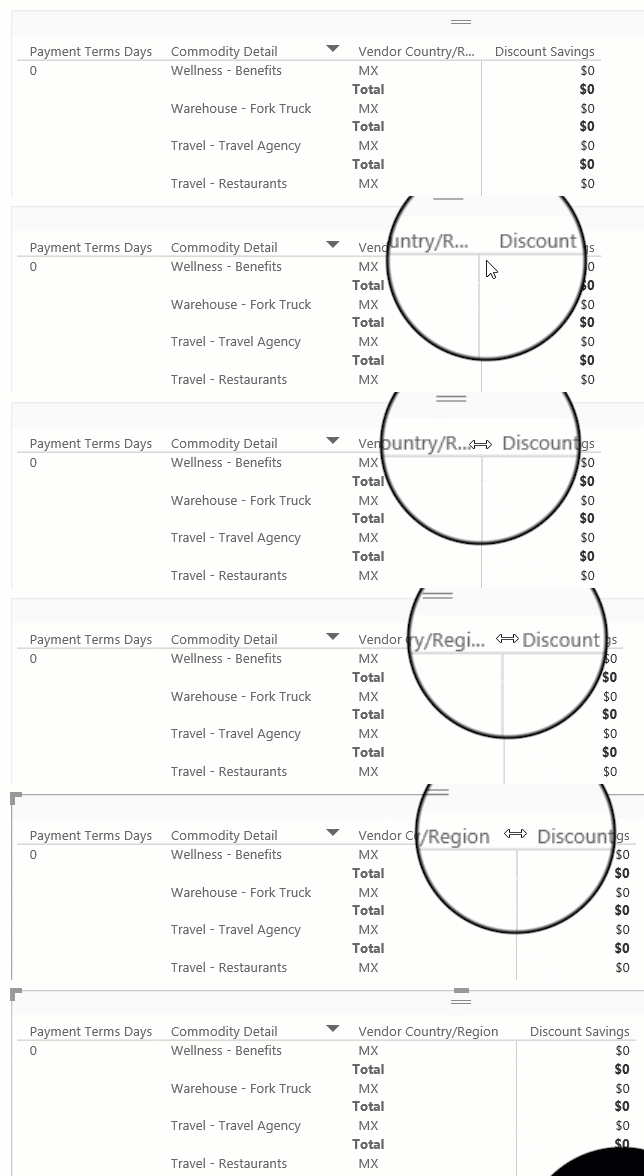
Sometimes Power BI shortens a column heading in a report or dashboard. To display the full column name, you can resize the column in two ways:
Resize by dragging
Move to the space just to the right of the column heading until the resize arrows appear. Once the arrows are visible, adjust the column width by moving the resize handle left or right.
Resize using menu options
Select the column you want to adjust. From the available options, choose Widen column or Narrow column to change its width by 10px.
Manual resizes are reflected in the Custom widths controls in the Format pane.
Auto-size behavior
Column sizing settings are in the Format pane under Visual > Layout > Column width. The Auto-size behavior dropdown has three options:
- Fit to content: Columns are as wide as they need to be to show the data, assuming there's room in the visual container.
- Grow to fit: Columns automatically expand to fill the visual container for a more balanced layout. Any leftover horizontal space is distributed evenly to each column.
- Fixed width: Columns use a width that you specify. When this option is selected, a Default width input appears so you can set the width for all columns and for any new columns added to the visual.
Default width (Fixed width only)
When Auto-size behavior is set to Fixed width, set a Default width in pixels. With Custom widths off, all columns use this uniform width. New columns added to the visual also use this default width.
Custom widths
Turn on Custom widths to see and customize the width of any column directly from the Format pane:
- If the visual has fewer than 15 columns, each column appears with its own width input.
- If the visual has 15 or more columns, an Apply settings to dropdown appears. Select a column from the dropdown to set its width. Columns that already have a custom width are marked with an asterisk (*).
Width inputs that show (auto) indicate the column is using the auto-size behavior rather than a custom width.
To clear customizations:
- Clear all: Toggle Custom widths off to clear custom widths from every column.
- Clear one: Clear the input box for a single column, or right-click the input and select the option to reset that value to default.
Matrix hierarchies (More granular)
For a matrix with hierarchies on columns, Custom widths by default sets a uniform width for the lowest level of the hierarchy. To set widths for each combination individually, turn on More granular. Each leaf-level combination then appears in the Apply settings to dropdown so you can size them independently.
Mobile view
The Column width settings in the Format pane can be modified independently for the mobile-optimized layout of a report page. This lets you tune column widths so tables and matrices fit well on small screens without changing the desktop layout. For more information, see Optimize Power BI reports for the mobile app.
Row headers settings
Row headers text
Font
The font’s appearance is determined by three distinct controls:
- Font family: Select from preset font families.
- Font size: Font size can be adjusted within a range of 8 to 60 points.
- Font style: With normal being the default, you can also choose bold, italic, or underlined.
Text color
This setting allows you to customize the color by selecting colors from the color palette.
Background color
This setting allows you to customize the color by selecting colors from the color palette.
Banded row color
When you turn on this toggle, it extends the color settings from the Values section, and applies the same color format settings to the row headers in your matrix.
Alignment
This setting controls the alignment, allowing you to choose between left, center, or right.
Text wrap
This toggle, when enabled, allows longer text to automatically continue, or wrap, onto the next line when it reaches the limit of the space allocated.
+/- icons
Color
This setting allows you to customize the color by selecting colors from the color palette.
Expand/collapse icon size
Use this setting to customize the size, offering a range of 8 to 60 pixels.
Column subtotals settings
The Column subtotals toggle controls whether subtotals appear for columns in your matrix. When you turn it on, Power BI calculates and displays subtotals for each column based on the underlying data. Turn off this toggle if you want to hide column subtotals.
Column subtotals: Apply settings to
Per column level
Enable this toggle to customize subtotals for individual columns.
Column level
Use this menu to set subtotal options for the entire column.
Columns
Show subtotal
This toggle controls whether subtotals are visible. When enabled, subtotals are calculated based on the underlying data.
Subtotal label
This toggle controls whether subtotals are visible. When enabled, subtotals are calculated based on the underlying data.
Column subtotals text and color
Font
The font’s appearance is determined by three distinct controls:
- Font family: Select from preset font families.
- Font size: Font size can be adjusted within a range of 8 to 60 points.
- Font style: With normal being the default, you can also choose bold, italic, or underlined.
Text color
This setting allows you to customize the color by selecting colors from the color palette.
Background color
This setting allows you to customize the color by selecting colors from the color palette.
Apply to labels
This toggle, when enabled, extends the formatting settings (font, text color, and background color) to the labels.
Row subtotals settings
The Row subtotals toggle controls whether subtotals appear for rows in your matrix. When you turn it on, Power BI calculates and displays subtotals for each row based on the underlying data. Turn off this toggle if you want to hide row subtotals.
Row subtotals: Apply settings to
Per row level
When enabled, this toggle lets you customize subtotals for individual rows.
Row level
Use this menu to set subtotal options for the entire row hierarchy.
Rows
Show subtotal
This toggle controls whether subtotals are visible. When enabled, subtotals are calculated based on the underlying data.
Subtotal label
This toggle controls whether subtotals are visible. When enabled, subtotals are calculated based on the underlying data.
Subtotal label position
Specify the position of the Subtotal labels:
- Top
- Bottom
Row subtotals text and color
Font
The font’s appearance is determined by three distinct controls:
- Font family: Select from preset font families.
- Font size: Font size can be adjusted within a range of 8 to 60 points.
- Font style: With normal being the default, you can also choose bold, italic, or underlined.
Text color
This setting allows you to customize the color by selecting colors from the color palette.
Background color
This setting allows you to customize the color by selecting colors from the color palette.
Apply to labels
This toggle, when enabled, extends the formatting settings (font, text color, and background color) to the labels.
Column grand total settings
Column grand total text and color
Font
The font’s appearance is determined by three distinct controls:
- Font family: Select from preset font families.
- Font size: Font size can be adjusted within a range of 8 to 60 points.
- Font style: With normal being the default, you can also choose bold, italic, or underlined.
Text color
This setting allows you to customize the color by selecting colors from the color palette.
Background color
This setting allows you to customize the color by selecting colors from the color palette.
Apply to labels
This toggle, when enabled, extends the formatting settings (font, text color, and background color) to the labels.
Row grand total settings
Row grand total text and color
Font
The font’s appearance is determined by three distinct controls:
- Font family: Select from preset font families.
- Font size: Font size can be adjusted within a range of 8 to 60 points.
- Font style: With normal being the default, you can also choose bold, italic, or underlined.
Text color
This setting allows you to customize the color by selecting colors from the color palette.
Background color
This setting allows you to customize the color by selecting colors from the color palette.
Apply to labels
This toggle, when enabled, extends the formatting settings (font, text color, and background color) to the labels.
Grand total color behavior
Grand total color settings
If you don't explicitly define a grand total text color, the grand total automatically inherits the subtotal text color.
- The grand total text color doesn't support an undefined state.
If you don't explicitly set the grand total background color, the grand total inherits the background color from the subtotal.
- Unlike text color, the grand total background color supports an undefined option.
Note
These color inheritance behaviors are currently under review and might change in future versions. To avoid unintended styling, always explicitly define any grand total colors.
Specific column settings
Specific column: Apply settings to
Specific column series
Select individual columns (series) within your matrix, and apply specific formatting. Customize colors, font sizes, or conditional formatting rules for each column separately.
Apply to header
When you enable this toggle, any formatting settings you apply affect the column headers (the labels at the top of each column). You can adjust font styles, alignment, and other visual properties for the headers.
Apply to subtotals
When you enable this toggle, it applies formatting settings to the subtotal rows within your matrix. Customize how subtotals are displayed, including font colors, background colors, and font sizes.
Apply to total
Similar to subtotals, this option lets you format the total row (if you have one) in your matrix. You can control font styles, colors, and other visual aspects for the total row.
Apply to values
When turned on, this toggle applies formatting rules to the actual data values within the matrix cells. You can set up conditional formatting, color scales, or other visual cues based on the data values.
Specific column text and color
Text color
This setting allows you to customize the color by selecting colors from the color palette.
Background color
This setting allows you to customize the color by selecting colors from the color palette.
Alignment
This setting controls the alignment, allowing you to choose between left, center, or right.
Display units
The menu offers several options for defining the display units:
- None: Displays the value as is, without any unit.
- Thousands: Divides the value by 1,000 and appends a "K" suffix.
- Millions: Divides the value by 1,000,000 and appends an "M" suffix.
- Billions: Divides the value by 1,000,000,000 and appends a "B" suffix.
- Trillions: Divides the value by 1,000,000,000,000 and appends a "T" suffix.
Value decimal places
Specify the number of decimal places for values, with a selectable range from 0 to 15.
Cell elements settings
Cell elements: Apply settings to
Cell elements series
Select the data series that you want to apply formatting options to.
Background color
When you turn on this toggle, you can customize the background color by using conditional formatting.
Font color
When you turn on this toggle, you can customize the font color by using conditional formatting.
Data bars
When you turn on this toggle, you can use conditional formatting to create horizontal bars that reflect the magnitude of data points. For example, longer bars for higher values.
Icons
When you turn on this toggle, you can use conditional formatting to add visual indicators from a predefined set of icons or custom icons. For example, an up arrow for positive growth and a down arrow for negative growth.
Web URL
When you turn on this toggle, you can use conditional formatting to embed web URLs, creating clickable links that lead to external websites or internal resources. For instance, link a product name to its detailed page on an internal or external website.
URL icon settings
URL icon values
When you turn on this toggle, you can create hyperlinks within individual cells. You can associate a URL field with specific data points for users to navigate to external web pages or resources.
URL icon: Column headers
When you turn on this toggle, you can replace the column header text with a clickable hyperlink icon. This replacement is useful when you want to link to additional information related to the column or provide context-specific URLs.
URL icon: Row headers
When you turn on this toggle, you can replace the row header text with a clickable hyperlink icon. Users can click on the icon to access relevant URLs associated with each row.
Image size settings
Height
Use this setting to define the height of the image, offering a range of 8 to 512 pixels.
Width
Use this setting to define the width of the image, offering a range of 8 to 512 pixels.