Note
Access to this page requires authorization. You can try signing in or changing directories.
Access to this page requires authorization. You can try changing directories.
The Sites and files shared via special SharePoint groups report is one of the Data access governance snapshot reports available with SharePoint Advanced Management. This report provides exact item-level permission details for every item where the special SharePoint groups Everyone except external users (EEEU) or Everyone are the recipients.
What does the report show?
The report captures the permission state of the EEEU and Everyone groups at a specific point in time. Each row identifies a single item that either group can access, along with the full hierarchy of identifiers from your organization down to that item, the permission level granted, and the parent group when access is indirect. For the complete list of metrics captured in the report, see the Download the report section.
When should I use this report?
Use this report when you want to find exactly where oversharing happens in your organization and fix it through scripting, rather than depending on individual site owners to review and modify permissions.
Unresolved EEEU permissions are a top oversharing risk. Content shared with these groups is visible to every internal user, and it surfaces directly in Microsoft 365 Copilot search results, which makes cleanup critical for Copilot adoption. Because the report identifies each affected item individually, you can build targeted cleanup programs and scripts instead of reviewing sites one at a time.
Before you begin
Review Prerequisites for SharePoint Advanced Management.
Important
Review these important details before you run your first report:
- Make sure that the site permissions for your organization report is generated at least once.
- Reports capture data from up to 48 hours before generation.
- You need the SharePoint Advanced Admin role. See Assign the SharePoint Advanced Management Administrator role.
- The report covers both SharePoint and OneDrive. You can't scope the report to a single workload.
- The downloaded file is limited to 1 million rows.
- The report doesn't include permissions granted to EEEU or Everyone for system files and system groups.
- You can run reports again every 30 days.
Assign the SharePoint Advanced Management administrator role
Standard SharePoint administrators and Global administrators can't view file properties across sites they don't own. The SharePoint Advanced Management Administrator role lets you view file names, paths, and URLs, and modify permissions as appropriate.
A Global administrator must assign the SharePoint Advanced Admin role before you can run this report.
For more information, see RBAC role assignements.
Run the report
The report is available for two special SharePoint groups, and each group has its own report. Here's how to run either one:
In the SharePoint admin center, in the navigation pane, expand Reports, and then select Data access governance.
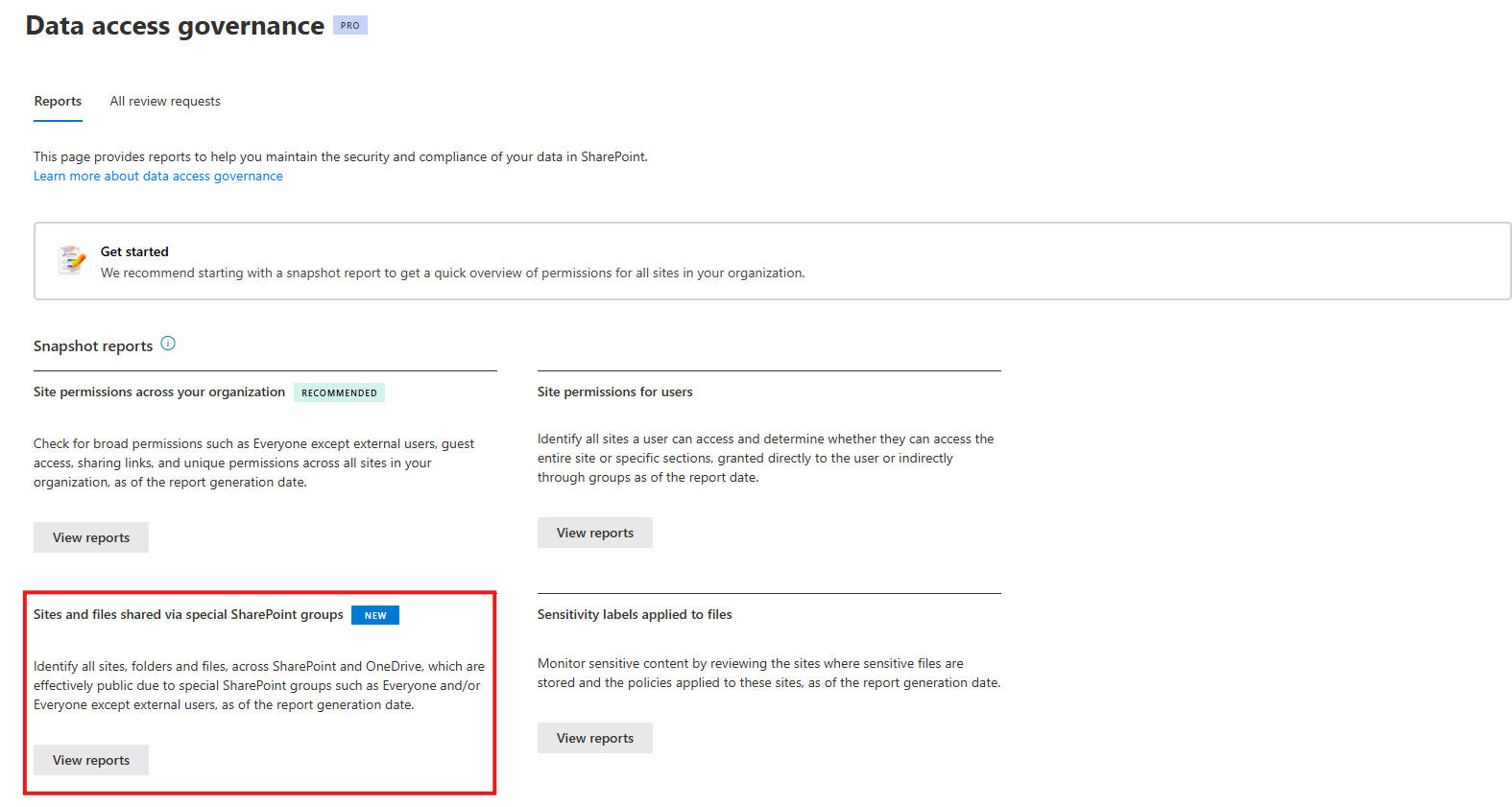
Under Snapshot reports, in the Sites and files shared via special SharePoint groups section, select View reports.
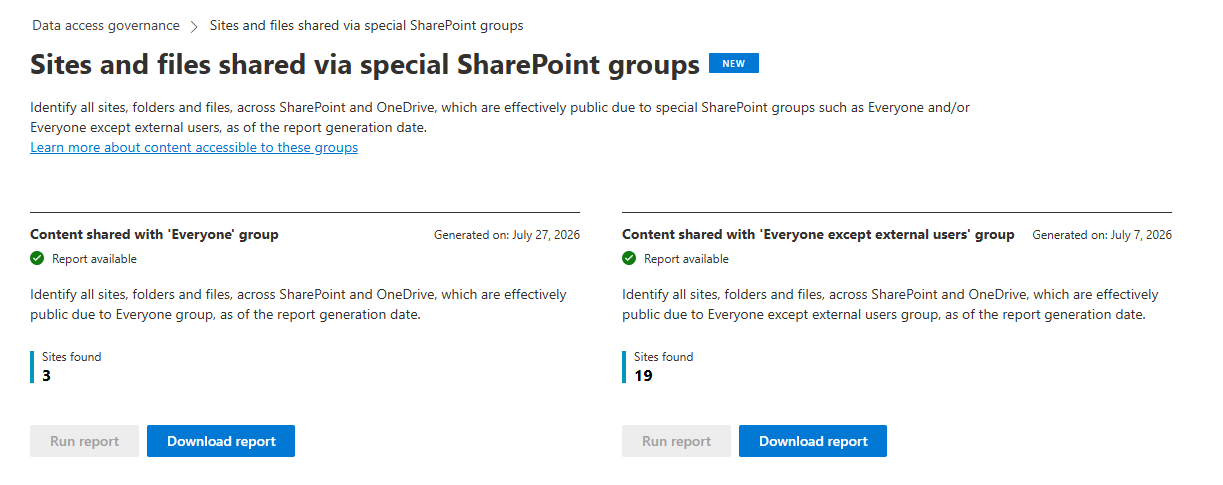
Select Run report under either Content shared with 'Everyone' group or Content shared with 'Everyone except external users' group.
Check the status of the report. When the report is ready, the status shows Report available along with the date it was generated and the number of sites found.
Download the report
Select Download report on the report for the group you want. The download is a ZIP file that contains a CSV file listing all items where that group has direct or indirect access.
The downloaded report contains the following information:
| Column | Description |
|---|---|
| TenantId | GUID identifying the organization |
| SiteId | GUID identifying the site collection |
| WebId | GUID identifying the root web of the site collection or a subsite |
| ListId | GUID identifying the list, if applicable |
| ScopeId | GUID identifying a specific scope of permissions in SharePoint or OneDrive |
| UniqueId | GUID identifying a specific file or folder. Use it to connect permission data with file metadata. |
| ListItemId | Position of the item within the list, if applicable |
| ItemType | Type of the permissioned item. Has values Web (site), List, Folder, or File. File includes list items. |
| Item Url | URL that gives the name and the absolute path of the item |
| Role definition | Permission level on the item. Has values such as Full control, Read, Edit, Contributor, Creator, or Viewer. |
| LinkId | ID of the sharing link, if applicable |
| LinkScope | Scope of the sharing link permission, such as Read, Write, or Edit |
| Recipient | Everyone except external users, or Everyone |
| UserPrincipalName | Everyone except external users, or Everyone |
| ParentObjectID | Microsoft Entra object ID of the parent entity, when access is indirect |
| ParentGroupName | Name of the parent group, when access is indirect |
| ParentGroupEmail | Email of the parent group, if applicable |
| ParentGroupType | Type of the parent group. Has values Security group, SharePoint group, or Microsoft 365 group. |
| TotalUserCount | Number of users who accessed the item at least once. The item is already shared with all internal users or with everyone, so this number tells you the actual exposure. |
| ReportDate | Time of generation of the report |
The identifier columns form a hierarchy, from your organization down to the individual item, which lets you pivot or summarize across a specific identifier. For example, filtering on a single site ID shows all permissions within that site across all scopes.
Examples
EEEU is part of a SharePoint group
If EEEU is part of the Contoso Finance visitors group, which makes the Contoso Finance site accessible to your entire organization, the key columns show the following values:
| Column | Value |
|---|---|
| ItemType | Web |
| Item Url | /sites/ContosoFinance |
| Role definition | Read |
| Recipient | Everyone except external users |
| ParentGroupType | SharePointGroup |
| ParentGroupName | Contoso finance visitors |
Any unique permissions for the Contoso Finance visitors group also appear in the report.
A single file is shared with EEEU
If only the file Doc1.docx is shared with EEEU, which makes that file accessible to your entire organization, the key columns show the following values:
| Column | Value |
|---|---|
| ItemType | File |
| Item Url | /teams/ContosoFinance/Shared Documents/Doc1.docx |
| Role definition | Read |
| Recipient | Everyone except external users |
| ParentGroupType | Empty |
| ParentGroupName | Empty |
Exceptions
This report doesn't show permissions granted to EEEU or Everyone for system files and system groups.
For example, the report doesn't include the Everyone group inside the Style Resource Readers group. In classic publishing site templates, the Style Resource Readers group controls read permissions for the Master Page Gallery and restricted access to the Style Library. Including Everyone in this group is intentional, because the master page and style library apply to all pages within the site. Without access to these style resources, users might see broken or unstyled pages when a page is shared with them.
Take action based on the report findings
After you discover potential oversharing, take action to remediate risks and improve your organization's data access governance. For more information, see Remedial actions from Data access governance reports.