Note
Access to this page requires authorization. You can try signing in or changing directories.
Access to this page requires authorization. You can try changing directories.
Note
- This feature is available for setup in all Microsoft Advertising markets and is available to serve in all markets, except for China. Image extensions are eligible to serve on Copilot in Bing.
- Each account has a limit of 250,000 image extension associations across campaigns and ad groups.
Adding visual elements to your ads not only helps them stand out, but also gives customers a better idea of what to expect when they click your ad. Adding an image extension—with one or more images—to your ad is a way to enhance your ad for free, because, as with any ad, you only pay when your ad is clicked.
If you don't have any image extensions associated with your ad group, we'll apply autogenerated image extensions to them to enhance ad performance and make your ads more compelling to customers.
Note
Not everyone has autogenerated image extensions yet. If you don't, don't worry—it's coming soon!
About image extensions
Before you create your image extension, consider how you would like them to appear in your Search ad. Both layout types can be displayed in mainline ad positions only. Both layout options can be used with any keyword. Keep in mind, though, that keywords must be relevant to the images and ad copy. Keywords can include brand, product, and category terms.
For information about smart image cropping, see About smart image cropping.
You can associate up to 1,000 campaigns and 1,000 ad groups with image extensions. And, each of these entities (account, ad group, or campaign) can contain up to 25 associated image extensions.
You have two different options when it comes to image layout:
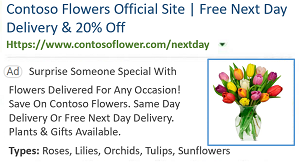
Single image layout
If you only have one image to share (such as your logo), choose the Single Image Extension layout. You can select multiple images and we'll show them one at a time in your ads.
Up to 25 images can be associated with each account, campaign, or ad group. All uploaded images will be rotated one at a time during ad delivery. On computers, a single image layout displays as a rectangle that's cropped in various aspect ratios. On mobile devices, single images are cropped to a 1:1 square aspect ratio.
Multi-image layout
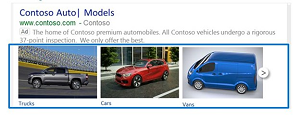
If you want us to show multiple images in an ad, choose the Multi-Image Extension layout. For this extension to serve, a minimum of five images must be chosen and you must select at least four image extensions to enable multi-image extensions. Multi-image extensions can appear with other ad extension; however, they will not serve with sitelink, enhanced sitelink, dynamic product, dynamic data, or price extensions card layout. If you want to maximize multi-image extension delivery, we recommend adding them to campaigns or ad groups that do not have these other types of extensions.
On computer devices, three images are displayed, and potential customers can advance the carousel to see more. On mobile devices, one image is displayed with the option to swipe to see more.
Also consider our image policies and how to best leverage stock images:
About image dimensions for image extensions
You're required to upload an image that meets the minimum dimensions of 703 x 368 pixels for the 1.91 : 1 aspect ratio. Then, we'll automatically crop your image so that it can serve in ad placements that use 1.78 : 1, 1.72 : 1, 1.69 : 1, 1.55 : 1, 1.5 : 1, 1.33 : 1, and 0.93 : 1 aspect ratios.
| Aspect ratio | Required or optional? | Min. dimensions (pixels) | Max. dimensions (pixels) |
|---|---|---|---|
| 1.91 : 1 (Landscape) |
Required | 703 x 368 | 2048 x 2592 |
| 1.78 : 1 | Optional | 624 x 350 | 2048 x 2592 |
| 1.72 : 1 | Optional | 300 x 172 | 2048 x 2592 |
| 1.69 : 1 | Optional | 622 x 368 | 2048 x 2592 |
| 1.55 : 1 | Optional | 300 x 194 | 2048 x 2592 |
| 1.5 : 1 | Optional | 300 x 200 | 2048 x 2592 |
| 1.33 : 1 | Optional | 100 x 75 | 2048 x 2592 |
| 0.93 : 1 | Optional | 311 x 333 | 2048 x 2592 |
Get started with image extensions
You can create an image extension yourself or import one from your Google Ads account.
Create an image extension
From the navigation menu on the left, hover over Campaigns and select Ads & extensions > Extensions.
Select Account to associate the extension with your account.
Note: You can associate extensions with campaigns and ad groups later as needed.From the extensions dropdown, select Image Extensions.
Select Create > Create new Image Extension.
Enter the extension details in the Add new Image Extension panel.
Note: If you're making a single image extension, Name/Display Text is optional. Name/Display Text is only mandatory for multi-image extension. Your Image Alt Text is required.- Your Name/Display Text appears to potential customers as a caption below each image for the multi-image layout. Because this text surfaces in your ads, please ensure that it's customer-friendly and ready to be displayed. Please note that Name/Display Text is not shown in the single-image layout.
- Image Alt Text appears when potential customers hover over the image on search results pages. This text should accurately describe the image and is used by screen readers.
Select Save. The new extension is added and shown in the Selected Image Extensions list.
On the main page, select Save to finish adding the extension to your account.
Head over to the About ad extensions page for instructions to:
- Adding, editing, and deleting ad extensions
- Associating ad extensions with an account, campaign, or ad group
Import an image extension from your Google Ads account
As part of your import settings, images are automatically imported from your Google Ads account to your Microsoft Advertising account. All images are imported as single image extensions, so Name/Display text is optional. Here are some things to know:
Automatic opt-in means the import process happens on its own.
This does not influence your spend! Your cost per click (CPC) won't change—it remains the same as clicking on ad text or ad copy.
Imported image extensions are supported on all devices.
Name/Display text is only necessary for multi-image extensions. Name/Display Text appears to potential customers as a caption below each image for the multi-image layout. Because this text surfaces in your ads, please ensure that it's customer-friendly and ready to be displayed. Please note that Name/Display Text is not shown in the single-image layout.
The import process will render all alt text to read "image," which will show up when customers hover over the image.
Note
"Image" will only be shown in English regardless of market.
You can always opt out of automatic image extension import in your import settings.
About autogenerated image extensions
Note
Not everyone has autogenerated image extensions yet. If you don't, don't worry—it's coming soon!
We apply autogenerated image extensions to your ads when you haven't created any for them yet. This helps save you time, maximize ad relevance, and increase performance to meet your advertising goals.
You can view and delete your autogenerated image extensions, but you cannot edit them or associate them with other accounts, campaigns, or ad groups. Your account is automatically opted in to autogenerated image extensions. To prevent autogenerated image extensions from being applied to your ad groups, you must create image extensions for them manually.
Note
We'll send you an email notification whenever we apply a new autogenerated image extension.
View your autogenerated image extensions
- From the navigation menu on the left, hover over Campaigns and select Ads & extensions > Extensions.
- Select Ad group.
- Select View: Image extensions from the dropdown.
- In the ad extensions grid, you can review the Source column to see which image extensions are autogenerated.
- Select the appropriate autogenerated image extension to view details such as alt text, image, and aspect ratios.
Note
You can also view your autogenerated image extensions under Available Image Extensions when you create a new image extension. They will be labeled “Autogenerated.”
Note
Autogenerated image extensions cannot be edited or modified.
Delete your autogenerated image extensions
- From the navigation menu on the left, hover over Campaigns and select Ads & extensions > Extensions.
- Select Ad group.
- Select View: Image extensions from the dropdown.
- In the ad extensions grid, you can review the Source column to see which image extensions are autogenerated.
- Select the checkbox next to the appropriate autogenerated image extension.
- Select Delete in the blue action bar.