Note
Access to this page requires authorization. You can try signing in or changing directories.
Access to this page requires authorization. You can try changing directories.
Users can interact with agents in Microsoft 365 Chat, Microsoft Teams, and other Microsoft applications through multiple entry points, such as accessing agent homepages from the side navigation or invoking them directly from the chat input box. As a designer, understanding these entry points helps you make informed decisions about discoverability, invocation patterns, and how to design agent experiences that feel natural within the Microsoft 365 ecosystem.
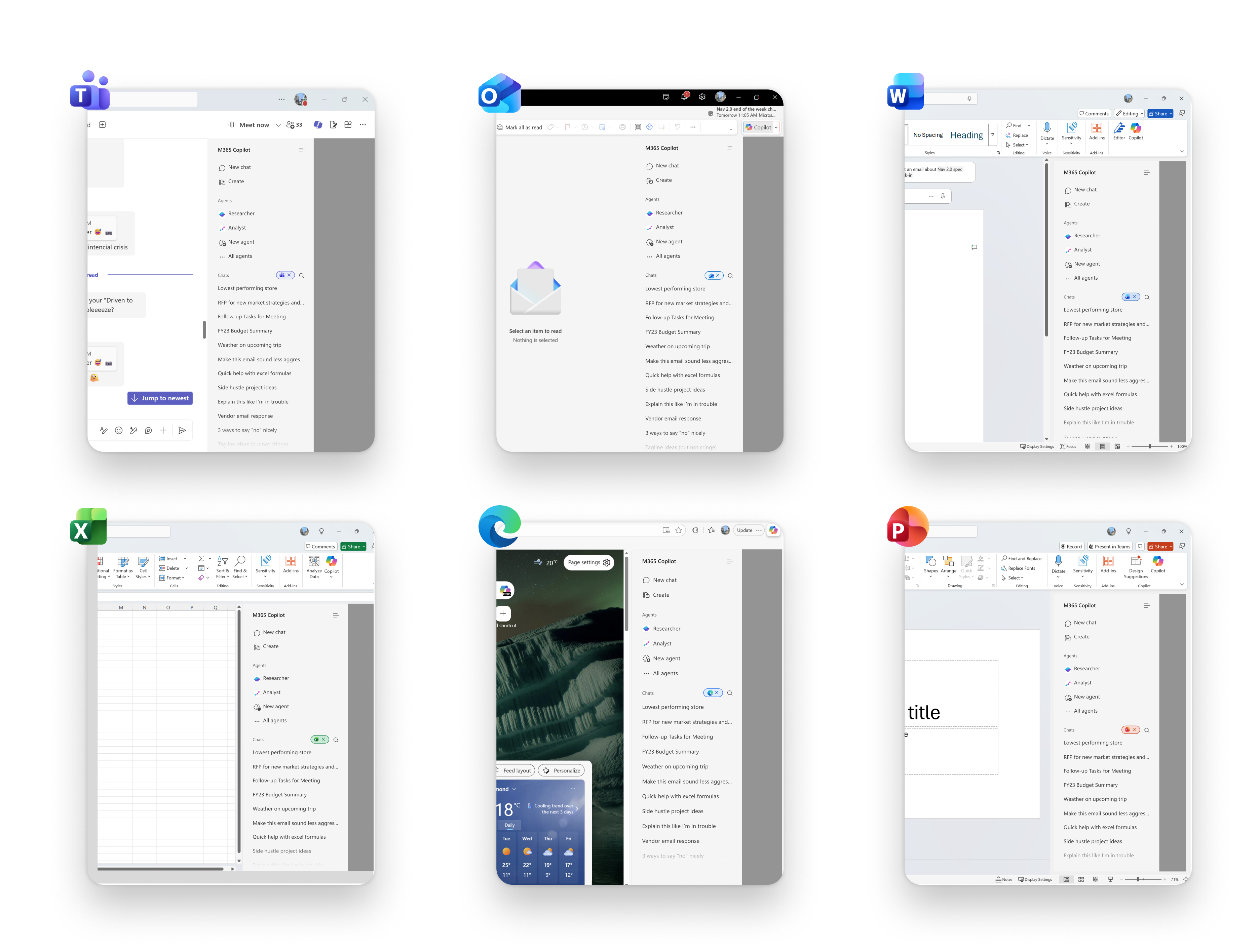
Entry points in Microsoft 365 Chat
Users can discover and invoke agents through several entry points in Microsoft 365 Chat. Each entry point serves a different user intent, from deliberate agent selection to quick in-conversation invocation. The following sections describe each entry point and provide design guidance to help you create agent experiences that feel natural and discoverable.
From the navigation panel
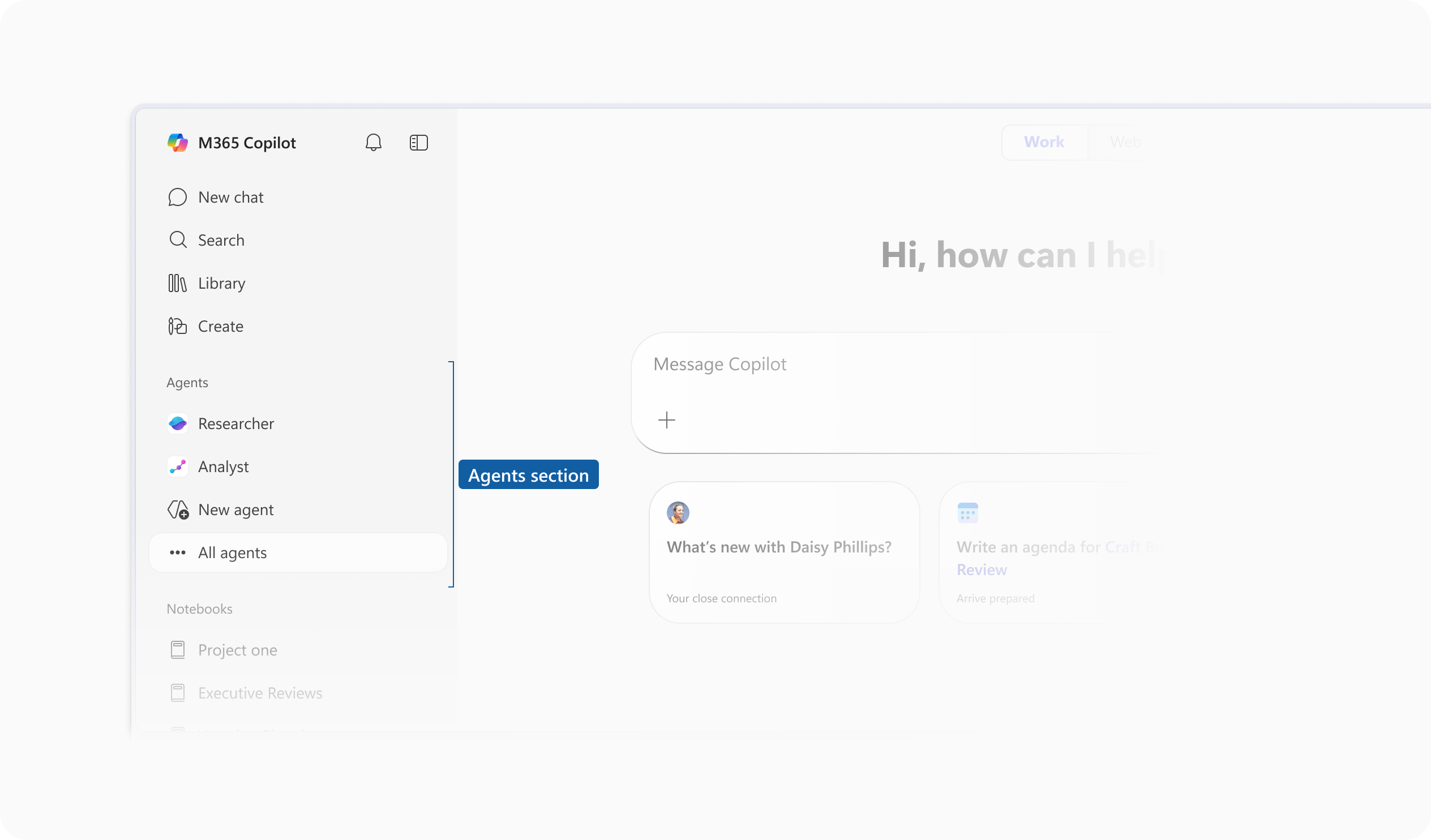
The navigation panel in Microsoft 365 Chat lets users switch between core features, including agents. It's the primary persistent surface for agent discovery.
| Element | Description |
|---|---|
| Agents section | The navigation area in Microsoft 365 Chat where users access all installed or pinned agents. Selecting an agent opens its homepage for interaction and management. |
Agents that appear in the navigation panel are either pinned by an admin, installed by the user from the Agent Store, or preinstalled by Microsoft. Users can reorder or remove agents from this list based on their preferences.
As a designer, consider that users approaching agents from the navigation panel are in a deliberate, task-focused mindset—they've chosen to interact with a specific agent. Design the agent homepage to orient users quickly with a clear name, description, and conversation starter prompts.
Note
Administrators can pin agents for all users in their organization through the Microsoft 365 admin center. For more information, see Agent installation in Microsoft 365 Copilot.
Invoking agents from the chat input box
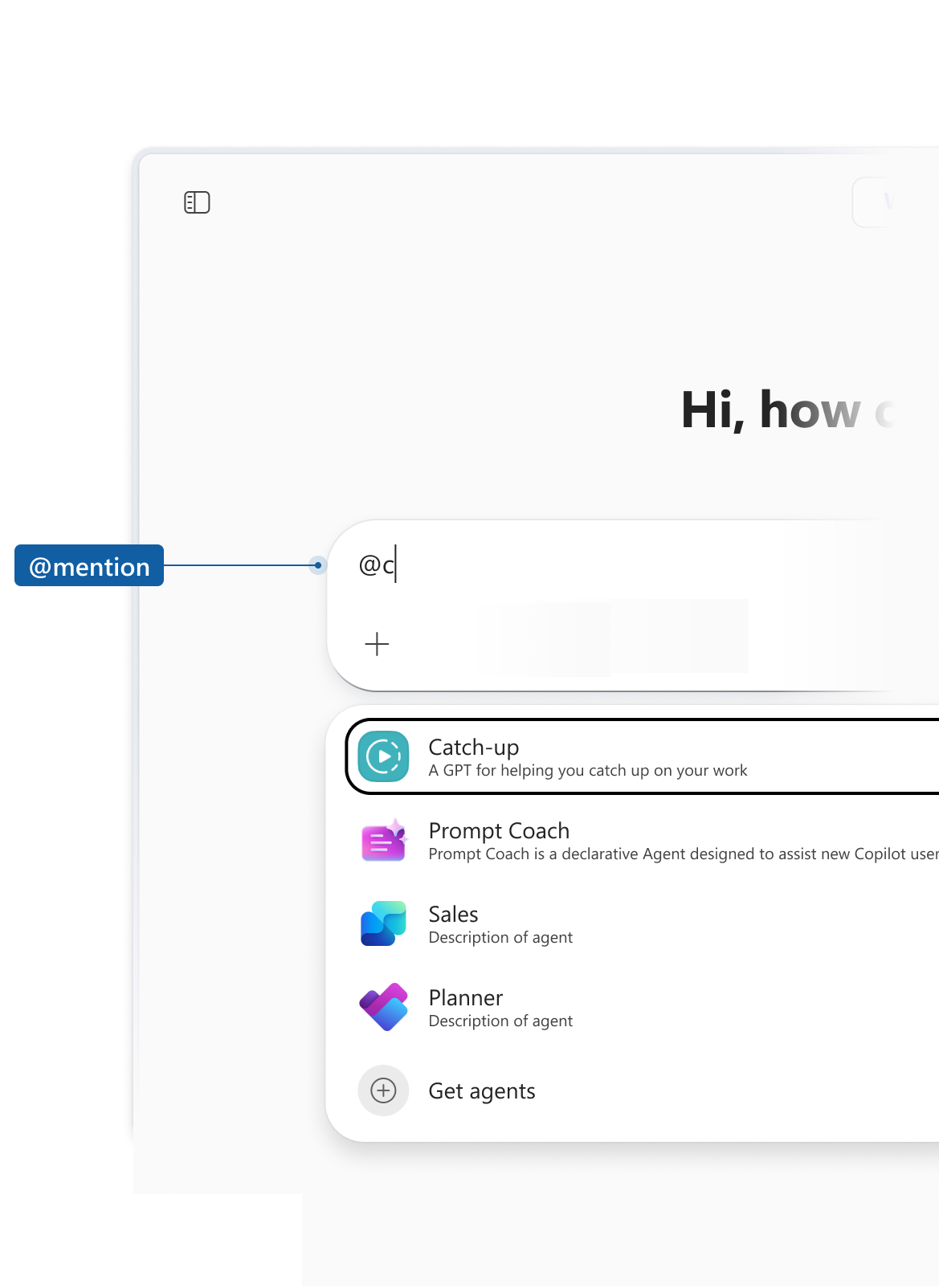
Users can invoke agents directly from the chat input box by using @mention. This entry point reduces friction—users discover or switch agents without leaving the conversation.
| Element | Description |
|---|---|
| @mention an agent | Type @ in the chat input box to open the agent picker. From there, users can select an agent or explore more in the Agent Store. This shortcut lets users go directly to agent selection. |
One benefit of @mentioning an agent is that users can add or remove it from an ongoing conversation, allowing multiple agents to collaborate in a single thread. When a user selects an agent from the navigation panel instead, they have a direct one-on-one conversation with that agent.
When designing agent names and descriptions, keep in mind that the agent picker display the agent name and a short description. Clear, action-oriented names and concise descriptions help users select the right agent quickly.
Agent tag
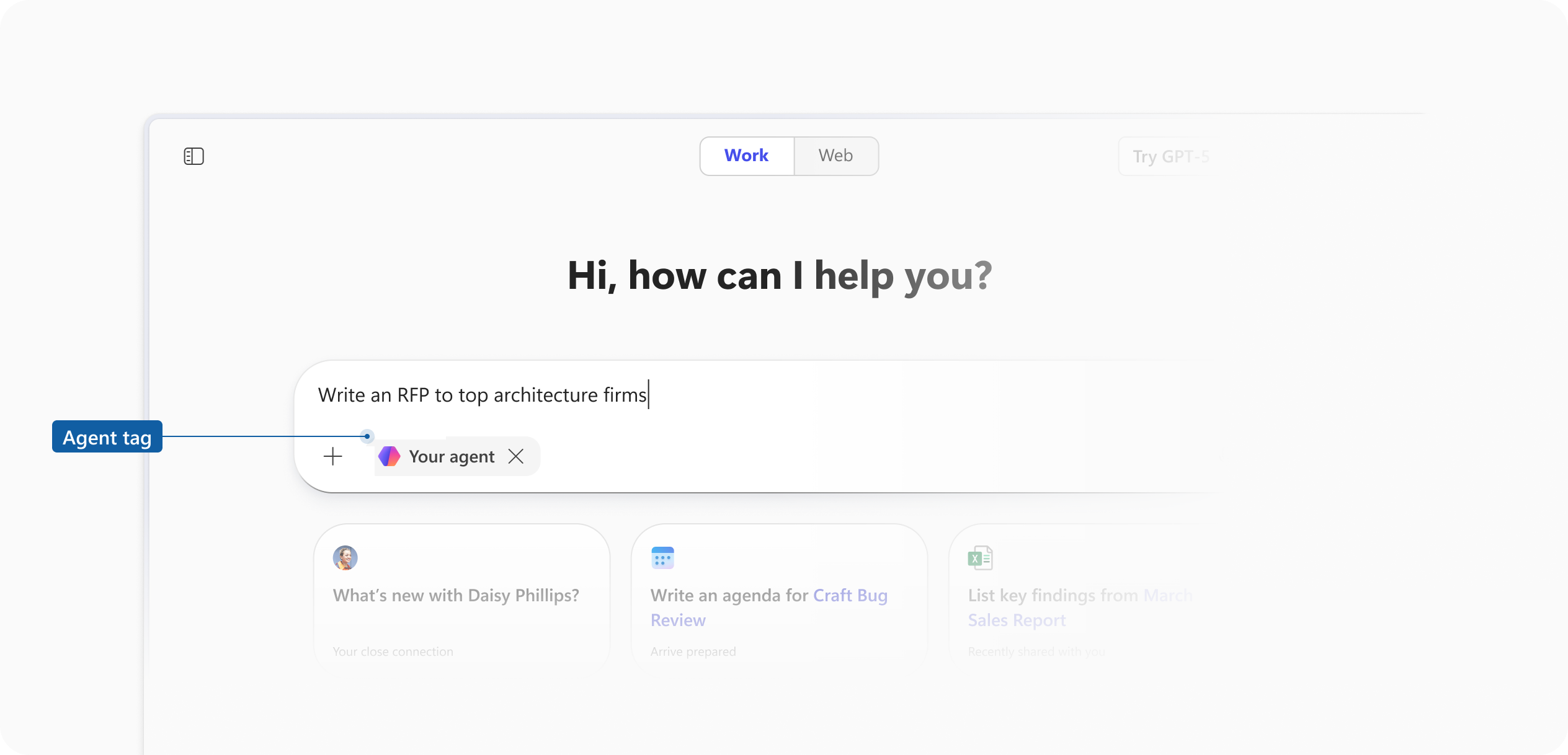
When an agent is invoked, an agent tag appears in the chat input box.
| Element | Description |
|---|---|
| Agent tag | Shows which agent the user is interacting with in Business Chat. It helps distinguish agent responses from Copilot, making the conversation context clear. |
The agent tag is a key trust signal for users. It confirms the agent is active and receiving their input. As a designer, consider how your agent's name and icon appear in this context—brevity and a recognizable icon matter at this scale.
Agent responses in a conversation
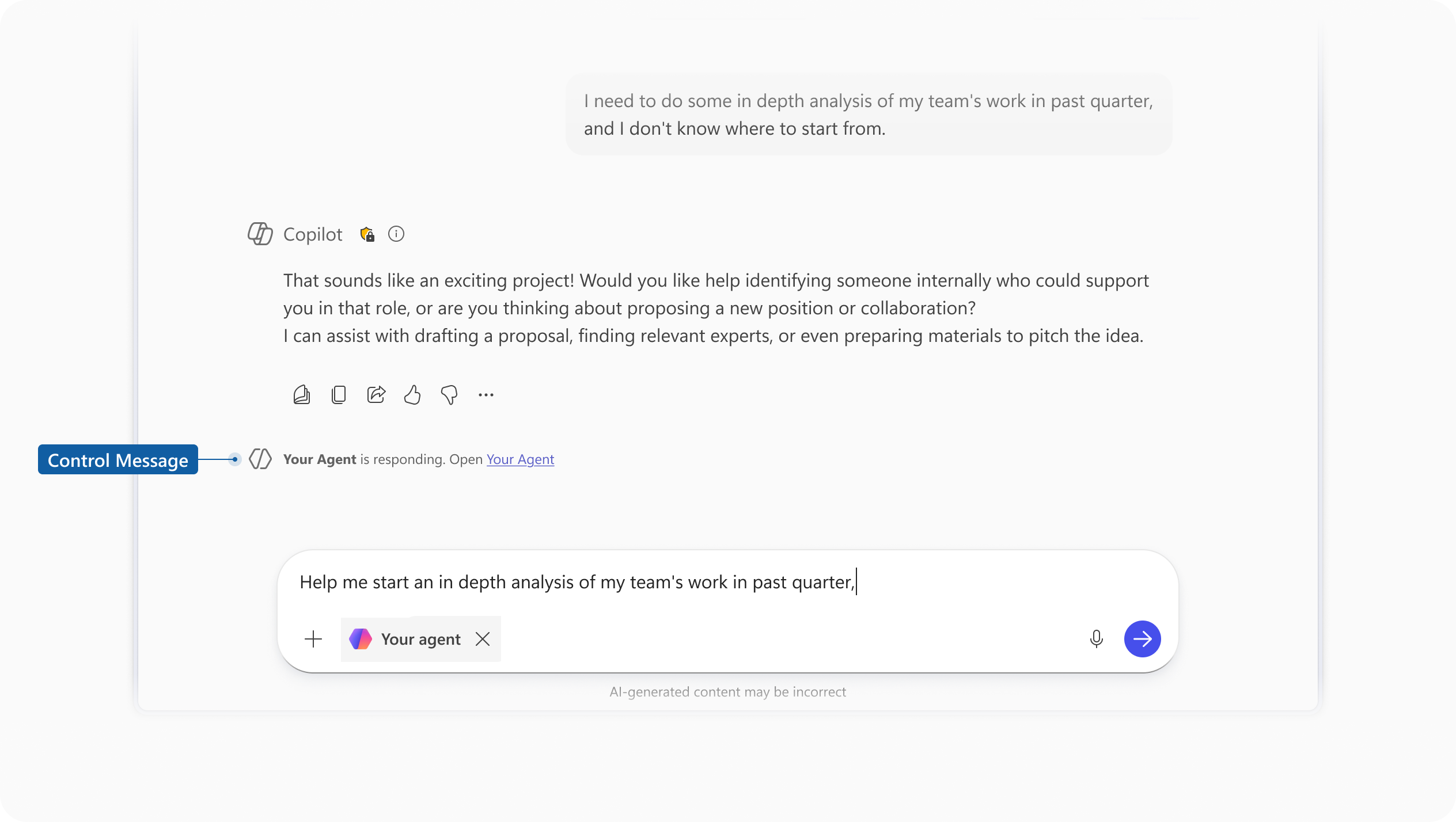
The UI always shows which agent is active, so users always know who they're interacting with throughout the conversation.
| Element | Description |
|---|---|
| Control message | A message that appears in the chat when an agent joins or stops responding. It signals the handoff to Copilot and helps users understand who is active in the conversation. |
The control message is a system-generated affordance that supports transparency—a core principle of responsible AI design. You don't author control messages directly, but the handoff points they represent should inform how you structure your agent's conversational flow. Avoid designing interactions that feel abrupt or leave users uncertain about whether they're talking to Copilot or an agent.