Share via

MS Project Import Wizard not importing assignments on append or merge

Anonymous
2024-11-05T01:37:38+00:00

Hi,

I am having an issue with MS Project not respecting import order when appending or merging to an existing project, even if the project is completely blank. It seems that the import wizard isn't mapping assignments last.

I have 3 sheets in my excel, Tasks, Resources and Assignments.

Task Headers

Unique ID Name Outline Level Work Predecessors Task Mode Cost

Resource Headers

Unique ID Name Group Standard Rate Work Cost Center

Assignments Headers

Unique ID Task Unique ID Resource Unique ID Work

When I use the import wizard to create a new project, it has no issues importing the assignments and correctly maps them. However when I append, even to a blank project, the assignments aren't mapped, I have to use the import wizard again and reimport the assignments.

If anyone has any ideas as to why this is occurring please let me know.

Microsoft 365 and Office | Project | For business | Windows

Locked Question. This question was migrated from the Microsoft Support Community. You can vote on whether it's helpful, but you can't add comments or replies or follow the question.

0 comments No comments

4 answers

Sort by: Most helpful
  1. Anonymous
    2024-11-06T02:48:06+00:00

    Dear James,

    Thanks for your updates and kindness.

    I can reproduce the issue in our environment.

    When using the resource sheet to append the resource to the active project, the resources aren't added to the existing projects and just add the resources to the Resource sheet and Resource usage.

    The only workaround currently is to import the Task sheet, the Resource sheet and the Assignment sheet to a new project in one time and all data should be imported to Project correctly.

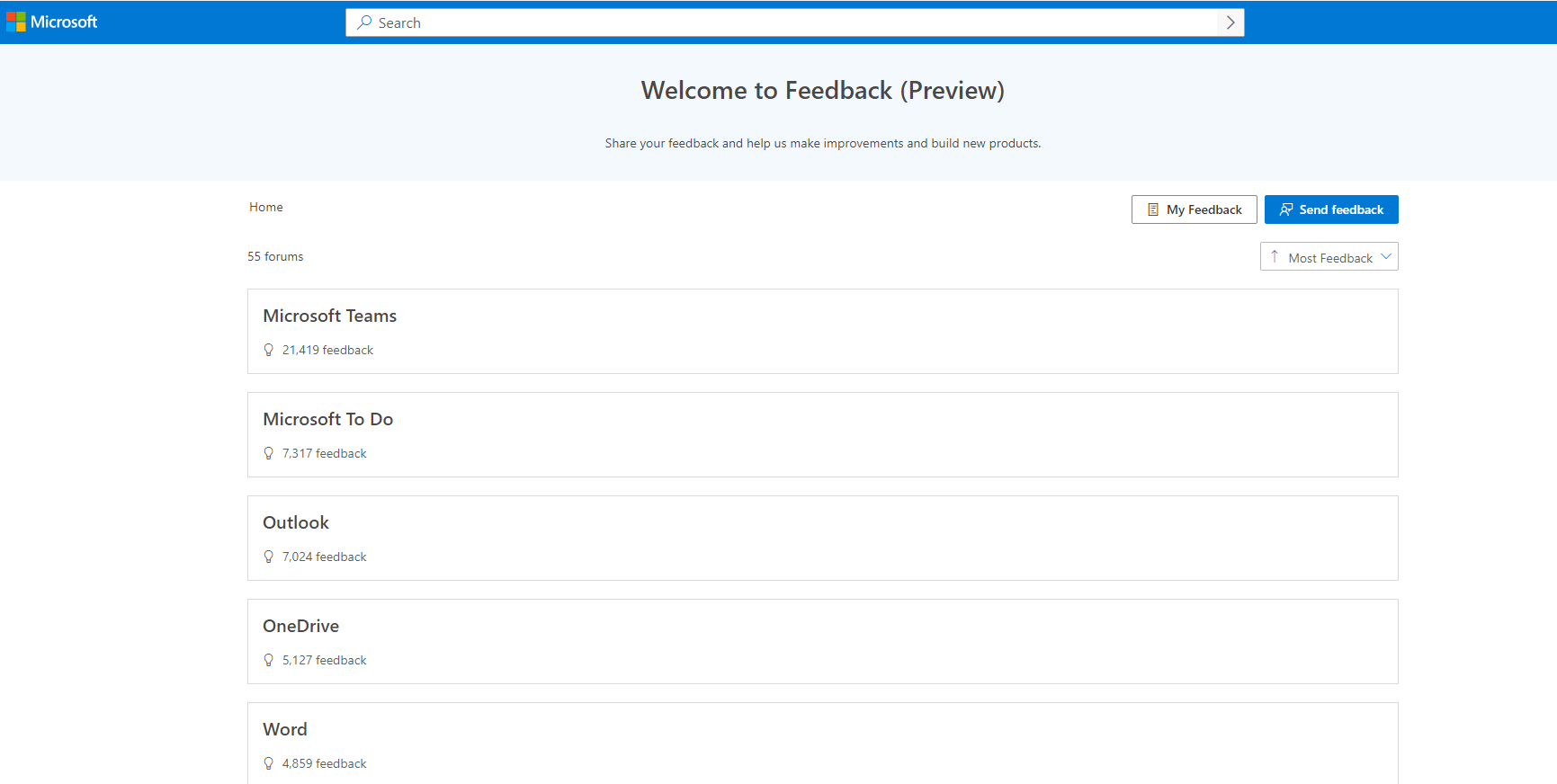
    As it is a feature issue and needs to be changed by the product developers and our product developers are willing to listen to users' requirements, I suggest you send your feedback and pass on your suggestions and report the issue to our new feedback platform mentioned in the following article so that product developers know your suggestions and feedback to improve the product.

    Submit feedback for Microsoft 365 - Microsoft Community Center

    Please note that the platform page will load after a while depending on the network environments.

    You can also access the page as follows to submit feedback.
    Image

    You can use a personal account or a Microsoft 365 work or school account to send feedback.

    Moreover, if you are the administrator in your tenant, you can also follow the steps in Get support - Microsoft 365 admin | Microsoft Learn to open a support ticket to report the issue to our related team as soon as possible.

    About admin roles in the Microsoft 365 admin center - Microsoft 365 admin | Microsoft Learn

    How do I find my Microsoft 365 admin? - Microsoft Support

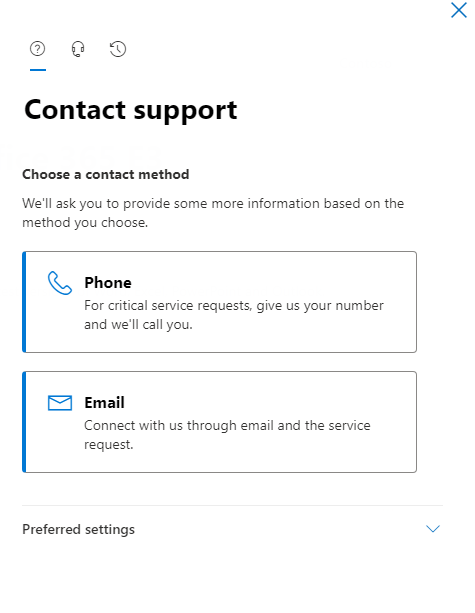
    The administrator should be able to open the support ticket from Help & support in the Microsoft 365 admin center.

    Then you can select the Phone support or the Email support as follows.
    To simplify the process, I'd like to summarize the issue as follows.

    Issue Symptom:

    ===============

    When using the Append to the active project option to import the resource sheet from Excel to Project, the resources aren't appended to the Gantt sheet of the existing project tasks.

    Issue Environment:

    =================

    Project Desktop Client

    Can we reproduce the issue?

    =================

    Yes

    Next Step:

    ==================

    Open a support ticket to our related team for further investigation.

    Sorry for that we may have limited resources on contacting the related team from our side.

    Thanks for your effort and hope that the issue can be soon confirmed and fixed by our related team.

    Sincerely

    Cliff | Microsoft Community Moderator

    Was this answer helpful?

    0 comments No comments
  2. Anonymous
    2024-11-05T10:11:16+00:00

    Hi Apologies

    Here is my version Info

    Was this answer helpful?

    0 comments No comments
  3. Anonymous
    2024-11-05T07:27:33+00:00

    Hi Cliff,

    Not to sure how to send the file as there isnt an option.

    Although here is the data itself

    Tasks Sheet

    Unique ID Name Outline Level Work Predecessors Task Mode Cost
    1 Summary Task 1 0h 0 Auto Scheduled 0
    2 Governance 2 0h 0 Auto Scheduled 0
    3 Project Management 3 4h 0 Auto Scheduled 0
    4 Quality Assurance 3 1.75h 0 Auto Scheduled 0
    5 Contingency 3 0h 0 Auto Scheduled 200
    6 Phase 1 2 0h 0 Auto Scheduled 0
    7 Test Task 3 8h 0 Auto Scheduled 0
    8 Test Task 2 3 5h 7 Auto Scheduled 0
    9 Test Task 3 3 8h 8 Auto Scheduled 0
    10 Phase 2 2 0h 6 Auto Scheduled 0

    Resources Sheet

    Unique ID Name Group Standard Rate Work Cost Center
    1 PC QA 225/h 1.75h Local
    2 PM Project Management Office 200/h 4h Local
    3 Architect Apps 200/h 15h Local
    4 Business Architect Business 200/h 6h Local

    Assignment Sheet

    Unique ID Task Unique ID Resource Unique ID Work
    1 3 2 4h
    2 4 1 1.75h
    3 7 3 4h
    4 7 4 4h
    5 8 3 3h
    6 8 4 2h
    7 9 3 8h

    When imported into MS project with append on a blank project the resources arent assigned to the tasks, however if you import to a new project they are.

    Cheers

    James

    Was this answer helpful?

    0 comments No comments
  4. Anonymous
    2024-11-05T06:44:24+00:00

    Dear James,

    We are glad to help you and we may need some more information for confirmation.

    Regarding "However when I append, even to a blank project, the assignments aren't mapped, I have to use the import wizard again and reimport the assignments. ", could you upload some related screenshots for our reference?

    Note: Remove any private information before uploading the screenshots.

    If it is convenient, I'd like you to share the sample affected Excel file with the three sheets for us to do a test at our side. If the file and the file link can be shared here directly, I'd like you to add your confirmation and provide the file link here.

    If no, welcome to let us know and we'll take the next step to collect the file.

    Meanwhile, it is appreciated if you can upload a full screenshot of the Account page in Project for our reference. You can access the page via clicking on File>Account. So we can use the same version number if the PowerPoint application to see the result from our side.

    Note: Remove any private information before uploading the screenshots.

    Thank you for your time and effort.

    Sincerely

    Cliff | Microsoft Community Moderator

    Was this answer helpful?

    0 comments No comments