Hi @Michael Kallos,
Thank you for posting your question in the Microsoft Q&A forum.
The “Split Text Between Two Slides” option is no longer available in the latest Microsoft 365 builds. It was previously included in older perpetual versions like PowerPoint 2016/2019 but has since been deprecated.
The AutoFit Options menu now only includes 2 options:
- AutoFit text to placeholder
- Stop fitting text to this placeholder
The “Split Text Between Two Slides” feature was deprecated and is no longer part of the AutoFit menu in modern builds.
Microsoft now encourages manual splitting or using Outline View for managing large text blocks.
Here are easy workarounds you can try to split text across slide:
1. Manual split
- Copy half of the text > Insert a new slide > Paste the remaining text.
2. Outline View
- Go to View > Outline View > press Shift+Tab to create a new slide.
As community moderators, our role is to guide users to the right resources and support channels, though we don’t have direct influence over product design decisions or access to internal development timelines.
That’s why your input is so important. The most effective way to make your voice heard is through Microsoft’s official feedback channel. The product team actively reviews customer suggestions to identify areas for improvement and prioritize future updates.
You can submit feedback to our product team on your behalf in Microsoft 365 Feedback Hub → Send Feedback → Describe your proposal in detail.
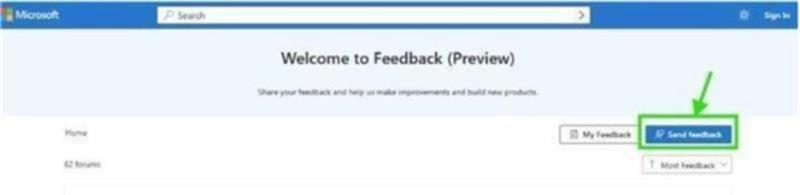
Sharing your experience through this channel is the most impactful way to advocate for a change that would benefit you and other users.
Thank you again for your patience and for bringing this to our attention. While I can't change the product's design, please don't hesitate to reach out if you have any other questions about its current functionality.
If the answer is helpful, please click "Accept Answer" and kindly upvote it. If you have extra questions about this answer, please click "Comment".
Note: Please follow the steps in our documentation to enable e-mail notifications if you want to receive the related email notification for this thread.
' cx='32' cy='32' r='32' /%3E%3Ctext x='50%25' y='55%25' dominant-baseline='middle' text-anchor='middle' fill='%23FFF' %3EMK%3C/text%3E%3C/svg%3E)

' cx='32' cy='32' r='32' /%3E%3Ctext x='50%25' y='55%25' dominant-baseline='middle' text-anchor='middle' fill='%23FFF' %3EKL%3C/text%3E%3C/svg%3E)