Dear @Gary Hartzell,
Thank you for posting your question in the Microsoft Q&A forum.
Based on your description, I understand that you're trying to disable Skype for Business from starting every time you reboot your computer.
In this case, you can disable Skype for Business and prevent it from startup as follows:
1.Method 1:
- Launch Skype
- Open its Settings
- Select Tools
- Click on Options.
- Next, select Personal
- Uncheck Automatically start the app when I log on to Windows and Start the app in the foreground option.
2. Method 2:
- Open Skype for Business. Make sure you sign out of the application.
- Select the button that says Delete my sign-in info.
- This will clear the user profile cache for the Skype for Business account and disable auto sign-in when the application opens.
- Close Skype for Business.
- Uninstall Skype for Business like any other software on your computer. Open Control Panel and select Skype for Business > Uninstall.
- Now start the main part. You need to open the Registry Editor.
- Next, open Edit > Find.
- Search for "Skype" and make sure that you select all the found entries in the Registry Editor and hit the Delete button.
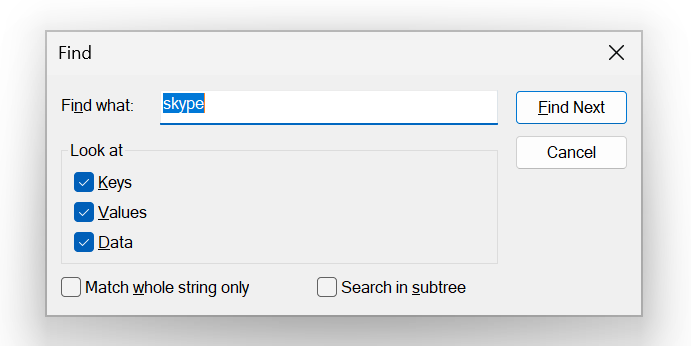
- Select Yes or OK for any prompt you get.
- Reboot your computer to completely remove Skype for Business from your computer.
Method 3:
- Open Task Manager
- Find the process "Skype for Business" and right-click and go to the Open file folder location
- Mark the EXE file "Lync"
- End task "Skype for Business"
- Rename the "Lync" to "LYncOLDfile"
- Reboot
I hope this information is helpful. Please follow these steps and let me know if it works for you.
Thank you for your patience and your understanding. If you have any questions, please feel free to reach out.
I'm looking forward for your reply.
If my answer is helpful, please click "Accept Answer" and kindly upvote it. If you have extra questions about this answer, please click "Comment".
Note: Please follow the steps in our documentation to enable e-mail notifications if you want to receive the related email notification for this thread.

' cx='32' cy='32' r='32' /%3E%3Ctext x='50%25' y='55%25' dominant-baseline='middle' text-anchor='middle' fill='%23FFF' %3EGH%3C/text%3E%3C/svg%3E)

' cx='32' cy='32' r='32' /%3E%3Ctext x='50%25' y='55%25' dominant-baseline='middle' text-anchor='middle' fill='%23FFF' %3EJN%3C/text%3E%3C/svg%3E)