Microsoft 365 and Office | Word | For business | Windows
A family of Microsoft word processing software products for creating web, email, and print documents.

This browser is no longer supported.
Upgrade to Microsoft Edge to take advantage of the latest features, security updates, and technical support.
' cx='32' cy='32' r='32' /%3E%3Ctext x='50%25' y='55%25' dominant-baseline='middle' text-anchor='middle' fill='%23FFF' %3EDH%3C/text%3E%3C/svg%3E)
When I try to copy/paste it to show you it returns to standard letters
A family of Microsoft word processing software products for creating web, email, and print documents.

You can take a screen shot and upload it here, so that we can see what you see.
Note that if the affected font is Aptos, this may be an issue which has been reported by other people as well. Try downloading the Aptos font and install it locally on your PC (by default, Aptos is a so-called cloud font). See https://www.microsoft.com/en-us/download/details.aspx?id=106087 .
' cx='32' cy='32' r='32' /%3E%3Ctext x='50%25' y='55%25' dominant-baseline='middle' text-anchor='middle' fill='%23FFF' %3EVH%3C/text%3E%3C/svg%3E)
Dear @David Hopper,
Thank you for posting your question in the Microsoft Q&A forum.
The issue where letters appear as symbols usually occurs due to one of the following:
Before giving you the best solution, could you please confirm these questions below to help me diagnose the issue more effectively:
In the meantime, I recommend you try these steps to check again:
Step 1: When you paste into another app or into Word using Keep Text Only, you’re stripping the problematic formatting, so the underlying Unicode letters render with the destination’s default font.
Step 2: Check the font actually applied
Step 3: Reset/Change the comment styles in this document
1. Open the Styles pane:
2. Reset “Comment Text”
3. Update existing comments
Step 4: Rule out add‑ins (if multiple docs start doing this)
Step 5: Repair Tools
1. Repair Files
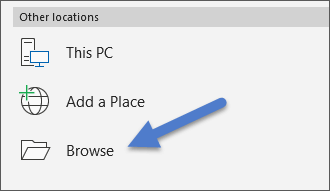
If this isn’t solving the problem, you might also want to check if any add-ins are conflicting or if you're running an outdated version of Word. You can update Office from the Account section under File.
2. If every document shows the issue or fonts behave inconsistently across apps, you can try repairing it. When you're done, you might need to restart your computer. For more information: Repair an Office application
Step 6: Change the Normal template (Normal.dotm )
Note: If Normal.dotm is renamed, damaged, or moved, Word automatically creates a new version (which uses the original default settings) the next time that you start Word. The new version will not include any of the customizations that you made to the version that you renamed or moved.
I hope this information is helpful. Please follow these steps and let me know if it works for you. If not, we can work together to resolve this. If I misunderstand anything, please feel free to reach out.
Please understand that our initial response does not always resolve the issue immediately. However, with your help and more detailed information, we can work together to find a solution.
Thank you for your patience and your understanding. If you have any questions, please feel free to reach out.
I'm looking forward for your reply.
If the answer is helpful, please click "Accept Answer" and kindly upvote it. If you have extra questions about this answer, please click "Comment".
Note: Please follow the steps in our documentation to enable e-mail notifications if you want to receive the related email notification for this thread.
Dear @David Hopper,
Good day and I hope you're doing well. I just wanted to check in and see if there is any update from you
If you're still facing any problems, please feel free to share more details about the current error or steps you're stuck on. I’ll be happy to assist further.
Looking forward to your update.

If you're experiencing issues where lettering appears as symbols when copying and pasting, it could be related to character encoding settings. In Microsoft Outlook, for example, strange characters can be displayed in messages due to a beta Windows Unicode UTF-8 support setting that is enabled by the sender. Outlook does not support this setting, which can lead to mixed characters in various languages appearing in the text body.
To resolve this issue, the sender can disable the Unicode UTF-8 support by following these steps:
This should help prevent the issue from occurring in newly created items.