' cx='32' cy='32' r='32' /%3E%3Ctext x='50%25' y='55%25' dominant-baseline='middle' text-anchor='middle' fill='%23FFF' %3EEE%3C/text%3E%3C/svg%3E)

' cx='32' cy='32' r='32' /%3E%3Ctext x='50%25' y='55%25' dominant-baseline='middle' text-anchor='middle' fill='%23FFF' %3EJN%3C/text%3E%3C/svg%3E)
Dear @Ed Eames,
Thank you for posting your question in the Microsoft Q&A forum!
As per your description, I understand that you're trying to get the new Outlook 365 onto your Windows 11 desktop.
Before you begin, make sure your PC meets the system requirements.
If you already reinstalling the apps, or you have an assigned license through work or school, you can skip ahead and go to the section sign in to download and install Microsoft 365 or Office. However, if this is the first time you're installing Microsoft 365 or Office, you may have some steps to do first.
Step 1: Sign in to Your Microsoft Account
- Go to m365.cloud.microsoft/apps
- Select Sign in
- Sign in with the account you associated with this version of Microsoft 365. This account can be a Microsoft account, or a work or school account. I forgot the account I use with Office
Step 2: Download Microsoft 365 Apps
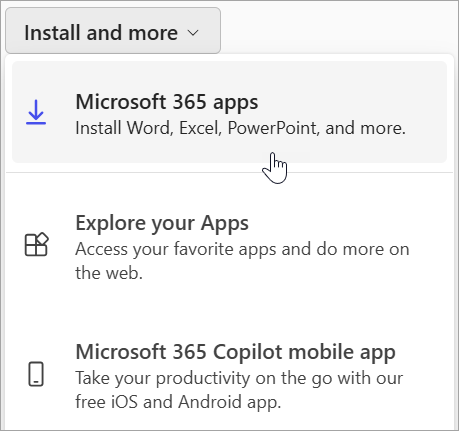
- After signing in, look for Install apps on the homepage.
- Click Microsoft 365 apps (this includes Outlook).
- Choose your language and bit version (64-bit is default).
- Select Microsoft 365 apps to begin the installation.
Step 3: Install on Your PC
- Open the downloaded file
- Select Run (e.g. in Microsoft Edge)
- When prompted by User Account Control, select Yes.
- Wait for installation to finish. You’ll see “You’re all set! Office is installed now”.
Step 4: Activate Outlook
- Open Outlook from the Start menu.
- Accept the license agreement.
- Sign in if prompted your Microsoft 365 subscription will activate automatically.
For reference: Download, install, or reinstall Microsoft 365 or Office 2024 on a PC or Mac
I hope this helps. Please feel free to reply below if you have any update or further concern. I am looking forward to your response!
If the answer is helpful, please click "Accept Answer" and kindly upvote it. If you have extra questions about this answer, please click "Comment".
Note: Please follow the steps in our documentation to enable e-mail notifications if you want to receive the related email notification for this thread.
