Dear @Danielle Walsh (Danielle Walsh),
Thank you for posting your questions on the Microsoft Q&A forum reaching out with your concern about the missing Files tab in Microsoft Teams. I understand how essential this feature is for collaboration, and I'll do my best to help you resolve this.
The Files tab typically connects to the associated SharePoint site for a Team or Channel. The tab can go missing for a few reasons:
- Customization or Accidental Removal: A Team Owner or member with appropriate permissions might have accidentally removed or hidden the tab.
- SharePoint Site Connection Issue: If the underlying SharePoint site or its connection to the Team is corrupted or disconnected, the tab may fail to load.
- Permissions Issue: In some cases, specific user permissions related to SharePoint or Microsoft Teams may prevent the tab from being visible, though usually, this would only affect access to the files, not the tab itself.
Teams is renaming the Files tab to the Shared tab and enabling users to view content shared in posts and content in document libraries in one place.
Users can still work with files and folders in the Microsoft SharePoint document library linked to the channel. All existing functionality in the Files tab will be available in the in-library view of the Shared tab in channels.
Here are the most common ways to restore the Files tab:
Step 1: Re-add the SharePoint document library tab:
- Navigate to the affected Team Channel.
- Click the + symbol (Add a tab) at the top of the channel.
- Select the SharePoint app.
- Choose the option to add the Document Library (it should automatically point to the current channel's folder).
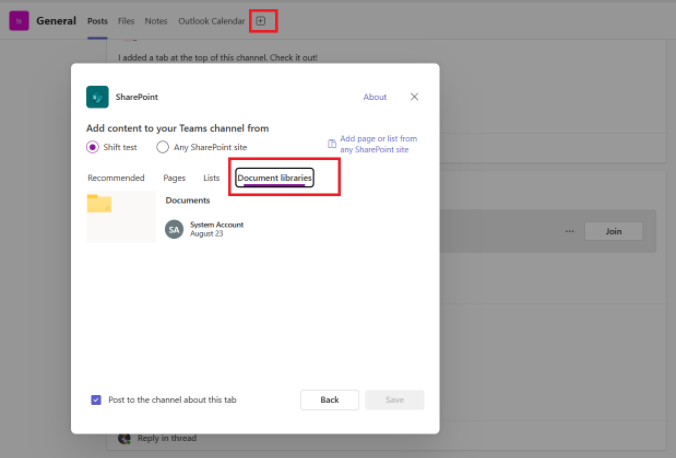
Note: This effectively re-adds the functionality of the standard Files tab.
Step 2: Access Files via the SharePoint Site:
- In the affected channel, click the ... (More options) menu next to the channel name.
- Select Open in SharePoint.
- This will take you directly to the SharePoint document library where the files are stored. If the files are accessible here, it confirms the data is intact and the issue is just with the Teams tab.
Step 3: Check for hidden tabs (If you suspect it was hidden):
- In the channel's tab bar, look for the small down arrow (or the More tab) that may be hiding extra tabs.
For additional troubleshooting steps and official guidance, you may refer to the Microsoft Support page regarding this type of issue. While there isn't one single document titled "Files Tab Missing," the general guidance for adding tabs and understanding the SharePoint connection is relevant: Add an app to Microsoft Teams - Microsoft Support This documentation confirms the process of adding tabs, which is the fix outlined in step 1.
Please try the solutions above, starting with Re-adding the SharePoint Document Library Tab. If you are the Team Owner, you have the necessary permissions to perform these steps.
Please understand that our initial response may not fully resolve the issue or meet your expectations immediately. However, with your help, patience, and more detailed information, we can work together to find the most suitable solution or direction forward.
Let me know if this resolves the issue or if you have any other questions. I'm here to help!
If the answer is helpful, please click "Accept Answer" and kindly upvote it. If you have extra questions about this answer, please click "Comment".
Note: Please follow the steps in our documentation to enable e-mail notifications if you want to receive the related email notification for this thread. 
' cx='32' cy='32' r='32' /%3E%3Ctext x='50%25' y='55%25' dominant-baseline='middle' text-anchor='middle' fill='%23FFF' %3EDW%3C/text%3E%3C/svg%3E)

' cx='32' cy='32' r='32' /%3E%3Ctext x='50%25' y='55%25' dominant-baseline='middle' text-anchor='middle' fill='%23FFF' %3ERE%3C/text%3E%3C/svg%3E)
' cx='32' cy='32' r='32' /%3E%3Ctext x='50%25' y='55%25' dominant-baseline='middle' text-anchor='middle' fill='%23FFF' %3EIV%3C/text%3E%3C/svg%3E)
' cx='32' cy='32' r='32' /%3E%3Ctext x='50%25' y='55%25' dominant-baseline='middle' text-anchor='middle' fill='%23FFF' %3EAH%3C/text%3E%3C/svg%3E)
' cx='32' cy='32' r='32' /%3E%3Ctext x='50%25' y='55%25' dominant-baseline='middle' text-anchor='middle' fill='%23FFF' %3EM%3C/text%3E%3C/svg%3E)
' cx='32' cy='32' r='32' /%3E%3Ctext x='50%25' y='55%25' dominant-baseline='middle' text-anchor='middle' fill='%23FFF' %3EEH%3C/text%3E%3C/svg%3E)
' cx='32' cy='32' r='32' /%3E%3Ctext x='50%25' y='55%25' dominant-baseline='middle' text-anchor='middle' fill='%23FFF' %3EPL%3C/text%3E%3C/svg%3E)
' cx='32' cy='32' r='32' /%3E%3Ctext x='50%25' y='55%25' dominant-baseline='middle' text-anchor='middle' fill='%23FFF' %3ECW%3C/text%3E%3C/svg%3E)
' cx='32' cy='32' r='32' /%3E%3Ctext x='50%25' y='55%25' dominant-baseline='middle' text-anchor='middle' fill='%23FFF' %3ES%3C/text%3E%3C/svg%3E)
' cx='32' cy='32' r='32' /%3E%3Ctext x='50%25' y='55%25' dominant-baseline='middle' text-anchor='middle' fill='%23FFF' %3EGS%3C/text%3E%3C/svg%3E)
' cx='32' cy='32' r='32' /%3E%3Ctext x='50%25' y='55%25' dominant-baseline='middle' text-anchor='middle' fill='%23FFF' %3EST%3C/text%3E%3C/svg%3E)
' cx='32' cy='32' r='32' /%3E%3Ctext x='50%25' y='55%25' dominant-baseline='middle' text-anchor='middle' fill='%23FFF' %3ERM%3C/text%3E%3C/svg%3E)
' cx='32' cy='32' r='32' /%3E%3Ctext x='50%25' y='55%25' dominant-baseline='middle' text-anchor='middle' fill='%23FFF' %3ESN%3C/text%3E%3C/svg%3E)
' cx='32' cy='32' r='32' /%3E%3Ctext x='50%25' y='55%25' dominant-baseline='middle' text-anchor='middle' fill='%23FFF' %3EJF%3C/text%3E%3C/svg%3E)
' cx='32' cy='32' r='32' /%3E%3Ctext x='50%25' y='55%25' dominant-baseline='middle' text-anchor='middle' fill='%23FFF' %3ETS%3C/text%3E%3C/svg%3E)
' cx='32' cy='32' r='32' /%3E%3Ctext x='50%25' y='55%25' dominant-baseline='middle' text-anchor='middle' fill='%23FFF' %3EBS%3C/text%3E%3C/svg%3E)
