Hi @Eddie Gallagher,
Thank you for posting your question in the Microsoft Q&A forum and for sharing the screenshots along with such a clear description, that really helps in understanding the scenario.
From what you’ve shared, the behavior you’re seeing is typically due to configuration rather than data loss. The roadmap selection is saved per portfolio. So, when you add the same plan to a second portfolio, its tasks and phases don’t automatically appear in that new portfolio’s roadmap, you’ll need to select those items again for that portfolio.
In your Testing portfolio, you likely used Update items to place the phases or promoted tasks on the roadmap. In Operations, the plan is connected, but those items haven’t been selected yet, which explains the empty bands in your screenshot. This is by design because each portfolio can highlight a different subset of work from the same plan.
To resolve this, here are a few steps that often help:
1/ Add the items to this Roadmap:
- Go to My Portfolios > Roadmap.
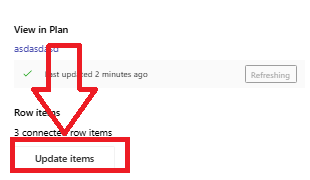
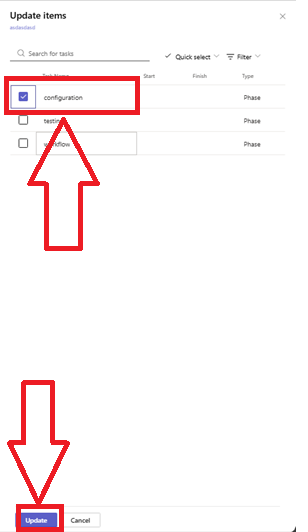
- Select the plan row (e.g., “2026 MIP Payroll Migration”) > Add row item > then choose Update items and then select the phases or tasks you want to show (such as promoted tasks or sub-tasks).
- Click Update, then Refresh.
2/ Check the view filters and timeline:
- In the Roadmap, review the controls at the top-right: Filter by owner, Go to date, and Zoom.
- A narrow time window or an owner filter can make a roadmap look empty even when items are connected.
3/ Refresh or reconnect the plan connection:
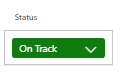
- In Plans tab, confirm the plan status shows on track.
- Click Refresh. If you’re prompted to sign in/allow the connection, complete that step.
- If needed, remove the plan and re-add it to re-establish the scheduled sync for that portfolio. (Connections are created per portfolio.)
4/ Confirm plan type and access:
- Portfolio Roadmap supports Premium plans, basic plans won’t surface here.
- Also note that adding someone to a portfolio doesn’t grant them access to the underlying plan(s), permissions remain separate.
5/ If the UI still looks blank:
- Try a hard refresh, an InPrivate/Incognito window, or another browser as a quick check.
- You can also try switching your browser’s main language to English (US). A customer with a similar case reported success with this workaround: No Plans in portfolio, in planner.
References:
Note: Microsoft provides this information only as a convenience to users. These websites are not controlled by Microsoft, and Microsoft does not guarantee the quality, security, or suitability of any software or information on them. It is important to fully understand the risks involved before using any of the suggestions in the links above.
I hope this information is helpful. Please follow these steps and let me know if it works for you. If not, we can work together to resolve this.
Thank you for your patience and your understanding. If you have any questions or need further assistance, please feel free to share them in the comments on this post so I can continue to support you.
I look forward to continuing the conversation.
If the answer is helpful, please click "Accept Answer" and kindly upvote it. If you have extra questions about this answer, please click "Comment".
Note: Please follow the steps in our documentation to enable e-mail notifications if you want to receive the related email notification for this thread.
' cx='32' cy='32' r='32' /%3E%3Ctext x='50%25' y='55%25' dominant-baseline='middle' text-anchor='middle' fill='%23FFF' %3EEG%3C/text%3E%3C/svg%3E)

' cx='32' cy='32' r='32' /%3E%3Ctext x='50%25' y='55%25' dominant-baseline='middle' text-anchor='middle' fill='%23FFF' %3EA%3C/text%3E%3C/svg%3E)