Hello, 49201
Welcome to Microsoft Community.
Your idea is great, but unfortunately, the built-in kiosk mode can’t fully achieve what you’re describing. Kiosk mode doesn’t support screensaver; you can only set a screensaver in a regular user account, or use third-party software to achieve a similar effect.
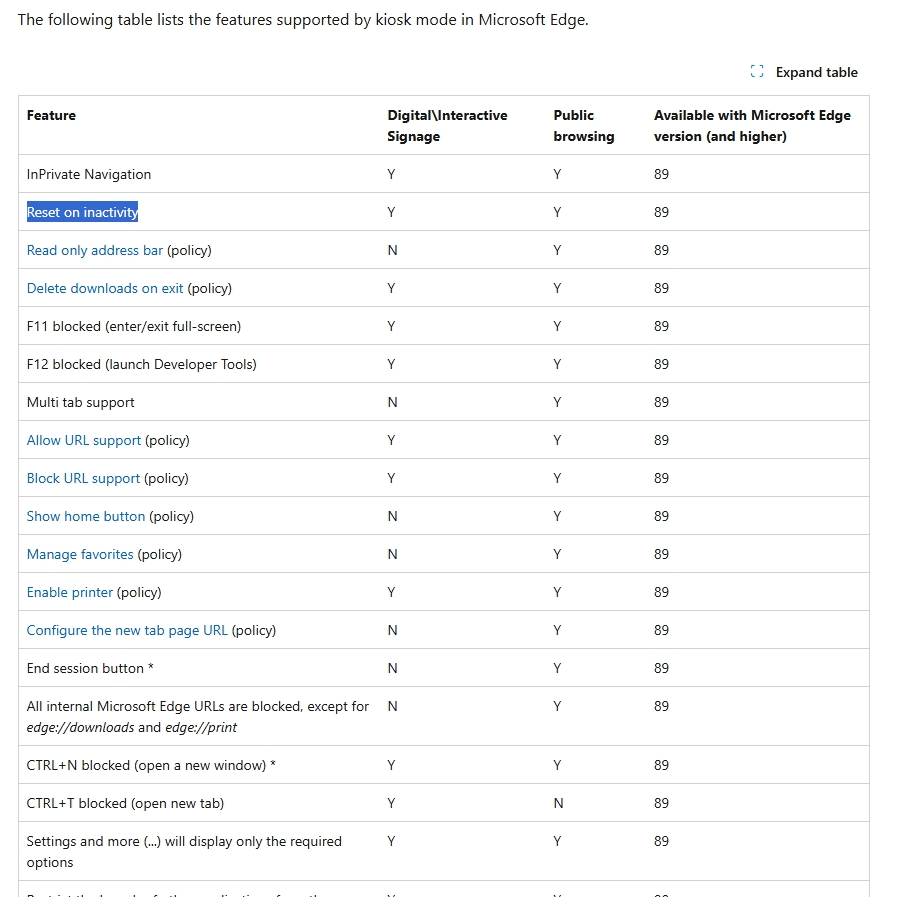
Kiosk mode supports "Reset on inactivity" in Microsoft Edge. In the Kiosk mode configuration, set the browser’s homepage URL. Then, enable the “Reset on inactivity” feature in the Kiosk mode settings and choose an appropriate time interval.
Configure Microsoft Edge kiosk mode | Microsoft Learn
While you can connect a POS machine and printer by installing drivers and configuring the devices, this requires compatible POS software to manage transactions and printing, which is beyond the capabilities of kiosk mode. These requirements need a professional IT person to solve, especially for connecting the POS machine and printer.
Although finding a professional might be a hassle and could cost money, Windows kiosk mode simply can’t do all you’re asking. The design of kiosk mode is to lock the device into a single-use, restricting users to access only specific applications or services. It doesn’t support complex features like connecting POS machines and printers. These functionalities require more flexible configurations and possibly third-party software support.
Of course, you can give feedback to the developers and suggest they add more features to kiosk mode in the future. Just open the Windows Start menu, search for and open the Feedback Hub, and submit your feedback there.
Yuhao L
Microsoft Community Technical Support
' cx='32' cy='32' r='32' /%3E%3Ctext x='50%25' y='55%25' dominant-baseline='middle' text-anchor='middle' fill='%23FFF' %3EA%3C/text%3E%3C/svg%3E)
