Hyper-V Virtual Machine Management, Not enough memory resources are available to complete this operation, Error.

Anonymous
2021-09-09T05:12:54+00:00

Hyper-V Virtual Machine Management, Not enough memory resources are available to complete this operation, Error.

I've Have 8GB Of RAM With 5.2GB Available.

Windows for business | Windows Server | Storage high availability | Virtualization and Hyper-V

Locked Question. This question was migrated from the Microsoft Support Community. You can vote on whether it's helpful, but you can't add comments or replies or follow the question.

0 comments No comments
{count} votes

11 answers

Sort by: Most helpful
  1. Anonymous
    2021-09-09T09:07:07+00:00

    Hi, I'm Robinson, and I’m happy to help you today.

    I know how frustrating this may be for you but I'll do my very best to help you.

    Are the Hyper-V virtual machines configured with static, or dynamic memory? If dynamic memory, how much minimum RAM is configured?

    1 person found this answer helpful.
    0 comments No comments
  2. Anonymous
    2021-09-09T11:59:17+00:00

    Not Yet Created A VM, Clicking "Connect To Server" and Then "Local Computer" Shows This Error
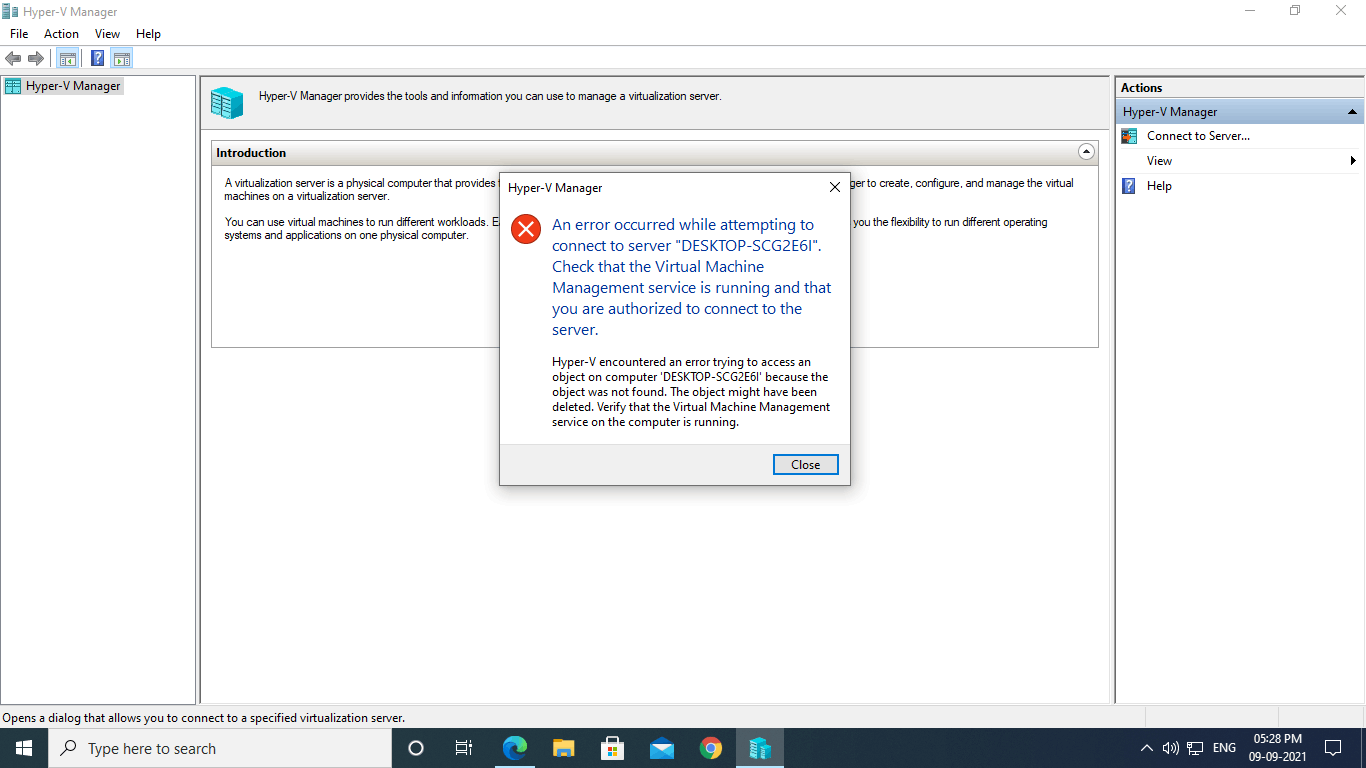
    Image

    And The Above Question, Trying To Start The vmms.exe Service Gives This Error:

    "A system error has occurred. "

    "System error 14 has occurred. "

    "Not enough memory resources are available to complete this operation."

    But I Do Have 5.2 GB Of Available Memory!

    Check The Images!

    Tried "sfc /scannow" & "DISM /Online /Cleanup-Image /RestoreHealth"

    Nothing Helps.

    I'll Usually Create My VM With 2-4GB Of RAM With Windows 10 And With Dynamic Memory, 32 MB Min. And 2-4GB Max.

    2 people found this answer helpful.
    0 comments No comments
  3. Anonymous
    2021-09-10T10:07:52+00:00

    You can try this troubleshoot.

    1-Open "Window Security"

    2-Open "App & Browser control"

    3-Click "Exploit protection settings" at the bottom

    4-Switch to "Program settings" tab

    5-Locate "C:\WINDOWS\System32\vmcompute.exe" in the list and expand it

    6-Click "Edit"

    7-Scroll down to "Code flow guard (CFG)" and uncheck "Override system settings"

    8-Start vmcompute from powershell(admin) net start vmcompute

    3 people found this answer helpful.
    0 comments No comments
  4. Anonymous
    2021-09-10T10:33:36+00:00

    Still Getting The Same Error, When Trying To Start VMMS.exe :

    1 person found this answer helpful.
    0 comments No comments
  5. Anonymous
    2021-09-10T10:36:17+00:00

    Even When Starting In Services.msc :

    1 person found this answer helpful.
    0 comments No comments
