Dear @Christian, Greg,
Thank you so much for contacting Microsoft Q&A Forum.
Based on your concern, the issue you're encountering with the "Blink" animation in PowerPoint is a known behavior: unlike entrance animations (like "Fade," "Fly In," or "Appear"), "Blink" does not hide the object initially. Instead, it simply causes the object to flash or blink once it's already visible on the slide. This is because "Blink" is an emphasis animation, not an entrance animation. Emphasis animations are designed to draw attention to an object already on the slide, not to control its visibility when the slide loads.
To achieve the effect that you're looking for (object hidden at first, then blinking on click), please kindly follow these steps:
- Add Your Object:
- Open your PowerPoint file.
- Insert the object you want to animate (e.g., a shape, image, or text box).
- Open the Animation Pane:
- Go to the Animations tab.
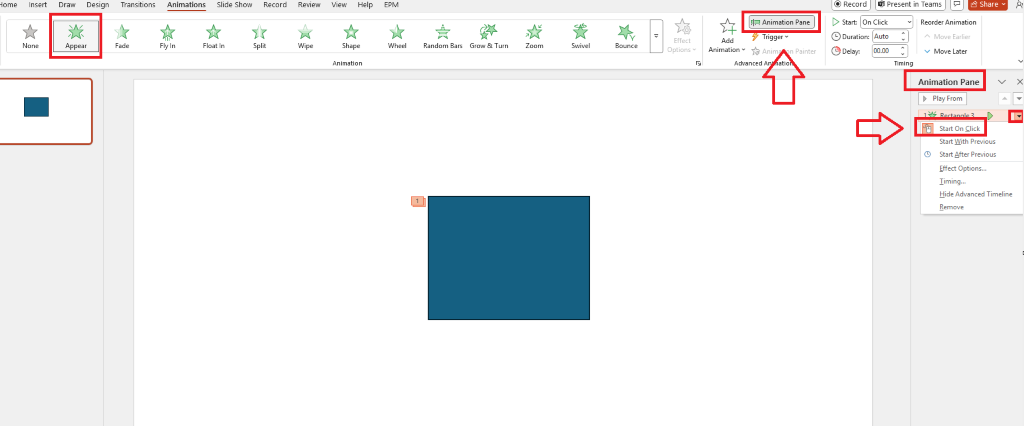
- Click Animation Pane to open the sidebar showing animation sequences.
- Apply Entrance Animation:
- Select your object.
- Click Add Animation → choose an Entrance animation like "Appear" or "Fade".
- In the Animation Pane, right-click the animation → choose Start: On Click.
This ensures the object is hidden when the slide loads and only appears when you click.
- Add the Blink Animation:
- With the same object still selected, click Add Animation again.
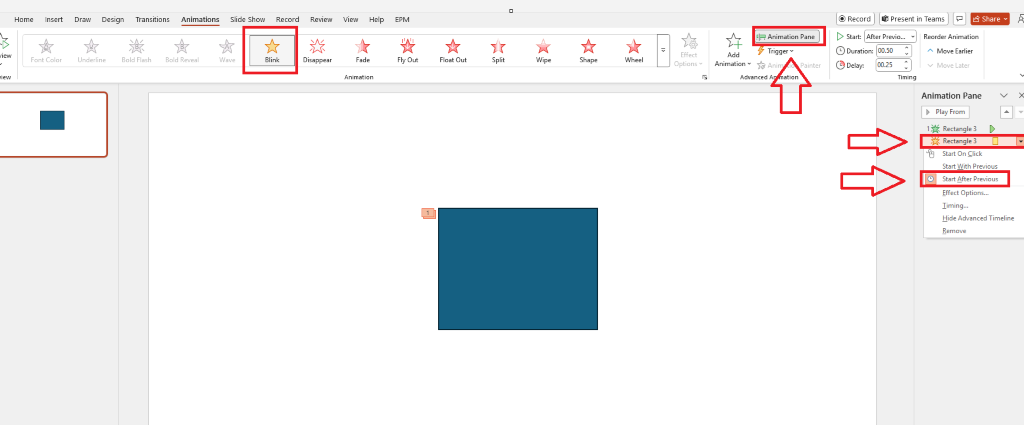
- Choose "Blink" from the Emphasis category.
- In the Animation Pane, right-click the Blink animation → choose Start: After Previous.
This makes the object blink immediately after it appears.
- (Optional) Adjust Timing:
You can fine-tune the duration and delay of the Blink animation:
- Select the Blink animation in the Animation Pane.
- Click Timing → adjust Duration (e.g., 0.5 seconds) and Delay if needed.
Add animation "Appear" or "Fade" first:
Then add animation "Blink":
The result from my testing:
- The object is invisible when the slide opens.
- On click, it appears.
- Then it blinks automatically.
I hope this information can help you with your presentation.
Wish you a pleasant day!
If the answer is helpful, please click "Accept Answer" and kindly upvote it. If you have extra questions about this answer, please click "Comment".
Note: Please follow the steps in our documentation to enable e-mail notifications if you want to receive the related email notification for this thread.

' cx='32' cy='32' r='32' /%3E%3Ctext x='50%25' y='55%25' dominant-baseline='middle' text-anchor='middle' fill='%23FFF' %3ECG%3C/text%3E%3C/svg%3E)


' cx='32' cy='32' r='32' /%3E%3Ctext x='50%25' y='55%25' dominant-baseline='middle' text-anchor='middle' fill='%23FFF' %3EA%3C/text%3E%3C/svg%3E)