Windows 11: Repeated System backup image failure

Anonymous
2025-06-16T14:05:08+00:00

Hi there

I have created probably over 100 system backup images on diverse Win 10 & 11 computers, with 99.5% running with no problem. Same on this Win 11 Dell notebook, with a back every 2 or 3 weeks. The last 4, including one just a few minutes ago however seem to run normally until the backup is about to finish, then I get errors, shown in the screenshots. I ALWAYS use the computer for my normal work during the process in all these cases and so do not know what volume or process is being referred to, which is very frustrating. The first error is what I unexpectedly got the other day and earlier on yesterday. The last successful backup was about 2, 3 weeks ago, leaving about 80GB free space on the drive.The notebook has 2 partitions, other than the ones Windows created itself.
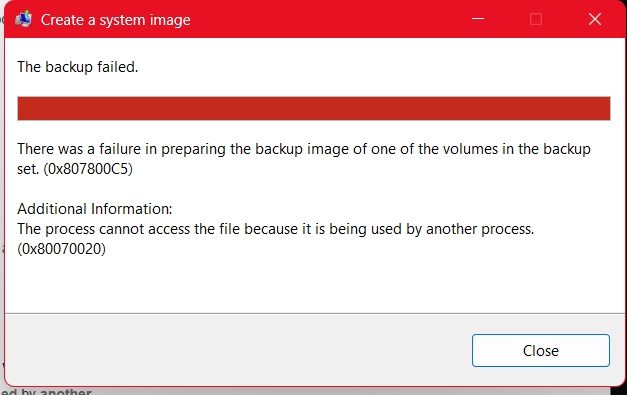
After the first backup failing yesterday as shown in the first screenshot, I looked around online what could be leading to those errors. I implemented some recommendations like running sfc /scannow (corrected some minor errors) and then DISM Restorehealth (successful).I run Chkdisk, which found no errors on all the partitions on external HDD, then in fact decided unconnected to this to reduce files on the to be backed-up SSD by about 10GB, making the possible system image smaller. This means a fresh backup would leave about 90GB free space.
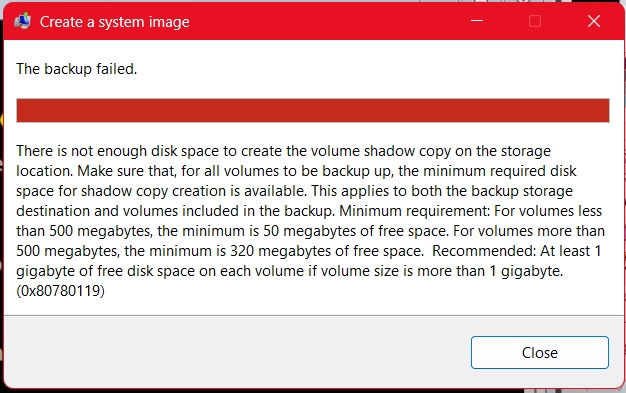
So I was shocked after running the backup image creation again to get this time a different error, shown in the lower screenshot. The last successful backup left about 80GB. How can the new find the possible 80 + 10 GB cushion on a 400GB partition too small?
I first left it at that.

On the 3rd day, today, I decided to look into the space issue again. The WindowsImageBackup folder happened to also have a backup of another notebook, about 76 GB and both have peacefully co-existed. I decided to move this OTHER system image to a different partition, which would theoretically leave the 400GB partition empty IF I happened to delete the one failing to be fully created.
I noted even though it showed no visible files, it was not empty all with about 130GB occupied!! I decided to format it, defragmented & carried out a chkdisk ALL showing it was healthy, then started another backup. There was no way lack of space or other error could play a role on a "healthy" disk. Windows Disk Managent & Nuibi Partition Editor Professional both show this partition to be HEALTHY.
It run well, but shocked me at the end with yet another failure message, a different one you can see in last screenshot. At this point, I have no words for this!
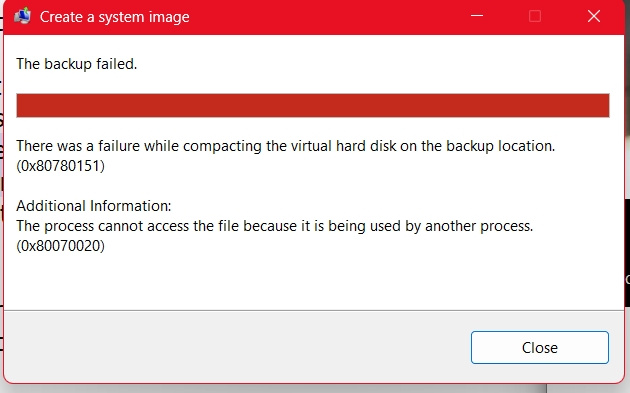
What could be going on, as I have said, up to this, the last backup error was not even with this machine and years back and all the last or so 20 backups of the current set-up on the specific HDD have all run with no issue?

The Dell 15 5570 notebook has ALL available Windows & Dell drivers installed. Latest 2025-06 Cumulative Update for Windows 11 Version 24H2 for x64-based Systems (KB5063060) on 13th June.

Is there any chance it has to do with the state of Windows itself?

Thank you in advance

Windows for home | Windows 11 | Recovery and backup

Locked Question. This question was migrated from the Microsoft Support Community. You can vote on whether it's helpful, but you can't add comments or replies or follow the question.

0 comments No comments
{count} votes

10 answers

Sort by: Most helpful
  1. Anonymous
    2025-06-16T15:41:49+00:00

    Hello Xprt007! Thank you so much for reaching out, I am Harvie an Independent Advisor, and I am glad to assist you today with this issue.

    Thank you for sharing such a detailed and thoughtful explanation, I can tell you have put a lot of effort and experience into maintaining your system backups. Based on everything you described the fact that backups had been running smoothly until very recently points to either a subtle corruption within Windows itself or possibly an issue introduced by a recent Windows or driver update.

    It may be helpful to also review the Event Viewer for VSS errors during the backup window as these are often at the heart of last minute image failures. Another route worth exploring is trying a third party imaging tool like Macrium Reflect to see if it completes the backup.

    You may also perform a non destructive in place upgrade using a Windows 11 ISO and choosing Keep apps and files since it might refresh whatever hidden component has been affected without the need for a full reinstall.

    Please try these steps and let me know how it goes. If you run into any issues just reply back with the details.

    Best regards,

    Harry

    0 comments No comments
  2. Anonymous
    2025-06-16T17:35:25+00:00

    Hi

    Thank you very much for the response and suggestions. If a "a non destructive in place upgrade using a Windows 11 ISO", which if I remember well, I have ever done does not harm my many installed programs, many 1 time activation giveaways, I will go for it.

    Could you just kindly remind me how to do it? I know one can use the media creation tool to create installation media on a USB drive, ... Is that the way to go, which will give me the option to keep ALL APPS & Files and in the process repair the existing installation? I do not remember whether the installation USB drive is created the same way & with same iso-image as one for a normal installation.

    Kind regards

    0 comments No comments
  3. Anonymous
    2025-06-16T17:46:43+00:00

    Here’s the quick and safe way to do it. Go to https://www.microsoft.com/en-us/software-downlo... and download the Windows 11 ISO. Mount the ISO by doing right click in the ISO file then Mount and open the virtual drive after run setup.exe. Start Upgrade and choose “Keep personal files and apps” when prompted. Let the setup finish and reboot.

    This refreshes Windows without losing programs or files. If you run into any issues just reply back with the details.

    Best regards,

    Harry

    0 comments No comments
  4. Anonymous
    2025-06-17T13:58:12+00:00

    Your recent backup and upgrade failures are likely caused by system corruption not enough free space since 20GB may be too low or issues with hidden system partitions. Try to free up at least 30 to 35GB on C: drive then in Command Prompt as admin run:

    dism /online /cleanup-image /restorehealth

    sfc /scannow

    Temporarily disable antivirus or any backup apps and use Macrium Reflect Free https://www.macrium.com/reflectfree as a more reliable backup tool. If in place upgrade still fails mount ISO and run setup.exe from there.

    Best regards,

    Harry

    0 comments No comments
  5. Anonymous
    2025-06-17T12:56:51+00:00

    Hi there

    Thank you for the reminder.

    So I started this installation, after having made countless ones, as well as well as back-ups for years, rarely with any issue at all.

    The problem starts when the Laptop starts to install Windows. The first blue-screen phase runs to the end, restarts and it goes to around 29% Installed with the black background, then restarts. It turns back on, goes to 30% then rapidly to 48% and then a blank window pops up then my whole system shutdowns. I have to manually click the start button to start my laptop then it says Undoing Changes Made To Your Computer.

    It shows that error message on restart and this has happened 4 times, making me give up for now.

    Image

    Before the last re-trial, run an sfc /scannow.

    Some online talk about this problem, mentioned a number of possible causes, which do not apply like enough free space, unless the free "20 GB" on the Windows partition or the Windows recovery partition's 1.012 GB, 217Mb free is an issue, have only the always present USB mouse bluetooth end connected, nothing else, ... as said all Windows updates installed, for Dell, after many weeks, Dell system recovery software updated the other day.

    Not sure it means anything, but I just noted before sending this off that the Volume Shadow Copy service was on "manual". When I did the backups, during at least one of them it was also in manual mode and I turned to "run" after reading about this somewhere, but then I just read that manual is the default mode.

    This was always a piece of cake, now it is quite exhausting and scary as I am never comfortable having no functioning Backup around, but what could be up this time? Why would a Windows installation also fail? I would not want a fresh installation as I would lose lots of useful giveaway programs as I mentioned before. The notebook otherwisw functions normally.

    Thank you for your continued assistance.

    Regards

    0 comments No comments
