Share via

High CPU usage by process called "System"

Anonymous
2020-10-16T13:25:41+00:00

I have a brand-new DELL XPS 9500 and about half of the time the process called "System" uses between 10 and 15% CPU (which is enough to make the computer very hot and that the fans turn at 70% capacity) until I reboot the laptop. 

Dell support said that the use of the processor is normal but like the other question, I do not believe in that since the other half of the time the computer runs using less than 1% of the "System" process.

I have pretty much the same issue than this thread. Why was it locked? There is no solution to the issue in the comments and the accepted answer is only a temporary fix which doesn't even work on my computer. 

I'm fine with the computer being hot when I do tasks that use a lot of resources. When I watch a film in my bed or when I'm working with light programs however the loud blowing is pretty annoying and not understandable.

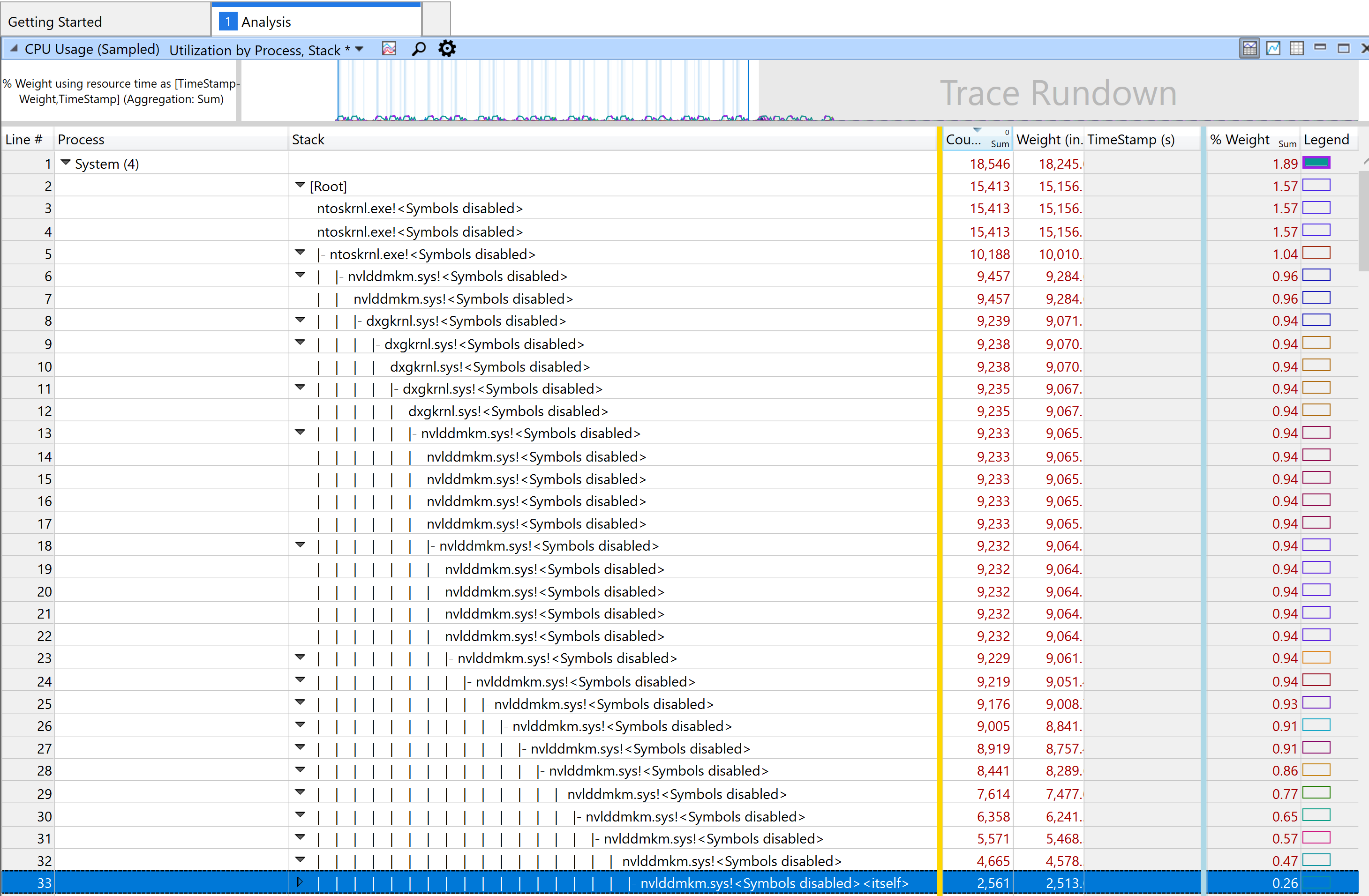
I recorded the system activity with "Windows Performance Recorder". Below are the details of the analysis for the System Process. 
Solution

Edit 26.11.2020: I quote @Vladislav Kosev: "It seems like a problem with Nvidia cards on dual-card systems (since if you have only Nvidia you ALWAYS have something running on that card)." Workaround is in his answer below but basically solution is: 

  1. Open NVIDIA Control Panel 
  2. Navigate to Manage 3D Settings- then Program Settings
  3. Configure one program that it usually always open on your computer to use High-performance NVIDIA processor as preferred graphic processor.

Old steps:

Thanks to @Dr.Richard.V.Finney we figured that it's an Nvidia process and what worked for me is uninstalling PhysiX engine as well as the Nvidia driver (in windows settings). 

After a few days I was curious if it would still be that bad if I reinstalled it so I did. It was good the first few hours but then the process "System" started to use constant 10% again. So I uninstalled it again and... it didn't go better :(.

With ProcessExplorer I saw that the process is now dxgmms2.sys and not like before nvlddmkm.sys. Searching on the internet I found that it was also Nvidia and that opening the Intel Graphics Command Center could help and it did! ..the first few times.

Then System was again using so much cpu because of dxgmms2.sys. I was done with Nvidia stuff (even if I know it's not their fault directly) and uninstalled the driver in Device Managerunder Display Adapters (I did try the "scan for hardware changes" trick first but it never worked on my machine). And that worked! ..until I rebooted the computer or the computer woke up from hibernation because it reinstalled the driver automatically and it was producing the exact same issue. Uninstalled it 3 more times and then finally d isabled the Nvidia GeForce GTX 1650 Ti driver.

Now I'm in the process of trying to accept that my brand new 2020 laptop will not benefit of better graphics from nvidia and only have the integrated intel graphics. I liked to play games with shaders occasionally with the laptop but I guess that is past now. 

Edit 18.11.2020:

Few weeks now with Nvidia drivers disabled and the laptop has still an annoying issue: it doesn't go to sleep when plugged in. Actually when using the computer the fans are silent but when I close the lid, after 10 sec the computer starts to heat up, and they start to go wild. Somehow it uses more resources when it should sleep.

With powercfg -energy and energy-report.html (link) it showed an error which was something like "Missing driver for component may cause higher resource usage" with the Nvidia Graphics card as Device name. Sooo it seems that because I disabled it, the computer uses more energy?

Anyway I re-enabled it and tada it seems to work VERY well since a few hours. Laptop dead silent in use and doesn't start to heat up when it should sleep. 

I don't know why this all happens but now we are in the initial state minus Nvidia PhysX. Perhaps I may use the graphics afterall :D

Windows for home | Windows 10 | Performance and system failures

Locked Question. This question was migrated from the Microsoft Support Community. You can vote on whether it's helpful, but you can't add comments or replies or follow the question.

0 comments No comments

Answer accepted by question author

Anonymous
2020-11-26T10:11:39+00:00

Hi guys,

This is what I've found, maybe it will help us either solve it or find a suitable workaround.

First of all, @SamuelGfeller, I was the guy who posted the "Open the Intel Command Center" solution. :) I am glad I posted it and you found it. Now it is not working anymore however. Not sure why.

I played around this morning and I think I found out why:

  1. First I tried disabling and then enabling the Intel card in an attempt to emulate what I thought the Command Center did. That worked but caused problems later - programs would hang for 10 seconds frequently. I had no explanation why this worked.
  2. Then I found your thread and tried uninstalling PhysX, but that did not help. I don't want to uninstall the driver as I want my games to run fast :-)
  3. Then I found out that by just starting GeForce Experience the problem went away again and I then it came to me - if no processes use the Nvidia card, then I the problem occurred. The moment one process used it, it went away. So I did a test - set up the Calculator app to use the Nvidia card. Calculator running - process gone. Calculator not running
  • problem comes back.

So now the question is, is there any other way of making this fix permanent. I set up Spotify to use the Nvidia card and now the problem is gone since I have Spotify running all the time. I tried Start Menu Experience Host, but it does release the card from time to time (not surprisingly since the start menu is not visible) and the problem comes back.

From the Nvidia Control Panel you can use Desktop -> Display GPU Activity Icon in the Notification Area. It's a handy app that shows what processes run on the Nvidia Card.

I will do a restart and see if the solution holds.

Was this answer helpful?

40+ people found this answer helpful.
0 comments No comments

36 additional answers

Sort by: Most helpful
  1. Anonymous
    2020-10-20T11:35:48+00:00

    Thank you so much for all the suggestions.

    Indeed, Experience was installed. I uninstalled it and restarted the computer. Now I only have those three NVIDIA Programs:

    (I did such a weird screenshot because I don't know how to resize pictures in this forum)

    Then I disabled the search index on the c: drive. 

    Unfortunately the issue didn't get any better. System Task is using its 10 to 15% of CPU, fans are blowing, laptop very hot.

    So I thought about installing the latest driver and when looking on the website, I saw that the newest driver is version 456.71 and I have it already installed (I updated it with geforce experience before I removed it). Would uninstalling and re-installing it make a difference?

    I just did a new recording and it looks like this:

    So again Nvidia stuff... do you think it might be PhysX System Software? Would you be interested in having the

    Windows Performance Recording I did to inspect further?

    Was this answer helpful?

    0 comments No comments
  2. Anonymous
    2020-10-20T10:30:14+00:00

    Thank you for your reply!

    I downloaded the Process Explorer and it shows the same things as the Windows performance recorder - analysis. The picture I added at the bottom of my question. 

    I think it's NVIDIA related since the processes that use the most ressources are nvlddmkm.sys so I will try the steps @Dr.Richard.V.Finney suggested.

    Was this answer helpful?

    0 comments No comments
  3. Anonymous
    2020-10-16T14:35:47+00:00

    Dear Samuel,

    <<addendum>>

     I forgot to suggest you look at your computer specification/detail and find the Nvidia component fitted to your unit - then go to Nvidia site (Web) and download the latest drivers. Might sound bizarre after saying to remove "experience" - however the Experience function and the drivers are not the same. Your log (image) suggests something is going on there with the Nvidia drivers - possibly conflict that would be resolved by the latest Nvidia update.

    I use and recommend Nvidia graphics on our equipment (very good/best and normally very stable). However, "Experience" is problematic. I think Nvidia need either fix it or withdraw it.

    Cheers,

    Rick

    Was this answer helpful?

    0 comments No comments
  4. Anonymous
    2020-10-16T14:28:16+00:00

    Dear Samuel,

     The 'nvlddmkm,sys' files/activities (disabled or not) are Nvidia related - not necessarily the actual chip/video card driver.

     Have a look and see (Settings -> Apps) if you have Nvidia "Experience" installed, along with the other Nvidia drivers/updaters.

     If so - uninstall it. "Experience" is very resource heavy and tends to over work the MS file/directory manager, by looking at things/files much of the time (especially 1 > 10 minutes after start-up). Really it is mostly for very high-end 3D gaming/equipment (surround type/virtual reality stuff), and in my experience not needed by most users.

    Other.

     This is not recommended by Microsoft/Windows, but does radically speed-up and fix this kind of problem.

     What? Disable/turn-off the File indexing/search system ...

     How? In explorer -> my computer ... right click on the C:\ drive and open properties. There will be a box there showing "file indexing service" (or something similar). Remove the 'tick' (disable).

     What is it? Helps the computer find files and folders faster, by frequently scanning your drives for files and changes - in the background but using a lot of resources (memory/CPU).

     Will disabling it disable searching? No - just makes it take a bit longer. Otherwise - when not searching - your computer goes a hell-of-a-lot faster.

    note. Kind of off-subject, but relevent. Lots of user posts in here mention debug and dump files appearing at odd times and in odd places on their machines/computers. A few of us are looking at that, as are the MS techs (back-room). Much is due to PDF handler issues, some to VS interface/function changes, and a few (not finished testing yet) by conflicts between the Nvidia background activity, AV/AM and MS M&FS. Cannot fully quantify that yet, however it could be a factor in your experience. Removing Nvidia 'experience' will resolve that aspect of the broader issues.

    {Mostly noted this for Greg, Dave, Sha and others}.

     Is this a MS fault or failing? No. It is function conflicts caused by drivers/programs produced by others (third party); whom seem to think it all falls to MS to sort-out (unfairly).

     I am not an MS employee, associate or contractor. My assessment on this is neutral/unbiased.

    Cheers,

    Rick

    Was this answer helpful?

    0 comments No comments
