Disable checkboxes in file explorer

Anonymous
2021-10-17T19:57:19+00:00

After the upgrade to Windows 11 on my ASUS UX360UAK Laptop (with touchscreen), I can't get rid of the explorer check boxes. Neither via View Settings nor with the corresponding entries in the registry I am able to hide the explorer check boxes (see attached picture). I guess the problem arises due to a possible tablet/touchscreen mode on the particular laptop. Non of my other computers show a similar behaviour.

Anybody encountered the same and found a solution?

Regards, Ralph

****Original Title: Windows 11 explorer checkboxes permanently displayed****

Windows for home | Windows 11 | Files, folders, and storage

Locked Question. This question was migrated from the Microsoft Support Community. You can vote on whether it's helpful, but you can't add comments or replies or follow the question.

0 comments No comments
{count} votes
Answer accepted by question author
  1. Anonymous
    2022-05-13T09:53:30+00:00

    I got a 2in1 Dell Laptop. I did a clean install of a Dell issued copy of Windows 10 Pro after a SSD change. After an immediate subsequent upgrade to Windows 11 Pro I had the same issue.

    I coudn't disable the checkboxes. I couldn't switch to compact view. I checked the registry keys - they all were set correctly. But as it is a tablet mode issue I circumvented the problem.

    For everyone who uses a 2in1 and uses it as laptop try the following:

    • Open Registry Editor
    • Go to Computer\HKEY_CURRENT_USER\Software\Microsoft\Windows\CurrentVersion\ImmersiveShell
    • Set DeviceConvertible to 0
    • Sign out and back in to your account

    Image

    Voila, no more checkboxes and compact view also works. This cost me 3 hours of my day. By now I can send Microsoft an invoice for 100s of hours of unpaid work due to their bugs...

    28 people found this answer helpful.
    0 comments No comments

31 additional answers

Sort by: Most helpful
  1. Anonymous
    2021-10-18T10:16:03+00:00

    Hi,

    Thank you for writing to Microsoft Community Forums.

    I understand that you are facing issues with check boxes in file explorer   

    In order to get clarity and to assist you accordingly, please reply with the answers to the questions below:

    • Does the check boxes appear every time, when you open file explorer?
    • As said that you are able to hide check boxes, so does that still appear?
    • Are you aware of any recent changes on the PC prior to this issue?

    Meanwhile, I would suggest you to follow the steps mentioned below and check if the issue persists:

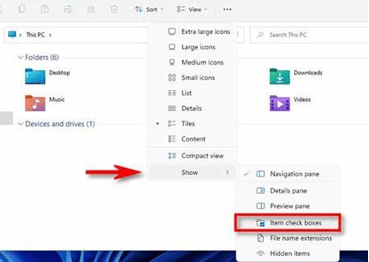
    Method 1: Disable item check boxes

    1. Open File Explorer, click on View tab, select Show, and then uncheck Item check boxes

    Method 2: Change folder options settings

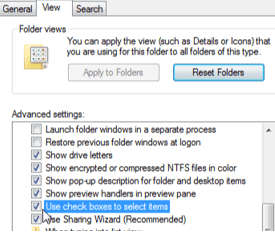
    1. Open File Explorer, click on three horizontal dots at the top, select Options
    2. On Folder Options windows, go to View tab, uncheck the option Use check boxes to select items, click on Apply and then OK
    Method 3: Make registry changes

    **Note:**Important this section, method, or task contains steps that tell you how to modify the registry. However, serious problems might occur if you modify the registry incorrectly. Therefore, make sure that you follow these steps carefully. For added protection, back up the registry before you modify it. Then, you can how to create a the registry if a problem occurs.

    Follow the steps to take backup of registry.  

    • Enter regedit in the Run window and click OK to open Registry Editor.
    • In Registry Editor, expand the keys with the following path: Computer\HKEY_CURRENT_USER\Software\Microsoft\Windows\CurrentVersion\Explorer\Advanced
    • Find and double click on AutoCheckSelect, if not present, right click to create a new 32-bit DWORD value with name AutoCheckSelect
    • Change its Value data to 0 to disable checkboxes

    Method 4: New User Account

    I would also suggest you to create a new user account with administrative rights and check if the issue persists. Creating a new user account will not remove any data, app or settings from your current user account, this is just a troubleshooting step to eliminate the possibility of user profile corruption. Refer this article to Create a local user or administrator account in Windows 11

    Let us know how it goes

    Vineet Kumar Microsoft Community - Moderator

    3 people found this answer helpful.
    0 comments No comments
  2. Anonymous
    2021-10-18T12:19:30+00:00

    Thank you very much, Vineet Kumar

    I tried all four, unfortunately with no joy.

    This behaviour seems to be linked to the nature of the Touchscreen/Tablet Flip Laptop ASUS UX360UAK.

    Windows 11 does not know how to handle this configuration since it is no longer possible to assign or terminate a specific tablet mode.

    Deselecting the "view check box" option only partially removes the check boxes in the explorer.

    Microsoft needs to work on this.

    Regards, Ralph

    11 people found this answer helpful.
    0 comments No comments
  3. Anonymous
    2021-11-14T11:07:20+00:00

    This problem is widespread as many people are seeking a solution across different websites. I too have this problem with no solution.

    6 people found this answer helpful.
    0 comments No comments
  4. Anonymous
    2021-11-24T21:41:08+00:00

    its not just asus i have a hp pavilion x360 and am having the same problum

    5 people found this answer helpful.
    0 comments No comments
