Quick Access not showing in navigation pane since Windows 11 update

Anonymous
2022-10-07T05:34:35+00:00

I updated to the latest version of Windows 11 yesterday. When I opened File Explorer, Quick access and recent files/folders were showing to the right of the window, but the Quick Access folder option was missing from the navigation panel on the left. So if I click away from this Window I've lost Quick Access. How do I re-enable Quick Access to the left part of the navigation pane?

Please look at the screenshot before replying. Quick Access is enabled in view mode options and can be seen, but is missing from the left side of the navigation pane.

Thanks for any help.

Windows for home | Windows 11 | Files, folders, and storage

Locked Question. This question was migrated from the Microsoft Support Community. You can vote on whether it's helpful, but you can't add comments or replies or follow the question.

0 comments No comments
{count} votes

170 answers

Sort by: Most helpful
  1. Anonymous
    2023-11-20T19:23:25+00:00

    Hmmm, so I was being a bit slow on the uptake!

    It appears that in the latest Windows 11 release, Quick Access in the left navigation pane has been removed as a folder in its own right.

    If you want to access recently used files and folders, Quick Access is now found by clicking the Home option in the navigation pane.

    Once again Microsoft makes things less clear and fixes something which wasn't broken.

    TOTALLY AGREE!!

    On top of that, some of the pins disappear the next time you open it. :-(

    2 people found this answer helpful.
    0 comments No comments
  2. Anonymous
    2023-11-20T19:24:12+00:00

    Not much help, sorry.

    right clicking a folder and selecting "pin to quick access" does not make that folder appear in Favorites, as one would expect according to that

    explanation.

    Another MS failure

    1 person found this answer helpful.
    0 comments No comments
  3. Anonymous
    2023-11-21T00:56:58+00:00

    Folks,

    The solution that was provided:

    Right click on the left pane. Uncheck "Show all folders". This segments the left lane into three. The top has Home and Cloud, the middle section is the Quick Access and Recent folders, and the bottom sections are your drives. Quick access folders just have a pin next to them.

    Works for me. This is less than ideal. (Ideal would have been to leave the original implementation alone. But the mindset at MS is you're not adding value unless you move it or change it.) That said, I found that the three sections (as shown below:
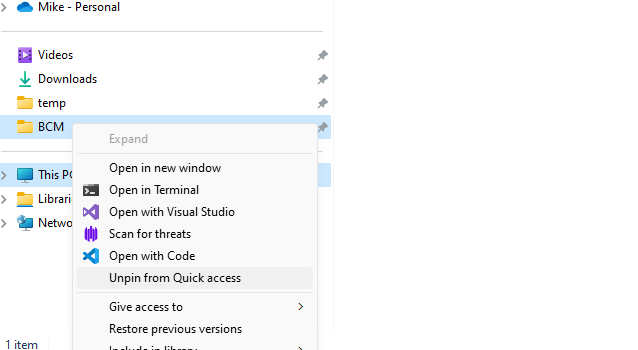
    that Does indeed have the equivalent of the quick access we all know and love. (God forbid it would be labeled as such.) I even tested the assertion that you couldn't unpin from the quick access area.
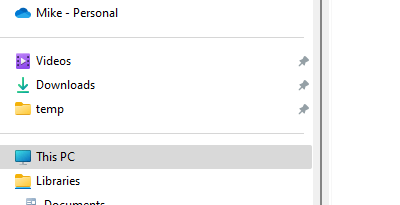
    You can see here that this is not the case (for me.) The pin and unpin works fine for me. And its resilient thru closing and reopening Windows explorer.

    I still don't forgive the product manager for this component for screwing around with this. This is a productivity killer changing this. 229 people had this same question. And these are just the people who have the gumption to try to find a fix. I can just about guarantee you that there are at least another 10x (and more likely 100x) more users who will just suffer in silence.

    I wish these product managers would stop this. Respect your power users. Read these blogs. Tell us about the madness that gripped you when you made this change. What address to we go to with pitchforks and torches?!?!?!

    That said, I am ducking future replies. Cheers everybody. Thanks again Clyked92

    5 people found this answer helpful.
    0 comments No comments
  4. Anonymous
    2023-11-21T01:30:24+00:00

    Thank you. I hadn't seen that solution and it worked for me

    0 comments No comments
  5. Anonymous
    2023-11-21T12:25:44+00:00

    To restore quick access. Complete the following:

    Click on the three dots ... to the right of View drop down.

    Click Options

    Click View Tab

    Scroll to bottom of list and untick all options under Navigation Pane

    Click Apply

    Click OK

    Quick access should now be restored.

    5 people found this answer helpful.
    0 comments No comments
