If the pagefile is set to system manged then try a clean boot to see if you can use the computer with only Microsoft items enabled. If you can and it seems not to cache memory then you will have to turn items back on, a few at a time until you find the culprit.
Cached memory slowing performance to a crawl
My photo workstation grinds to a halt on a regular basis. It doesn't crash; it just becomes unusably slow. Often it's not even possible to launch the task master or restart (other than via the power switch).
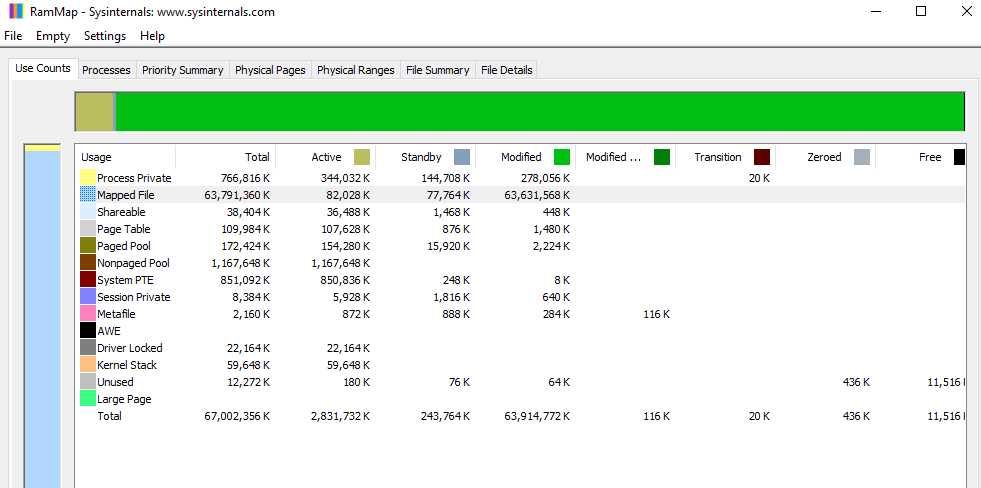
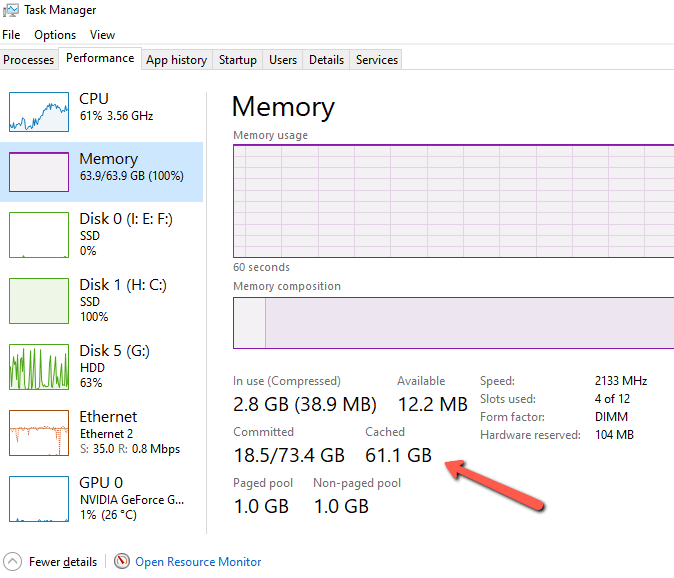
The symptom seems to be that memory (64Gb) is completely filled with Cached items. Individual process commits only total a few Gb (say, 10% of total). The rest is Memory Mapped files on the Standby or Modified list according to SysInternals RamMap. Performance is fine until the Cached entries completely fill physical RAM.
The file lists in RamMap don't reveal any particular culprit. The files associated with named processes seem to total a lot less than the Cached amount. This happens faster when big applications (Lightroom) are running, but eventually seems to happen no matter what I use.
I've tried changing virtual memory settings from off to auto to huge. A large pagefile seems to help buffer the problem but just delays the inevitable. I've also checked that drivers, BIOS, and Windows are up to date.
Now here's the Catch-22: I finally decided to reinstall Windows. An upgrade installation (leaving apps/files in place) can't be done if you boot from USB media; you have to start the installer from the running OS. But it seems that the Win installer itself is subject to this memory problem. I started the process yesterday, and it got through the preliminaries OK. But after 14 hours, the progress report had only reached 11%. I could just wait a week, but I doubt it would finish.
So, is there any workaround here, other than the nuclear option of a clean reinstall and rebuilding everything from backup?
The machine is an older workstation (dual Xeon v3) but well provisioned (64Gb, 2Tb SSD half full, Storage Space array with 3x4Tb HD, GTX 1650 Super).
Windows for home | Windows 10 | Performance and system failures
Locked Question. This question was migrated from the Microsoft Support Community. You can vote on whether it's helpful, but you can't add comments or replies or follow the question.
6 additional answers
Sort by: Most helpful
-
Anonymous
2022-12-11T17:36:05+00:00 To add (not really the right word) to what neilpzz states, you should only have page file set to auto managed by Windows. If its set to that then don't touch it or face the consequences. I feel this shouldn't have been brought up other than for saying that if even. It just shouldn't be touched.
BTW, Windows memory UI or its usage isn't easy to understand. For instance I've 10GB cached on 16GB. ALL 16GB is taken fully by in use and standby (cached) with 95MB free. There's NOTHING wrong with that lol. It doesn't actually mean what you think it means and I've got no performance issues.
In fact, its difficult to even find an article that makes it easy to understand. Windows memory management is quite complicated. I'm not even convinced by even a small amount that you are actually seeing the actual problem.
However, to point out. The total RAM under the 1st image on the top left under the performance list is showing your RAM is actually full. You may simply just need more RAM or minimize the stuff you're putting into it. For me it shows eg 5GB/16GB. As that value goes it, the actual RAM used is going up.
That makes sense that actually full RAM would cause a performance issue like it always has :)
-
Anonymous
2022-12-11T19:52:24+00:00 So far so good. With only MS services, it seems to be working OK. During a big Lightroom import, cache grew to about 42Gb, but then it immediately dropped back to about 18 when it finished. RamMap showed that it was all Standby rather than Modified, and RamMap's Empty Standby option worked to clear it all.
I only have a dozen or so non-MS services (Adobe stuff, backup programs, google drive mainly) so it shouldn't be too hard to ID the one responsible by elimination.
Thanks!
-
Anonymous
2022-12-11T22:31:37+00:00 To add (not really the right word) to what neilpzz states, you should only have page file set to auto managed by Windows. If its set to that then don't touch it or face the consequences. I feel this shouldn't have been brought up other than for saying that if even. It just shouldn't be touched.
When this problem surfaced, I discovered that VM had been turned off, I think by setting a custom page file size to 0. I can't imagine how that happened - not something I'd normally do - but unfortunately that didn't fix it. Still happens with system management, which is how I'll leave it.
-
Anonymous
2022-12-11T23:06:39+00:00 However, to point out. The total RAM under the 1st image on the top left under the performance list is showing your RAM is actually full. You may simply just need more RAM or minimize the stuff you're putting into it. For me it shows eg 5GB/16GB. As that value goes it, the actual RAM used is going up.
That makes sense that actually full RAM would cause a performance issue like it always has :)
In the experiment I posted the screenshots for, I didn't really do anything that would be remotely that RAM intensive. I don't recall the details, but I basically rebooted, browsed around my Lightroom catalog a bit, maybe sent some Telegram messages and opened a couple tabs in Firefox. Uptime was short. I think RAM was indeed full, but there's nothing I did to fill it. No process ever committed more than a couple gigs. I have no idea where that giant green block of mapped files identified as "Modified" in RamMap came from. The Empty options in RamMap apparently couldn't flush that stuff to disk.
So, I think you're right - RAM was really full. Question is, why? So far neilpzz's experiment has ID'ed some 3rd party service, but it'll take some further experimentation to figure out which one.