Cannot access OS or properly boot from Boot drive after a Windows update

Anonymous
2022-07-16T08:52:07+00:00

I updated Windows 11 last night, slept, woke up, and used it a little before going to work. When I got back, the PC was on, but on the BIOS screen instead of the desktop or lock screen. I tried to boot from my SSD to find that it wasn’t being shown as a boot drive in my BIOS, but it was shown in my listed drives on the BIOS. It, and my other drives are also verified as readable in the repair menu (I am booting from a Media Creation Tool to try and fix this). I’ve tried a bunch of solutions on the internet and this website to no avail. I always get roadblocked by errors or command line responses and am basically at the end of my rope

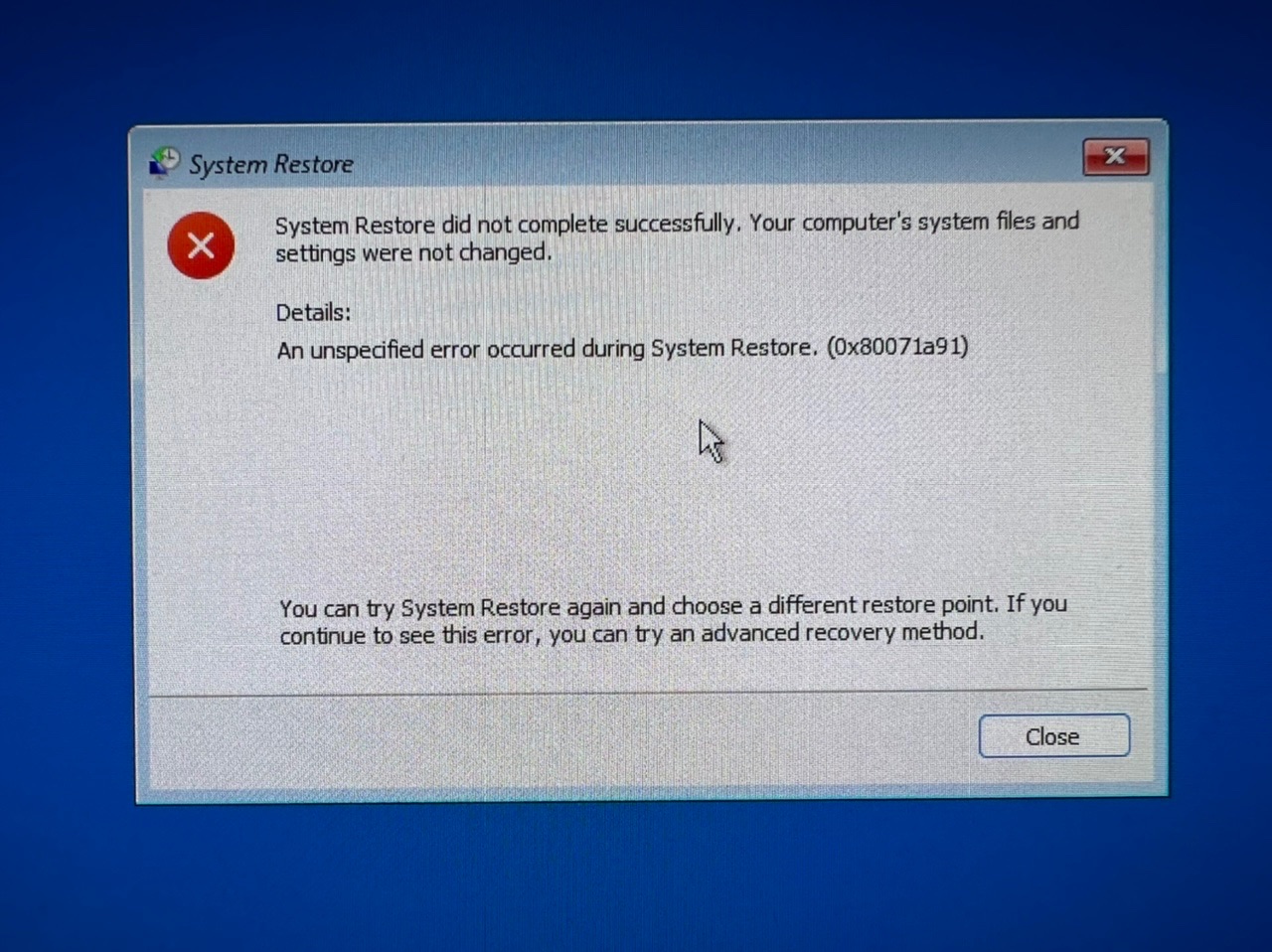
This is what happens when I try to restore before the update was installed:
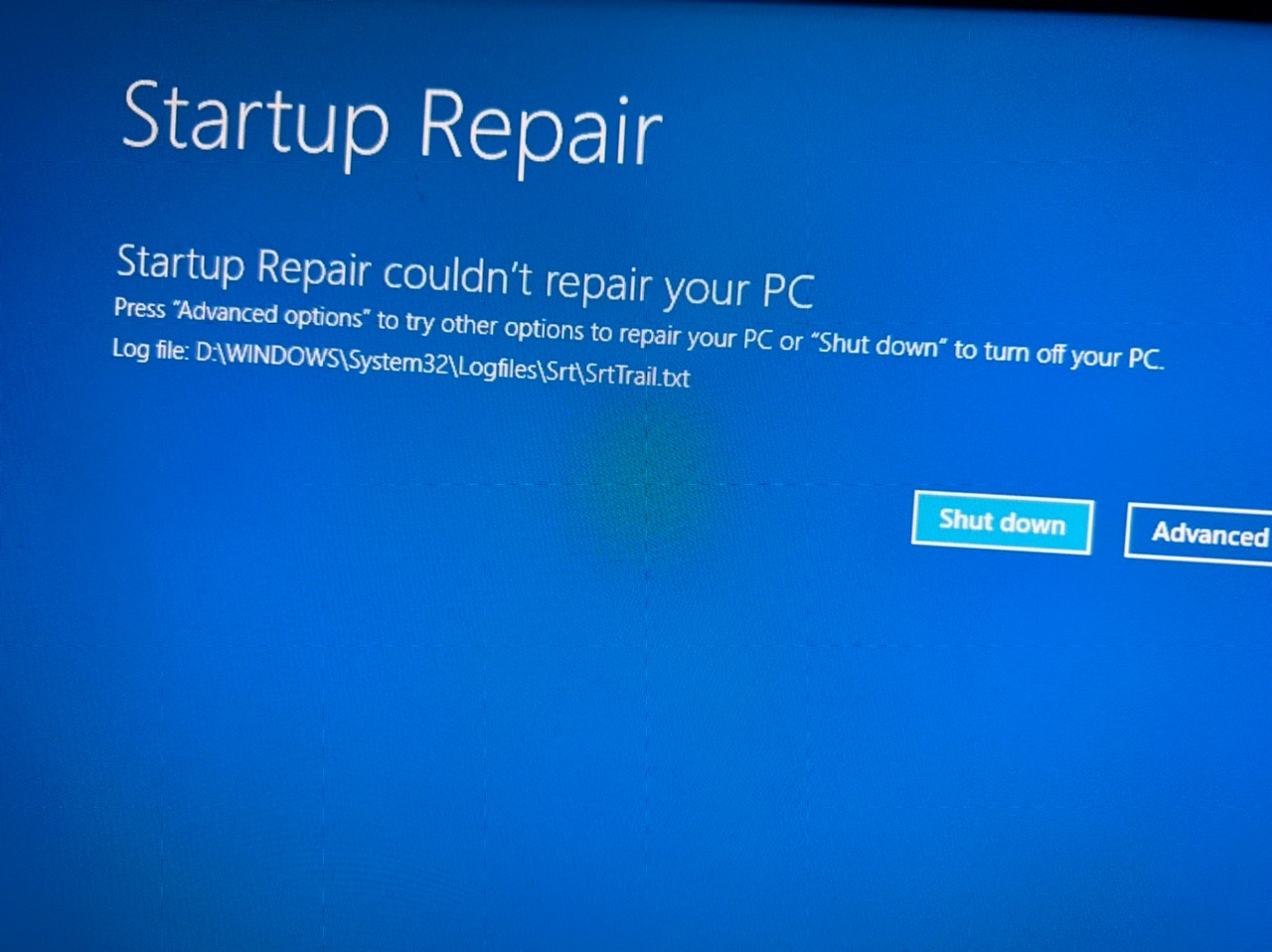
I get this message when trying Startup Repair:
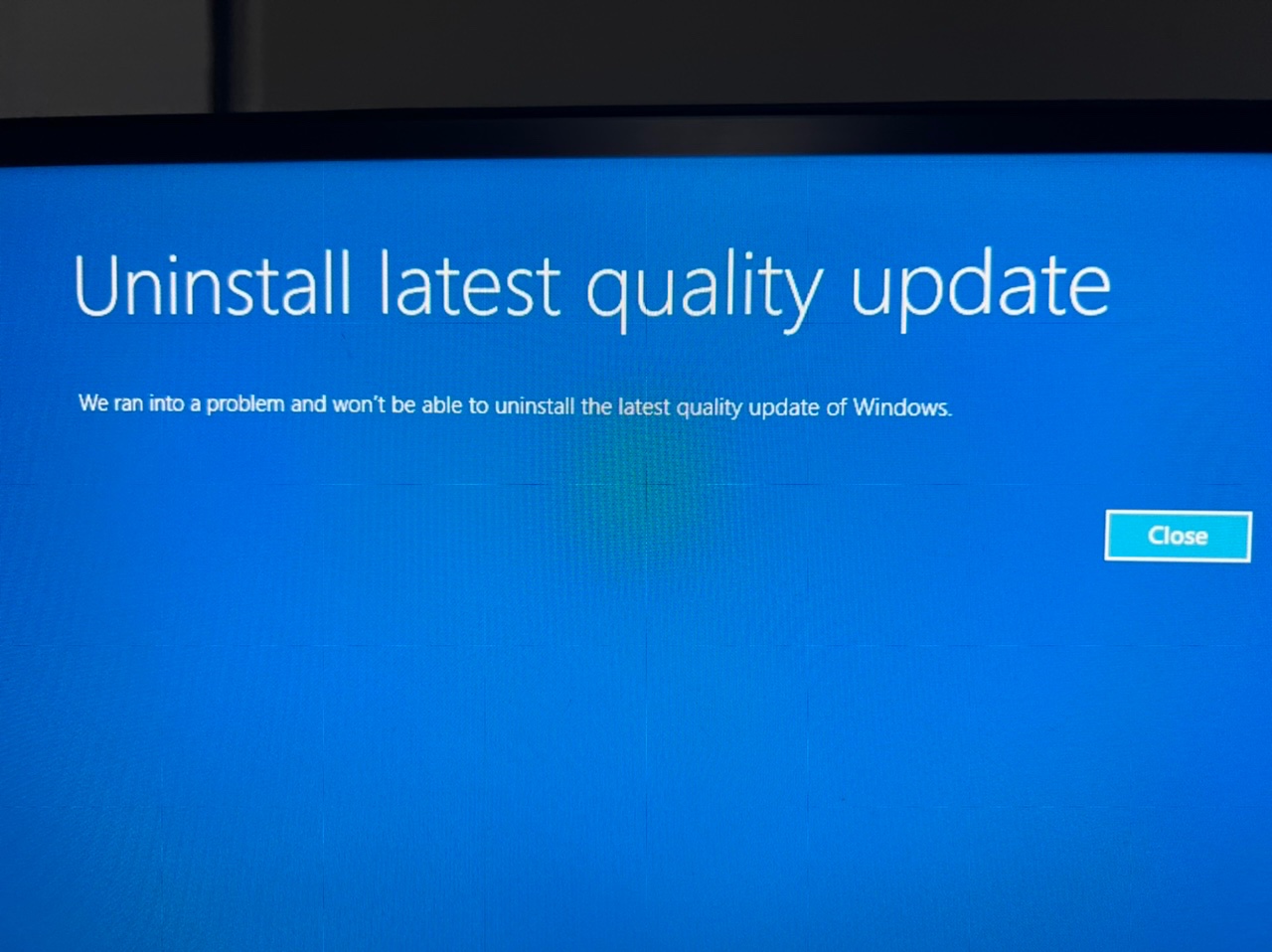
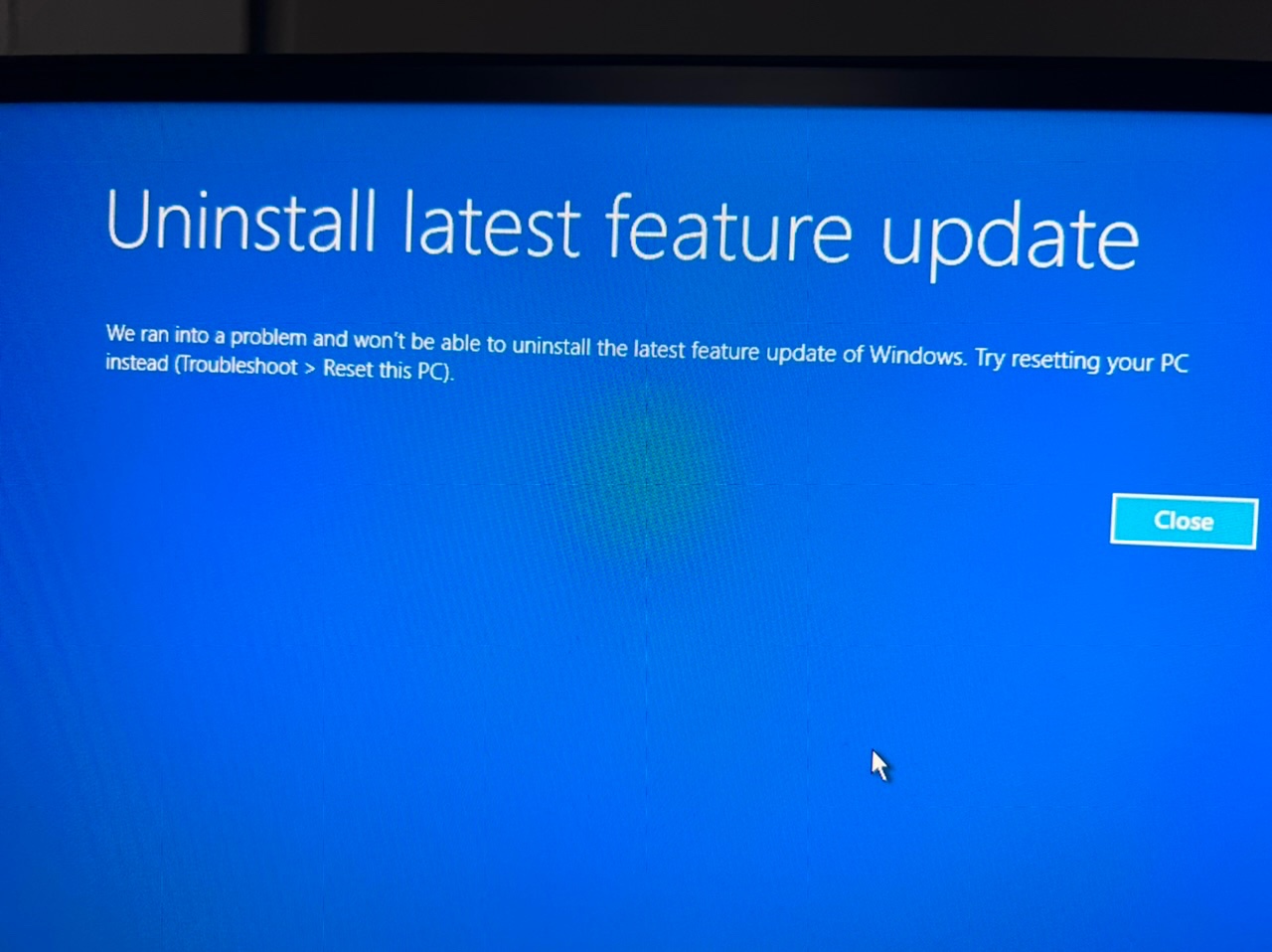
These are what I get when trying to rollback updates:
This is the result to me trying to use the RegBack method, it says the drive is write protected:

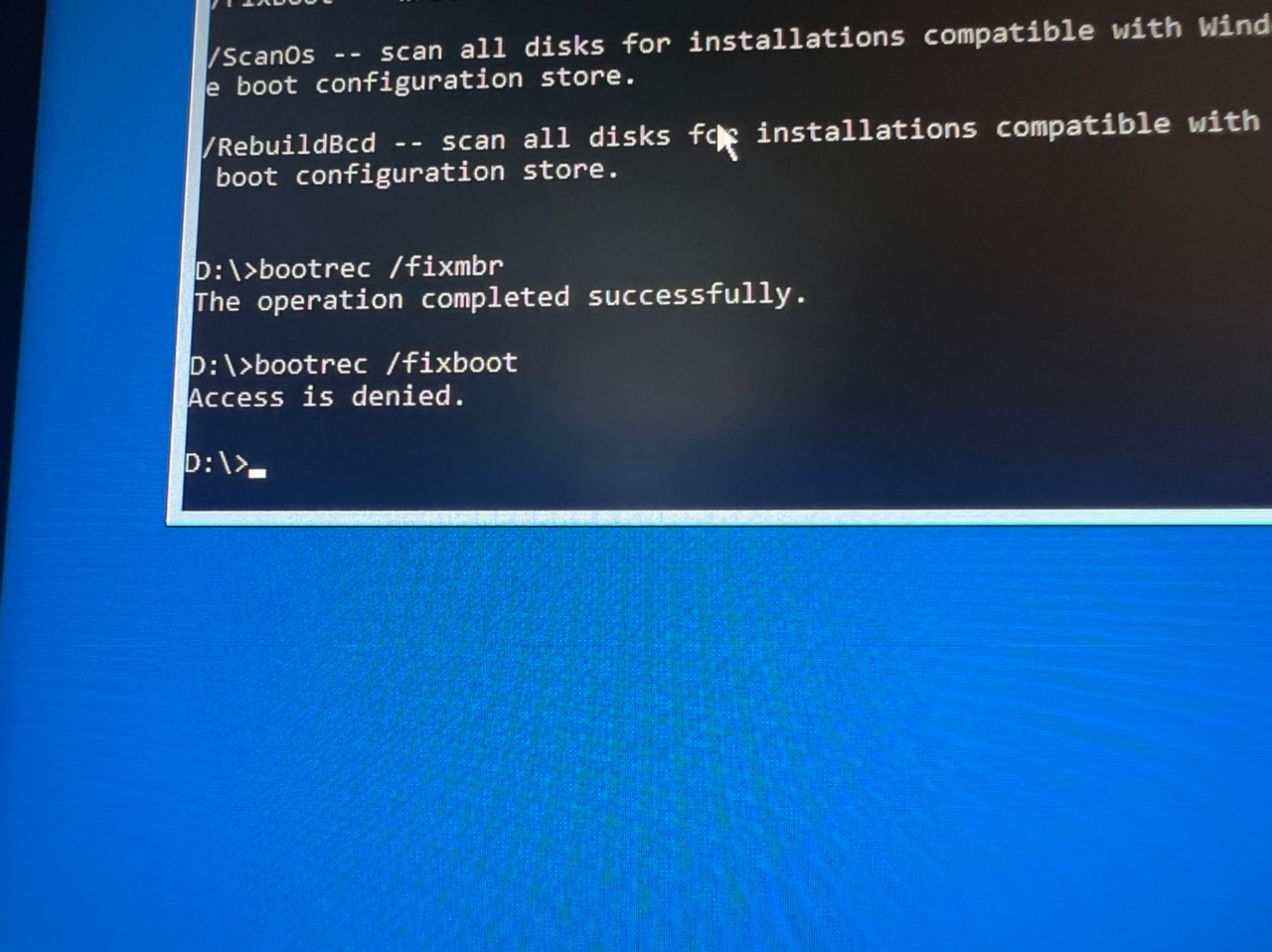
This is what happens when I try the bootrec method, it tells me my access is denied:
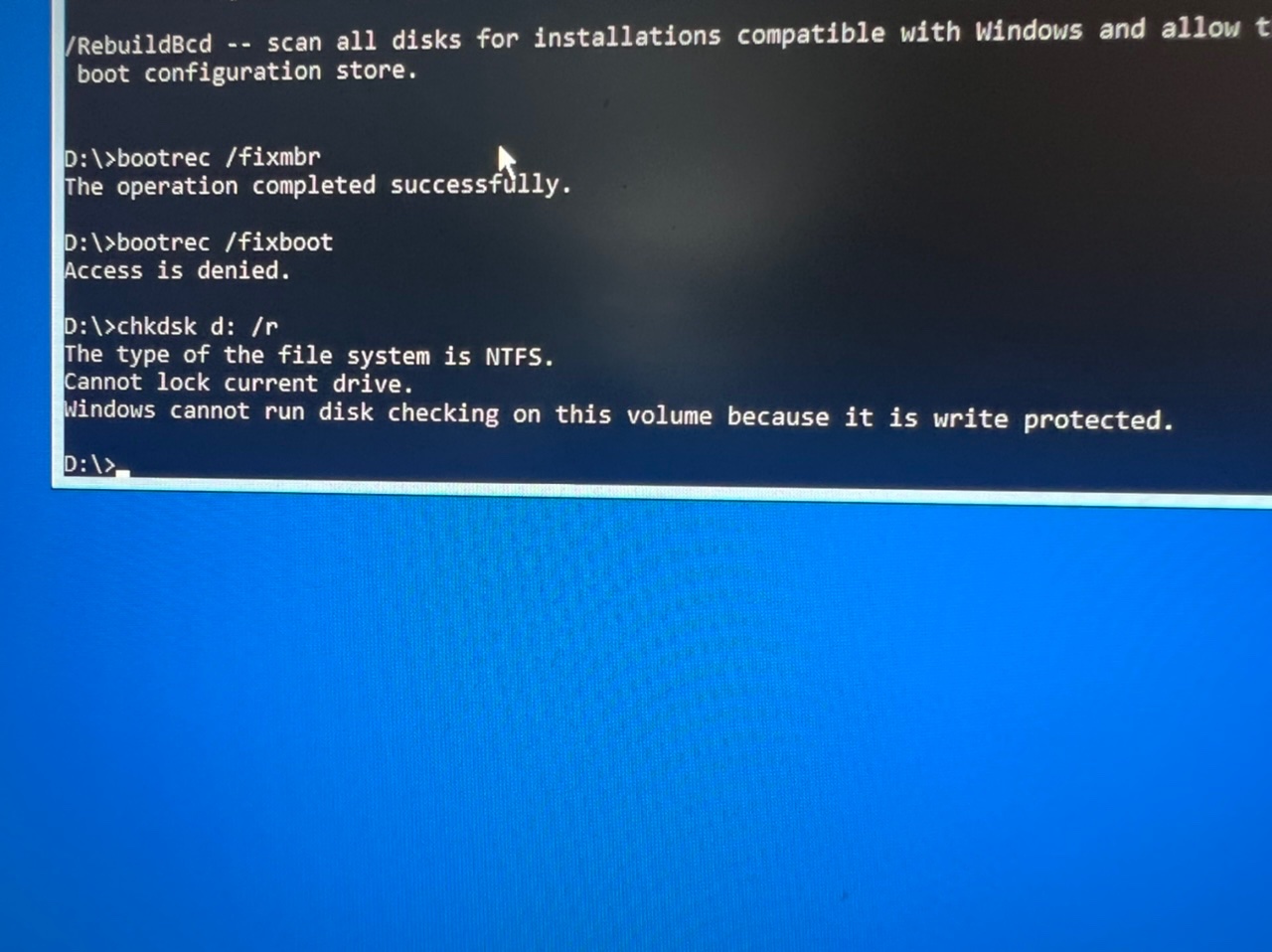
This is the result to attempting chkdsk, again, telling me my drive is write protected:
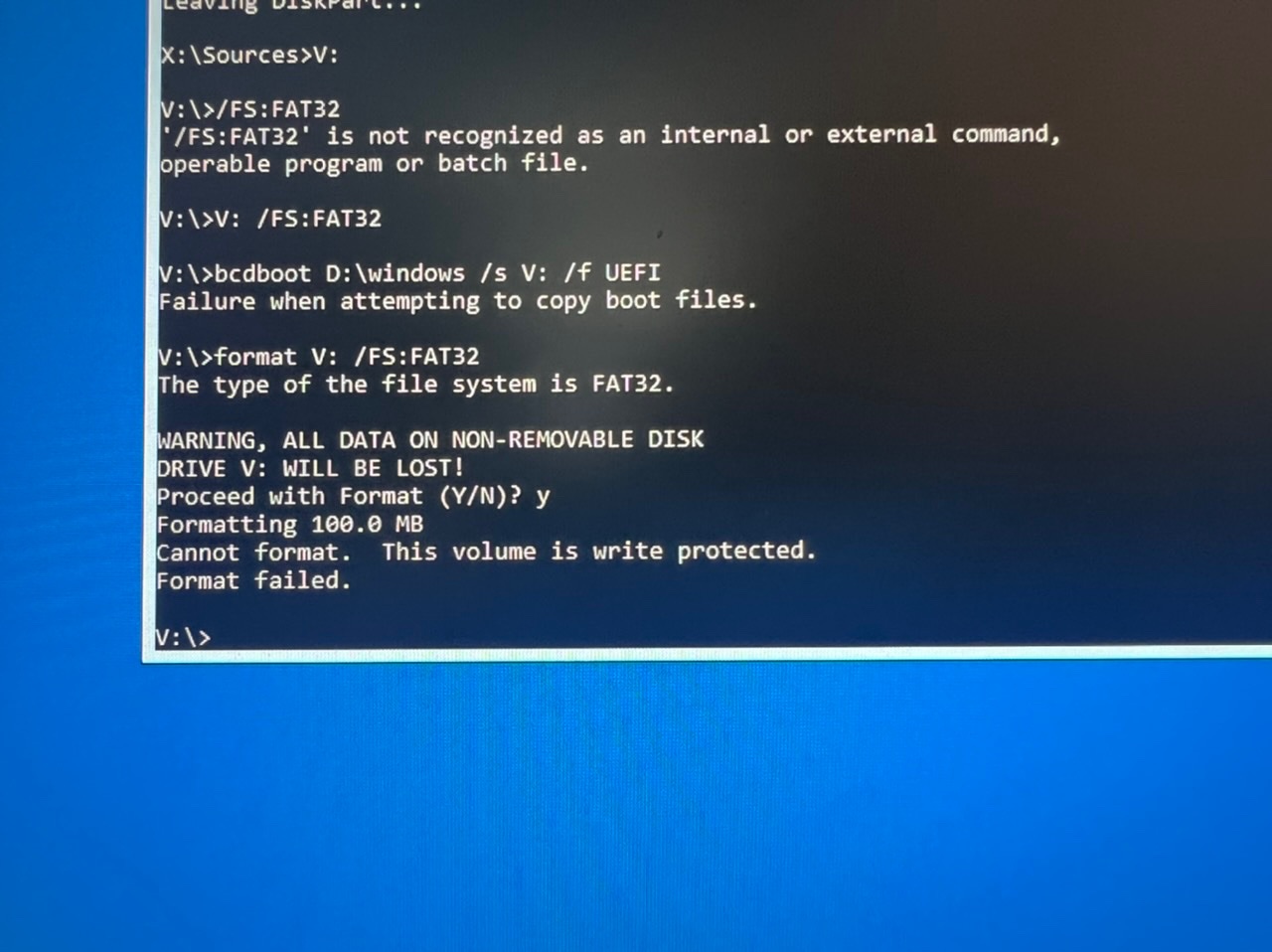
Trying to format the EFI volume of my boot drive, again AGAIN telling me the drive is write protected:
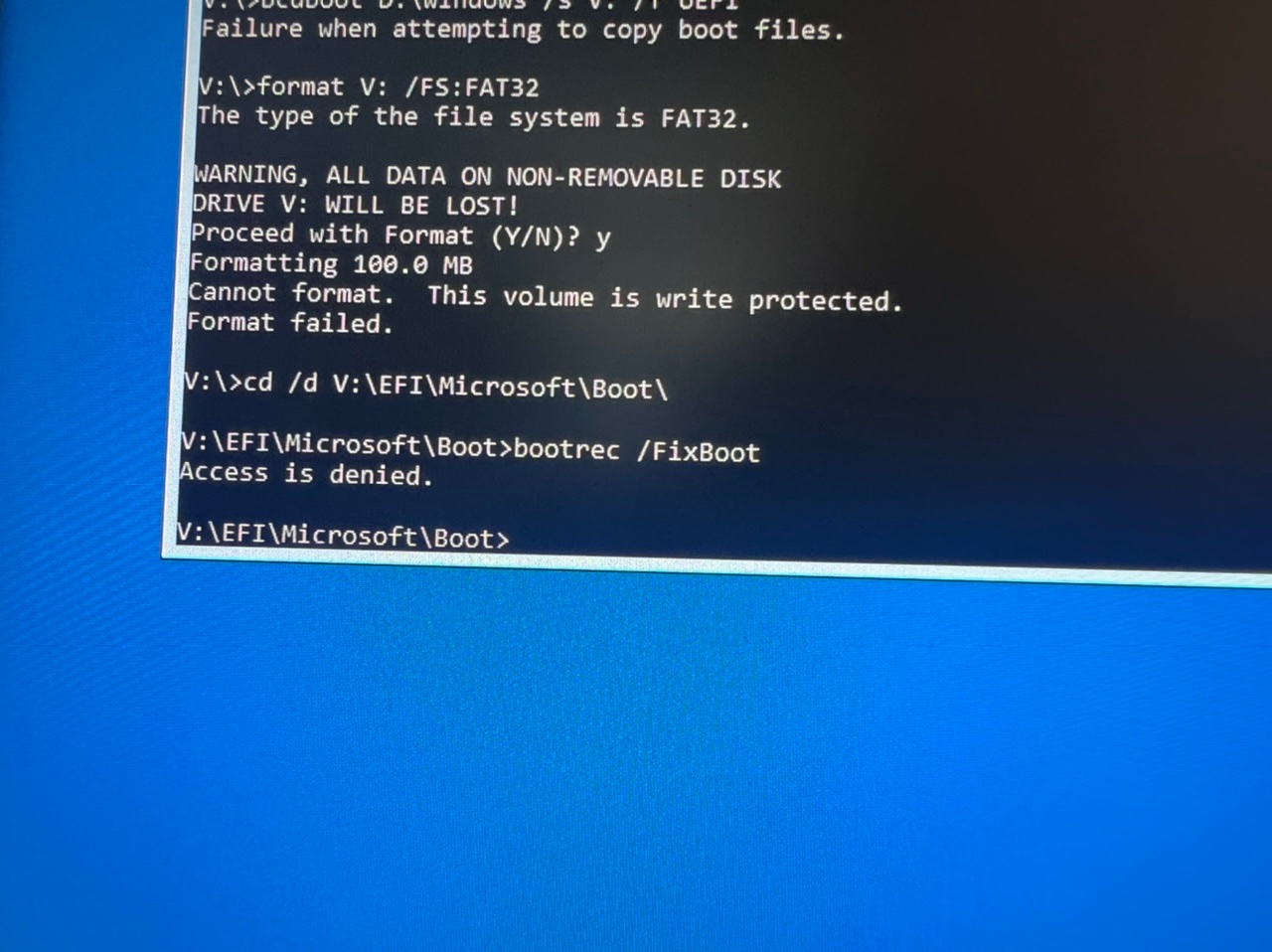
Me trying the next step of the EFI volume method, telling me my access is denied:
Basically my problem seems to be that Windows is holding Windows hostage. It won’t let my refresh my install, or proceed with repairing it by continuing through with the OS installation process. It really seems like this is happening out of absolutely nowhere and like my problem seems very unique. I’m also quite aware this could be something BIOS related, and if that’s the case, I’m using a ASUS X570 motherboard. Please get back to this post as soon as possible if theres any solution.

Windows for home | Windows 11 | Recovery and backup

Locked Question. This question was migrated from the Microsoft Support Community. You can vote on whether it's helpful, but you can't add comments or replies or follow the question.

0 comments No comments
{count} votes

9 answers

Sort by: Most helpful
  1. Anonymous
    2022-07-16T16:20:48+00:00

    Try chkdsk again but use this cmd:
    chkdsk c: /f/r/x

    Command prompt returns the message “Windows cannot run disk checking in this volume because it is write protected”

    For your second method, when trying to clear the attributes, it returned “DiskPart failed to clear disk attributes.”

    0 comments No comments
  2. Anonymous
    2022-07-16T16:34:19+00:00

    I ran bcdedit, it returned (note I’m transcribing this from my phone):

    Windows Boot Manager

    ——————————-

    identifier {bootmgr}

    device partition=\Device\HarddiskVolume1

    path \EFI\MICROSOFT\BOOT\BOOTMGFW.EFI

    description Windows Boot Manager

    locale en-us

    inherit {globalsettings}

    default {default}

    resumeobject {668fe2e3-58ad-11ec-b49d-bceea62baa47}

    displayorder {default}

    toolsdisplayorder {memdiag}

    timeout 30

    Windows Boot Loader

    —————————

    identifier {default}

    device partition=D:

    path \WINDOWS\System32\winload.efi

    description Windows 11

    locale en-US

    inherit {bootloadersettings}

    recoverysequence {668fe2e5-58ad-11ec-b49d-bceea62baa47}

    displaymessageoverride Recovery

    recoveryenabled Yes

    isolatedcontext Yes

    allowedinmemorysettings 0x15000075

    osdevice partition=D:

    systemroot \WINDOWS

    resumeobject {668fe2e3-58ad-11ec-b49d-bceea62baa47}

    nx OptIn

    bootmenupolicy Standard

    0 comments No comments
  3. Time Lady 38,760 Reputation points Independent Advisor
    2022-07-16T16:44:05+00:00

    Then I would see if you can use Macrium to image the drive using their boot USB & clean install Windows.

    0 comments No comments
  4. Time Lady 38,760 Reputation points Independent Advisor
    2022-07-17T10:09:34+00:00

    I’m sorry to see that you’ve marked my replies as not helping. Please note we’re just fellow users like yourself & not Microsoft.

    Unless you have an image backup then it will be trial & error in trying to solve the problem. I have given you several answers but you haven’t mentioned whether the Macrium suggestion has fixed the problem or whether you have backed up the PC in order to clean install Windows or to try more drastic fixes which may affect Windows.

    0 comments No comments
