Hi Ramesh, thanks that makes sense :) I don't know whether I should be starting a new post for my particular problem or not ... but I have been doing some more digging using your posts above, and will list what I have found here:
On my desktop PC, when I used "open with" for a .jpg file and selected "Microsoft WinRT Storage API" then originally it would open the ClipChamp app. (Which I have since uninstalled).
I tried using ProcMon as mentioned above (Process Monitor) and found the following section which I'm guessing is when it tries to actually open the file, and there are multiple references to this app identifier: AppXvsqkg1th80rv6s2rkh5m1hjp3hxryydd (presumably the app it tries to use.)
17:02:39.1883727	Explorer.EXE	15136	RegQueryValue	HKCR\Applications\zipfldr.dll\NoOpenWith	BUFFER OVERFLOW	Length: 12
17:02:39.1883955	Explorer.EXE	15136	RegCloseKey	HKCR\Applications\zipfldr.dll	SUCCESS
17:02:39.1884132	Explorer.EXE	15136	RegEnumKey	HKCR\Applications	NO MORE ENTRIES	Index: 86, Length: 288
17:02:39.1884293	Explorer.EXE	15136	RegCloseKey	HKCR\Applications	SUCCESS
17:02:39.1884450	Explorer.EXE	15136	RegCloseKey	HKCU\Software\Classes\Applications	SUCCESS
17:02:39.1884681	Explorer.EXE	15136	RegCloseKey	HKCU\Software\Classes\Local Settings\Software\Microsoft\Windows\CurrentVersion\AppModel\Launcher\Activation\UWARegAssociationInteropProgId	SUCCESS
17:02:39.1885030	Explorer.EXE	15136	RegCloseKey	HKCU\Software\Classes\AppXcesbfs704v2mjbts9dkr42s9vmrhxbkj	SUCCESS
17:02:39.1885203	Explorer.EXE	15136	RegCloseKey	HKCU\Software\Classes\AppX43hnxtbyyps62jhe9sqpdzxn1790zetc	SUCCESS
17:02:39.1885366	Explorer.EXE	15136	RegCloseKey	HKCU\Software\Classes\AppX2jm25qtmp2qxstv333wv5mne3k5bf4bm	SUCCESS
17:02:39.1885555	Explorer.EXE	15136	RegCloseKey	HKCU\Software\Classes\AppXvsqkg1th80rv6s2rkh5m1hjp3hxryydd	SUCCESS
17:02:39.1885714	Explorer.EXE	15136	RegCloseKey	HKCU\Software\Classes\AppXkv2jqn1pq8ajm0p5dhgqde7aafykkrrn	SUCCESS
17:02:39.1886006	Explorer.EXE	15136	RegCloseKey	HKCR\Applications\Acrobat.exe	SUCCESS
17:02:39.1886182	Explorer.EXE	15136	RegCloseKey	HKCU\Software\Classes\Applications\Code.exe	SUCCESS
17:02:39.1886354	Explorer.EXE	15136	RegCloseKey	HKCR\Applications\Photoshop.exe	SUCCESS
17:02:39.1886524	Explorer.EXE	15136	RegCloseKey	HKCR\Applications\VSLauncher.exe	SUCCESS
17:02:39.1886691	Explorer.EXE	15136	RegCloseKey	HKCR\Applications\WINWORD.EXE	SUCCESS
17:02:39.1886899	Explorer.EXE	15136	RegCloseKey	HKCR\Applications\wmplayer.exe	SUCCESS
17:02:39.1887097	Explorer.EXE	15136	RegCloseKey	HKCR\Applications\wordpad.exe	SUCCESS
17:02:39.1887348	Explorer.EXE	15136	RegCloseKey	HKCU\Software\Microsoft\Windows\CurrentVersion\Explorer\FileExts\.jpg\OpenWithList	SUCCESS
17:02:39.1887581	Explorer.EXE	15136	RegCloseKey	HKCU\Software\RegisteredApplications	SUCCESS
17:02:39.1887792	Explorer.EXE	15136	RegCloseKey	HKLM\SOFTWARE\RegisteredApplications	SUCCESS
17:02:39.1887992	Explorer.EXE	15136	RegQueryKey	HKCU\Software\Classes\AppXvsqkg1th80rv6s2rkh5m1hjp3hxryydd	SUCCESS	Query: Name
17:02:39.1888160	Explorer.EXE	15136	RegQueryKey	HKCU\Software\Classes\AppXvsqkg1th80rv6s2rkh5m1hjp3hxryydd	SUCCESS	Query: HandleTags, HandleTags: 0x0
17:02:39.1888322	Explorer.EXE	15136	RegOpenKey	HKCR\AppXvsqkg1th80rv6s2rkh5m1hjp3hxryydd	NAME NOT FOUND	Desired Access: Maximum Allowed
17:02:39.1888501	Explorer.EXE	15136	RegQueryValue	HKCU\Software\Classes\AppXvsqkg1th80rv6s2rkh5m1hjp3hxryydd\AppUserModelID	NAME NOT FOUND	Length: 144
17:02:39.1888652	Explorer.EXE	15136	RegQueryKey	HKCU\Software\Classes\AppXvsqkg1th80rv6s2rkh5m1hjp3hxryydd	SUCCESS	Query: Name
17:02:39.1888808	Explorer.EXE	15136	RegQueryKey	HKCU\Software\Classes\AppXvsqkg1th80rv6s2rkh5m1hjp3hxryydd	SUCCESS	Query: HandleTags, HandleTags: 0x0
17:02:39.1889028	Explorer.EXE	15136	RegQueryKey	HKCU\Software\Classes\AppXvsqkg1th80rv6s2rkh5m1hjp3hxryydd	SUCCESS	Query: HandleTags, HandleTags: 0x0
17:02:39.1889201	Explorer.EXE	15136	RegOpenKey	HKCU\Software\Classes\AppXvsqkg1th80rv6s2rkh5m1hjp3hxryydd\Application	SUCCESS	Desired Access: Query Value
17:02:39.1889380	Explorer.EXE	15136	RegQueryKey	HKCU\Software\Classes\AppXvsqkg1th80rv6s2rkh5m1hjp3hxryydd\Application	SUCCESS	Query: Name
17:02:39.1889533	Explorer.EXE	15136	RegQueryKey	HKCU\Software\Classes\AppXvsqkg1th80rv6s2rkh5m1hjp3hxryydd\Application	SUCCESS	Query: HandleTags, HandleTags: 0x0
17:02:39.1889713	Explorer.EXE	15136	RegOpenKey	HKCR\AppXvsqkg1th80rv6s2rkh5m1hjp3hxryydd\Application	NAME NOT FOUND	Desired Access: Maximum Allowed
17:02:39.1889915	Explorer.EXE	15136	RegQueryValue	HKCU\Software\Classes\AppXvsqkg1th80rv6s2rkh5m1hjp3hxryydd\Application\AppUserModelID	SUCCESS	Type: REG_SZ, Length: 76, Data: Clipchamp.Clipchamp_yxz26nhyzhsrt!App
17:02:39.1890090	Explorer.EXE	15136	RegCloseKey	HKCU\Software\Classes\AppXvsqkg1th80rv6s2rkh5m1hjp3hxryydd\Application	SUCCESS
17:02:39.1891080	Explorer.EXE	15136	RegQueryKey	HKLM	SUCCESS	Query: HandleTags, HandleTags: 0x0
17:02:39.1891234	Explorer.EXE	15136	RegOpenKey	HKLM\Software\Microsoft\Windows\CurrentVersion\Explorer\SyncRootManager	SUCCESS	Desired Access: Read
17:02:39.1891431	Explorer.EXE	15136	RegSetInfoKey	HKLM\SOFTWARE\Microsoft\Windows\CurrentVersion\Explorer\SyncRootManager	SUCCESS	KeySetInformationClass: KeySetHandleTagsInformation, Length: 0
17:02:39.1891563	Explorer.EXE	15136	RegQueryKey	HKLM\SOFTWARE\Microsoft\Windows\CurrentVersion\Explorer\SyncRootManager	SUCCESS	Query: Cached, SubKeys: 1, Values: 0
17:02:39.1891721	Explorer.EXE	15136	RegCloseKey	HKLM\SOFTWARE\Microsoft\Windows\CurrentVersion\Explorer\SyncRootManager	SUCCESS
17:02:39.1893731	Explorer.EXE	15136	CreateFile	C:\Users\medmo\Desktop	SUCCESS	Desired Access: Read Data/List Directory, Read Attributes, Synchronize, Disposition: Open, Options: Synchronous IO Non-Alert, Attributes: n/a, ShareMode: Read, Write, Delete, AllocationSize: n/a, OpenResult: Opened
17:02:39.1894191	Explorer.EXE	15136	QueryRemoteProtocolInformation	C:\Users\medmo\Desktop	INVALID PARAMETER
17:02:39.1894564	Explorer.EXE	15136	QueryDirectory	C:\Users\medmo\Desktop\c.jpg	SUCCESS	FileInformationClass: FileIdBothDirectoryInformation, Filter: c.jpg, 2: c.jpg
17:02:39.1895000	Explorer.EXE	15136	CloseFile	C:\Users\medmo\Desktop	SUCCESS
17:02:39.1895594	Explorer.EXE	15136	RegQueryKey	HKCU\Software\Classes\AppXvsqkg1th80rv6s2rkh5m1hjp3hxryydd\Shell\open	SUCCESS	Query: Name
17:02:39.1895767	Explorer.EXE	15136	RegQueryKey	HKCU\Software\Classes\AppXvsqkg1th80rv6s2rkh5m1hjp3hxryydd\Shell\open	SUCCESS	Query: HandleTags, HandleTags: 0x0
17:02:39.1895961	Explorer.EXE	15136	RegOpenKey	HKCR\AppXvsqkg1th80rv6s2rkh5m1hjp3hxryydd\Shell\open	NAME NOT FOUND	Desired Access: Maximum Allowed
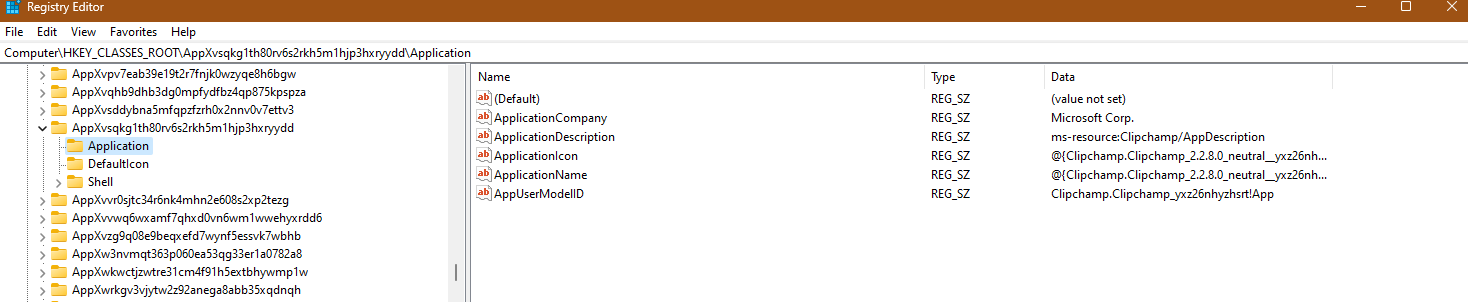
Checking the registry editor for that app id it does seem to match ClipChamp (which isn't installed).
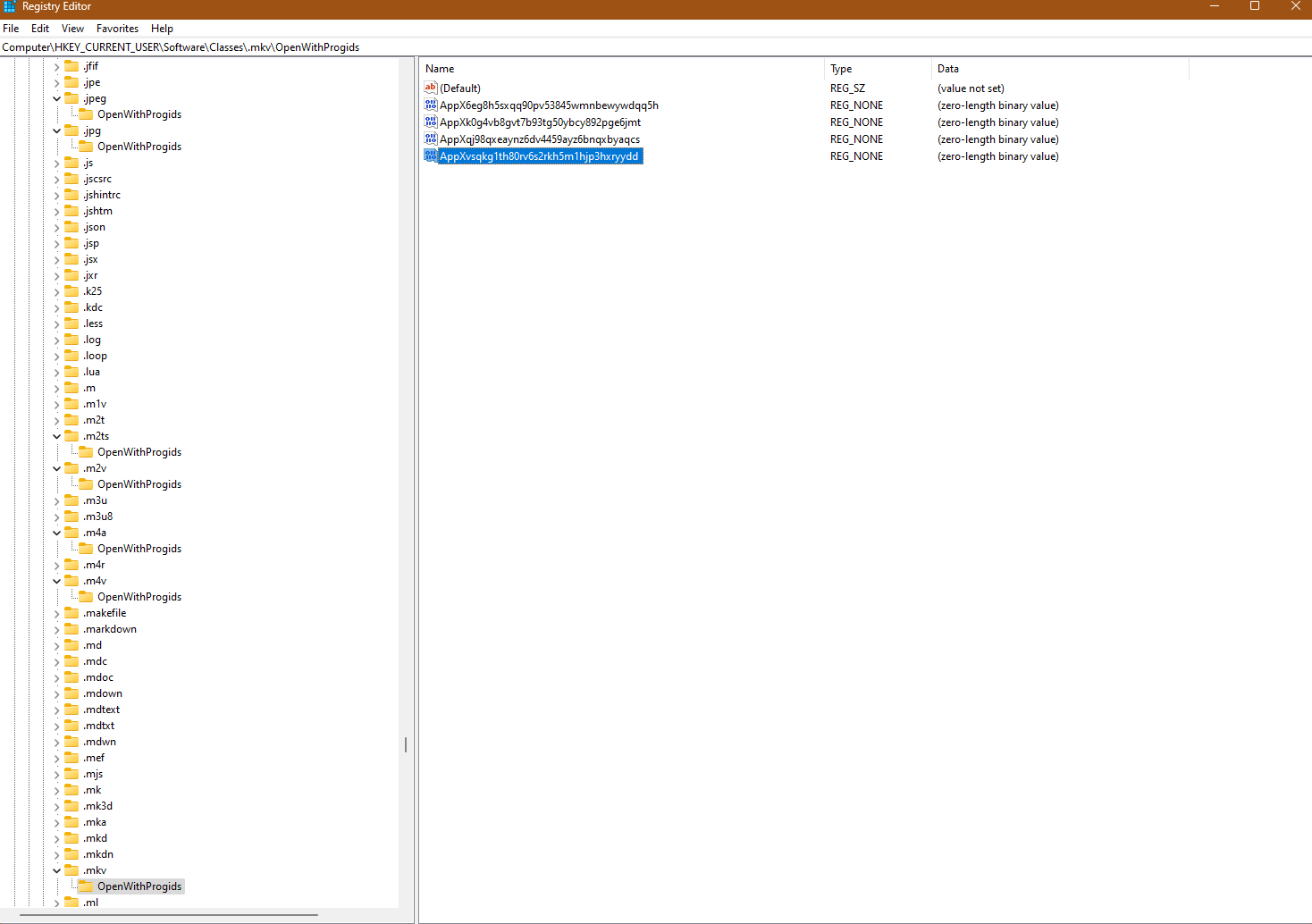
And searching for the id elsewhere in the registry it shows up for multiple audio visual file formats in their "OpenWithProgids" section.
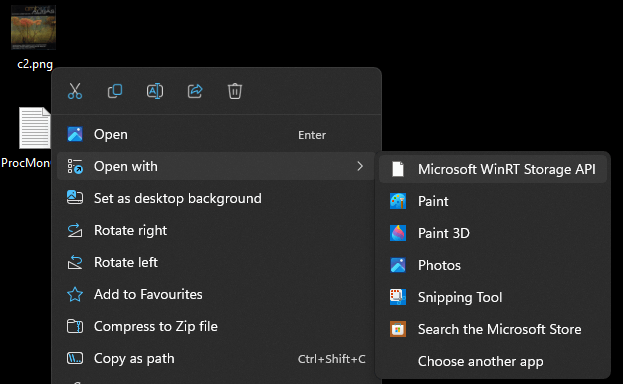
I checked the "open with" right click menu for a few of those file types in Windows Explorer and they do all show the same broken menu item of "Microsoft WinRT Storage API". (E.g. .png, .mov, .mkv)
If I delete that app id from the .jpg OpenWithProgIds section (Computer\HKEY_CLASSES_ROOT.jpg\OpenWithProgids) then it does remove "Microsoft WinRT Storage API" from the "Open With" right click menu - which is nice :) But I don't know if doing this is a bad idea? I'm tempted to go through all the different file types and remove it from all of them in the registry. But maybe there is a better way of doing this! And if I reinstall ClipChamp then maybe they would all come back again. (Advice on whether it's ok for me to manually delete them all would be appreciated!)

' cx='32' cy='32' r='32' /%3E%3Ctext x='50%25' y='55%25' dominant-baseline='middle' text-anchor='middle' fill='%23FFF' %3EA%3C/text%3E%3C/svg%3E)

