' cx='32' cy='32' r='32' /%3E%3Ctext x='50%25' y='55%25' dominant-baseline='middle' text-anchor='middle' fill='%23FFF' %3EDC%3C/text%3E%3C/svg%3E)
' cx='32' cy='32' r='32' /%3E%3Ctext x='50%25' y='55%25' dominant-baseline='middle' text-anchor='middle' fill='%23FFF' %3EMP%3C/text%3E%3C/svg%3E)
You can create up to 1,000 projects within an organization in Azure DevOps. For more information, see Work tracking, process, and project limits.
- Sign in to your organization (
https://dev.azure.com/{Your_Organization}). - Select New project.
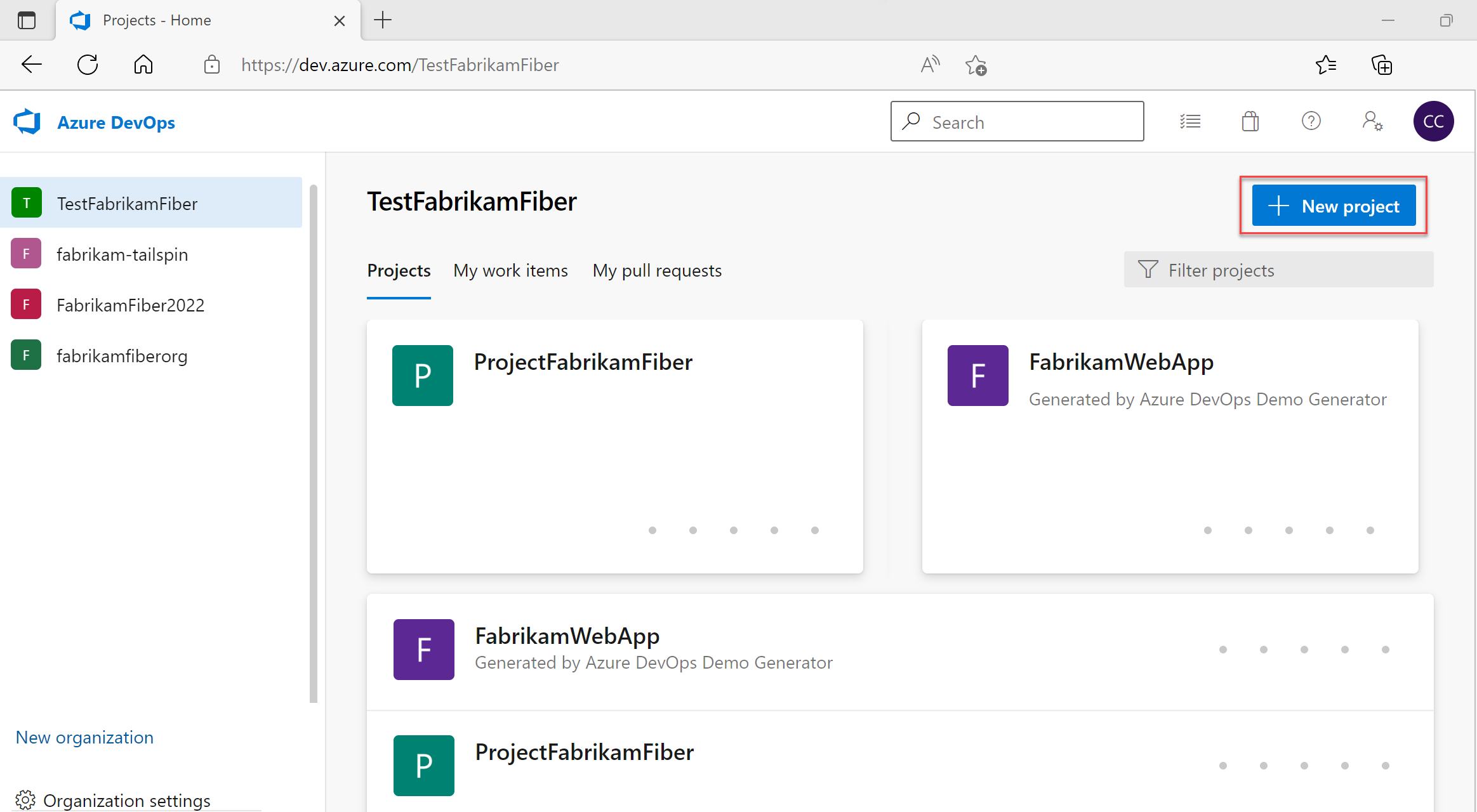
- Enter information into the form provided.
- Provide a name for your project. Your project name can't contain special characters, such as
/ : \ ~ & % ; @ ' " ? < > | # $ * } { , + = [ ], can't begin with an underscore, can't begin or end with a period, and must be 64 or fewer characters. - Enter an optional description.
- Choose the visibility, initial source control type, and work item process. For more information, see Choosing the right version control for your project and Choose a process.
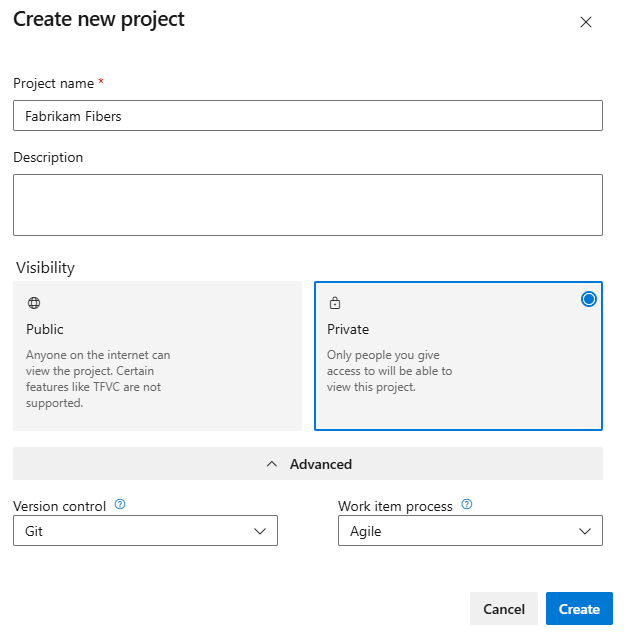 When you choose public visibility, anyone on the internet can view your project. With private visibility, only users you give access to can view your project. For more information about features and access levels for public projects, see Make a private project public. If the Public option isn't available, you need to change the policy.
 - Provide a name for your project. Your project name can't contain special characters, such as
- Select Create. Azure DevOps displays the project welcome page.
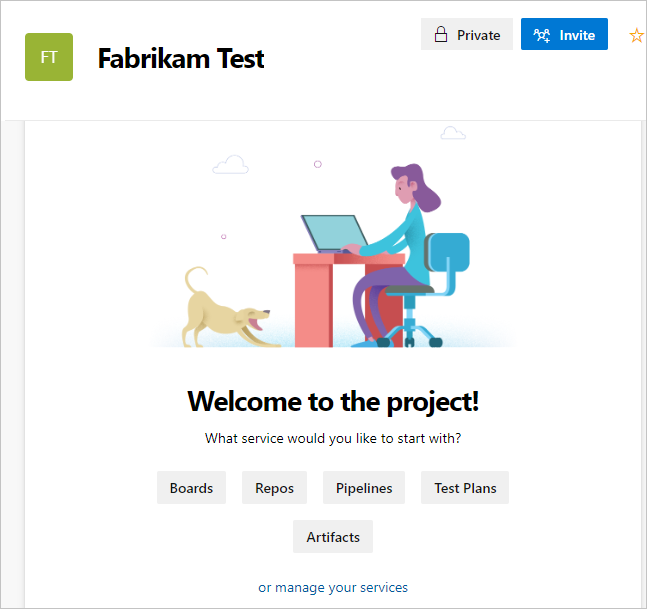 Select one of the following options to continue:
- Invite: Add others to your project. See Add users to a project or team. You can only invite users who are already in your organization. For more information, see Add users to a project.
- Boards: Add work items. See View and add work items using the Work Items page.
- Repos: Clone or import a repository or initialize a README file for your project summary page. See Clone an existing Git repo.
- Pipelines: Define a pipeline. See Azure Pipelines documentation.
- Test Plans: Define test plans and test suites. See Create test plans and test suites.
- Artifacts: Discover, install, and publish NuGet, npm, and Maven packages. See the Azure Artifacts overview.
- Manage your services: Disable the visibility of services. See Turn a service on or off.You can create up to 1,000 projects within an organization in Azure DevOps. For more information, see Work tracking, process, and project limits.
- Browser
- Team Explorer
- Azure DevOps CLI
- Sign in to your organization (
https://dev.azure.com/{Your_Organization}). - Select New project.
- Enter information into the form provided.
- Provide a name for your project. Your project name can't contain special characters, such as
/ : \ ~ & % ; @ ' " ? < > | # $ * } { , + = [ ], can't begin with an underscore, can't begin or end with a period, and must be 64 or fewer characters. - Enter an optional description.
- Choose the visibility, initial source control type, and work item process. For more information, see Choosing the right version control for your project and Choose a process.
When you choose public visibility, anyone on the internet can view your project. With private visibility, only users you give access to can view your project. For more information about features and access levels for public projects, see Make a private project public. If the Public option isn't available, you need to change the policy. - Provide a name for your project. Your project name can't contain special characters, such as
- Select Create. Azure DevOps displays the project welcome page. Select one of the following options to continue:
- Invite: Add others to your project. See Add users to a project or team. You can only invite users who are already in your organization. For more information, see Add users to a project.
- Boards: Add work items. See View and add work items using the Work Items page.
- Repos: Clone or import a repository or initialize a README file for your project summary page. See Clone an existing Git repo.
- Pipelines: Define a pipeline. See Azure Pipelines documentation.
- Test Plans: Define test plans and test suites. See Create test plans and test suites.
- Artifacts: Discover, install, and publish NuGet, npm, and Maven packages. See the Azure Artifacts overview.
- Manage your services: Disable the visibility of services. See Turn a service on or off.
If you want to switch between the public and private visibility for a project, follow https://learn.microsoft.com/en-us/azure/devops/organizations/projects/make-project-public?view=azure-devops
If the above response helps answer your question, remember to "Accept Answer" so that others in the community facing similar issues can easily find the solution. Your contribution is highly appreciated.
hth
Marcin
' cx='32' cy='32' r='32' /%3E%3Ctext x='50%25' y='55%25' dominant-baseline='middle' text-anchor='middle' fill='%23FFF' %3EDR%3C/text%3E%3C/svg%3E)
' cx='32' cy='32' r='32' /%3E%3Ctext x='50%25' y='55%25' dominant-baseline='middle' text-anchor='middle' fill='%23FFF' %3EFK%3C/text%3E%3C/svg%3E)
' cx='32' cy='32' r='32' /%3E%3Ctext x='50%25' y='55%25' dominant-baseline='middle' text-anchor='middle' fill='%23FFF' %3EA%3C/text%3E%3C/svg%3E)