Linked Excel and Powerpoint files in Sharepoint folder

Anonymous
2020-08-27T05:12:59+00:00

Hi All,

I have a powerpoint presentation where numerous tables and charts are linked back to an excel workbook. I have stored both in a sharepoint folder and updated the links in the ppt so that they point to the excel file in the same folder.

I usually open the excel file first, then the PPT and click "update links" and the PPT refreshed really quick.

However after members of my team open and update the excel file, when I follow the above process, the PPT doesn't recognise the open excel and "re-opens" the excel to update every link one at a time which takes forever.

What am I doing wrong?

Thanks

Mike

Microsoft 365 and Office | PowerPoint | For home | Windows

Locked Question. This question was migrated from the Microsoft Support Community. You can vote on whether it's helpful, but you can't add comments or replies or follow the question.

0 comments No comments
{count} votes

9 answers

Sort by: Most helpful
  1. Anonymous
    2020-08-27T11:18:15+00:00

    Hi Mike,

    Thank you for posting your query in our community.

    Based on your description, when you try to refresh the link in PowerPoint file, it will automatically open the linked file and then start refreshing.

    I tested it on my side, however, I can refresh the link without opening the linked file. Here are my steps:

    1. Create a folder under a SharePoint document library, then upload/create PowerPoint files and Excel files in it.
    2. Then sync the files via OneDrive sync client to the local so that you can access these files directly from the File Explorer.
    3. Then open the PowerPoint file from the client.
    4. Go Insert > find the Object button under Text.

    1. Select Create from file, and click Browse to select the Excel file which was synced to the File Explorer. After selecting the file, you can see the Link is available, then you can check this option. Click OK.

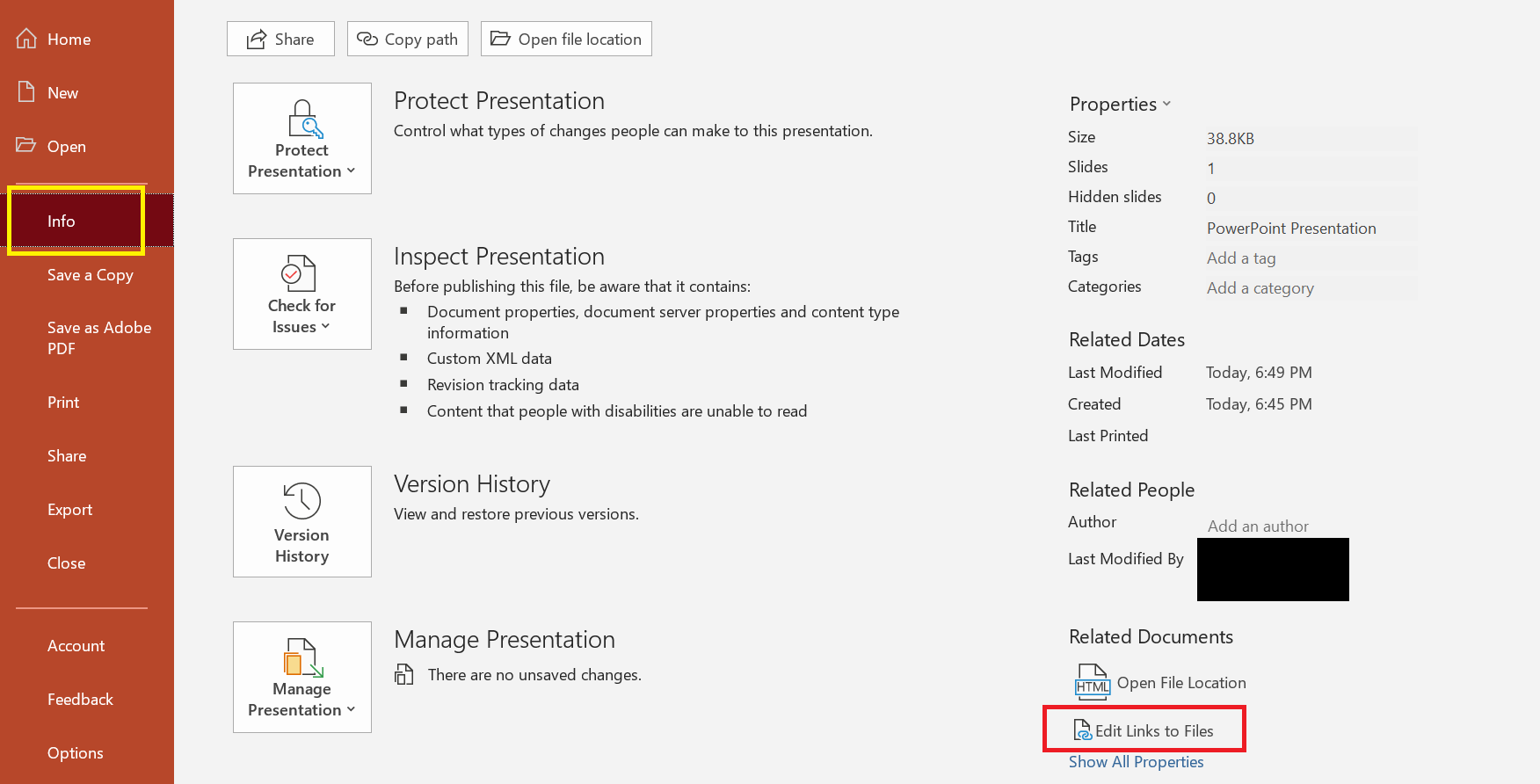
    1. Since this file is stored in the SharePoint, then it will save the changes automatically. Then go File > Info > scroll down to find and click Edit Links to Files under Related Documents section.

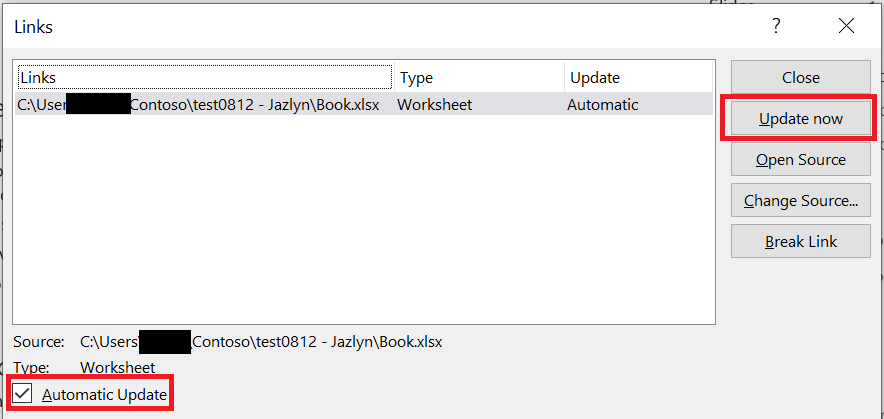
    1. A window like below will pop up. Then you can select the linked file and click Update now.

    If my steps are different from yours, could you please provide more detailed steps about how you create the link for me? So that we can test it on our side.

    Best regards,

    Jazlyn

    0 comments No comments
  2. Anonymous
    2020-08-28T03:51:24+00:00

    Thanks for the reply Jazlyn,

    I am linking charts etc from within the Excel to the Powerpoint. 

    I am already accessing the files from the Onenote sync folder under File Explorer. The steps I take are as follows to create the links are as follows:

    1. Open the Excel file from the onenote client
    2. Open the Powerpoint from the onenote client
    3. Select the required chart in excel and Copy
    4. In Powerpoint - select Paste Special->Paste Link 

    I have done this for about 100 charts and tables in my powerpoint file. When I was managing this on my desktop, I would:

    1. refresh the information in the excel file and save
    2. Open the Powerpoint with the linked information and on opening it will ask "update links". I would click Yes
    3. All the linked charts and tables would update within 2 minutes from the already opened excel file.

    When I follow the same process using the sharepoint files:

    1. I open the excel from the onenote client and refresh the data and click save
    2. I open the powerpoint from the onenote client and click Yes to "Update Links"
    3. Powerpoint then proceeds to Open another version of the Excel file to refresh each table and Chart, even though the linked Excel is already open. 
    4. Allowing this to proceed, the refresh process takes about 2 hours.

    Does this help?

    Thanks

    Mike

    0 comments No comments
  3. Anonymous
    2020-08-30T07:10:04+00:00

    Hi Mike,

    Thank you for providing the detailed steps for me.

    According to your reply, you mentioned "Onenote sync folder under File Explorer", may I confirm that it is OneDrive sync folder?

    If yes, I tested it on my side, however, the linked Excel chart will automatically updated in PowerPoint file once I changed in the Excel chart.

    Since this is also a linked data, please open PowerPoint file with the client and go File > Info > scroll down to find and click Edit Links to Files under Related Documents section to check whether the Automatic Update option is checked.


    Best regards,

    Jazlyn

    0 comments No comments
  4. Anonymous
    2020-08-31T01:49:01+00:00

    Hi Jazlyn,

    I'm not sure actually if it is a onedrive sync folder - please see attached screenshot. You can also see the excel file seems to be stuck partially sync'd - not sure how to fix this.

    0 comments No comments
  5. Anonymous
    2020-08-31T07:33:26+00:00

    Hi Mike,

    Thank you for the screenshot.

    According to the screenshot, you are using OneDrive to sync files from SharePoint to File Explorer. And it seems that the sync progress bar for this specific Excel file is stuck.

    To narrow down whether the sync issue caused the original problem, you can try the following methods:

    1. You can click a blue cloud icon on your taskbar and check whether your OneDrive is up-to-date. If not, you can try to pause the sync and then resume to see if the file can be synced successfully.
    2. If you create a new Excel file, and then linked to the PowerPoint, will the same problem happen?

    Best regards,

    Jazlyn

    0 comments No comments