Share Point. Linking Excel Object to Powerpoint.

Anonymous
2020-10-15T12:23:02+00:00

Good Afternoon :)

Does office have the functionality to open first the excel file and then powerpoint (which are both saved in company SharePoint)? So I can THEN select update links.

This is because normally (i.e files saved down locally) - its much quicker to have both files open. When 20+ objects linked in.

At the moment I can only update links without the excel file open (much slower), otherwise I get the below error. "sorry we couldnt find linked files. You might be able to re-establish...."

To clarify, I can update links, just VERY slowly as many objects are linked in.

Version: Office 265 ProPlus, Windows 10

Steps I take:

  1. Open Excel from SharePoint in desktop app
  2. Open Powerpoint from SharePoint in desktop app
  3. Select Update Links on prompt
  4. Error received

Many thanks in advance

Microsoft 365 and Office | PowerPoint | For home | Windows

Locked Question. This question was migrated from the Microsoft Support Community. You can vote on whether it's helpful, but you can't add comments or replies or follow the question.

0 comments No comments
{count} votes

7 answers

Sort by: Most helpful
  1. Anonymous
    2020-10-15T14:58:38+00:00

    Hi AndresAlf,

    Thanks for choosing Microsoft. I’ m glad to offer some help.

    Per your description, it seems that you would like to update the linked Excel file to PowerPoint in SharePoint.

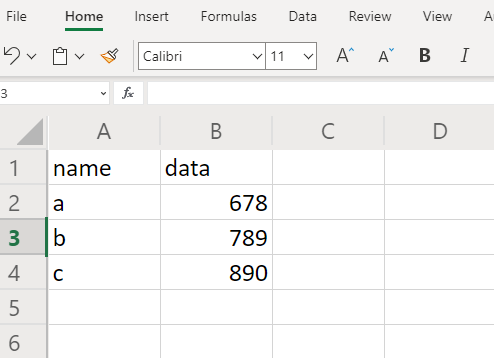
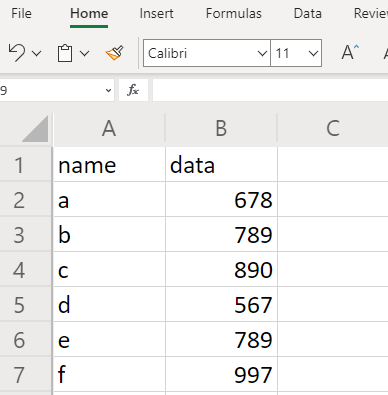
    Given this situation, if my understanding about your scenario is correct, I test it on my side, when I create a presentation and Excel workbook in SharePoint, then link the worksheet to the presentation, once I update the workbook data, the presentation can also get the update data with the link file. See the below screenshot:

    The previous workbook:
    The updated workbook:
    However, if I open both workbook and presentation in desktop app and update the data, the linked file also can automatically update.

    May I know my steps are same as yours? If not, could you please point out and how you update the links? And please capture the screenshot of the error with us, we are willing to further investigate it and test again.

    Appreciate your cooperation in advance.😊

    Best regards,

    Gloria

    0 comments No comments
  2. Anonymous
    2020-10-17T09:34:26+00:00

    Hi AndresAlf,

    May I know have you checked the above reply, if you still need other help, feel free to post back.

    Have a nice day!

    Best regards,

    Gloria

    0 comments No comments
  3. Anonymous
    2020-10-19T08:58:44+00:00

    Hi Gloria,

    Thankyou for the response :)

    Please see below steps I am taking

    Steps I take:

    1. Open Excel from SharePoint in desktop app
    2. Open Powerpoint from SharePoint in desktop app

    1. Select Update Links on prompt when PP opens
    2. Error received. Links not update.

    1. If i close excel and PP. Then only open PP, then update links in PP it works. Unfortunately it just takes ages and have to do for multiple presentations (some with 20+ links). This is unique with SP as I dont have these issues when files are local

    Andres

    [PII is masked by Gloria Li MSFT Support]

    0 comments No comments
  4. Anonymous
    2020-10-19T09:15:49+00:00

    Sorry, in case useful: screenshot of linked files in PP

    [PII is masked by Gloria Li MSFT Support]

    0 comments No comments
  5. Anonymous
    2020-10-20T07:49:39+00:00

    Hi AndresAlf,

    Thanks for your patience and sharing the screenshots here, to help protect your privacy, I help mask the private information, hope you can understand.

    Regarding to your concern, I test it again, here are my steps: open two Excel files and PowerPoint file from SharePoint online in desktop app> copy the two Excel data to the presentation via clicking Paste> Paste Special> Paste link> Microsoft Excel Object> OK> then close both Excel files and presentation> go to SharePoint again to reopen the two files in desktop app> then will get the prompt to Update Links> after updating the worksheet data, and then click Update Links, the presentation can also update the data automatically without getting the error.

    Given the test result, I think there might some differences between yours and mine, so would you mind provide more details and point out which steps are different? And whether all sites or just the specific site has the issue?

    We highly appreciate your cooperation again. 

    Best regards,

    Gloria

    1 person found this answer helpful.
    0 comments No comments