PowerPoint doesn't update linked Excel charts

Anonymous
2020-10-26T23:51:00+00:00

I am experiencing the same issue reported here:

https://answers.microsoft.com/en-us/msoffice/forum/all/powerpoint-doesnt-update-linked-charts/b807ad2e-fa85-4a34-8d2e-7cae667be190

I've found that my PowerPoint does not update linked Excel charts properly. Here's the steps I'm using.

  1. Copy a chart from a saved Excel file.
  2. Paste the chart into PowerPoint slide, choose "Keep Source Formatting & Link Data"
  3. Update the data in Excel and observe that the PowerPoint slide does not update as expected.
  4. In PowerPoint, click File > Info > Edit links to Files.  Turn on the Automatically Update checkbox and try again. Still doesn't work.
  5. After closing the file and reopening, observe two things:
    1. The charts are still not updating
    2. The "Automatically Update" checkbox selected above has been unchecked.
  6. If I right click on the chart, and choose "Edit Data", I see the correct source values in the linked Excel spreadsheet, however the chart has not been updated.  Upon closing the "Edit Data" pop up, the chart updates.  I have close to 30 linked charts in this presentation so this method is not realistic.

Has anyone seen a solution for this?

Microsoft 365 and Office | PowerPoint | For home | Windows

Locked Question. This question was migrated from the Microsoft Support Community. You can vote on whether it's helpful, but you can't add comments or replies or follow the question.

0 comments No comments
{count} votes

6 answers

Sort by: Most helpful
  1. John Korchok 224K Reputation points Volunteer Moderator
    2020-10-27T00:42:17+00:00

    As I noted in your linked post, the place to start is by repairing your copy of Office:

    1. Close all Office programs.
    2. Click on the Start button, then on Settings, then on Apps.
    3. Select Microsoft 365, the click on Modify.
    4. Choose Online Repair, then click on the Repair button.
    5. Allow the process to complete, restart your computer, then see if you can update linked Excel charts in PowerPoint.
    3 people found this answer helpful.
    0 comments No comments
  2. Anonymous
    2020-10-27T01:21:35+00:00

    Hi,

    Thank you for posting your query in our community.

    Based on your description, the linked chart in PowerPoint file will not update.

    I followed your first two steps, and then edited on the Excel chart file, the linked chart updated automatically in the PowerPoint. Please note that I opened both files during the process.

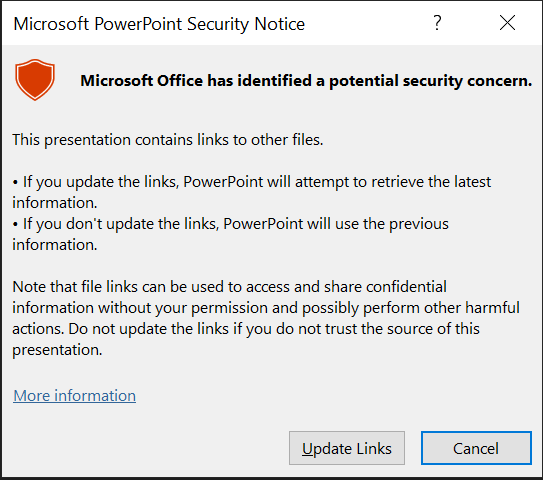
    And if I closed the PowerPoint file and edited on the Excel chart file, then re-opened the PowerPoint file, the below window will pop up, and I clicked "Update Links", then the chart will be updated.
    Since I can't reproduce the problem on our side, to help you better, could you please provide some information for me?

    1. The screenshot of your Office version(open Excel/PowerPoint> File > Account >capture a screenshot of the Product Information column).
    2. Where did you save these files(Both Excel files and PowerPoint files)?
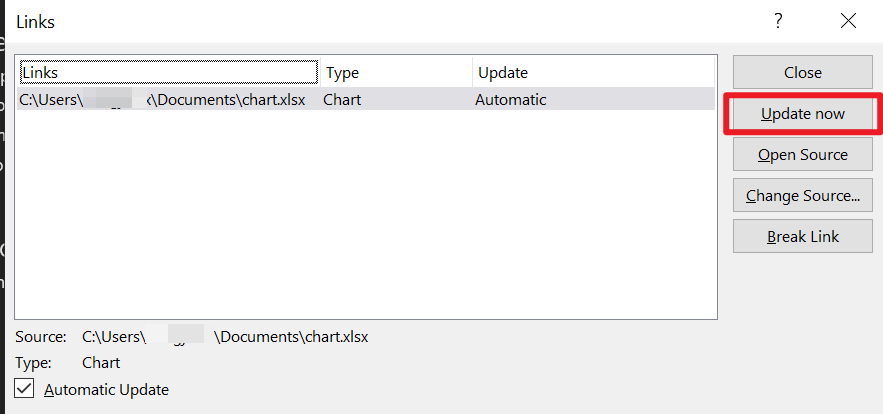
    3. If you go File > Info > Edit links to Files, select the link and click "Update now", will the charts be updated? 
    Appreciate your cooperation in advance.

    Best regards,

    Jazlyn

    4 people found this answer helpful.
    0 comments No comments
  3. Anonymous
    2020-10-29T07:59:48+00:00

    Hi,

    If you still need further support, please do not hesitate to reply to me.

    Best regards,

    Jazlyn

    0 comments No comments
  4. Anonymous
    2020-10-29T14:41:31+00:00

    Hi Jazlyn - 

    Thank you for your reply.  I appreciate your assistance.

    Here is the information you requested.

    1.  

    1. The "Target" PowerPoint file is stored on a Sharepoint Directory.  I have TWO source excel files:  One is in the same location as the Target file, the second is on my personal OneDrive.

    3.  Do the files update if I click on "Update Now"?  There has been an interesting development since I first submitted this question:

    1. SOURCE: ONEDRIVE:  The content from the source file on OneDrive has ALWAYS updated when I click "Update Now".  However, it will NOT maintain the "Automatic Update" indicator.  It always reverts to unchecked when opening the file.
    2. **SOURCE: SHAREPOINT:**The content from the source file in the same location as the target would NOT update when selecting "Update Now" (which I thought was weird since these files are co-located) until this morning!!!  When I went into PowerPoint this morning, I got a message saying that Office updates were ready for me so I installed those and voila now "Update Now" is working for this second source. Previously, the ONLY way to get the content from this second source to update was to right-click on the linked chart and choose "Edit Data" to open the source and then close it.   This source will (still) not maintain the "Automatic Update" indicator.

    I do NOT get the same "Microsoft PowerPoint Security Notice" pop up as you do when I open the file.

    It seems that I am in slightly better shape than I was when I first submitted this post.  Now at least the "update now" button works for both source files, when previously it only worked for one.  I still would like to try to understand why "Automatic Update" does not work.  As I mentioned in my original post, I have close to 30 charts that need to be updated and clicking on "Update Now" for each of them is not ideal.  

    Thank you again for your assistance!! :-)

    7 people found this answer helpful.
    0 comments No comments
  5. Anonymous
    2020-11-01T20:27:14+00:00

    Hi,

    Thank you for the detailed information.

    According to your reply, it seems that you can update these Excel charts manually now, however, the "Automatic Update" option always reverts to unchecked when opening the file for both OneDrive and SharePoint source.

    May I confirm that whether you have saved the PowerPoint and Excel file after checking the "Automatic Update" option?

    And if you create a new Excel file, and then linked to the PowerPoint, will the same problem happen?

    Best regards,

    Jazlyn

    0 comments No comments
