PowerPoint chart deleting data

Anonymous
2021-07-09T16:13:54+00:00

Took an existing PowerPoint slide with a chart, copied it. It had a single column of data, edited the data to include a second column of data. Chart updates to show both series. Save file.

Click on edit data again, and the second column of data is gone and the chart reverts to showing just a single series of data.

File is being opened and saved over a network (VPN to office). But it's not showing any errors with saving the file. The issue persists even after saving and copying the file to send to others to look at it.

Microsoft 365 and Office | PowerPoint | For home | Windows

Locked Question. This question was migrated from the Microsoft Support Community. You can vote on whether it's helpful, but you can't add comments or replies or follow the question.

0 comments No comments
{count} votes

18 answers

Sort by: Most helpful
  1. Anonymous
    2021-07-28T15:40:10+00:00

    Just wondering if there was any response since my transmission of the impacted file or video?

    0 comments No comments
  2. Anonymous
    2021-07-31T06:08:19+00:00

    Hi Luke,

    I apologize for the late reply. So, I tested on my end and still couldn’t see the same issue you highlighted in your video you sent in your private message.

    May I know if this is happening with the specific workbook? Could you please test with a new workbook to check the result?

    Besides, please confirm which method your used to link the Excel chart to PPT:

    1. In PowerPoint, using Paste>Paste Special>Paste link>Microsoft Excel Chart Object to link the chart.
    2. Paste> Keep source formatting & link data.

    Regards,

    Neha

    0 comments No comments
  3. Anonymous
    2021-08-02T20:37:18+00:00

    Hi Neha,

    This is not a linked data/chart, it's embedded. We typically don't use the linked data feature. I will upload the video as requested to show the creation of embedded chart data.

    0 comments No comments
  4. Anonymous
    2021-08-04T03:58:38+00:00

    Hi Luke,

    Thanks for the video you sent in the private message.

    So, based on the steps shown in your video, I created a new PPT with linked Excel chart (scatter chart) and then I tried editing the data point. At my end, the data points are visible when I select them and click Edit data. I have created a small GIF for your reference.
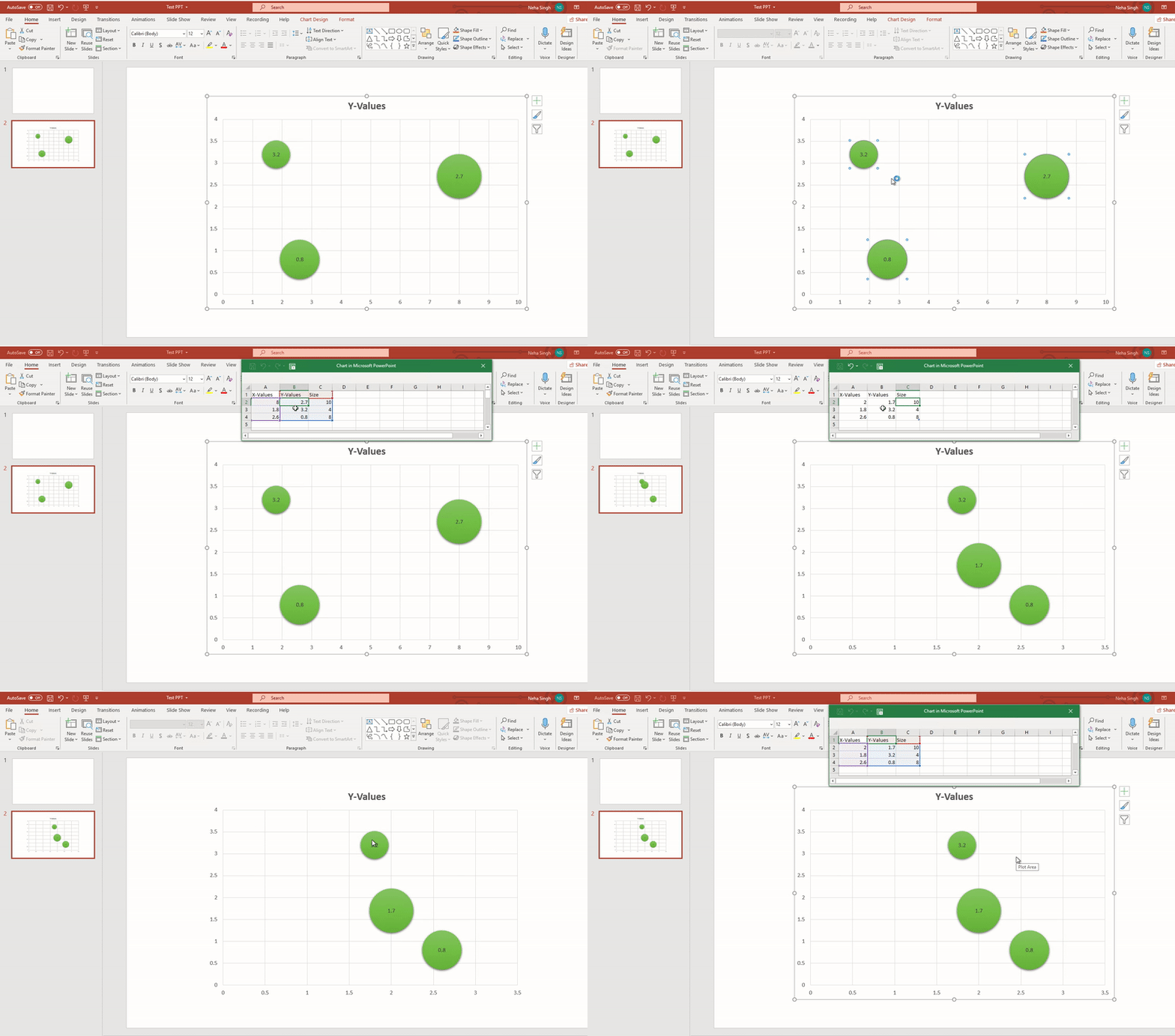
    The Office version is the latest one i.e., 2107 (Build 14228.20204) Current Channel.

    I will also send my test PPT in the private message, please check if you can see the data points when editing the chart.

    If the issue persists, I suppose the issue is with the Office installation, in this case, please repair Office apps from Control Panel instead.

    1. Click the Start button > Control Panel. From Category view, under Programs, select Uninstall a program.
    2. Click the Office product you want to repair, and then click Change and select Online Repair.

     Please try Online repair. Quick repair only detects and then replaces corrupted files, and an Online repair option will do a complete repair; it will take a few extra minutes to repair Office applications.

    Let me know the status.

    Regards,

    Neha

    0 comments No comments
  5. Anonymous
    2021-08-04T14:28:01+00:00

    Hi Neha,

    Please refer back to the original posts. The issue is data loss when editing an existing chart.

    Please test on the example I uploaded to you, to "edit" the existing chart data to see the 20+ data points, then when you click edit, the data is lost.

    Yes, creating a new chart works fine. But data loss for dozens or hundreds of data points is a huge time productivity loss.

    We've tried across several different versions - including current release, and when the files have this issue/corruption - the version doesn't matter.

    This is either a file corruption issue (that has happened accross 5-10 files??), a value handling bug, or a default value bug - please refer the bug to the appropriate teams for PPT or Excel!

    Regards,

    Luke

    0 comments No comments