Add Additional Edit Points to Elbow Connector

Anonymous
2022-06-22T22:07:36+00:00

Is there a way to add additional Edit Points to a connector shape in Microsoft PowerPoint? When I use the connector tool to connect two objects, PowerPoint will add an Edit Point in the middle if necessary. However, I don't always like the way it looks, and I would like to have the ability to add more to customize my connector shape even more. In this screenshot, I would like the connector to come out of the side, go vertical before it crosses the icon to the left, and then go horizontal above that object, and then continue vertical the way it currently is. Right now, if PowerPoint "guesses wrong" then I can only move the single vertical line left or right.

I am currently using the version for Mac.

Microsoft 365 and Office | PowerPoint | For home | MacOS

Locked Question. This question was migrated from the Microsoft Support Community. You can vote on whether it's helpful, but you can't add comments or replies or follow the question.

0 comments No comments
{count} votes
Answer accepted by question author
  1. John Korchok 224.4K Reputation points Volunteer Moderator
    2022-06-23T17:31:46+00:00

    Actually, what you want does exist, but getting it is pretty technical. You have to hack the XML of the presentation. Here's my article on doing that on a Mac: OOXML Hacking: Editing in macOS The OOXML Tools plugin for the Chrome browser is free and good enough for this job.

    Start by inserting an Elbow connector on a slide. The connector must be unattached to any shape.

    Then open the presentation in OOXML Tools and find ppt/slides/slideX.xml, where X is the number of the slide. Look for XML like this, the start of the Elbow Connector shape:

    <p:cxnSp>
    
        <p:nvCxnSpPr>
    
            <p:cNvPr id="3" name="Connector: Elbow 2">  
    

    A few lines further down is the name of the shape preset:

    <a:prstGeom prst="bentConnector3">
        <a:avLst/>
    </a:prstGeom>
    

    Change bentConnector3 to bentConnector5. In OOXML Tools, click on Save, then click on Download. Open your Chrome downloads folder, then open the revised presentation. Drag the ends of the connector to the shapes. Please note, bentConnector5 has 5 straight-line segments, while your drawing has 6. That's as good as it gets, sorry.

    Here's a screenshot of a slide showing the 2 connectors you can add in PowerPoint (bentConnector2 and bentConnector3), plus the 2 you can only add with OOXML Hacking (bentConnector4 and bentConnector5):

    Image

    5 people found this answer helpful.
    0 comments No comments

9 additional answers

Sort by: Most helpful
  1. John Korchok 224.4K Reputation points Volunteer Moderator
    2022-06-23T00:05:58+00:00

    You haven't described clearly what you want to achieve.

    I don't see how adding edit points would get you the line you want. Connectors are intended to auto-configure themselves when connected objects are moved, which would ruin any precise arrangment you had created. Instead, create the exact path you want with straight lines, then group them.

    0 comments No comments
  2. Anonymous
    2022-06-23T01:48:16+00:00

    The shapes feature is limited in many ways. This is one of them. The "Connector" type lines (6 of them) cannot be edited. Other shapes can be edited to add more "connector points.

    .

    Is this the way you want the line to go?

    .

    You can click and drag on the yellow box in the middle to move the line. But in this case when the line is connected to the side, the straight line can only be dragged behind. It doesn't move the connection point. You have to move the en points manually.

    These connectors are nice when they work, but they are a pita to make sure you actually make the connection.

    .

    As I've been playing with some shapes, and connectors the stupid line I was using kept flipping between 1 and 2 yellow adjustment handles. I have no idea why it is doing that.

    0 comments No comments
  3. Anonymous
    2022-06-23T16:24:38+00:00

    Hi John, thank you for the reply. You are correct that I don't have an understanding of what the fundamental purpose of each shape is for. Is there somewhere where Microsoft has outlined what the purpose of each shape is for, so I'm not trying to fit a round peg in a square hole.

    What I don't like about the connector is that PowerPoint gives little flexibility on how to reshape the lines. By using PowerPoint's guess, the line goes right through another object, and doesn't look great. See the screenshot:
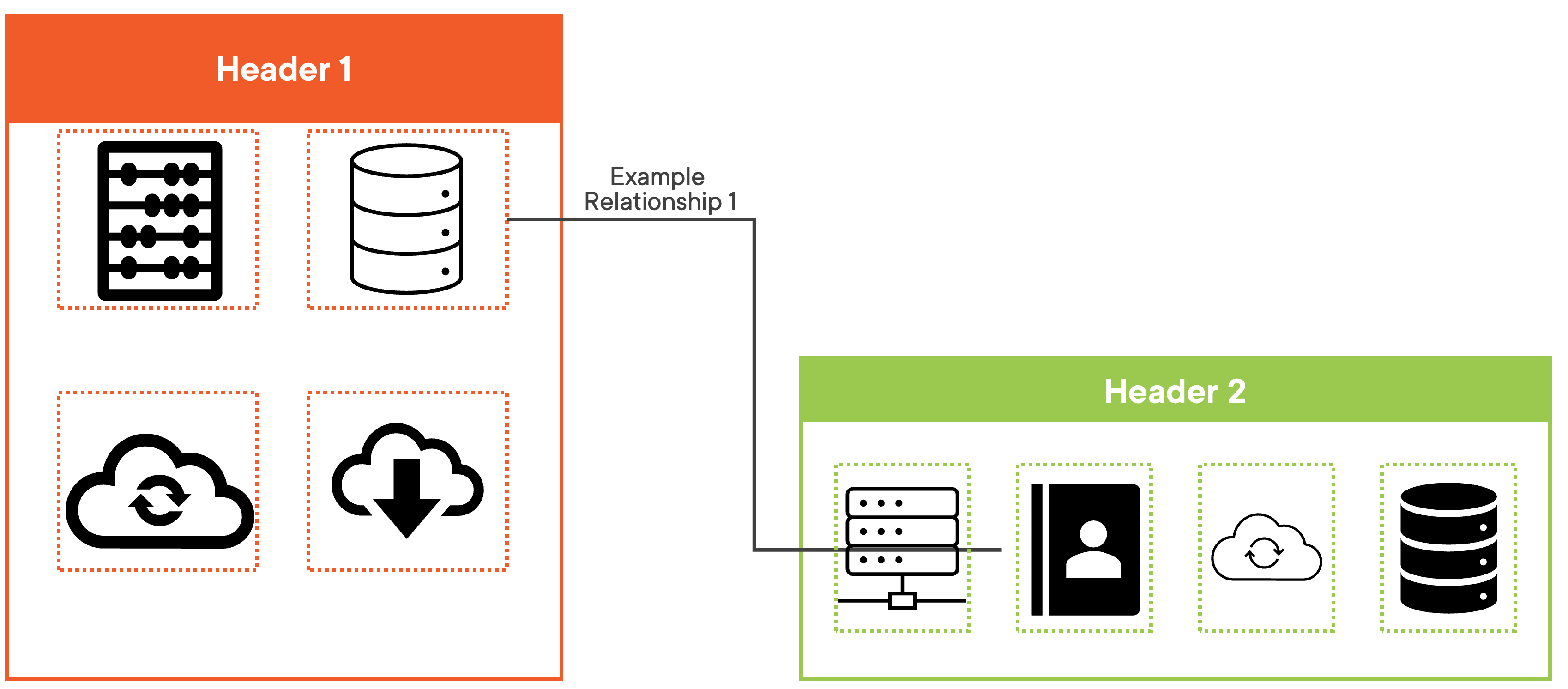
    I now understand that the connector is designed to, well, connect two objects if they are moved. I'll try to explain more clearly what I am looking for. I'd like the ability to add additional "yellow squares" to a connector line, in order for me to move it around better and utilize the white space. Such as this:
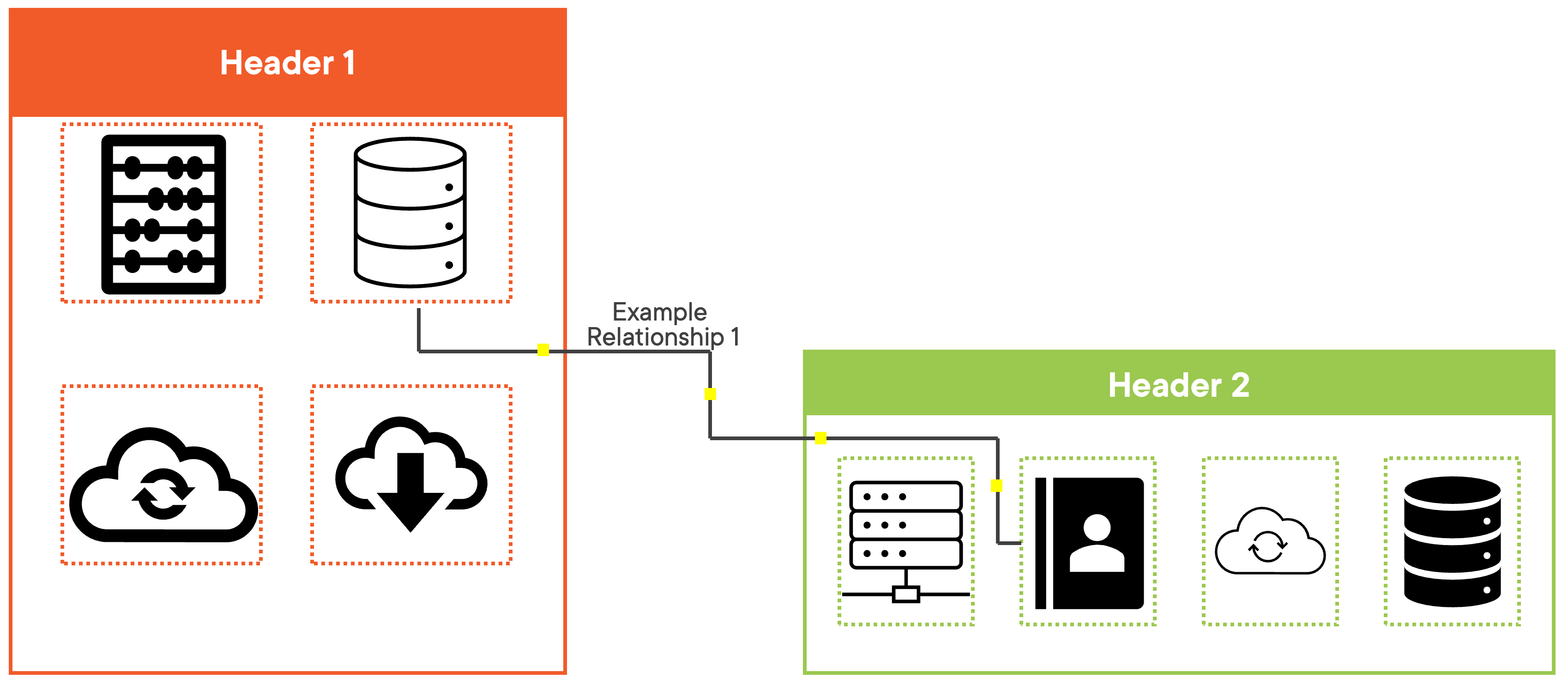
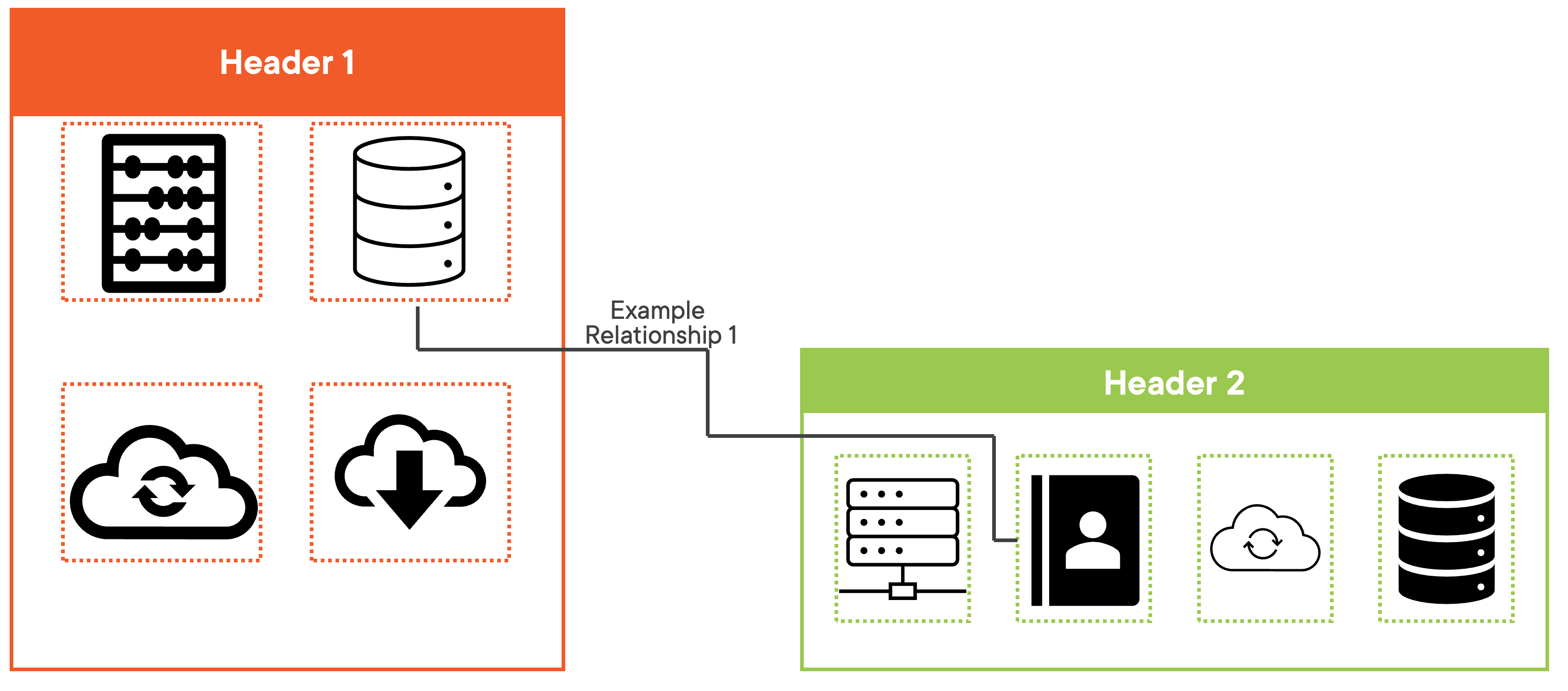
    Yes, I realize that if I were to move objects after the fact then these precise lines would change, but majority of the time, for me, I add these lines after everything is in place. But if we are comparing to the connector shape to creating lines and grouping them, if I were to move an object, I'd have to edit those lines as well. I'll get why this would be less tedious, in my opinion, in a moment. For now, I have a few complaints about adding a bunch of lines and then grouping them together. The first is that when I go into presentation mode, the lines are not connected into a perfect 90. See the below example of me not making any changes to PowerPoints automatic 'snap point', again, not looking very professional in my opinion, although it's kind of hard to see in this compressed image:
    In order to make the lines connect at a perfect 90, I have to zoom way in, and then make sure that the pixels are ending on each other exactly. This is very tedious, which leads me into my next complaint. In order to create these 5 lines, it took me 20 clicks just to create the lines, let alone getting each line to end precisely where the next line starts, and then grouping them.

    Now if I were to move an object that these lines are connecting, I would also have to change all of my lines. With what I am envisioning with the connector object, not a huge deal, just click and drag the 'yellow squares', in this use case, 5 click and drags. With using custom lines, now I have to drag each start and end point, while also making sure that each line starts precisely where the other one ends.

    Maybe I'm an extreme outlier here, but in my opinion if PowerPoint can add 10's or hundreds of "edit points" to shapes like squares, circles, etc, I don't think it would be that hard to add additional 'edit points' - maybe that isn't the correct term, which is why I'm calling them 'yellow squares' - in order to better manipulate the connector tool. I understand that PowerPoint isn't designed to replace something more sophisticated like Visio, but I don't think this is an outrageous feature.

    I guess what an answer I'm looking for in the short term is confirmation that this feature does not currently exist.

    Thanks,

    Craig

    0 comments No comments
  4. Anonymous
    2022-06-23T16:25:51+00:00

    Yeah, I think what I am wanting doesn't currently exist. I'll see if I can find how to ask for a feature request.

    0 comments No comments
