Hi @Hema,
Thank you for reaching out regarding the issue where the “Make Subtask” and “Promote Subtask” options appear greyed out in your Microsoft Planner plan.
Below is a detailed explanation of the cause and recommended steps to resolve it:
- Missing Planner Premium License (Project Plan 1):
- Subtasks are a premium feature in Planner.
- If your account does not have an active Planner Plan 1 or Project Plan 1 license, the subtask options will be disabled.
- This is the most common reason for the issue you’re experiencing.
- Task Count Is Not the Problem:
- Your plan’s 1,340 tasks are well below the limits (Premium plans support up to 3,000 tasks).
- Therefore, task volume is not causing the subtask feature to be disabled.
- Filter Bug in Planner UI:
- If filters are applied (e.g., showing only tasks assigned to you), the subtask buttons may be disabled.
- Clearing filters has resolved this issue for other users.
Recommended Steps
- Verify Your License:
- Check if your account has a valid Planner Plan 1 / Project Plan 1 license.
- If not, please contact your IT administrator to assign the appropriate license.
- Project Plan 3 or higher also works, but Plan 1 is the most cost-effective option for enabling subtasks.
- Sign Out and Back In:
- After the license is updated, sign out and back into Planner or Teams to refresh your permissions.
- Reopen the plan and check if the subtask buttons are now active.
- Confirm Plan Type:
- Since your plan originated from Project for the Web, it is classified as a Premium plan.
- If you see fields like “Start date,” “Finish date,” or “Duration,” that confirms it.
- The presence of greyed-out subtask buttons also indicates a premium plan.
- Remove Any Filters:
- Go to Group by → Plan to view the full task list.
- Ensure no filters or keyword searches are active.
- Try clearing any filters and check if the subtask options become available.
- Use Supported Interfaces:
- Use Planner Web App (planner.microsoft.com) or Microsoft Teams (Planner app).
- Avoid using the mobile app or outdated links that may not support premium features.
- Check with Team Members:
- Ask if other members of the plan can use subtasks.
- If they can and have the correct license, the issue is likely with your account.
- If no one can use subtasks, there may be a broader issue with the plan setup.
- Consult Your Admin:
- If the issue persists, ask your admin to review Planner settings and confirm that premium features are enabled.
- Admins can also open the plan using the Planner Power App to check for anomalies.
If you have any updates regarding the issue, feel free to share them with me. In case you have any further questions or concerns, don’t hesitate to reach out — I’ll be here to support you.
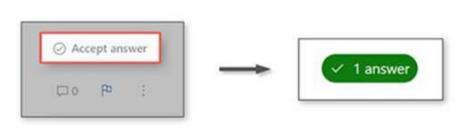
If the answer is helpful, please click "Accept Answer" and kindly upvote it. If you have extra questions about this answer, please click "Comment".
Note: Please follow the steps in our documentation to enable e-mail notifications if you want to receive the related email notification for this thread.
' cx='32' cy='32' r='32' /%3E%3Ctext x='50%25' y='55%25' dominant-baseline='middle' text-anchor='middle' fill='%23FFF' %3EH%3C/text%3E%3C/svg%3E)

' cx='32' cy='32' r='32' /%3E%3Ctext x='50%25' y='55%25' dominant-baseline='middle' text-anchor='middle' fill='%23FFF' %3ERN%3C/text%3E%3C/svg%3E)