Dear @Stephanie S,
Welcome to Microsoft Q&A Forum!
Based on your description, I ran the same test on my MacBook and saw the identical “Formatting Error, please provide a valid value” when trying to set a slide to 7296 pixels × 1080 pixels (~76 inches x 11.25 inches).
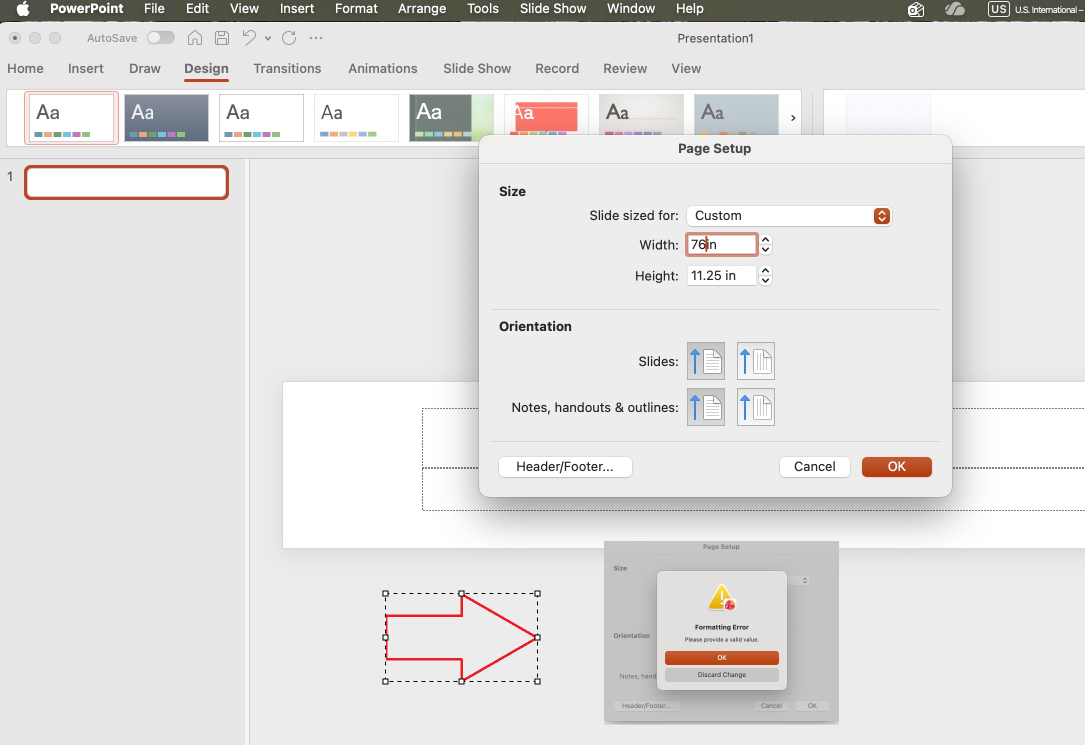
This is because PowerPoint has a hard limit: no custom slide dimension can exceed 56 inches on either edge. When you enter a size in pixels, PowerPoint converts those pixels to inches behind the scenes; your requested width becomes greater than 56 inches, so PowerPoint rejects it. Microsoft documents this limit here: Change the size of your PowerPoint slides
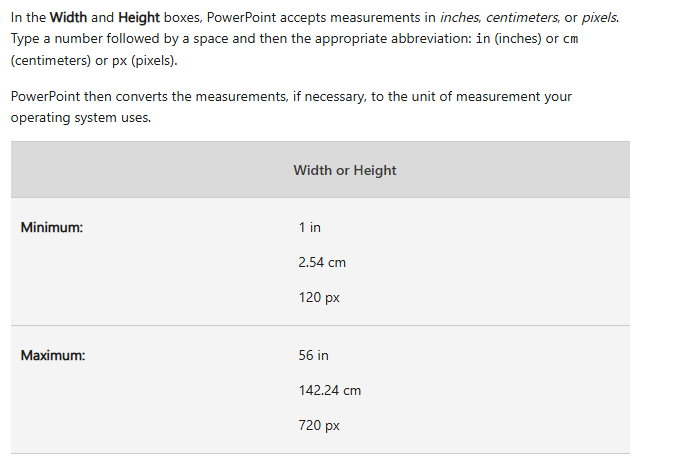
Therefore, the workaround that you can consider using design at a scaled‑downsize, then export to PDF and scale to final. This keeps your exact ultra‑wide aspect ratio while staying within PowerPoint’s limits. It’s the approach I recommend and use:
1.Set a custom slide size that preserves the 7296 × 1080 ratio:
- The aspect ratio is ~ 6.756 : 1.
- Use 56 inches x 8.29 inches (because 56 : 6.756 ~ 8.29).
- In MacOS: go to Design >Slide Size > Page Setup > Custom, enter Width = 56 in, Height = 8.29 in; confirm the scaling prompt. Reference for the 56 inches maximum is in the Microsoft Support article above.
2.Design normally at that size:
- Use vector shapes and text wherever possible.
- For images, aim for an effective resolution > or = 130 ppi at 56 inches width (because 7296 pixels : 56 inches ~ 130 ppi). That ensures they stay crisp when the PDF is scaled to your final size.
3.Export to high‑quality PDF:
- macOS: File > Export (or Save As) > choose PDF format > Export.
- PDFs preserve layout and vector fidelity; the slide size limit doesn’t apply to the printer/player that consumes the PDF.
4.Scale the PDF to the final output size:
- For print/signage vendors: Send the PDF and specify the final physical dimensions you need. They will scale the PDF proportionally during RIP/print (e.g., if your final width should be ~101.33 inches, they’ll apply a scale factor of 101.33 : 56 ~ 1.81×).
- For digital signage/screens: If the user needs an image, convert the PDF to an image at the exact target pixel resolution (e.g., 7296 × 1080 pixels). Most signage tools let you set the output width in pixels; the height will follow automatically to maintain the aspect ratio.
Additionally, I found an idea that you may design the slides in another application that supports larger dimensions and then:
- Export the design as a high-resolution image (PNG/JPEG) or PDF.
- Insert that image or PDF into PowerPoint if you need to combine it with other content or deliver in a PowerPoint format.
However, you should keep in mind:
- Once imported into PowerPoint, the slide itself will still be constrained by the 56-inch limit, so you won’t be able to edit the layout at full size inside PowerPoint.
- This approach is best if the design is finalized and you only need PowerPoint for packaging or presentation.
I hope this information can help you to understand the limit of slide in PowerPoint. Wish you a pleasant day!
If the answer is helpful, please click "Accept Answer" and kindly upvote it. If you have extra questions about this answer, please click "Comment".
Note: Please follow the steps in our documentation to enable e-mail notifications if you want to receive the related email notification for this thread.
' cx='32' cy='32' r='32' /%3E%3Ctext x='50%25' y='55%25' dominant-baseline='middle' text-anchor='middle' fill='%23FFF' %3ESS%3C/text%3E%3C/svg%3E)


' cx='32' cy='32' r='32' /%3E%3Ctext x='50%25' y='55%25' dominant-baseline='middle' text-anchor='middle' fill='%23FFF' %3EA%3C/text%3E%3C/svg%3E)