Dear Aguirre, Katelyn
Welcome, and thank you for sharing your issue in the Q&A forum!
Based on the information you provided, I understand you’re having trouble starting a voice recording in PowerPoint and redoing it if you’re not satisfied with the first take. In PowerPoint, this is related to the Record Slide Show or Insert Audio features.
On Mac, you need to grant PowerPoint permission to access the microphone (and camera if you plan to record video). To do this:
- Go to System Settings >> Privacy & Security >> Microphone.
- Make sure PowerPoint is enabled. If you’re recording video, also check Camera and enable PowerPoint there.
Without these permissions, the recording feature won’t work properly.
There are two common ways to record audio:
1.Record audio directly on a single slide
- Open the slide where you want to add audio.
- Go to Insert >> Audio >> Record Audio.
- Name the file and click Record to start recording.
- Click Stop when finished, then OK to insert the audio into the slide.
- If you’re not happy with the recording:
- Delete the audio you just inserted. Repeat the recording steps.
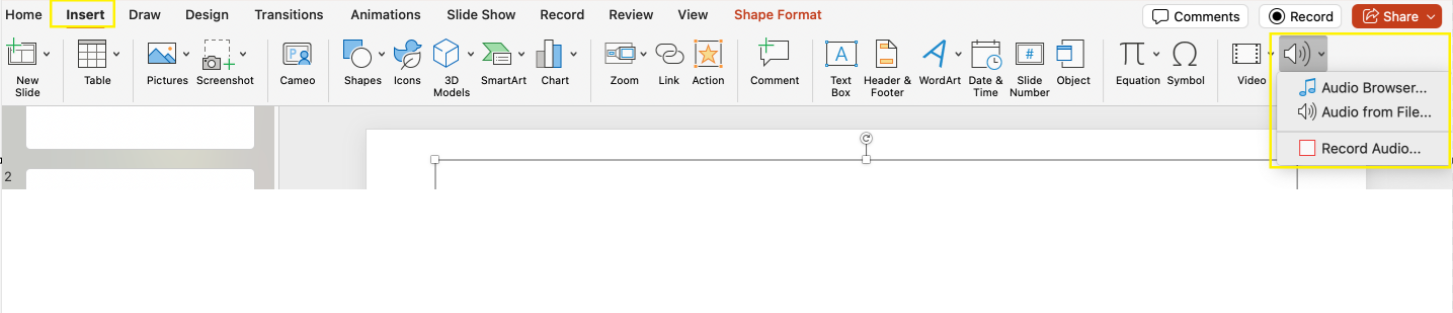
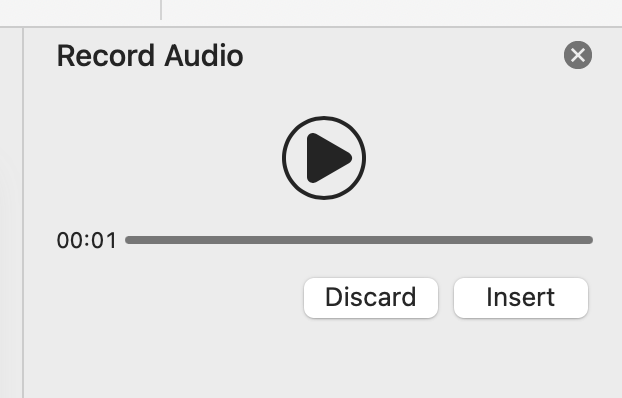
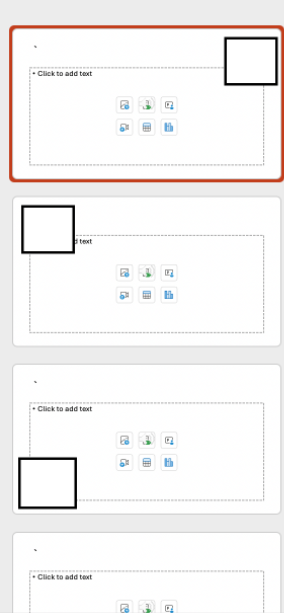
2.Record the entire presentation (including slide transitions)
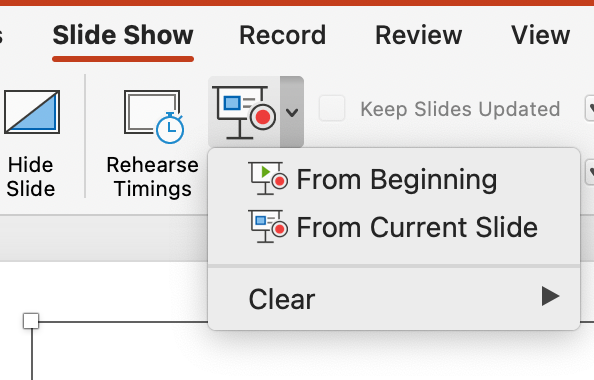
- Go to Slide Show >> Record Slide Show.
- Choose Record from Beginning or Record from Current Slide.
- When the recording interface opens:
- Click the Record button (red circle) to start. Speak and advance through the slides as you normally would.
- When finished, click Stop and then Close.
If you’re not satisfied:
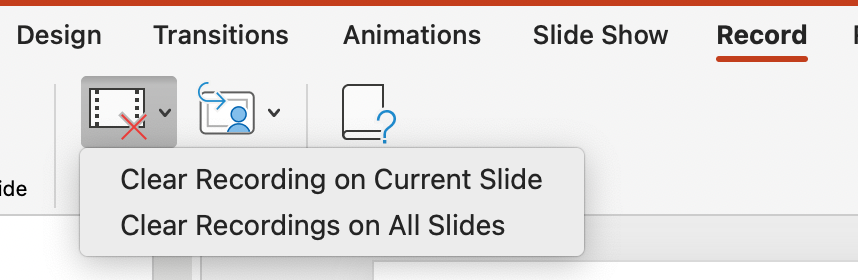
- Go back to Record Slide Show and select Clear >> Clear Recordings on Current Slide or Clear Recordings on All Slides. Re-record from the beginning or from the desired slide.
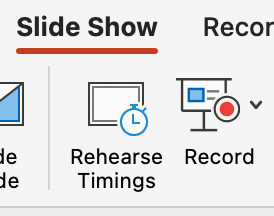
After recording, you can review your work by running Slide Show.
If you want to export the presentation as a video with your voiceover, go to File >> Export >> Create a Video.
Please try these steps, and if you run into any issues, feel free to share, I’m always ready to help!
If the answer is helpful, please click "Accept Answer" and kindly upvote it. If you have extra questions about this answer, please click "Comment".
Note: Please follow the steps in our documentation to enable e-mail notifications if you want to receive the related email notification for this thread.
' cx='32' cy='32' r='32' /%3E%3Ctext x='50%25' y='55%25' dominant-baseline='middle' text-anchor='middle' fill='%23FFF' %3EAK%3C/text%3E%3C/svg%3E)


' cx='32' cy='32' r='32' /%3E%3Ctext x='50%25' y='55%25' dominant-baseline='middle' text-anchor='middle' fill='%23FFF' %3ETN%3C/text%3E%3C/svg%3E)