Hi @Eddie Ascencio
Thank you for posting your question in the Q&A Forum.
I understand it can be frustrating when your delayed emails are sent right away instead of at the time you scheduled. Here’s a step that might help you have your email sent at the time you prefer:
Delay a single email
- Open a new email and compose your message as usual.
- Click the Options tab in the ribbon.
- In the More Options section (sometimes shown as three dots), select Delay Delivery.
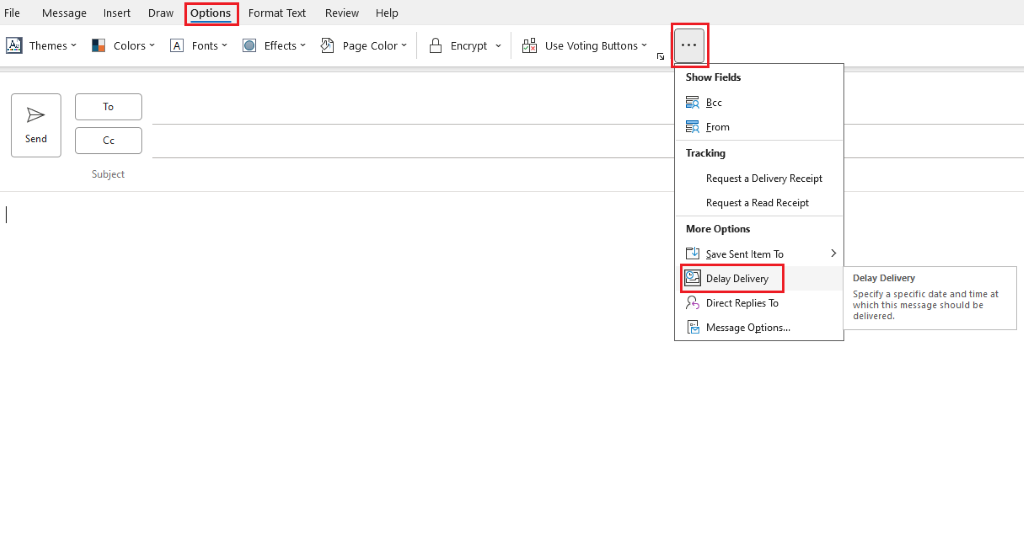
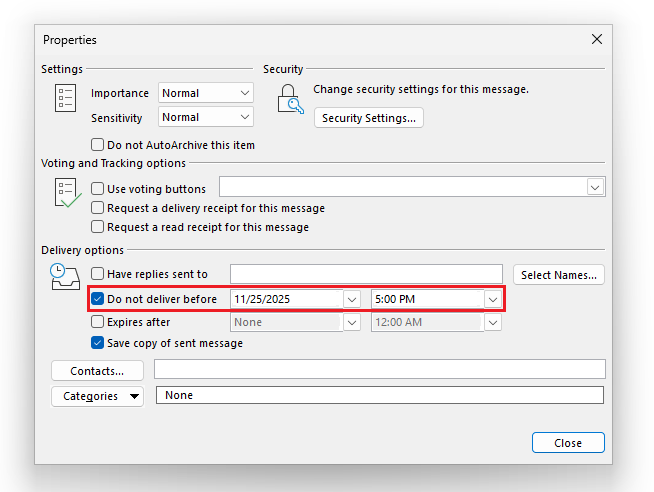
- In the Properties box, tick Do not deliver before and choose the date and time you want the email to be sent.
- Click Close on the Properties box, then click the regular Send button on your email.
Note: The scheduled email will stay in your Outbox until the delivery time. While in the Outbox, you can edit or delete it if needed. Make sure Outlook remains open until the scheduled time. Closing and reopening the draft before sending can refresh the delayed delivery setting.
Schedule email sending and receiving
If you want Outlook to send and receive emails automatically at regular intervals:
- Go to File > Options > Advanced.
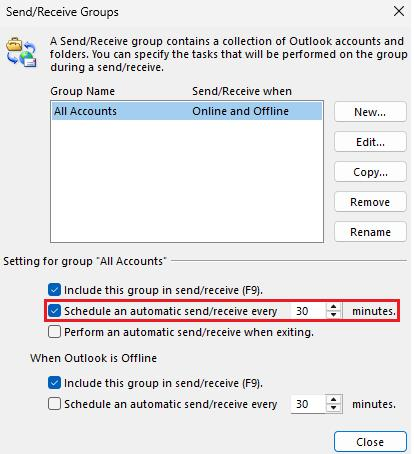
- In the Send and Receive section, click the Send/Receive… button.
- In the dialog window that appears, select the Schedule an automatic send/receive every … minutes option and enter the number of minutes in the box.
- Click Close > OK.
Note: Automatic send/receive applies to both incoming and outgoing emails, whereas a Delay Delivery rule only affects outgoing messages and keeps them in the Outbox for the specified time. You can still manually send or receive emails at any time using F9 or the Send/Receive All Folders button.
I hope this helps you send your emails at the time you need. If you have any questions, please feel free to reach out and I’ll be happy to assist.
If the answer is helpful, please click "Accept Answer" and kindly upvote it. If you have extra questions about this answer, please click "Comment".
Note: Please follow the steps in our documentation to enable e-mail notifications if you want to receive the related email notification for this thread.
' cx='32' cy='32' r='32' /%3E%3Ctext x='50%25' y='55%25' dominant-baseline='middle' text-anchor='middle' fill='%23FFF' %3EEA%3C/text%3E%3C/svg%3E)


' cx='32' cy='32' r='32' /%3E%3Ctext x='50%25' y='55%25' dominant-baseline='middle' text-anchor='middle' fill='%23FFF' %3EJT%3C/text%3E%3C/svg%3E)
' cx='32' cy='32' r='32' /%3E%3Ctext x='50%25' y='55%25' dominant-baseline='middle' text-anchor='middle' fill='%23FFF' %3EJ%3C/text%3E%3C/svg%3E)