How to apply a specific formatting to multiple groups

Robert Marteau 0 Reputation points
2025-12-01T09:04:49.63+00:00

Hi,

I'm have a slide with multiple (12) rectangles. When I click on it in the presentation, it toggles (animation > Appear --> Disappear) a pane with more info on the specific item clicked.

These "panes" are groups of elements (shapes and linked cells from excel file) and all these elements are the same across all panes (except for the content of the excel cells linked...)

Since there are 12 of these panes and they all have the same structure, I'd like to be able to modify them (size, font, alignment, colors,...) all at the same time...

Is there a way to do this in PowerPoint?

Microsoft 365 and Office | PowerPoint | For business | Windows
0 comments No comments
{count} votes

2 answers

Sort by: Most helpful
  1. Q&A Assist
    2025-12-01T09:05:03.85+00:00
    AI generated content. This question contains an answer created with AI from Q&A Assist. Learn more

    To apply specific formatting to multiple groups of shapes in PowerPoint, you can use the Group method to group the shapes together and then modify the properties of the grouped shape. This allows you to change the size, font, alignment, colors, and other formatting properties for all shapes in the group simultaneously.

    Here’s a general approach:

    1. Group the Shapes: Select all the shapes you want to group together. You can do this by holding down the Shift key and clicking on each shape. Then, right-click and choose Group from the context menu.
    2. Modify the Group: Once the shapes are grouped, you can modify the properties of the group. For example, you can change the fill color, line style, or text formatting of the entire group at once.
    3. Using VBA or JavaScript API: If you are comfortable with coding, you can also use VBA or the PowerPoint JavaScript API to automate the process of applying formatting to multiple groups. You can loop through the shapes and apply the desired formatting programmatically.

    This way, you will be able to maintain consistency across all your panes and make updates more efficiently.


    References:

    0 comments No comments

  2. Vicky-I 6,210 Reputation points Microsoft External Staff Moderator
    2025-12-01T11:31:58.3466667+00:00

    Hi @Robert Marteau,

    Thank you for posting your question on Q&A Forum!

    Firstly, let me clarify some information: PowerPoint does not have a “master component” feature like design tools where editing one instance updates all others. Each of your 12 panes is an independent group that contains Shapes + Linked Excel Objects + Animations. This creates some technical constraints:

    • Ungrouping is not an option because it will break the Appear/Disappear animations.
    • Linked Excel objects pull their formatting from the source Excel file, not from PowerPoint.

    For alternative workaround, you can try:

    1. Use the Selection Pane (Best for Shapes and Fonts)

    • Go to Home > Editing > Select > Selection Pane. User's image
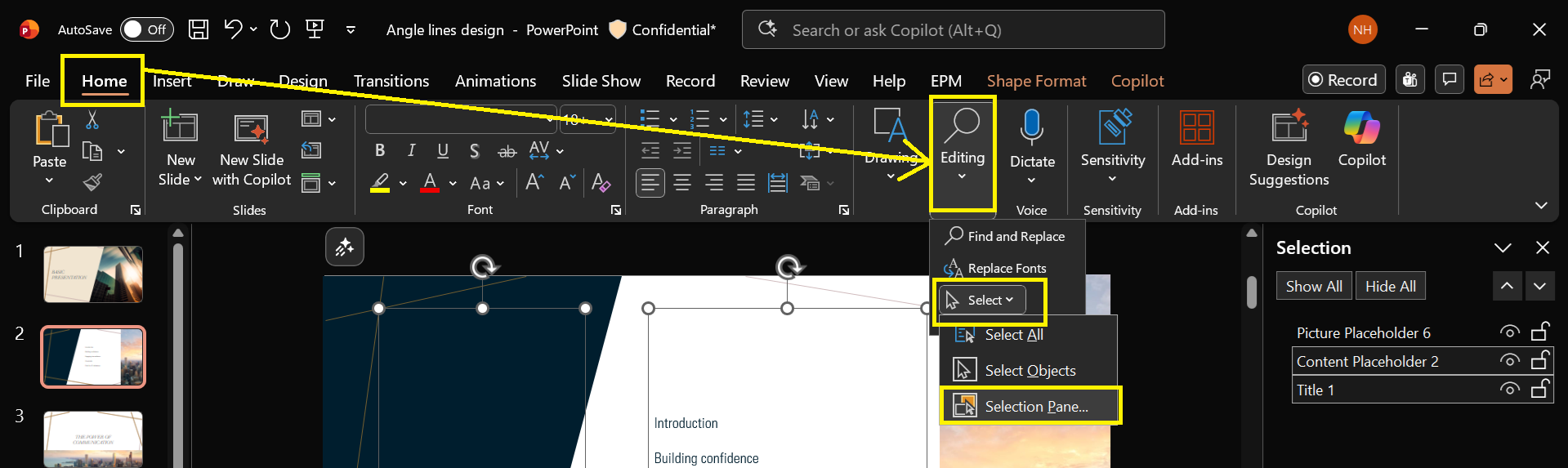
    • In the pane, select all 12 groups by name (hold Ctrl to multi-select).
    • Apply changes like Font, Shape Fill, or Outline from the ribbon.
    • This updates the shapes inside each group without breaking animations.

    2. Handle Linked Excel Cells Separately

    • PowerPoint cannot override font or color for linked Excel objects.
    • Open the original Excel file, adjust fonts/colors, save it.
    • In PowerPoint, right-click the linked object and choose Update Link.

    3. Use Format Painter for Visual Consistency

    • Format one group perfectly.
    • Select it, double-click the Format Painter icon (paintbrush).
    • Click on the other 11 groups one by one to apply the same style.

    Reference: Use the Selection pane to manage objects in documents

    We appreciate your kind patience and understanding that sometimes the initial response may not immediately resolve the issue or there may be some misunderstandings about your scenario, but we would love to hear updates from you and find out further suggestions.

    Best Regards.


    If the answer is helpful, please click "Accept Answer" and kindly upvote it. If you have extra questions about this answer, please click "Comment". 

    Note: Please follow the steps in our documentation to enable e-mail notifications if you want to receive the related email notification for this thread. 


Your answer

Answers can be marked as 'Accepted' by the question author and 'Recommended' by moderators, which helps users know the answer solved the author's problem.