how do I set a default theme in powerpoint

Scott Wilson 0 Reputation points
2025-12-06T18:53:27.0033333+00:00

How do I set a default theme in poweroint using windows 11. When I I ctrl+click, on a theme in the design window I do not get an option to set as default.

Microsoft 365 and Office | PowerPoint | For business | Windows
0 comments No comments
{count} votes

3 answers

Sort by: Most helpful
  1. Q&A Assist
    2025-12-06T18:53:41.4166667+00:00
    AI generated content. This question contains an answer created with AI from Q&A Assist. Learn more

    To set a default theme in PowerPoint, you need to create and save a default theme template. Here are the steps to do this:

    1. Open PowerPoint and start a new presentation.
    2. Go to the Design tab and choose a theme that you want to set as the default.
    3. Customize the theme as needed (fonts, colors, effects).
    4. Once you have your desired theme, go to File > Save As.
    5. In the file type dropdown, select PowerPoint Template (*.potx). This will change the folder location to Custom Office Templates.
    6. Click on More options to open the file dialog box. Replace the file path with *%Appdata%\Microsoft\Templates* and press Enter.
    7. In the Templates folder, navigate to the Document Themes folder. If a file named Default Theme.potx exists, you can back it up by copying it.
    8. Save your customized theme as Default Theme.potx in this folder. If prompted, choose to overwrite the existing file.
    9. Close PowerPoint and then open it again. Your default template will now be available as an option when you create a new presentation.

    If you are not seeing the option to set a theme as default by ctrl+clicking, this method will allow you to set a default theme manually.


    References:

    0 comments No comments

  2. John Korchok 223.5K Reputation points Volunteer Moderator
    2025-12-06T19:32:14.3933333+00:00

    The bot has given you the steps to set a template as the default. If you prefer to use a Theme file instead of a template, you can follow the same sequences of steps and locations, but rename the theme Default Theme.thmx.

    0 comments No comments

  3. Jade Ng 6,150 Reputation points Microsoft External Staff Moderator
    2025-12-07T04:22:43.9533333+00:00

    Dear @Scott Wilson,

    Good day. Thank you for posting your question in the Microsoft Q&A forum!

    If you haven't already, create and apply the theme that you want to set as the default.

    For more information about creating a theme, see Create your own theme in PowerPoint.

    Note: You must save a presentation before you can set the theme as the default.

    • On the Design tab, select the arrow under Themes.
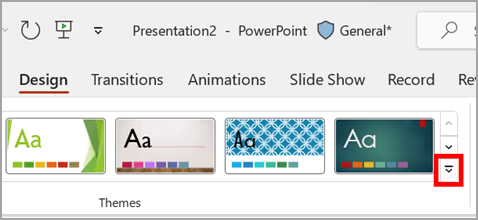
    The drop-down arrow on the Themes section of the Design tab in PowerPoint.

    • Point to the theme you want to set as default, right-click it, and select Set as Default.
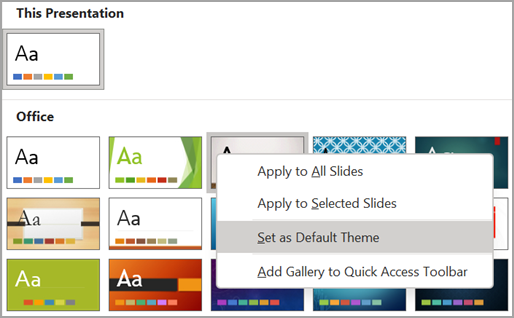
    Selecting a default theme in Microsoft PowerPoint.

    • The next time that you open a new presentation, it will open with the theme that you set as the default.

    For reference: Set a default theme for your presentations

    These are the steps to set the default theme. However, based on your description, it seems you do not see this option. Please try the method I provided above first. If the option to set as default is still not available, kindly attach a screenshot of the issue you are encountering so that I can assist you more effectively.

    Note: Please note that our initial response does not always resolve the issue immediately. However, with your help and more detailed information, we can work together to find a solution.   

    Your understanding and co-operation are highly appreciated. I am looking forward to your response!


    If the answer is helpful, please click "Accept Answer" and kindly upvote it. If you have extra questions about this answer, please click "Comment".   

    Note: Please follow the steps in our documentation to enable e-mail notifications if you want to receive the related email notification for this thread.


Your answer

Answers can be marked as 'Accepted' by the question author and 'Recommended' by moderators, which helps users know the answer solved the author's problem.
