Hi @Amber,
Welcome to the Microsoft Q&A forum.
Thank you for contacting us. I truly appreciate you taking the time to reach out and share your feedback regarding the Project installation issue.
The behavior you’re experiencing typically occurs when the device is not running Windows (Project Online Desktop Client is only supported on Windows 10/11 PCs), your account lacks the required Project Plan 3 license or enabled service, or your organization restricts direct installation and deploys via tools like ODT, Intune, or SCCM.
For more details, you can review this Microsoft's article: Install Project - Microsoft Support
Here are my recommendations, which I hope will be helpful to you:
1/ Confirm your device
- Please ensure you are using Windows 10/11 and have local admin rights to install software.
- Note: If you are accessing from a Mac or another device, the installation option will not appear, and you will only see the message:
“You can only install Project Pro for Office 365 on a PC.”
2/ Check your license
Contact your IT department to confirm that your account has Project Plan 3 assigned and the Project Online Desktop Client service enabled:
- Go to Microsoft 365 Admin Center → Users → Active Users.
- Select the user’s account.
- Under Licenses and Apps, confirm that Project Plan 3 is assigned.
-
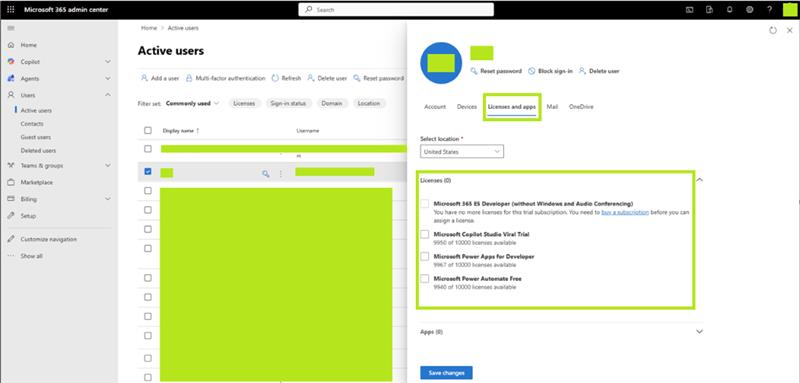
- In the same Licenses and Apps section, expand the Project Plan 3 license.
- Ensure the checkbox for Project Online Desktop Client is turned ON.
- If it’s OFF, enable it and save changes.
Changes may take a few minutes to propagate. After that, the user should log out and log back in at office.com.
3/ Try installing from the portal (if allowed)
- Sign in at office.com.
- Go to Apps → Install apps → Microsoft 365 apps.
- In the installation window, select Project to download and install.
Note: If you don’t see the Project app listed, you need to contact your admin to verify your license assignment.
4/ If your organization uses centralized deployment
IT will use the Office Deployment Tool to install Project for you. Please reach out to your IT team for assistance.
Note: Microsoft has announced that Project Online will be retired in September 2026. Click here to learn more about Transitioning to Microsoft Planner and retiring Microsoft Project for the web | Microsoft Community…
5/ Contact Microsoft Support
If the issue persists even after these steps, it may stem from a deeper system-level cause. In this case, I recommend contacting your organization's IT administrator, who can submit a support request to Microsoft through the Microsoft 365 Admin Center. They’ll be able to access system-level information to investigate the issue thoroughly and provide assistance. At the very least, they can offer the most effective workaround to ensure your experience remains smooth and secure.
We kindly ask for your understanding that, as moderators, we do not have access to the administrative tools or permissions required to investigate or modify these configurations. We also do not have the capability to initiate remote sessions for direct assistance. Our role is to guide users to the appropriate resources and support channels.
I hope this information is helpful. Please follow these steps and let me know if it works for you. If not, feel free to share them in the comments on this post so I can continue to assist you.
I look forward to hearing your thoughts on this.
If the answer is helpful, please click "Accept Answer" and kindly upvote it. If you have any extra questions about this answer, please click "Comment".
Note: Follow the steps in our documentation to enable email notifications if you want to receive email notifications related to this topic.
' cx='32' cy='32' r='32' /%3E%3Ctext x='50%25' y='55%25' dominant-baseline='middle' text-anchor='middle' fill='%23FFF' %3EA%3C/text%3E%3C/svg%3E)

' cx='32' cy='32' r='32' /%3E%3Ctext x='50%25' y='55%25' dominant-baseline='middle' text-anchor='middle' fill='%23FFF' %3ECD%3C/text%3E%3C/svg%3E)