Hi @Bush, Judy,
Welcome to Microsoft Q&A forum.
Thank you for bringing this to our attention. I understand how inconvenient it can be when emails remain stuck in the Outbox instead of being sent.
Sometimes emails get stuck in the Outbox for a few simple reasons. It could be that Outlook isn’t connected to the internet or the connection is unstable. Large attachments can also slow things down or even stop the email from sending. In some cases, extra add-ins or a problem with your Outlook setup can interfere, and occasionally, issues with your account - like incorrect login details or syncing problems - can prevent messages from going out.
Here are suggestions you can try to help you get your messages moving again:
- Check your internet connection
Sometimes, emails get stuck in the Outbox if there's no stable internet connection. Outlook may be unable to send the message if it cannot reach the mail server.
- Ensure you're connected to the internet.
- Try opening a webpage in your browser to test the connection.
- Update Outlook
- Check for updates by going to File > Office Account > Update Options > Update Now.
- Disable Add-Ins
Third-party add-ins in Outlook can sometimes disrupt its core functions, such as sending emails. These conflicts may cause messages to remain stuck in the Outbox.
- To disable add-ins, navigate to File > Options > Add-Ins. At the bottom of the window, select COM Add-ins and click Go.
Uncheck any add-ins you suspect might be causing problems, particularly those related to email handling or network connectivity.
Restart Outlook without these add-ins and try sending your email again.
- Repair and reset Outlook
Open Windows Settings → Apps → Installed apps, search for Outlook, then select Repair, and afterward choose Reset.
- Clear Outlook cache
Close the Outlook app.
Press the Windows + R keys simultaneously to open the Run dialog box.
Type the following path into the Run box and press Enter: %localappdata%\Microsoft\Outlook\RoamCache
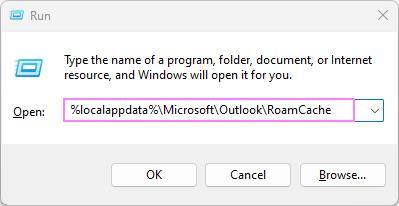
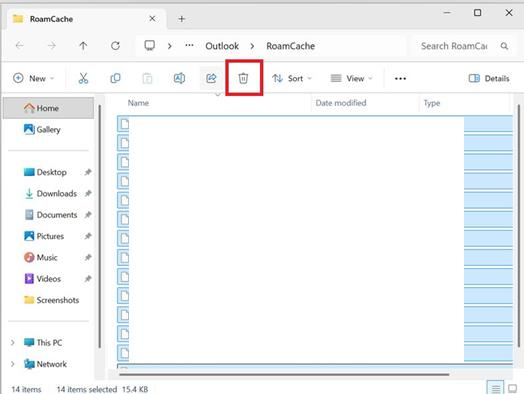
This will open the RoamCache folder containing the cache files associated with your Outlook profile. Usually, it's located at: C:\Users{User name}\AppData\Local\Microsoft\Outlook\RoamCache
Click anywhere within the folder, press Ctrl + A to select all files, and then press the Delete key to remove them. Alternatively, you can right-click the selection and choose the Delete option from the context menu.
- Contact IT admin
- If the problem persists, I recommend contacting your IT administrator for further assistance. If needed, they can submit a support ticket through the Microsoft 365 admin center for further investigation.
For your reference, please refer to 9 Fixes for Emails Stuck in Outlook Outbox.
Note: Microsoft provides this information only as a convenience to users. These websites are not controlled by Microsoft, and Microsoft does not guarantee the quality, security, or suitability of any software or information on them. It is important to fully understand the risks involved before using any of the suggestions in the links above.
I hope this information is helpful. Please follow these steps and let me know if it works for you. If not, we can work together to resolve this.
Thank you for your patience and your understanding. If you have any questions or need further assistance, please feel free to share them in the comments on this post so I can continue to support you.
I look forward to your thoughts on this.
If the answer is helpful, please click "Accept Answer" and kindly upvote it. If you have extra questions about this answer, please click "Comment".
Note: Please follow the steps in our documentation to enable e-mail notifications if you want to receive the related email notification for this thread.
' cx='32' cy='32' r='32' /%3E%3Ctext x='50%25' y='55%25' dominant-baseline='middle' text-anchor='middle' fill='%23FFF' %3EBJ%3C/text%3E%3C/svg%3E)


' cx='32' cy='32' r='32' /%3E%3Ctext x='50%25' y='55%25' dominant-baseline='middle' text-anchor='middle' fill='%23FFF' %3EKL%3C/text%3E%3C/svg%3E)